
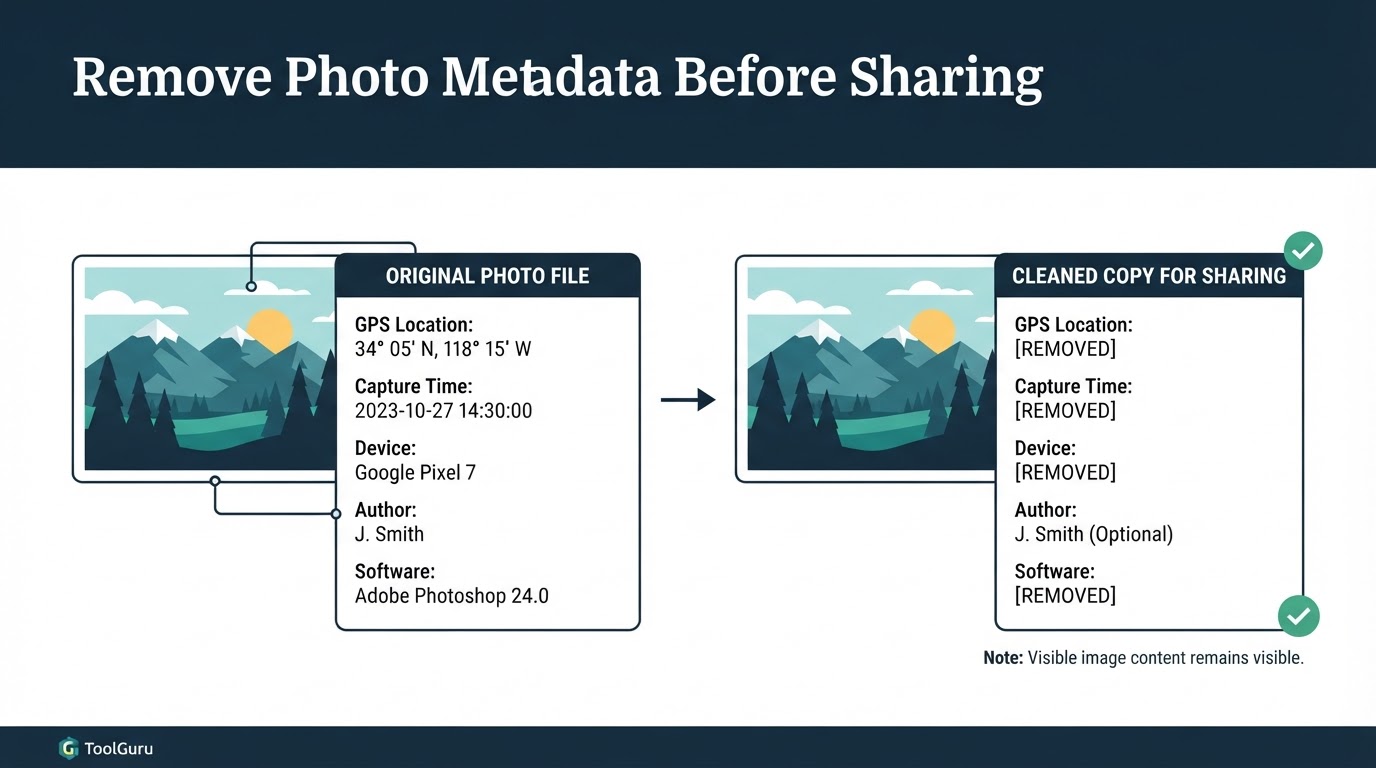
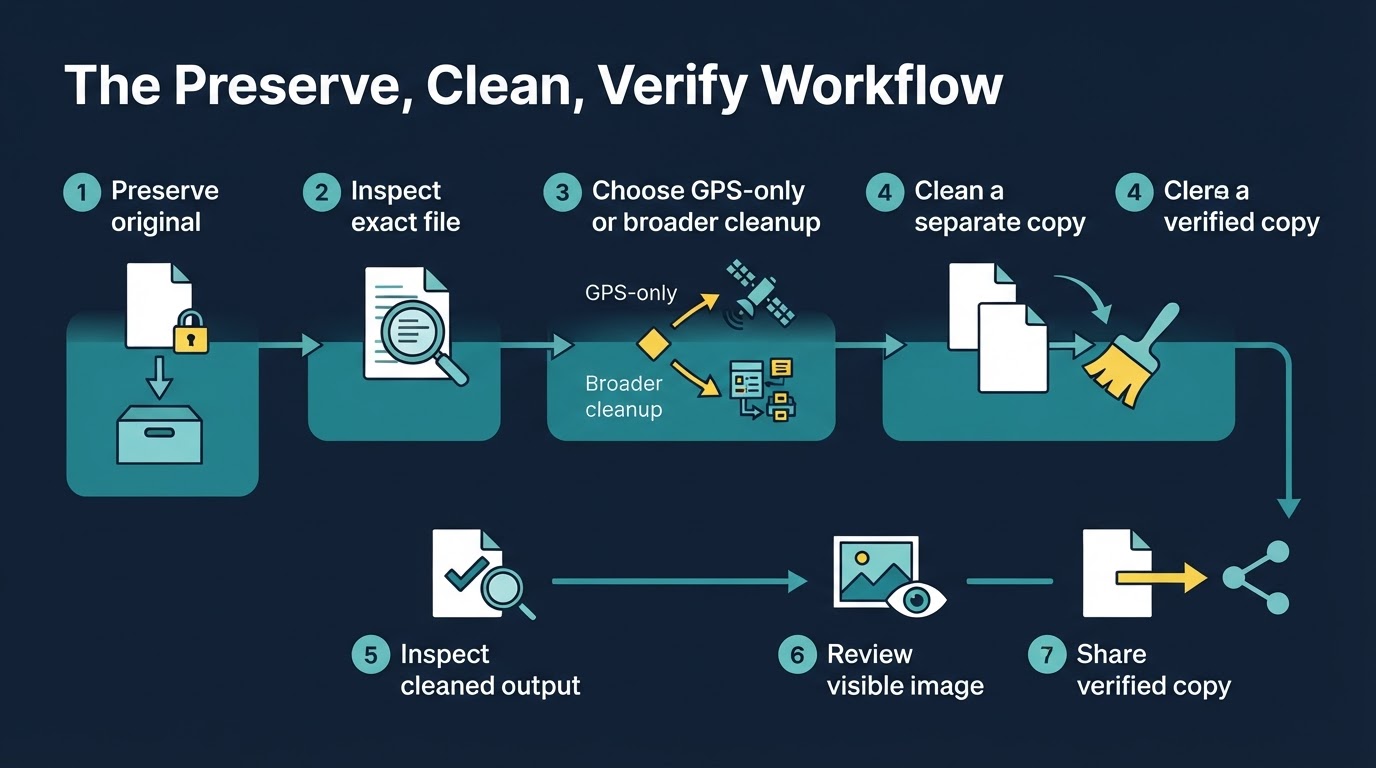
A photo can contain more than the pixels you see. Embedded information may include GPS coordinates, capture time, camera or phone details, software, author, copyright, comments, and editing data. The safest way to remove metadata from photos is to keep the original, inspect the exact file you plan to share, create a cleaned copy, verify the output, review the visible image, and share only the verified copy. This reduces information embedded in the file, but it does not guarantee anonymity or erase visible clues, platform records, cloud data, or copies that were already shared.
Quick Answer: How to Remove Metadata from Photos
Use this repeatable process:
- Preserve the original photo in a separate location.
- Inspect the exact file you intend to share.
- Decide whether you need to remove GPS only or broader metadata.
- Clean a copy with a built-in control or a suitable local utility.
- Inspect the cleaned copy with a metadata viewer.
- Review the visible image for signs, documents, faces, reflections, and recognizable locations.
- Upload or send only the verified copy.
For highly sensitive images, local processing can reduce exposure to third-party upload services. It is still important to use trusted, current software and verify the result.
What Is Photo Metadata?
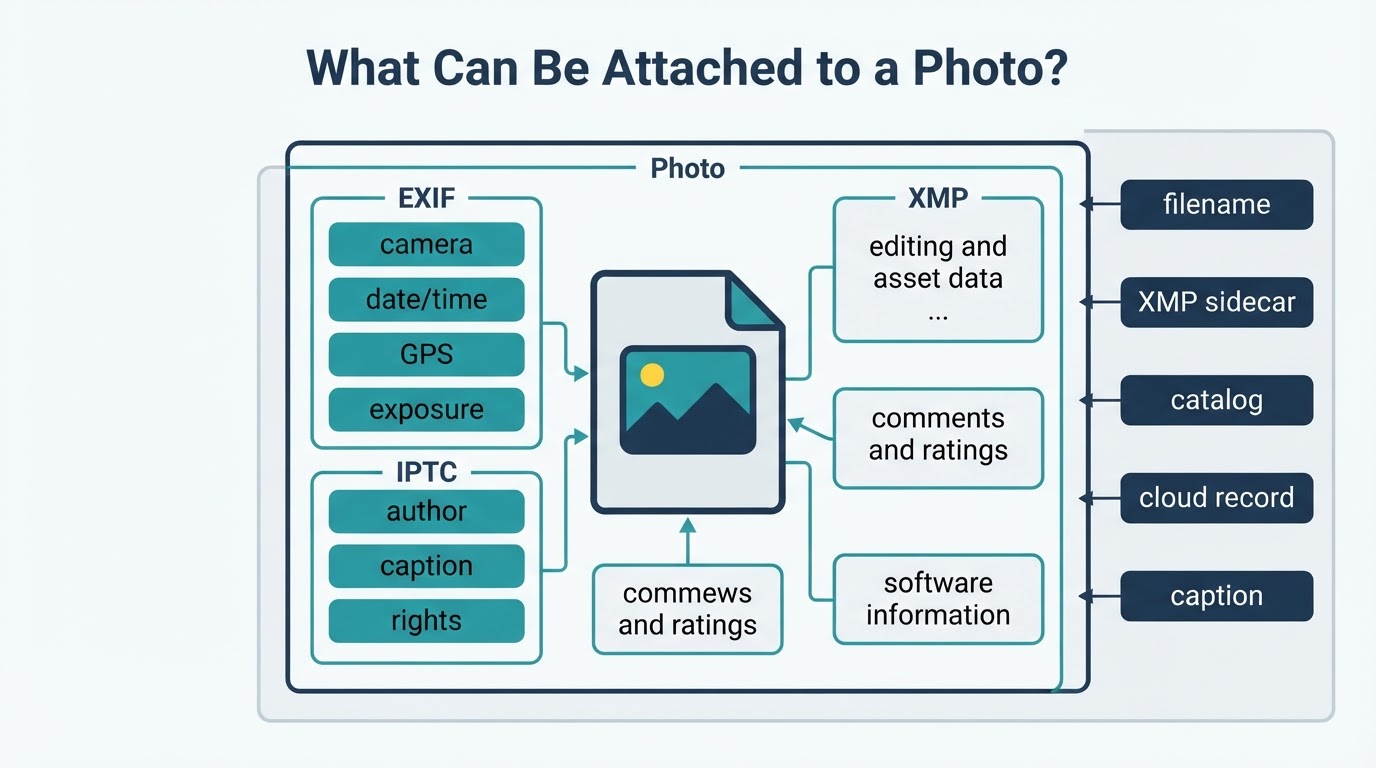
Photo metadata is information stored in or associated with an image in addition to its visible pixels. Cameras, smartphones, editing applications, and photo-management tools can add or change these fields. Metadata can help organize images, document how they were created, manage rights, and support editing workflows, so removing it is not always appropriate for every copy.
Why Remove Metadata Before Sharing a Photo?
Removing metadata can reduce information disclosed through a shared file. GPS data deserves particular attention because it may reveal a home, workplace, school, event venue, or travel destination. Other fields may reveal the device used, the capture time, the creator's name, editing software, copyright details, or private comments.
A cleaned copy can be useful for social posts, marketplaces, forums, websites, email, messaging, client delivery, classroom work, and workplace images. Keep a metadata-rich original when the information may be useful for records, copyright, editing history, or future organization.
How to Check Photo Metadata Before Sharing
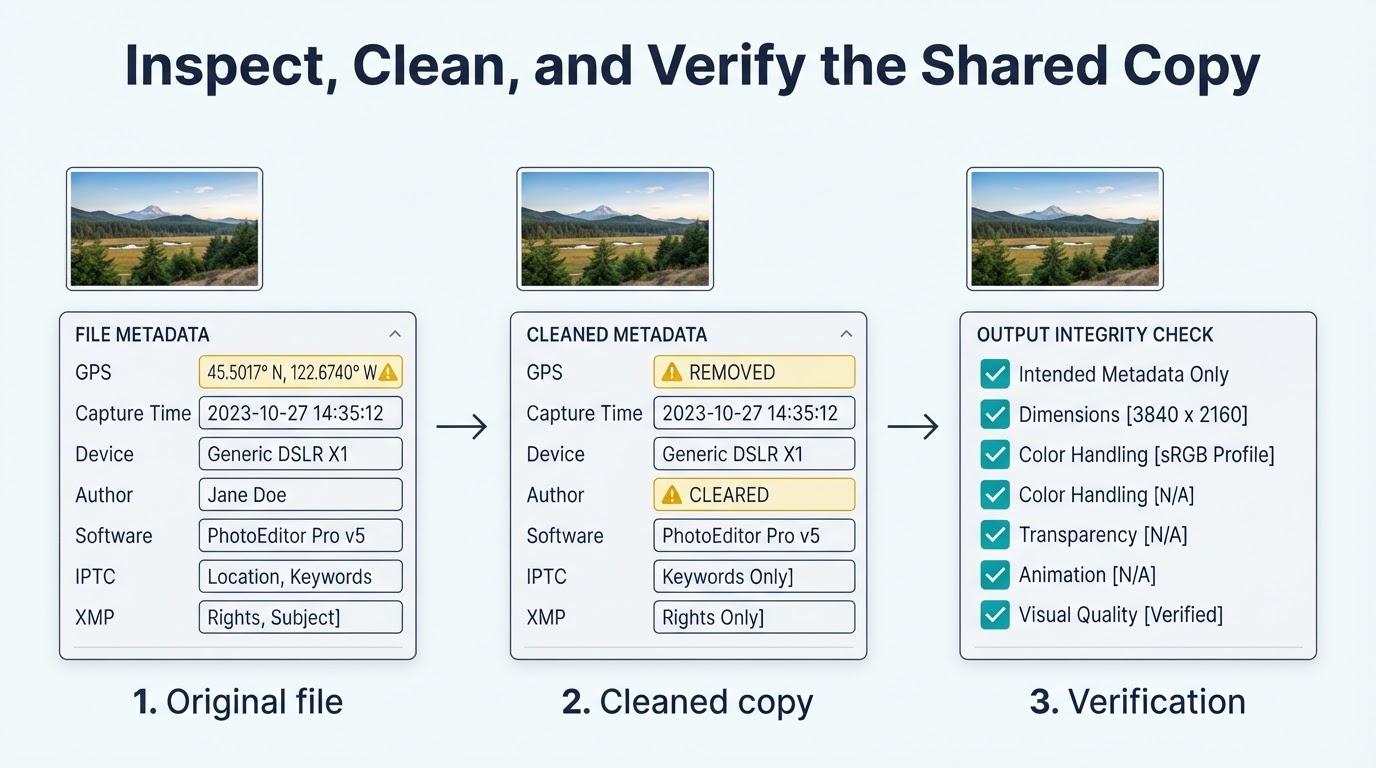
Inspect the exact file that will be uploaded or sent. An exported, resized, edited, or converted image may contain different metadata from the original in your photo library.
You can use an operating-system property view, a photo application's information panel, a metadata viewer, or a local utility such as ExifTool. The tool you choose may show only some metadata sections, so a basic property view should not be treated as a complete audit.
How to Remove Metadata from Photos on Different Devices
Platform behavior varies by operating-system version, file format, manufacturer, application, and sharing route. The steps below distinguish between preventing future geotagging, excluding location from one shared copy, and removing broader metadata from an existing file.
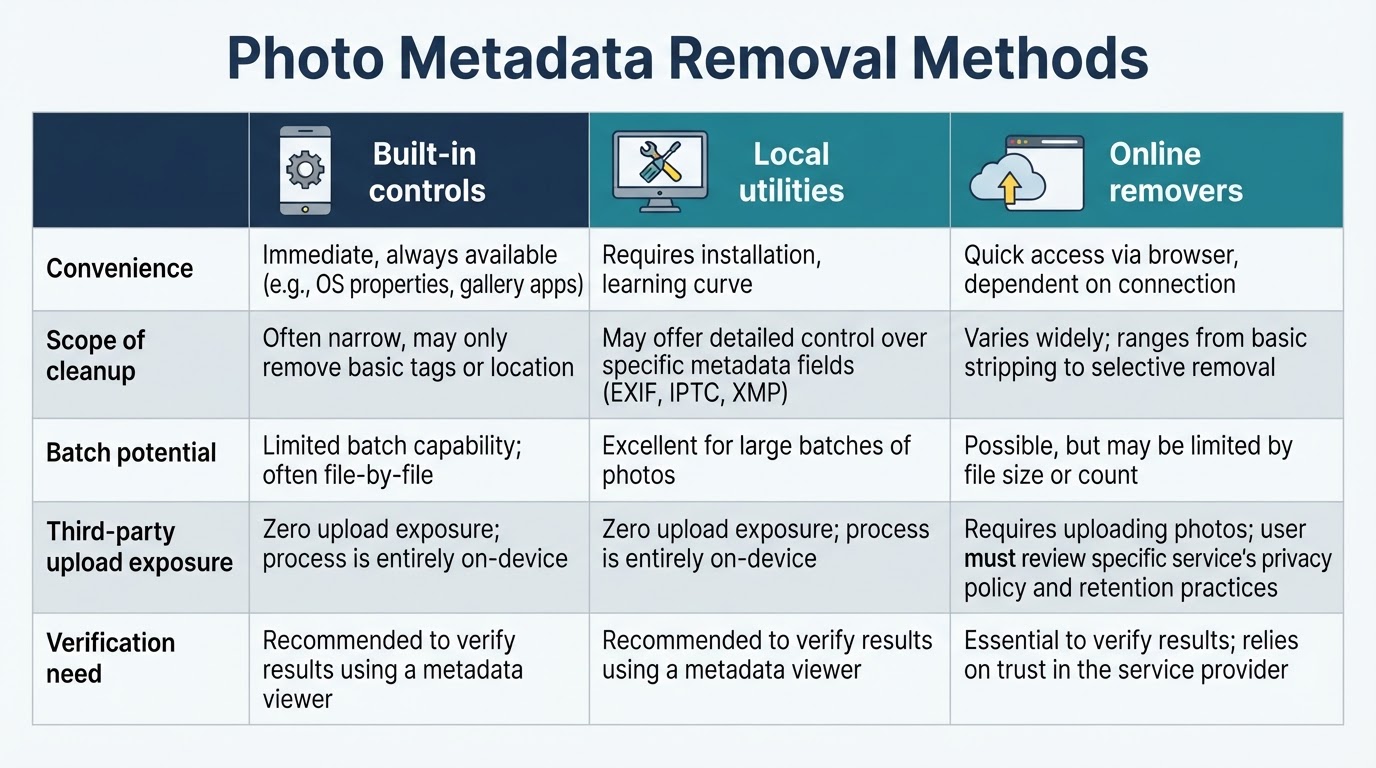
Choose a Removal Method
The best method depends on the image's sensitivity, the number of files, the metadata scope, and your technical comfort.
Test the Sharing Route When It Matters
Do not assume that a social platform, email service, or messaging app removes all metadata. Behavior can vary by service, app version, file format, compression, and whether the image is sent as media or as a file attachment. A rendered preview may also differ from the downloadable file.
To test a route:
- Use a non-sensitive sample image with known metadata.
- Send it through the exact upload or attachment path you plan to use.
- Download the received file rather than checking only the preview.
- Inspect the received file with a metadata viewer.
- Use the result to decide whether pre-cleaning is still necessary.
This test applies only to the route and service version tested. It does not establish how every other sharing path behaves.
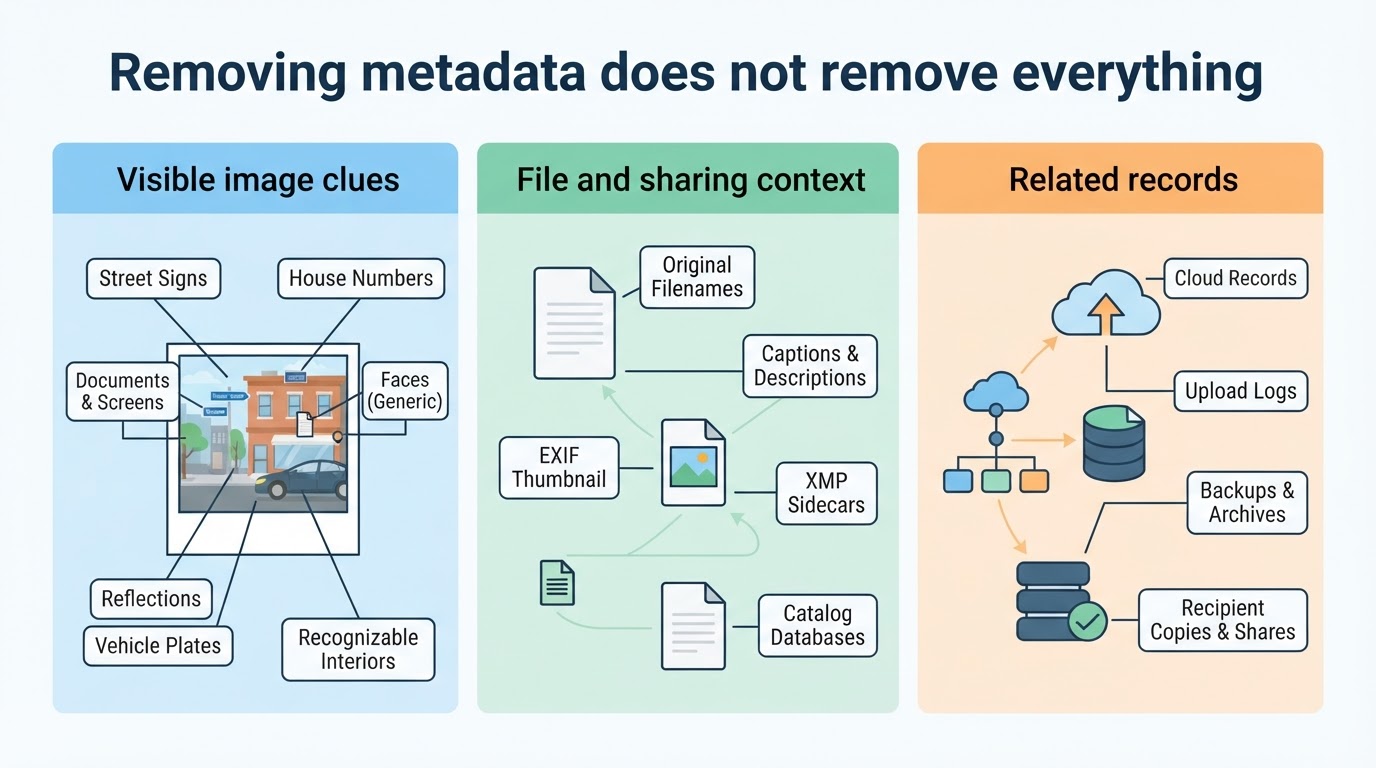
What Metadata Removal Cannot Hide
Metadata removal reduces information embedded in the file. It does not blur, redact, crop, or conceal visible content. Review the image for:
- Street signs, house numbers, and landmarks
- Documents, screens, badges, and uniforms
- Faces, reflections, and vehicle plates
- Recognizable interiors and location-specific surroundings
- Captions, filenames, or other context that identify the subject
It also does not remove XMP sidecars, catalog databases, cloud records, backups, upload logs, platform records, or copies held by recipients unless those systems are handled separately. A cleaned file cannot undo information that was already uploaded, forwarded, downloaded, or archived.
Image Quality and File Integrity After Cleaning
Some operations change only metadata. Others rewrite, resize, convert, or re-encode the image. The result may differ in file size, dimensions, compression, color profile, transparency, animation, compatibility, or visual quality.
Compare the cleaned copy with the original when these properties matter. Preserve ICC profiles when color accuracy is important, and check orientation data if removing or rewriting metadata could affect how the image displays. Metadata removal is not automatically lossless.
Common Metadata-Removal Mistakes
Avoid these common errors:
- Assuming a social, email, or messaging service strips all metadata.
- Cleaning one copy but attaching the original.
- Disabling camera location recording and assuming existing photos were cleaned.
- Treating Windows properties as a universal metadata scrubber.
- Assuming an ordinary Mac export, crop, edit, or screenshot removes every field.
- Removing GPS while overlooking author, copyright, software, comments, IPTC, XMP, previews, or sidecar files.
- Removing ICC profiles or orientation data without considering color and display behavior.
- Overwriting the only copy and losing useful rights or workflow information.
- Uploading a sensitive image to an online service without reviewing its data practices.
The practical remedy is to preserve the original, clean a separate copy, inspect the output, review the visible image, and verify the intended sharing route when necessary.
Conclusion
To remove metadata from photos responsibly, preserve the original, inspect the intended file, clean a separate copy, verify the relevant metadata fields, review the visible image, and share only the verified result. Built-in controls can help with narrow tasks, while local utilities may provide broader control. Online tools require careful review of their data practices. Metadata removal reduces embedded file information, but it does not erase visible clues, related records, or copies held by other parties.