
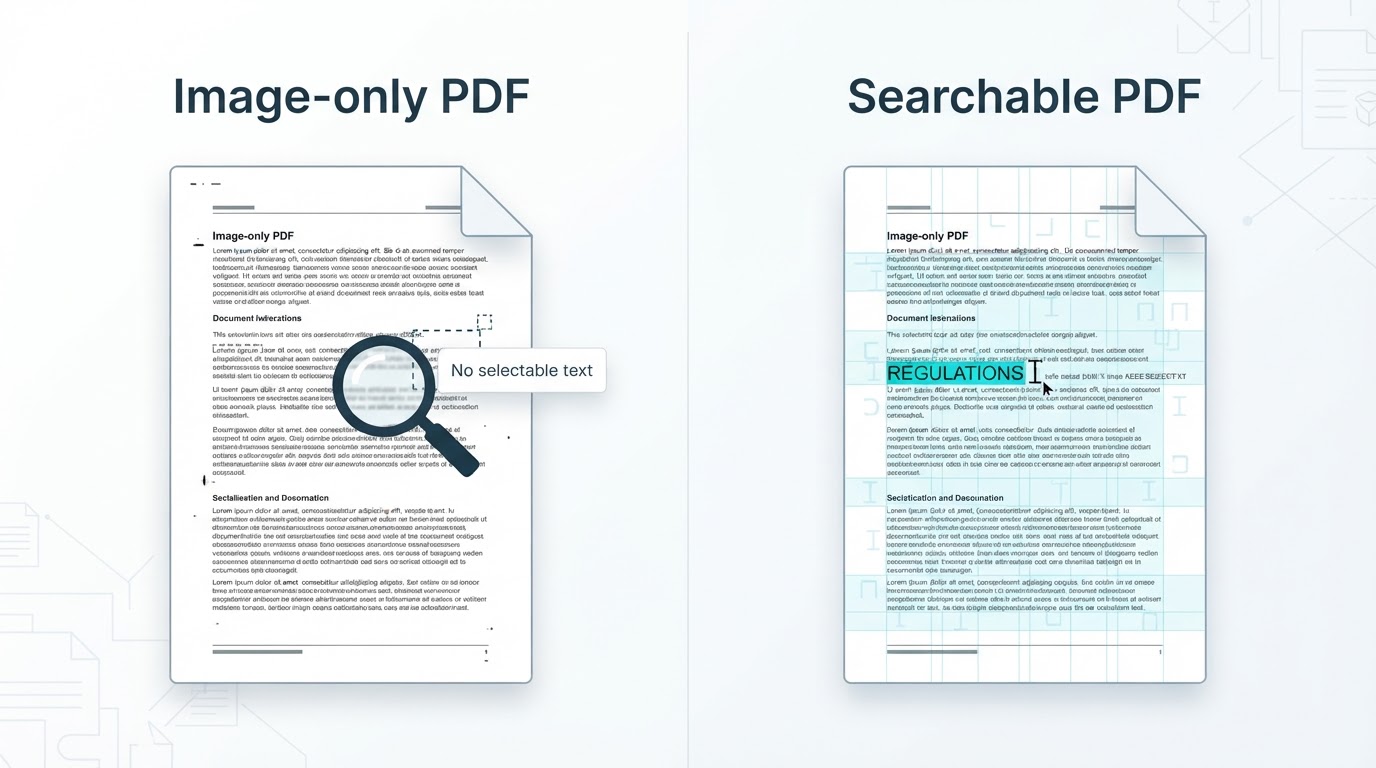
A scanned PDF can look like a normal digital document while containing only page images. When that happens, you may not be able to select a word, search for a phrase, or copy text into another application. OCR, short for Optical Character Recognition, analyzes the page image and creates machine-readable text. In a searchable PDF, this text is commonly associated with the page image so the original appearance can remain largely intact while searching, highlighting, and copying become possible. This guide explains how to identify an image-only PDF, OCR a scanned document, extract recognized text, choose between browser-based and local processing, and verify the result before relying on it.
What Is OCR in a PDF?
OCR converts text shown in a scanned image into machine-readable characters. When applied to a PDF, the recognized text is associated with its position on the page. Many searchable-PDF workflows use a text layer over or alongside the original page image, but the exact internal structure depends on the application or service. The result may preserve much of the scan's appearance while making words searchable and selectable. OCR is useful for finding information in archives, copying passages, and preparing scanned documents for review. It does not automatically create a perfect transcription or a fully editable reconstruction of the original document.
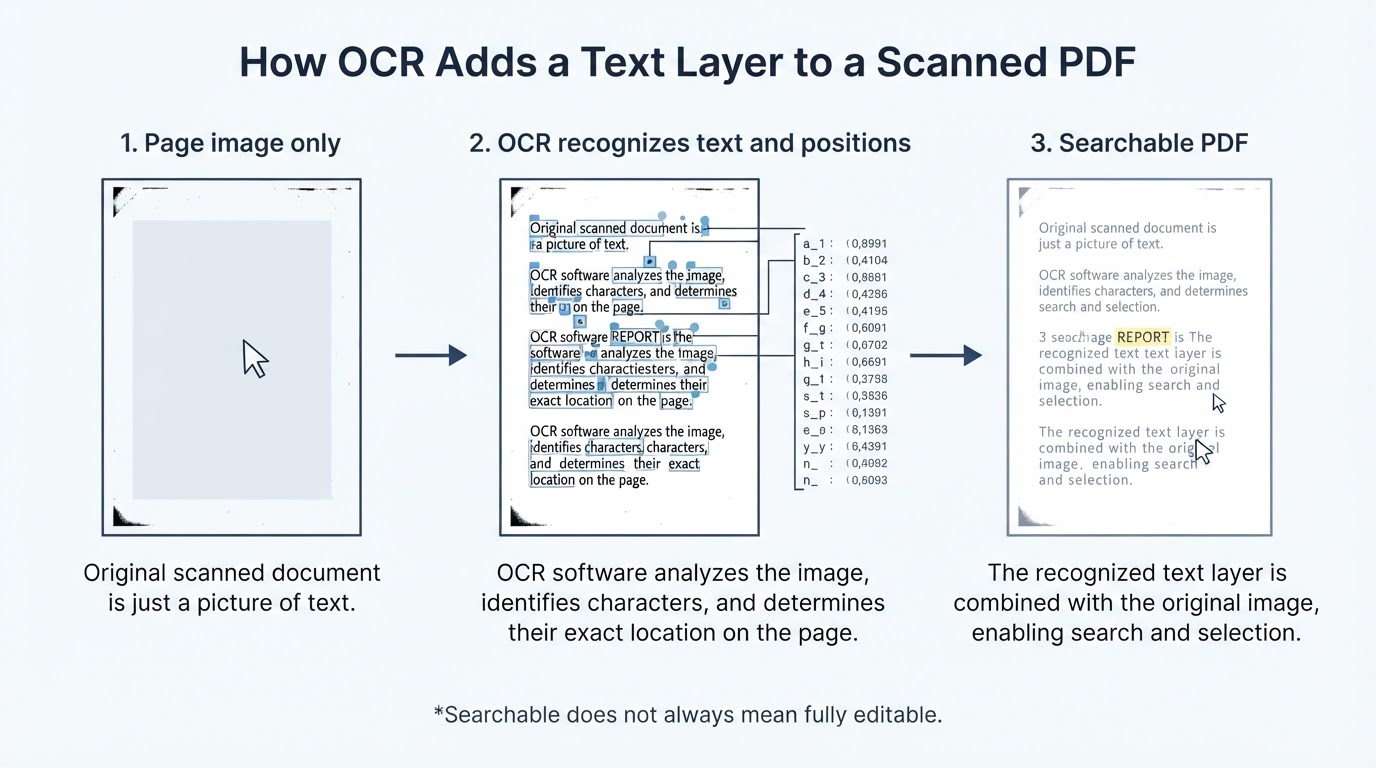
How to Tell Whether a PDF Needs OCR
Before processing a file, check whether it already contains usable text. Open the PDF in a viewer and try selecting an individual word. Then search for a distinctive word that is clearly visible on more than one page. If you cannot select text and searches return no results, the document may be image-only and may need OCR. This is an initial diagnostic, not a definitive test. A failed search can also result from an incorrect term, malformed text encoding, document restrictions, viewer limitations, or an incomplete text layer. If the result is unclear, test another page, use another visible word, or open the file in another PDF viewer.
How to OCR a Scanned PDF
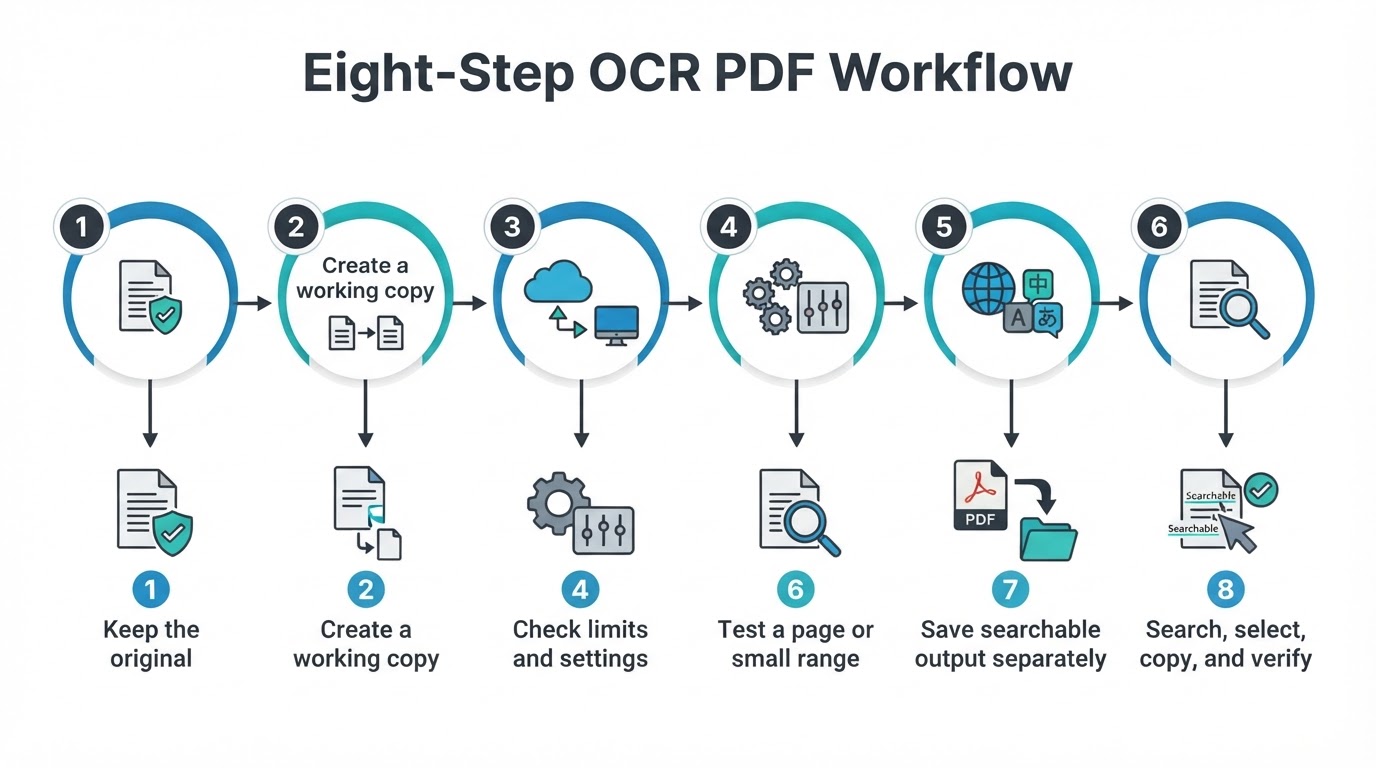
The exact buttons and options vary between applications and services, but the core OCR PDF workflow is similar: preserve the original, select suitable recognition settings, create a searchable output, and verify what was produced.
Extracting Text After OCR
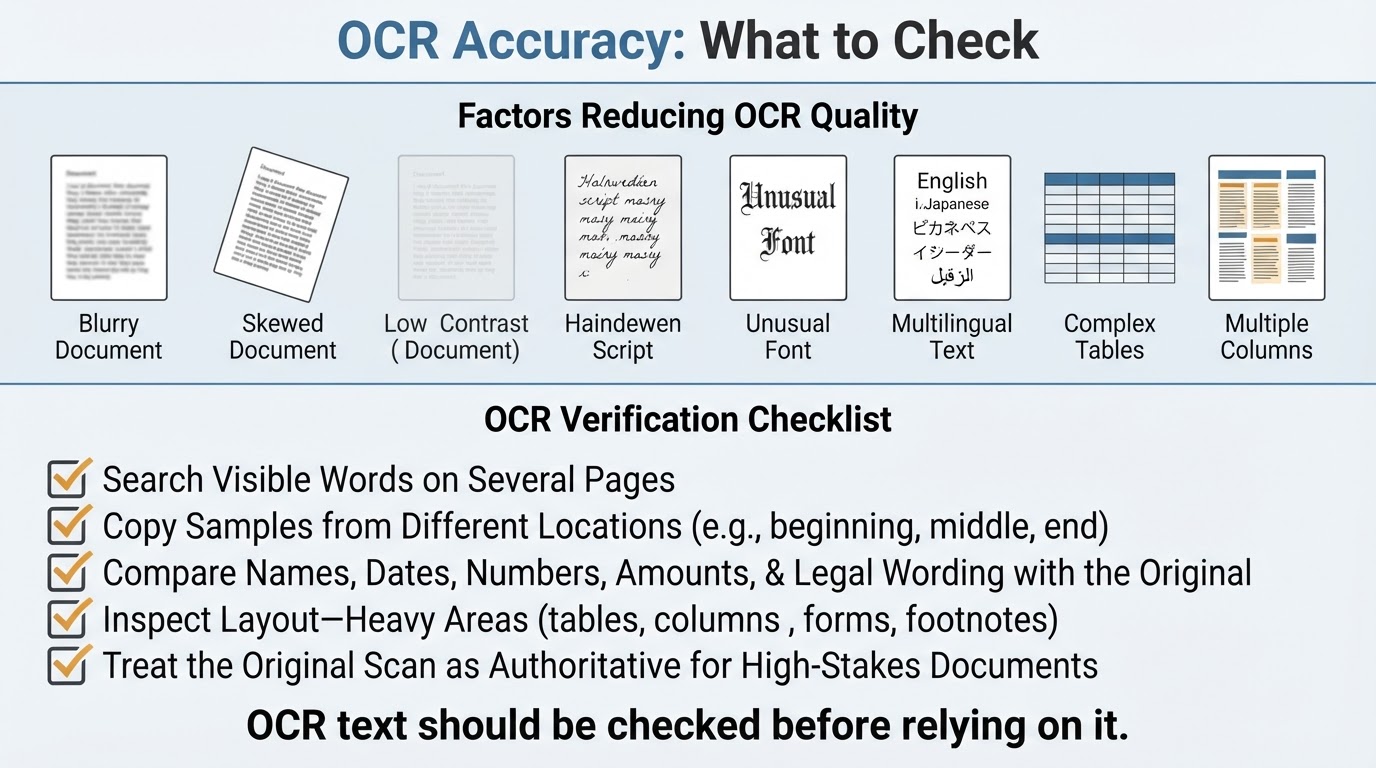
After OCR finishes, open the generated PDF and search for several words that are visibly present on different pages. Select a passage from the beginning, middle, and end of the file and paste it into a text editor. This quick check shows whether the text layer is usable and whether characters, spacing, or reading order have been misread. If the selected workflow supports PDF-to-TXT output, you may export the recognized content as plain text. Conversion to Word or another editable format can also be useful when supported, but it may require substantial cleanup.
How Accurate Is OCR?
OCR can misread, omit, duplicate, or incorrectly space characters and words. Results depend on the source image and the document's complexity. Clear printed pages are generally easier to recognize than handwriting, cursive, decorative type, unusual symbols, or mixed orientations. Even when individual words are correct, the reading order may be wrong in columns, tables, forms, footnotes, stamps, or marginal notes. Treat OCR as recognized text that requires checking, not as an automatically authoritative transcription.
Handling Handwriting, Tables, and Complex Layouts
OCR support and performance vary by recognition engine and language. Handwriting and cursive can be more difficult to recognize than clear printed text, so critical handwritten content requires close comparison with the source. Tables and forms may produce recognizable words while losing cell relationships, alignment, or reading order. Multi-column pages, footnotes, stamps, marginal notes, and mixed orientations can also cause text to appear in an unexpected sequence. For high-stakes or highly structured files, use OCR as an extraction aid and plan for manual cleanup and review.
Is Online OCR Safe for Sensitive PDFs?
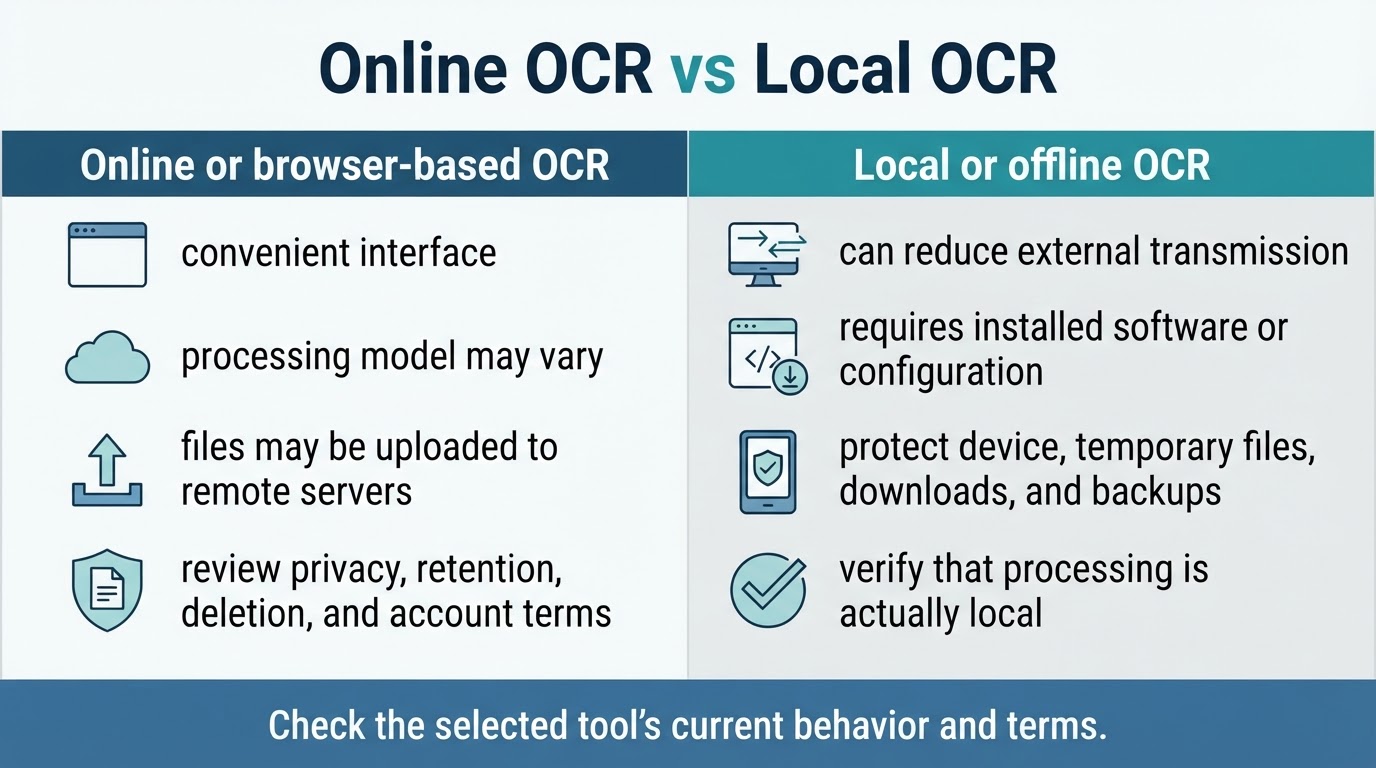
If an OCR service uploads files to remote servers, the document is transmitted to an external provider for processing. Not every browser-based workflow uses that model, so check the provider's documentation rather than inferring the processing location from the interface alone. Before using a remote service for contracts, identity documents, financial records, medical records, or internal business files, review its current privacy policy, processing model, retention terms, deletion controls, logs, analytics, third-party processors, subprocessors, backups, jurisdiction, account requirements, and data-use terms. Policy statements describe the provider's stated practices but do not independently guarantee secure handling.
Troubleshooting Common OCR Problems
If no text can be selected after processing, confirm that you opened the OCR-generated file rather than the original scan or an image-only export. If searches fail, check the spelling of the visible word, test another page, and confirm that the selected language matches the document. If the text appears scrambled, look for columns, tables, forms, footnotes, or another unusual reading order. Incorrect characters often indicate problems with scan quality, orientation, contrast, or language settings; improve those factors and run OCR again. If only part of the document works, identify whether certain page types require separate processing. When the output is searchable but not cleanly editable, use the text layer for search and copying or expect manual formatting work after export.
Conclusion
Start by checking whether the PDF already contains reliable selectable and searchable text. OCR is mainly needed for image-only or unusable text layers. When processing is necessary, preserve the original, choose the correct supported language, select an online or local workflow based on the document's sensitivity, and save a separate searchable output. OCR produces recognized text, not a guaranteed transcription, so compare important content with the original scan before relying on it.