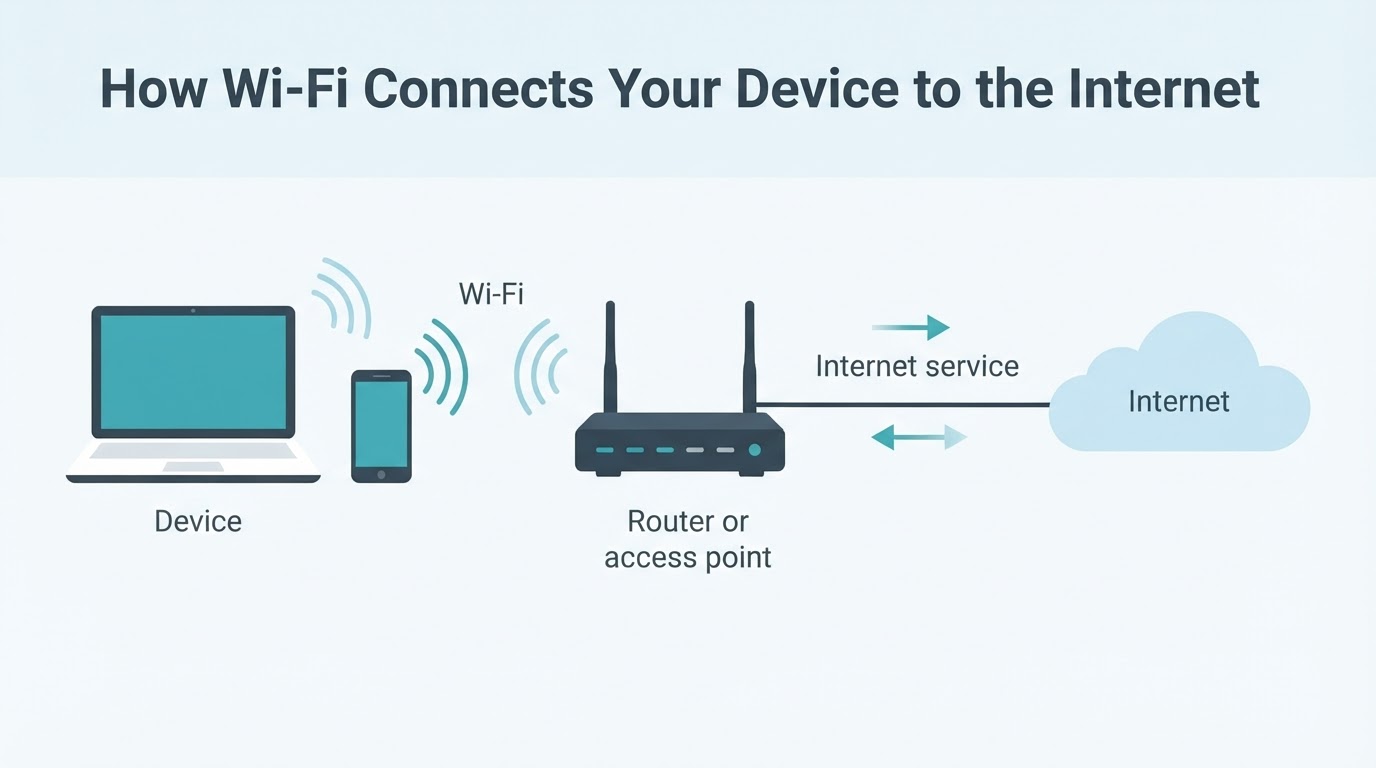
Understanding how Wi-Fi works makes common connection problems easier to diagnose. Wi-Fi is the wireless link between a device and a router or access point. Internet service is a separate connection that carries traffic beyond your local network.
A typical path looks like this:
Device → Wi-Fi → Router or access point → Internet service → Internet
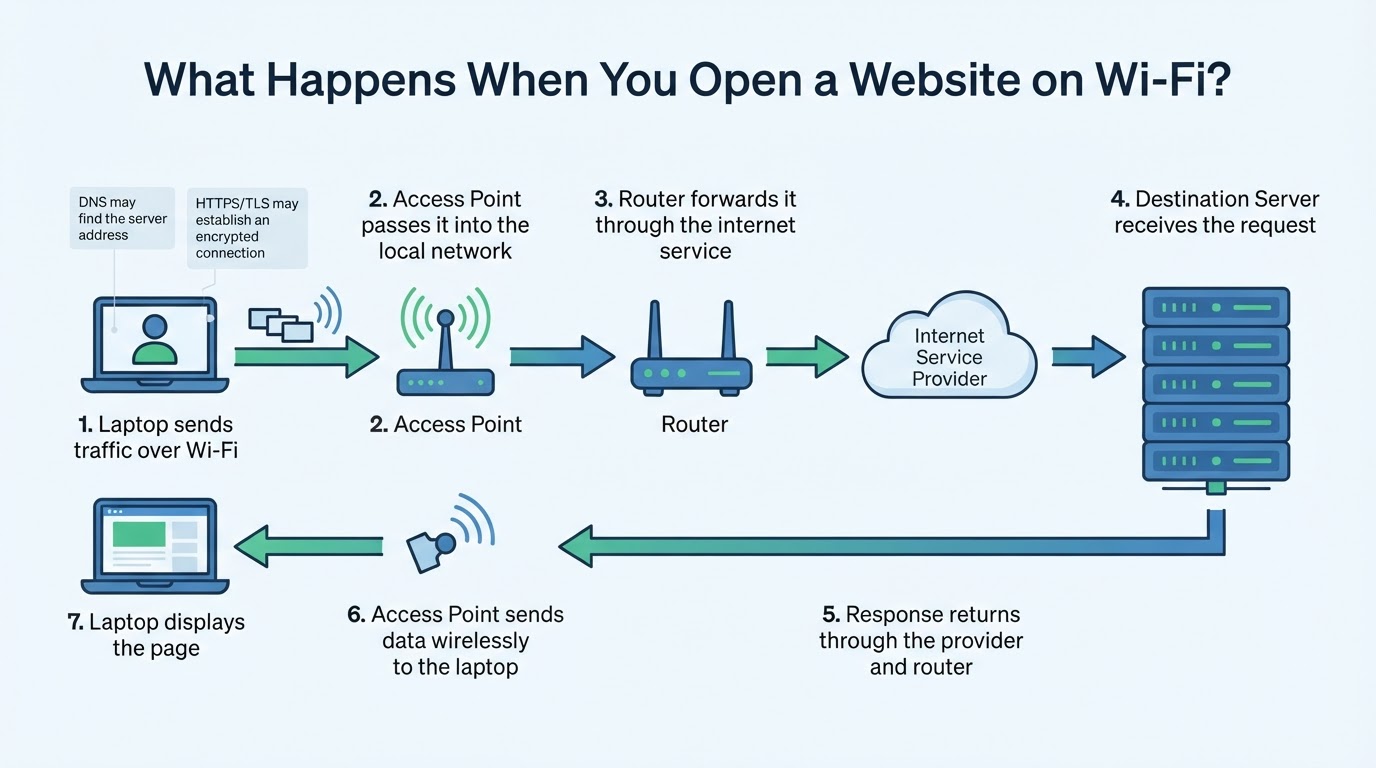
When you open a website, your device sends data over radio waves to the access point. The router then forwards it through your broadband connection. The response returns through the same general path. You can be connected to Wi-Fi but have no internet access, or have a fast internet plan but poor Wi-Fi performance in one room.
This guide explains how Wi-Fi connects devices, what routers and access points do, how the main frequency bands and Wi-Fi generations differ, how to secure a home network, and how to troubleshoot problems before buying new equipment.
What Is Wi-Fi in Simple Terms?
Wi-Fi is a family of wireless networking technologies based on IEEE 802.11 standards. It allows compatible devices to exchange data over radio transmissions instead of an Ethernet cable.
Phones, laptops, printers, televisions, sensors, and other devices can join a local network through a wireless access point. That local network may connect to the internet through a router and an internet service.
How Wi-Fi Connects a Device to the Internet
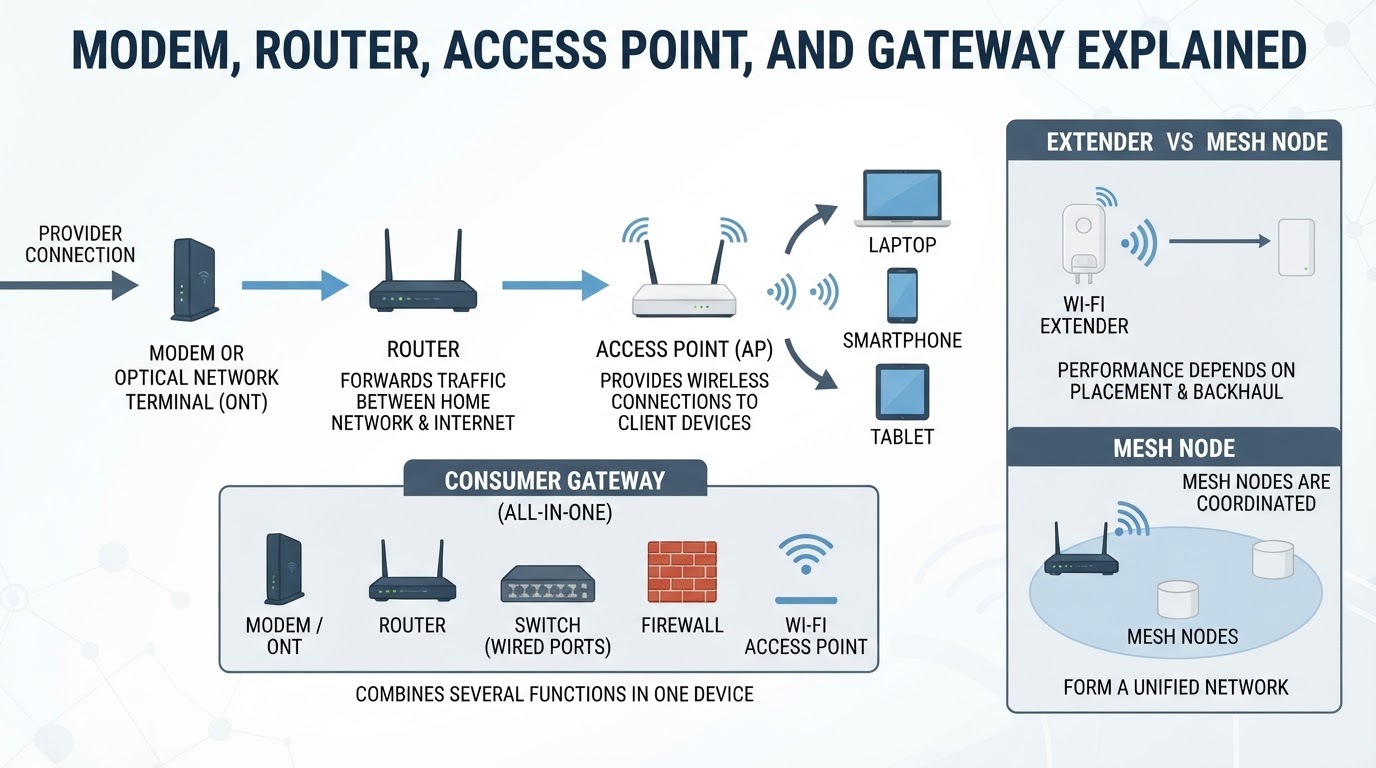
Depending on the type of service, an internet connection reaches a modem, optical network terminal, gateway, or similar provider device. The router manages the local network and forwards traffic between local devices and the internet service.
The access point advertises the network name, supported bands, channels, and security settings. A compatible device scans for nearby networks, authenticates, associates with the access point, and receives the network information needed for local communication and internet access.
Router vs. Modem vs. Access Point
These terms are often confused because consumer equipment commonly combines several functions. Understanding the separate roles makes it easier to identify which part of a network needs attention.
How Radio Waves Carry Data Over Wi-Fi
Wi-Fi converts digital data into radio transmissions that travel between a client and an access point. Wireless spectrum is shared, so multiple devices and nearby networks compete for airtime. The access point and clients coordinate access to the available channel.
Distance, walls, floors, furniture, antennas, signal quality, and interference affect how reliably data can be transmitted. When conditions worsen, devices may use a more robust but slower transmission mode, retransmit data, or lose the connection temporarily.
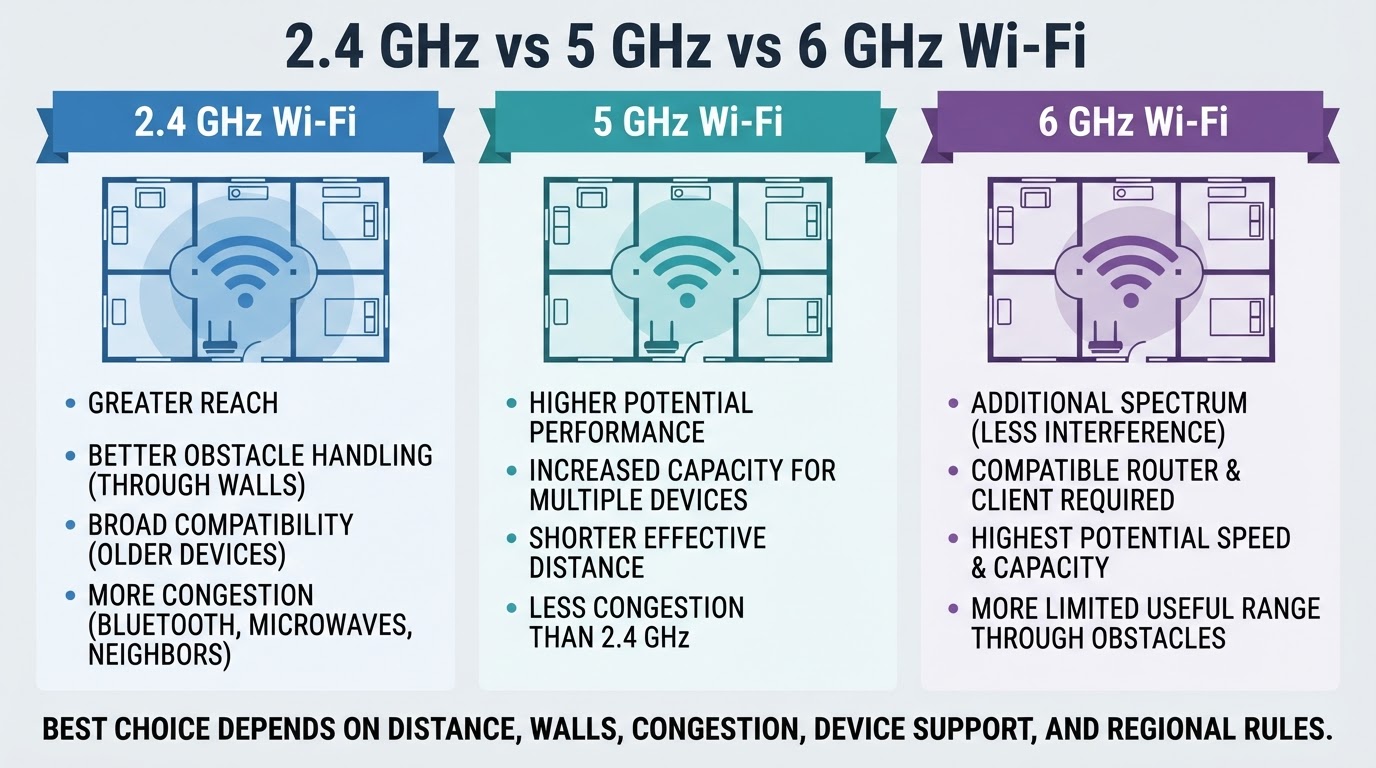
2.4 GHz vs. 5 GHz vs. 6 GHz Wi-Fi
Wi-Fi bands have different strengths and limitations. No single band is always best. The right choice depends on distance, obstacles, congestion, device support, regulatory conditions, and the task being performed.
Wi-Fi Generations: Wi-Fi 4, 5, 6, 6E, and 7
Consumer Wi-Fi labels describe generations and capability families rather than guaranteed speeds:
| Consumer name | Broad IEEE association | Important distinction |
|---|---|---|
| Wi-Fi 4 | 802.11n | Older generation used across common Wi-Fi bands |
| Wi-Fi 5 | 802.11ac | Associated primarily with higher-performance 5 GHz operation |
| Wi-Fi 6 | 802.11ax | Focuses on efficiency and capacity improvements |
| Wi-Fi 6E | Wi-Fi 6 with 6 GHz support | Requires explicit 6 GHz support from the access point and client |
| Wi-Fi 7 | 802.11be | Features and practical results vary by equipment, firmware, regulation, and environment |
Wi-Fi Speed, Throughput, Link Rate, and Latency
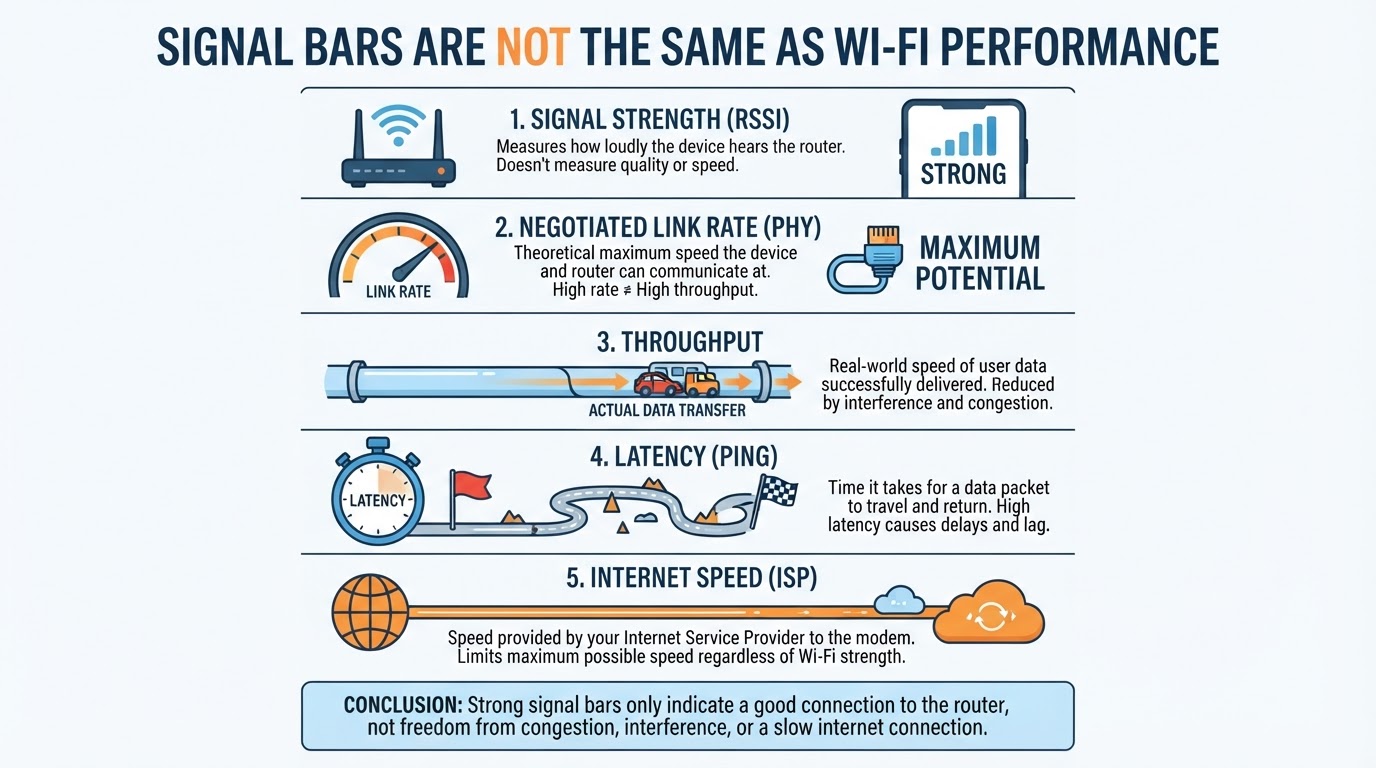
The wireless link rate shown by a device is not the same as the speed experienced by an application. It is a connection figure that does not fully account for protocol overhead, retransmissions, interference, shared airtime, management traffic, and competing devices. Useful throughput is therefore lower.
Internet performance also depends on the broadband plan, provider network, router, DNS, destination server, application, and wider internet path. Latency measures responsiveness and can matter more than peak throughput for video calls, gaming, remote work, and other interactive applications.
Why Wi-Fi Gets Weak, Slow, or Unreliable
Distance and obstructions weaken the received signal and can force devices to use slower transmission modes. The 2.4 GHz band may also be congested because it is widely used by nearby networks and household technologies.
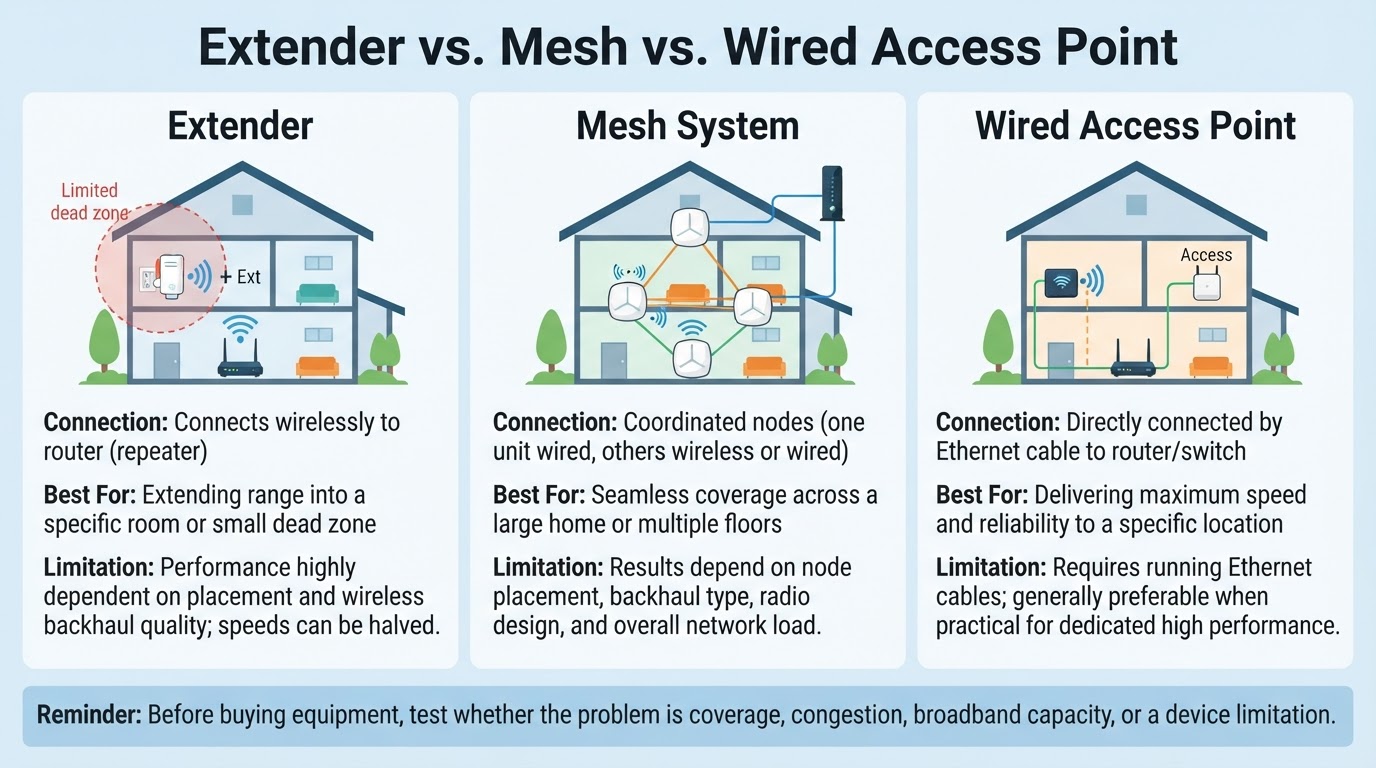
Multiple active devices share available airtime. As usage increases, throughput may fall and latency may rise. Router placement matters too: enclosed locations, floor-level placement, large obstructions, and positioning the router at one extreme of a home can create avoidable coverage problems.
Wi-Fi Security and Privacy
Use WPA3-Personal where supported. If older devices require a fallback, use WPA2-Personal with AES or the strongest broadly supported modern configuration available on the router. Avoid open private networks and obsolete modes such as WEP, WPA, or TKIP where the router allows them to be disabled.
Use a long, unique Wi-Fi passphrase and do not reuse it for unrelated accounts. Change default administrator credentials and install router firmware updates through the manufacturer's documented process. Router menus, update methods, security modes, and WPA2/WPA3 transition behavior vary by model and firmware.
A Wi-Fi password protects access to the local wireless network. It does not make internet activity private or anonymous. Signal strength and security are separate properties: strong signal bars do not prove that encryption or authentication is configured correctly.
How to Diagnose Slow or Unreliable Wi-Fi
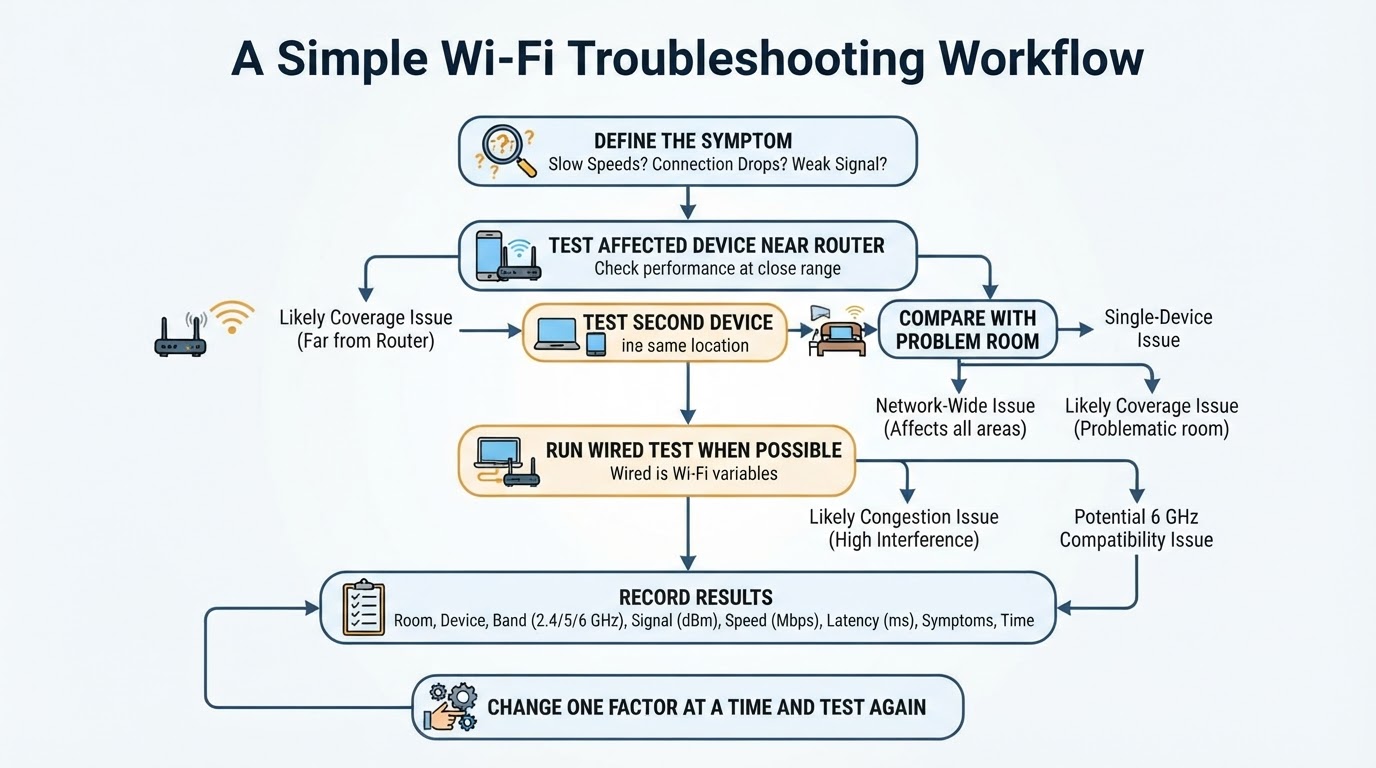
Start by defining the symptom: no connection, weak signal, low throughput, high latency, intermittent drops, or slow internet on every device. The answer determines which tests are useful.
Test the affected device near the router and compare it with the original location. Compare multiple devices to determine whether the problem is device-specific or network-wide. When possible, run a wired test. Use the same device, test service, and approximate time for comparisons where practical.
If the device or router exposes the information, check the connected band, Wi-Fi generation, negotiated link rate, and security mode. The location of these values varies by operating system, device, router, and firmware, so consult the device or router documentation rather than relying on one universal menu path.
Conclusion
Wi-Fi is the local wireless link between your devices and an access point. The internet connection is a separate part of the path, which is why a device can remain connected to Wi-Fi while internet access fails.
Real-world performance depends on both ends of the wireless connection, the radio environment, router placement, active devices, and broadband service. The 2.4 GHz, 5 GHz, and 6 GHz bands involve different trade-offs, and Wi-Fi 6 is not the same as Wi-Fi 6E.
Before upgrading hardware, compare near-router, remote-room, and wired tests when possible. For security, use a modern supported mode such as WPA3 or WPA2-Personal with AES, choose a unique passphrase, change administrator credentials, keep firmware updated, and review guest-network isolation.