A screen recording captures activity displayed on a phone, tablet, or computer and saves it as a video. You can use one to explain a software problem, create a tutorial, demonstrate a workflow, record a presentation, or show someone how to use an app.
The best way to screen record depends on your operating system, software version, device manufacturer, and recording goal. You may need the entire screen, a selected area, an application, or a particular window. You may also want microphone narration, device or application audio, both, or neither.
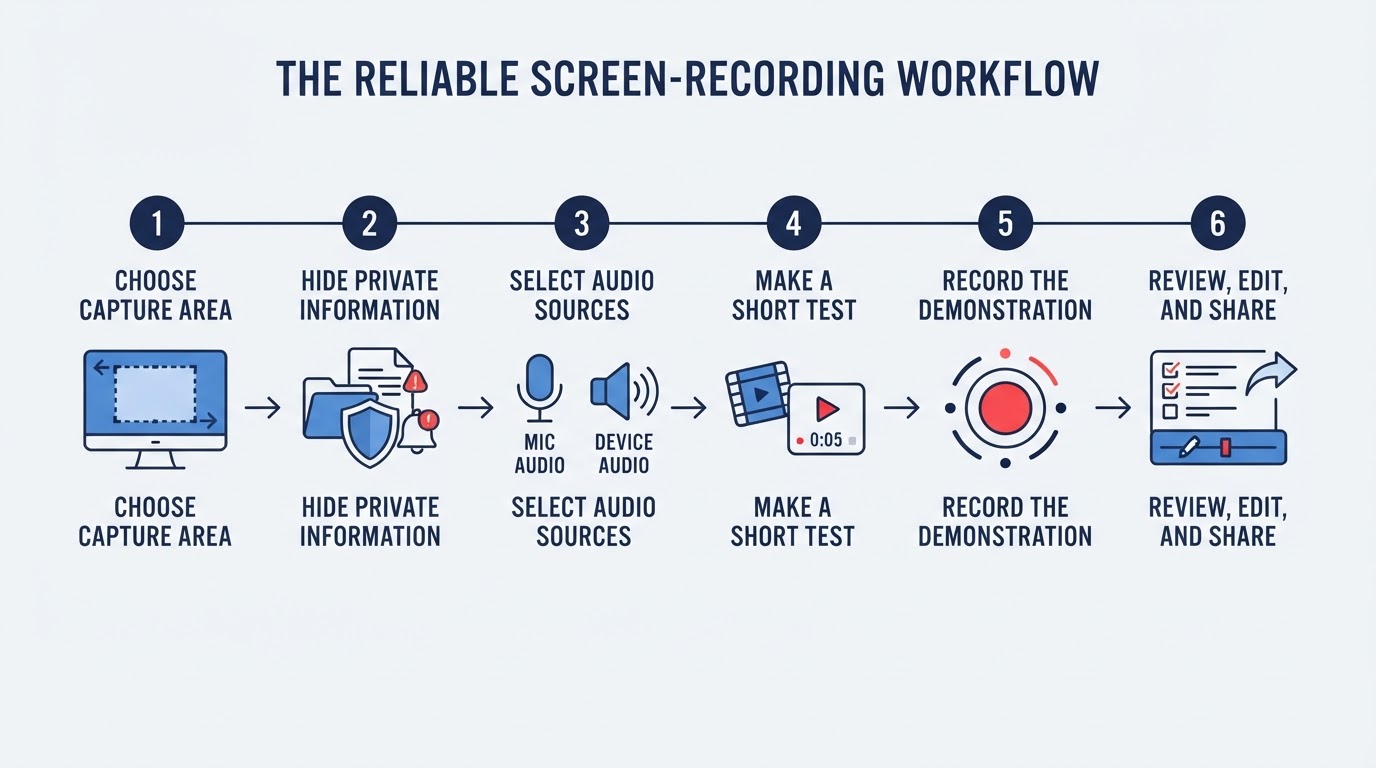
The built-in recorder is usually the simplest option. Before you start, prepare the screen, hide private information, choose the audio sources, and make a short test recording. Then review the finished file before sharing it.
Quick Screen-Recording Guide
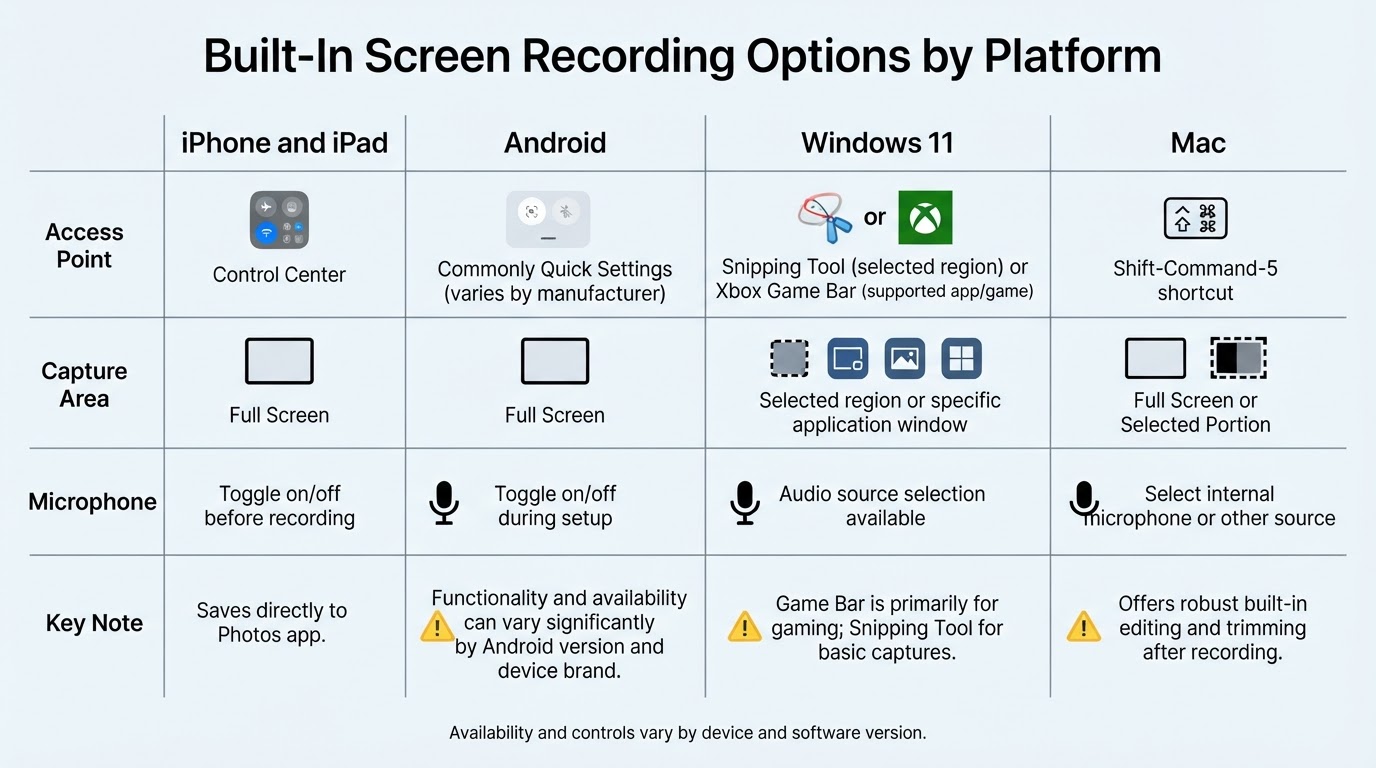
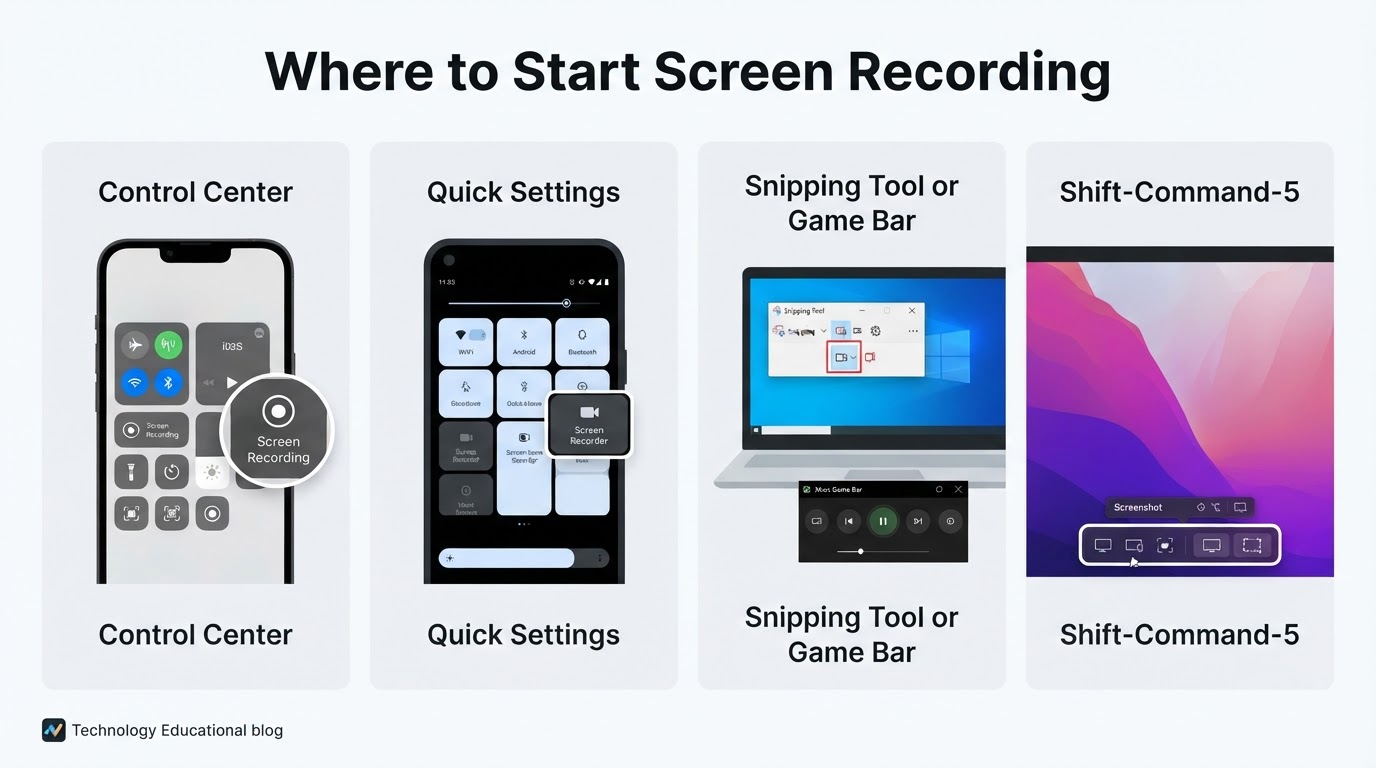
Choose the method that matches the area you need to capture:
- iPhone and iPad: Use Screen Recording from Control Center. Standard recordings are saved in Photos.
- Android: Look for Screen Recorder in Quick Settings on supported devices. The feature name, location, audio choices, and save location vary by manufacturer and software version.
- Windows 11: Use Snipping Tool for selected-region recording when the current version supports video capture. Use Xbox Game Bar for supported application- or game-focused recording.
- Mac: Press Shift-Command-5 to open the Screenshot toolbar, then record the entire screen or a selected portion.
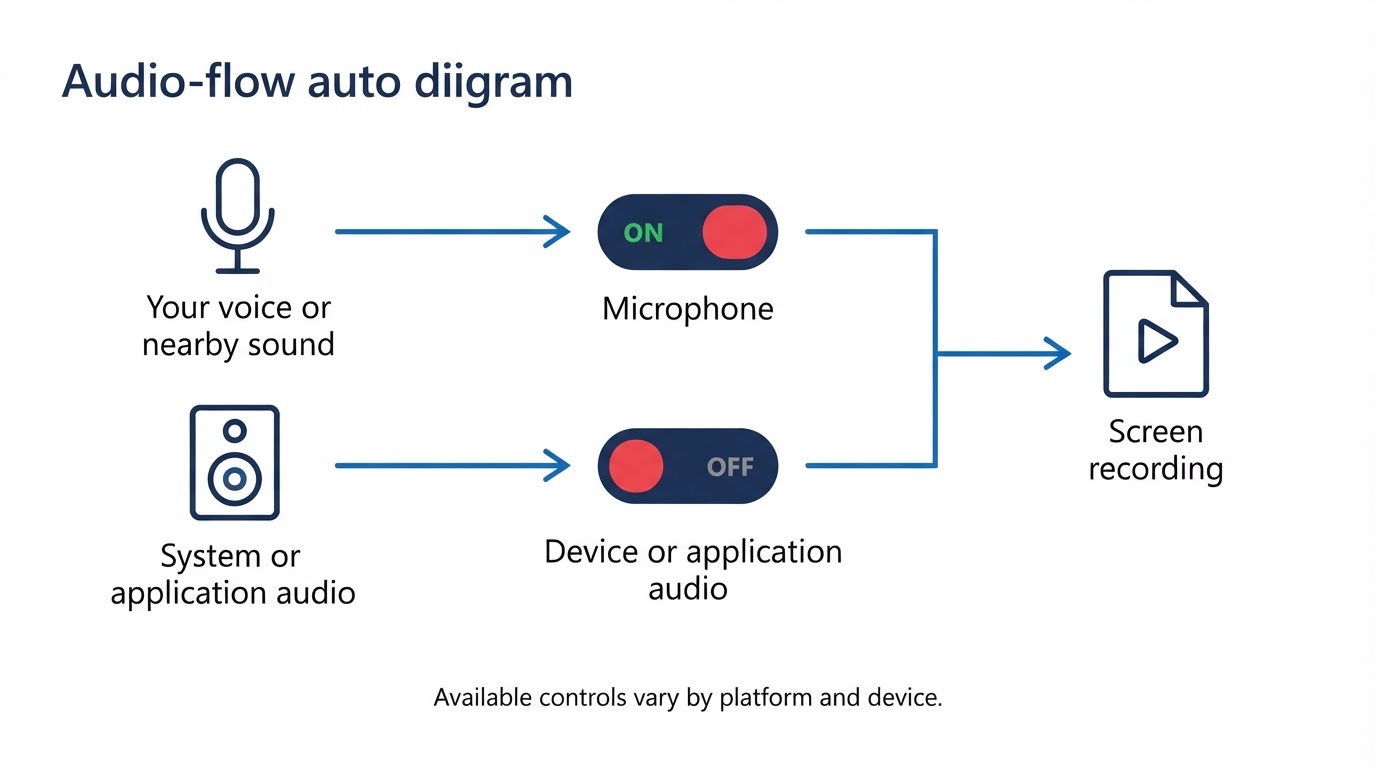
Microphone audio and system, application, or device audio are separate choices. A microphone captures your narration or nearby sound. System or device audio captures sound produced by an application or operating system. Enabling one does not necessarily enable the other.
How to Screen Record on iPhone and iPad
iPhone and iPad include a built-in Screen Recording control in Control Center.
- Open Control Center. The gesture can vary by device model and iOS or iPadOS version.
- Tap the Screen Recording control. A countdown begins before recording starts.
- Perform the actions you want to capture.
- Stop the recording using the on-screen recording indicator or the relevant Control Center control.
- Open Photos to review, edit, and share the video.
If Screen Recording is not visible, use the current Control Center customization options to add it. The location and appearance of these controls can change between iOS and iPadOS releases.
Some applications or protected content may restrict recording or produce black or unavailable footage. That behavior can result from the application or content restrictions rather than a problem with the device.
How to Screen Record on Android
Many supported Android devices provide a native Screen Recorder in Quick Settings. Android 11 or later is a common baseline for this feature, but the Android version alone does not guarantee that the control exists. Manufacturer software, device model, regional configuration, and software build can affect availability and naming.
- Swipe down from the top of the display to open Quick Settings.
- Look for Screen Recorder or a similarly named control.
- If it is not visible, expand or edit Quick Settings and check whether the control is hidden.
- Review the available microphone, device-audio, or other sound-source options.
- Start the recording and complete the demonstration.
- Stop it using the recorder controls or notification controls.
- Open the device's gallery, Photos app, or other media library to find and review the video.
The exact menus, audio choices, permissions, stop controls, and saved-file location vary by manufacturer and software version. Make a short test recording before relying on the feature for a long session.
How to Screen Record on Windows
Windows has more than one built-in recording workflow. The appropriate choice depends on the Windows version and the area you need to capture. The selected-region Snipping Tool workflow applies to supported Windows 11 installations with a current version of Snipping Tool. Xbox Game Bar is primarily intended for supported applications and games and is not a guaranteed universal full-desktop recorder.
How to Screen Record on Mac
Mac includes a built-in screen recorder through the Screenshot toolbar.
- Press Shift-Command-5.
- Choose whether to record the entire screen or a selected portion.
- Open the recording options if you need to select a microphone.
- Start the recording.
- Stop it using the menu-bar control.
- Play back the file and confirm its save location before sharing.
The built-in Screenshot toolbar supports microphone selection for narration. It does not provide the same straightforward native control for recording the Mac's system output audio. If application sound is essential, test the result first; capturing system audio may require a different recording workflow or additional audio-routing capability.
Review, Edit, Save, and Share the Recording
Recording the screen is only the first part of the workflow. Play the entire file before sharing it and confirm that the correct area was captured, text remains readable, the intended narration and device audio are present, and the video opens correctly.
Where the available editor supports it, trim delays, pauses, mistakes, and accidental activity. If private information appeared, remove or obscure it where possible, then review the complete video and any copies before sharing. Editing or cropping does not guarantee that every sensitive detail has been removed from the original file or related records.
File formats and save locations vary by platform, tool, software version, and device configuration. Do not assume that every recording uses the same format or folder. Long or high-resolution recordings generally require more storage and may take longer to process, transfer, or upload.
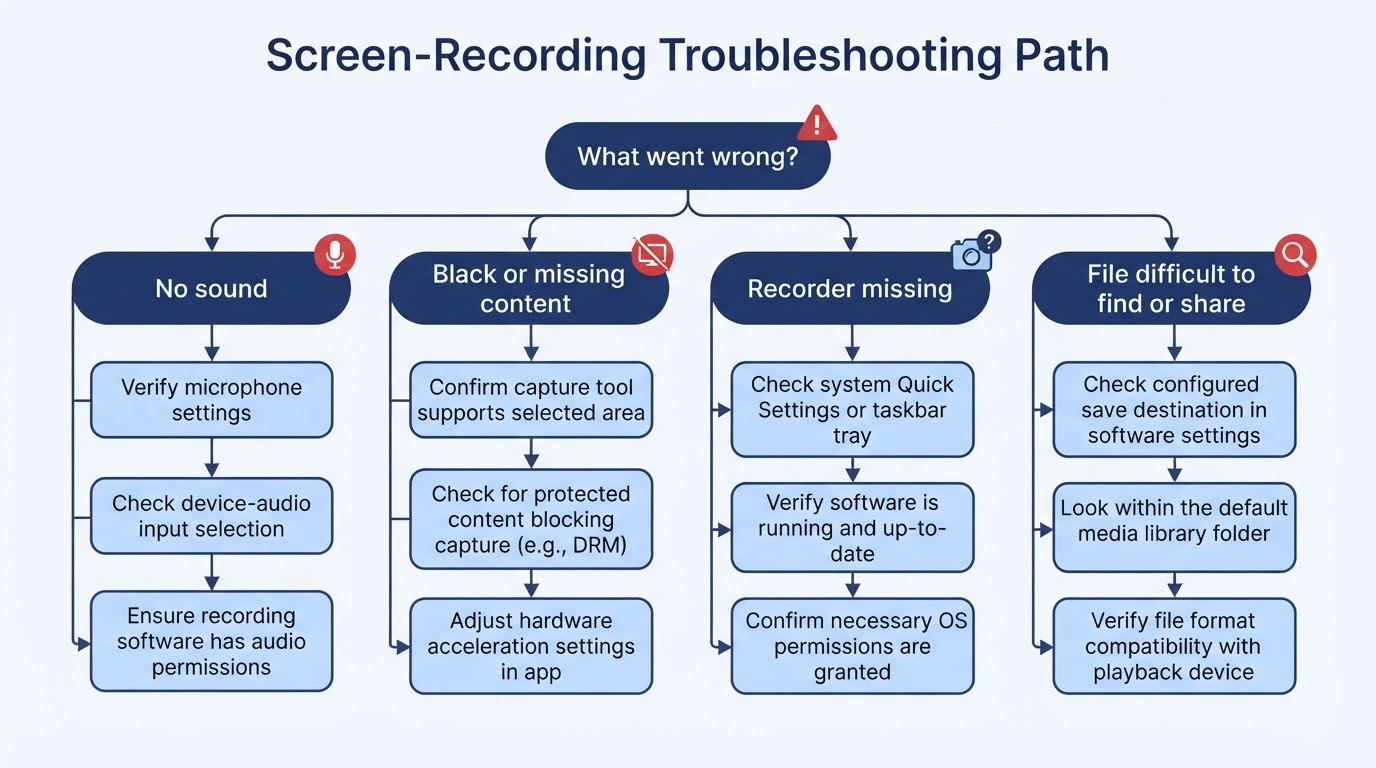
Troubleshoot Common Screen-Recording Problems
When a recording fails, begin with the selected capture area, permissions, audio settings, available storage, and whether the application allows capture. Make a short test after each change rather than repeating an entire long session.
Screen-Recording Privacy and Permission Checklist
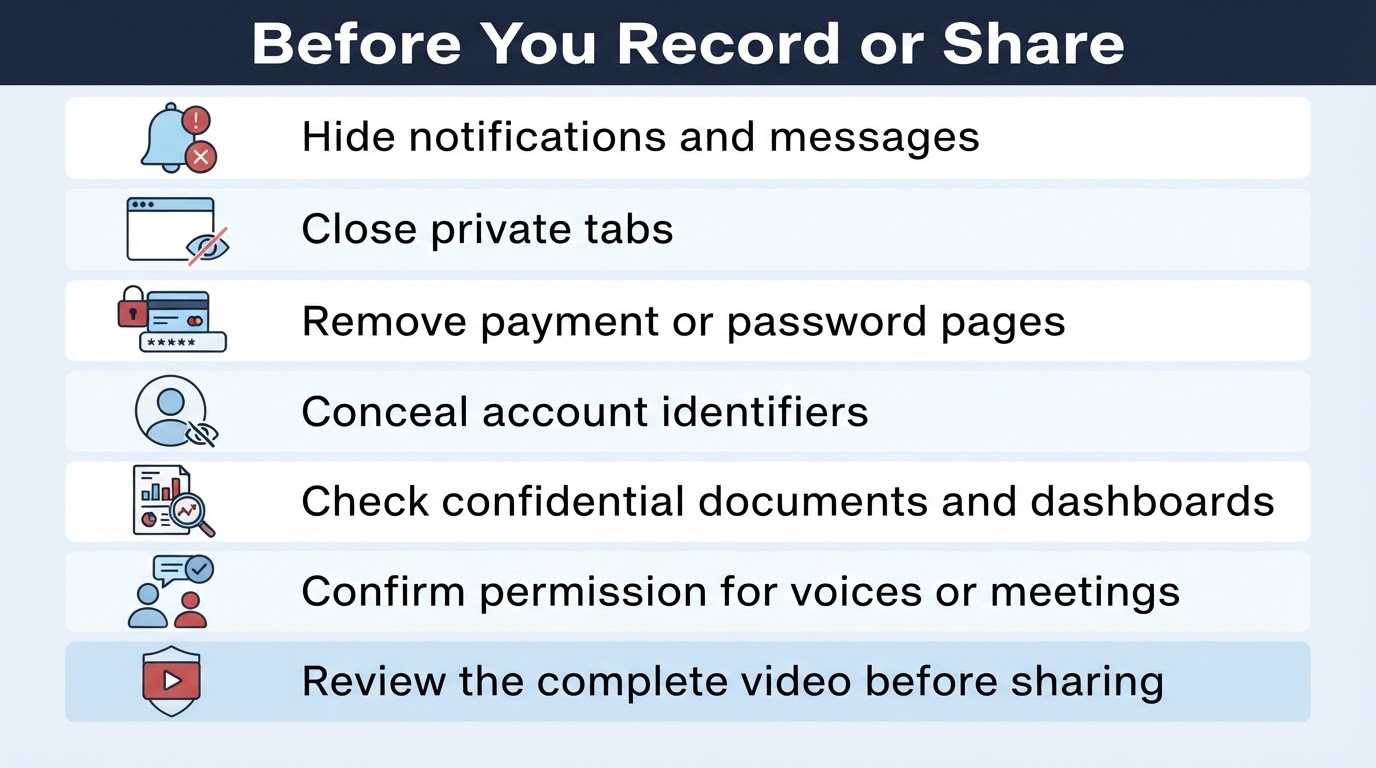
Privacy should be part of the recording workflow, not an afterthought. Hide notifications and close private conversations, email, payment pages, password managers, confidential documents, internal dashboards, and unrelated browser tabs.
Avoid displaying credentials, account identifiers, or information that the intended audience does not need to see. Obtain appropriate permission before recording another person's voice, a meeting, a call, or confidential content. Requirements can vary by jurisdiction, workplace, contract, and platform, so this guide is not a complete legal assessment.
Recording and sharing are separate decisions. Permission to capture something does not necessarily mean you have permission to distribute it. Protected streaming or application content may also be restricted, and successful capture does not by itself grant redistribution rights.
Conclusion
The fastest reliable way to screen record is usually to use your platform's built-in recorder and choose a capture area that matches your goal. Use selected-area recording for focused demonstrations, application-focused recording for supported software or games, and full-screen capture when the entire workflow matters.
Choose microphone and device audio independently, test both, hide private information, and review the finished file before sharing. Native tools are suitable for many tutorials, support clips, and demonstrations; consider advanced software only when you need additional recording or editing control.