
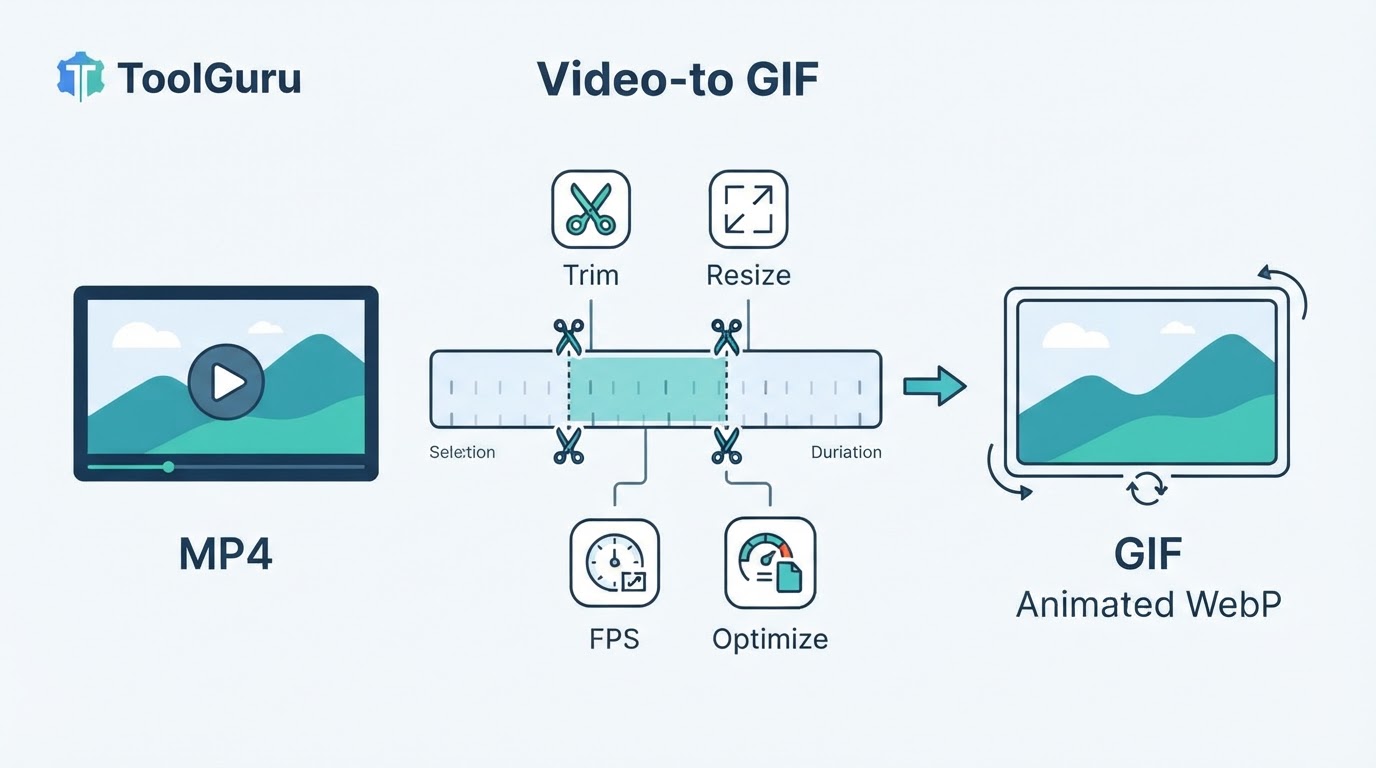
To convert a video to GIF successfully, start with the destination rather than the converter. A short reaction, software demonstration, documentation clip, or messaging post may work well as a GIF, while longer footage or content that needs sound is usually better suited to MP4 or animated WebP.
The practical workflow is simple: select a supported video, choose the section you need, trim it, crop or resize the output, choose a frame rate, export the GIF, and test the result where it will be used. GIFs have no audio channel and use an indexed color palette of up to 256 colors per frame, so duration, dimensions, frame rate, and image detail can affect both quality and file size.
This guide explains how to convert MP4 and other supported video formats to GIF while balancing compatibility, looping, file size, visual quality, and privacy.
Quick Workflow: How to Convert a Video to GIF
Most video-to-GIF converters and desktop applications follow a similar process, although the available controls and processing order vary by tool. A file extension alone does not guarantee support: compatible containers, codecs, browsers, operating systems, and file limits differ between applications.
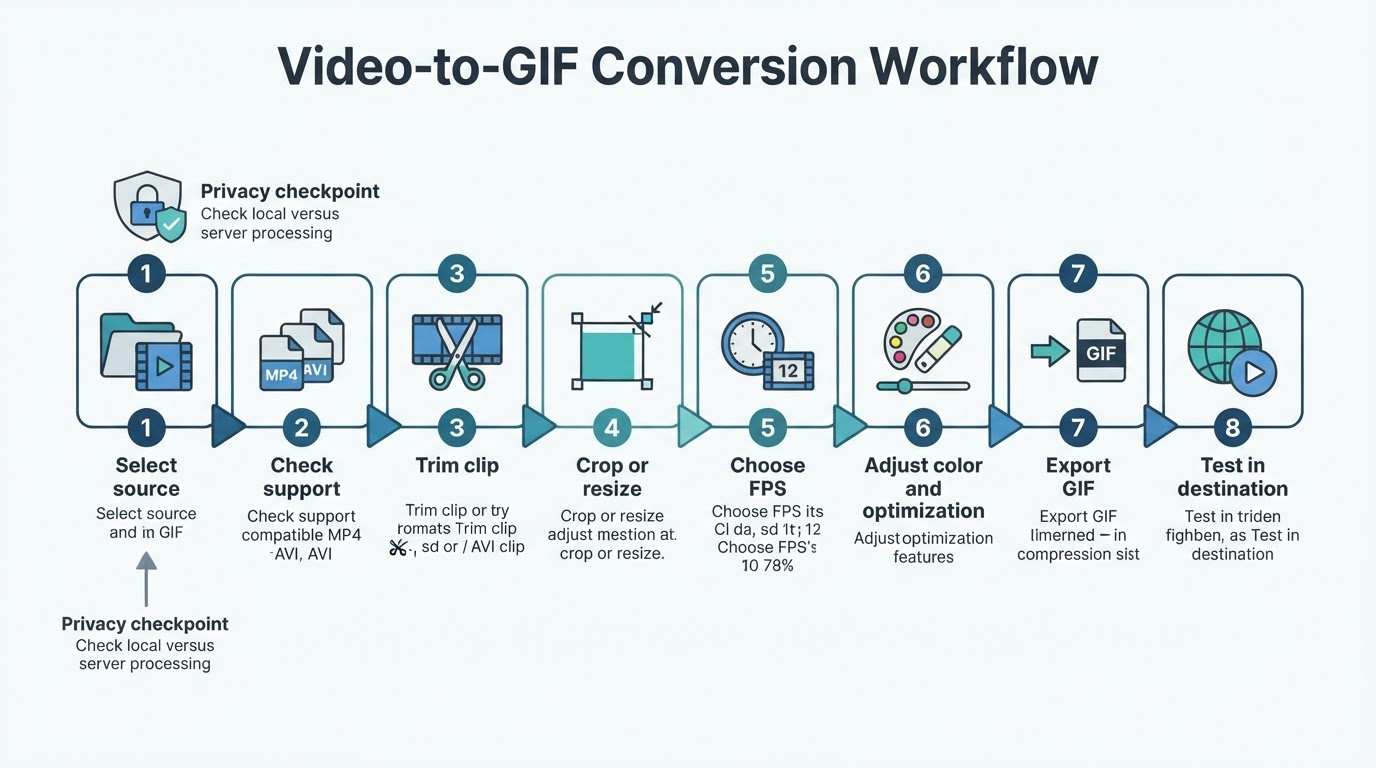
Choose the Right Output Before You Convert
A converter can create the file you request, but GIF is not always the most suitable format. Consider whether the animation needs sound, how long it will play, how detailed the footage is, and what the destination accepts. Platform support, upload limits, resizing, transcoding, and playback behavior are destination-specific and can change.
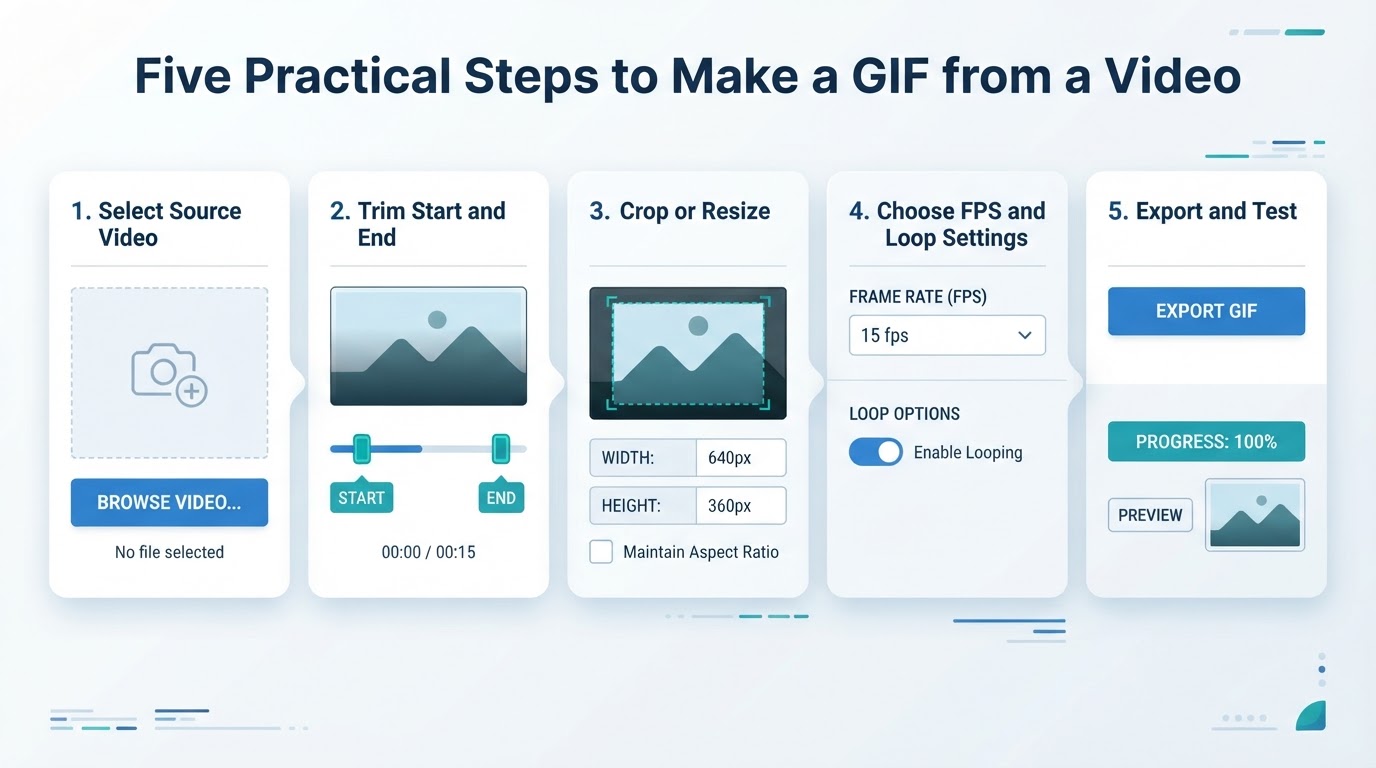
What Happens When a Video Becomes a GIF
After you select a time range, the source video is decoded into individual images. The converter samples those frames at the chosen frame rate, resizes or crops them, maps them to an indexed color palette, and stores timing and available loop information.
The result is a silent animated image rather than a video with an audio track. GIF generally does not use the same inter-frame motion compression found in modern video codecs, which is one reason detailed photographic GIFs can become large. File size also depends on duration, dimensions, frame rate, frame similarity, palette construction, disposal methods, and the encoder's optimization process.
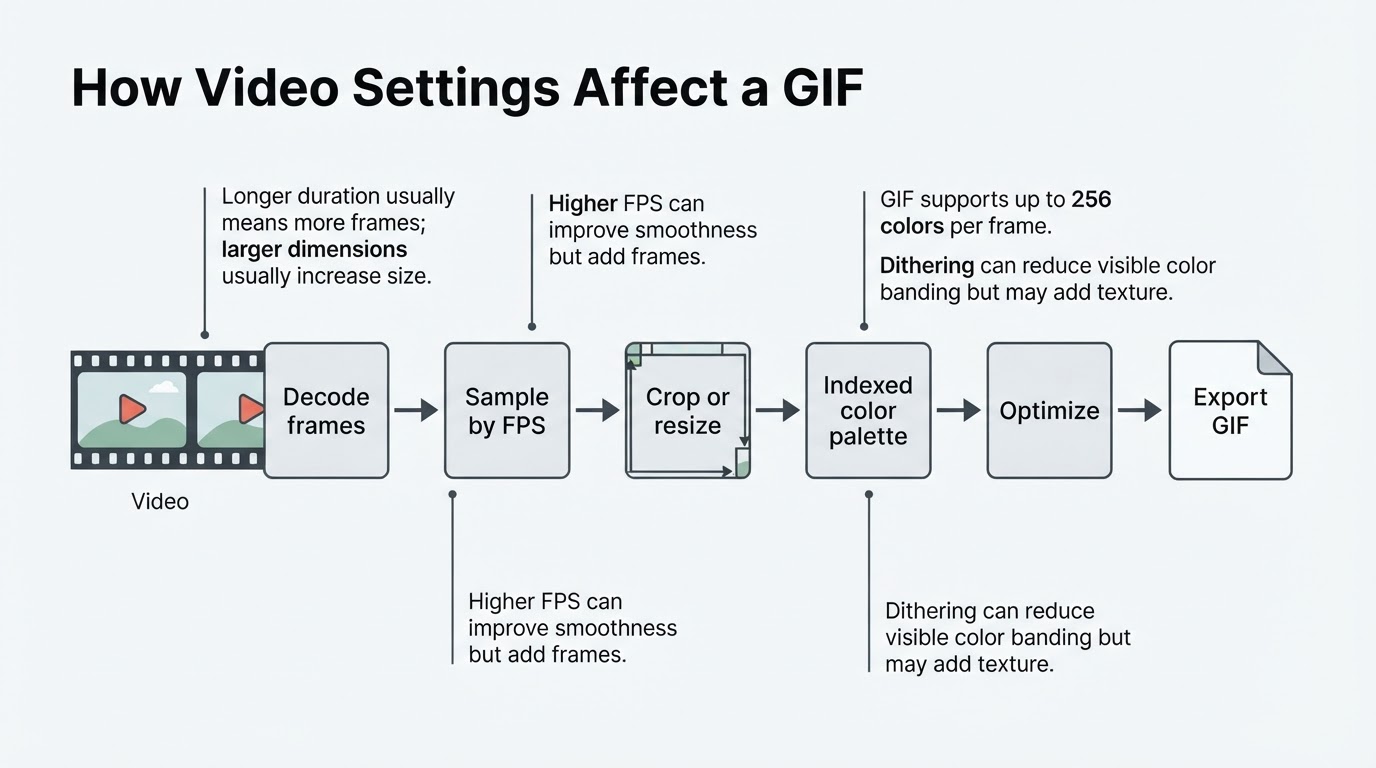
How to Convert MP4 or Another Supported Video to GIF
The workflow below applies broadly to supported MP4, MOV, WebM, AVI, MKV, and other video files. Actual support varies by converter, codec, browser, operating system, and version, so check the application's documentation or import dialog before starting.
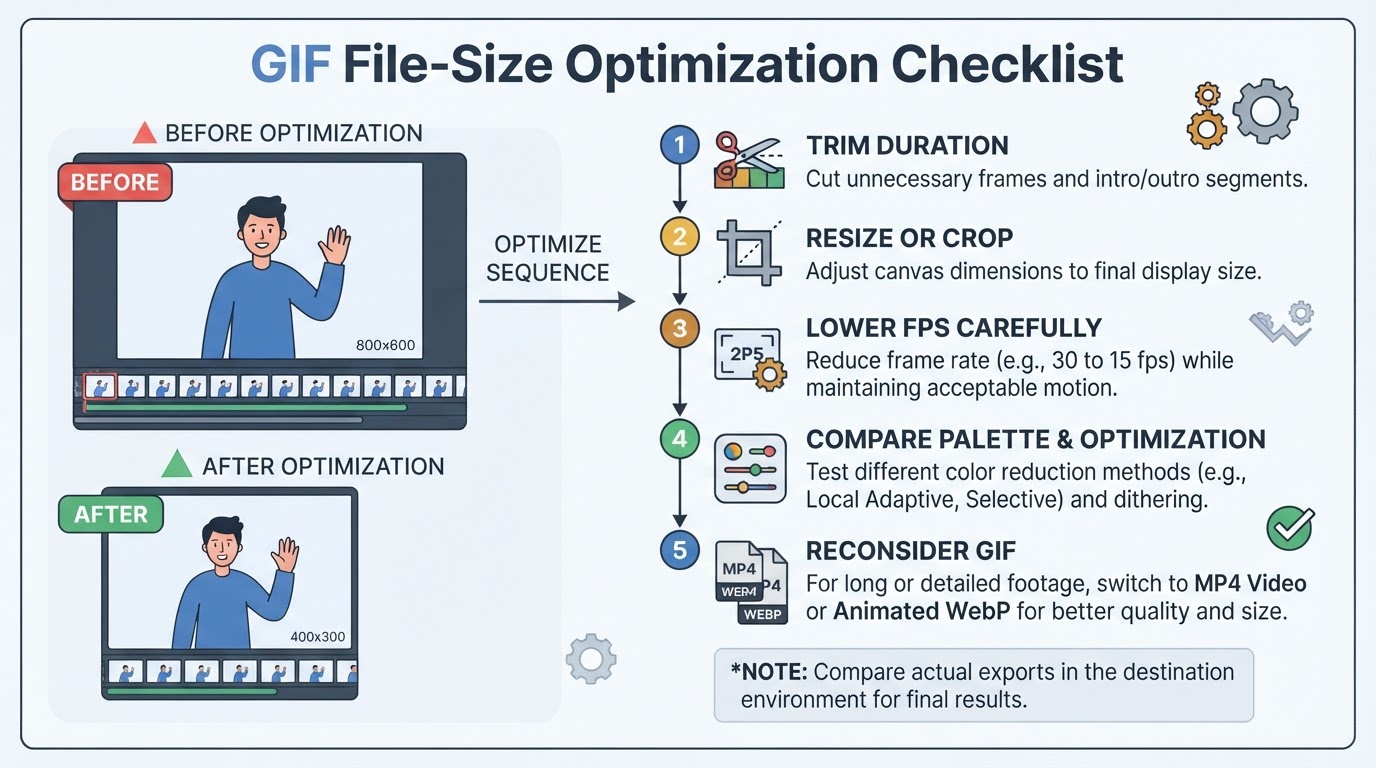
How to Reduce GIF File Size
GIF size is affected by several variables, including duration, dimensions, frame rate, visual detail, frame similarity, palette construction, and encoder optimization. Use measured comparisons rather than assuming that one setting will produce the same result for every video.
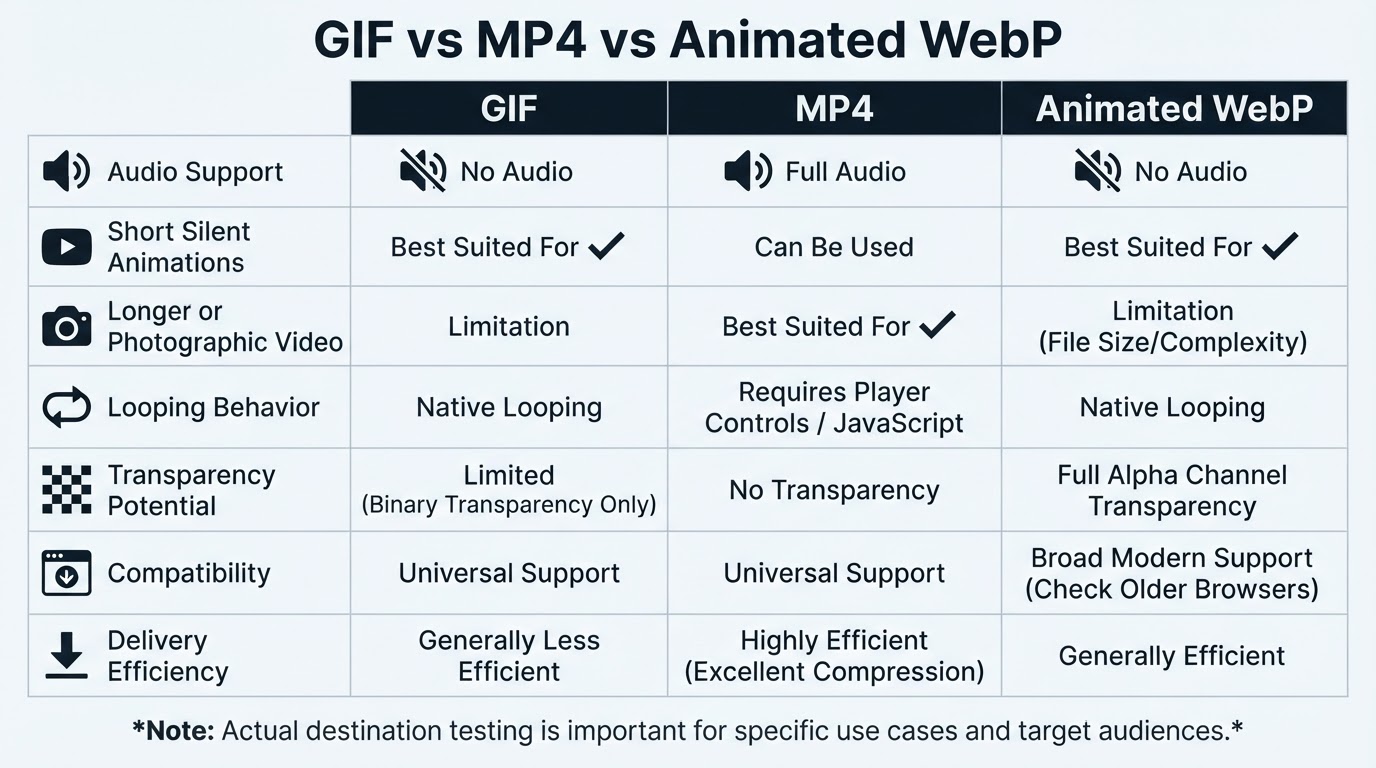
GIF vs. MP4 vs. Animated WebP
The best format depends on audio, compatibility, image quality, file efficiency, transparency, and playback behavior. Test each candidate in the intended destination when the decision is important.
Compatibility, Accessibility, and Mobile Use
Compatibility is not determined by the file extension alone. Browsers, applications, presentation software, email clients, messaging services, and mobile devices may support different formats and animation behaviors.
Privacy and Rights Checks Before Conversion
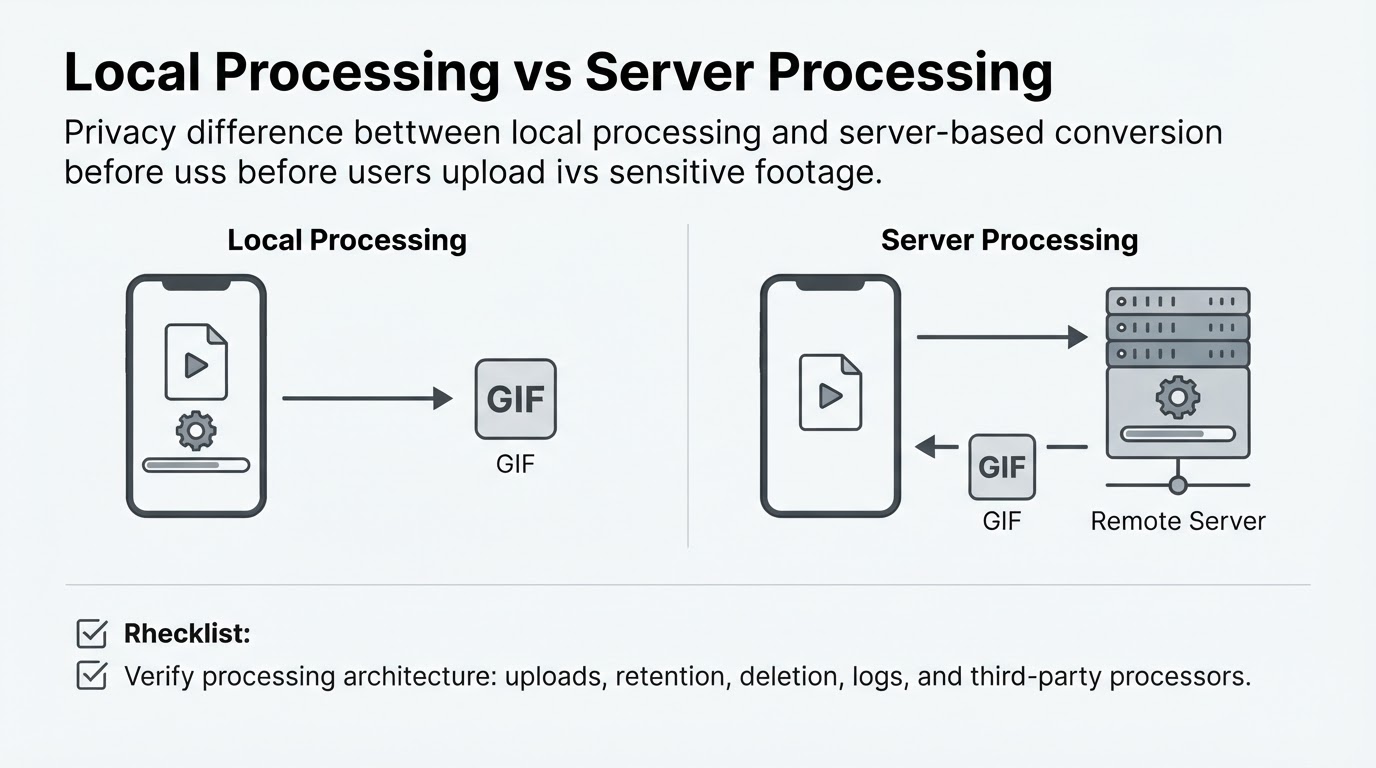
A video may contain personal information in its visible content as well as in the file itself. Converting it to GIF does not remove faces, text, voices represented by captions, locations shown on screen, or other identifying details. It also does not automatically remove records held by a cloud service, platform, recipient, or converter.
Troubleshooting Common Video-to-GIF Problems
Most conversion problems involve duration, dimensions, frame rate, GIF's color limitations, or destination playback. Change one or two variables at a time so you can identify the cause.
Conclusion
The most reliable way to convert a video to GIF is to work backward from the destination. Select a supported source, trim it to the essential action, crop or resize it for the intended display size, choose a suitable frame rate, review available color settings, export, and test the final file where it will be used.
GIF works best for short, silent animations. MP4 or animated WebP may be more suitable for audio, longer or photographic footage, transparency, or efficient delivery. For private footage, verify whether processing is local or server-based and review the provider's current privacy and retention information before uploading.