
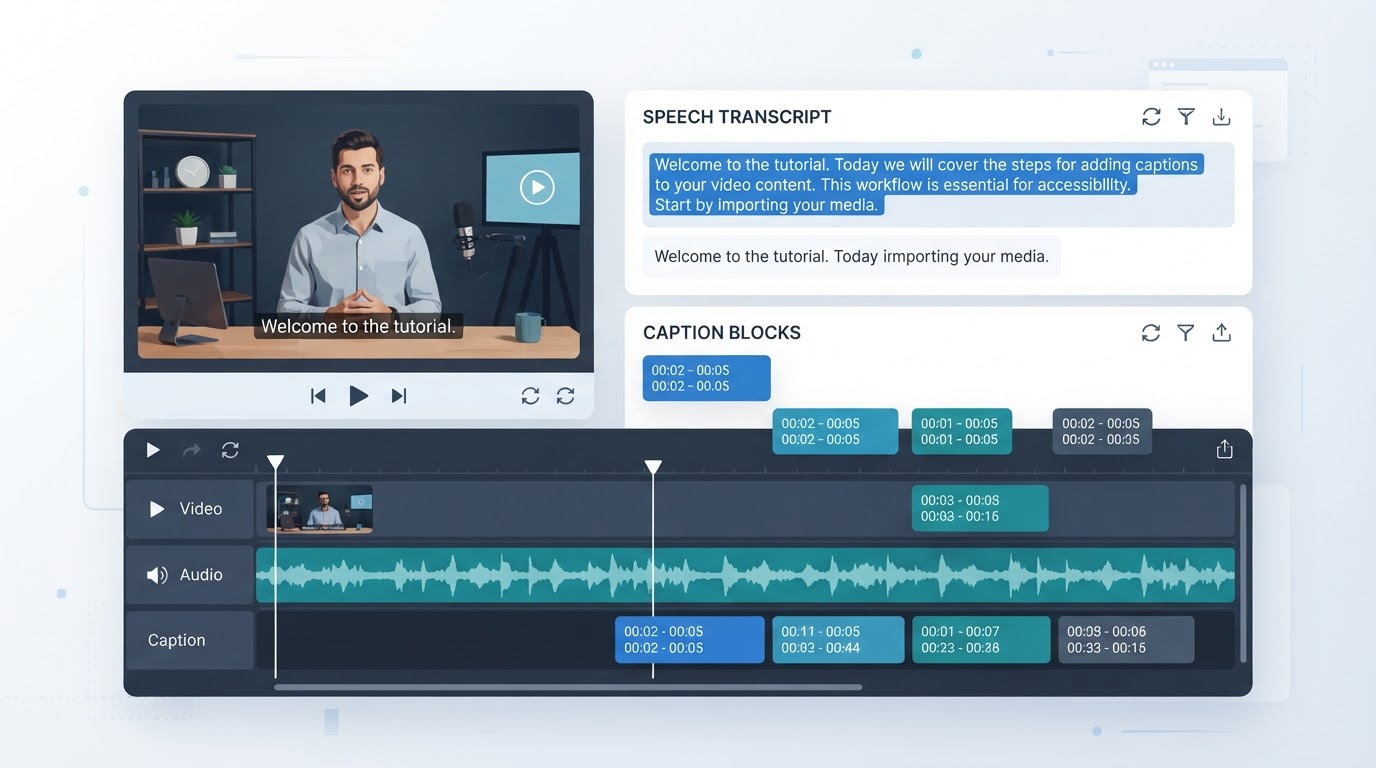
Learning how to add captions to a video usually involves four stages: creating a transcript, adding timing information, reviewing the text, and publishing either a caption track or a video with burned-in captions. Each caption cue includes a start and end time so it appears with the relevant speech or sound.
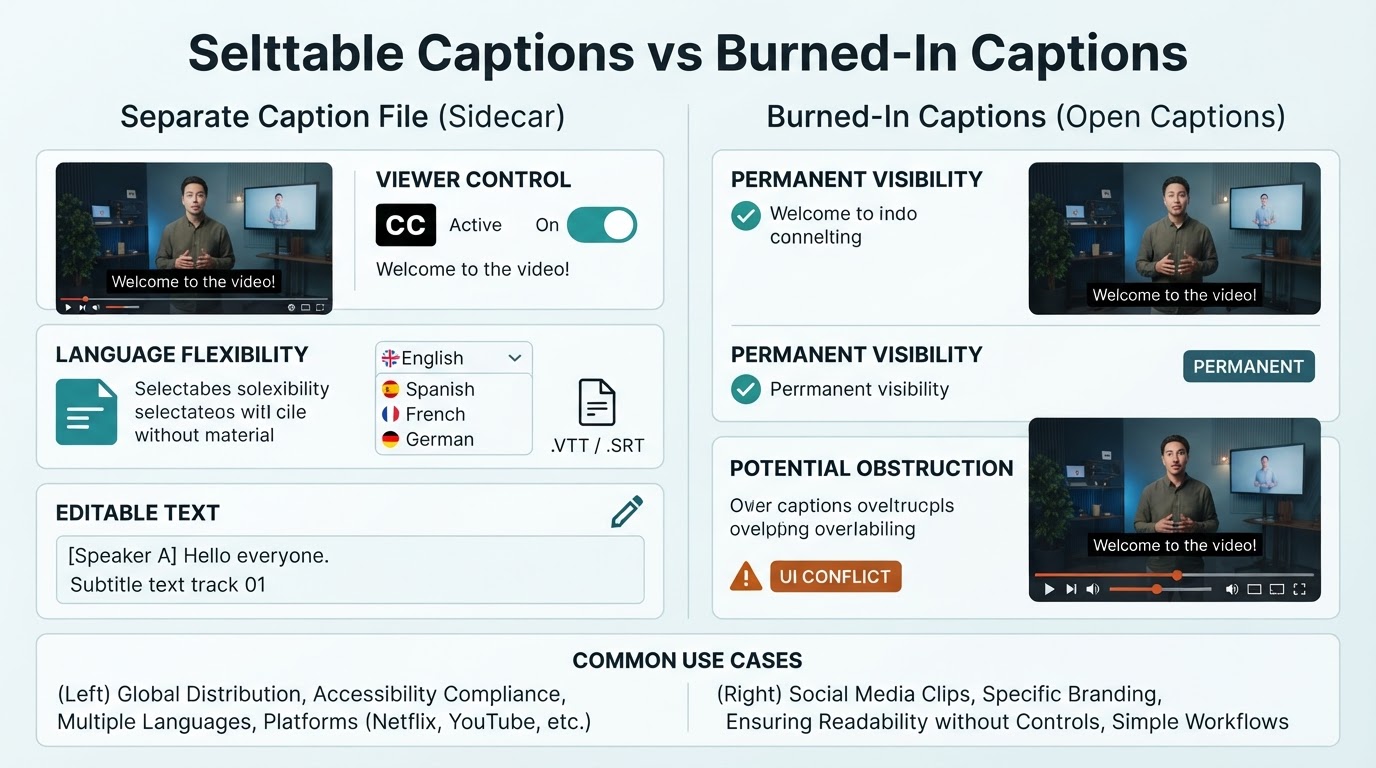
You can generate captions automatically, create them manually, upload an existing SRT or WebVTT file, or render the text permanently into the video. The best method depends on the destination, your audience, and whether viewers need control over caption visibility.
Automatic transcription is a useful starting point, but it is not a substitute for review. Check names, numbers, technical terms, speaker labels, meaningful sound descriptions, timing, line breaks, and the final appearance before publishing.
Choose the Right Type of Video Text
Before creating a caption track, decide whether you need subtitles, accessibility captions, or text permanently embedded in the video. The terms subtitles and captions are often used differently depending on the region, platform, and captioning standard, so the distinction below is a common usage pattern rather than a universal definition.
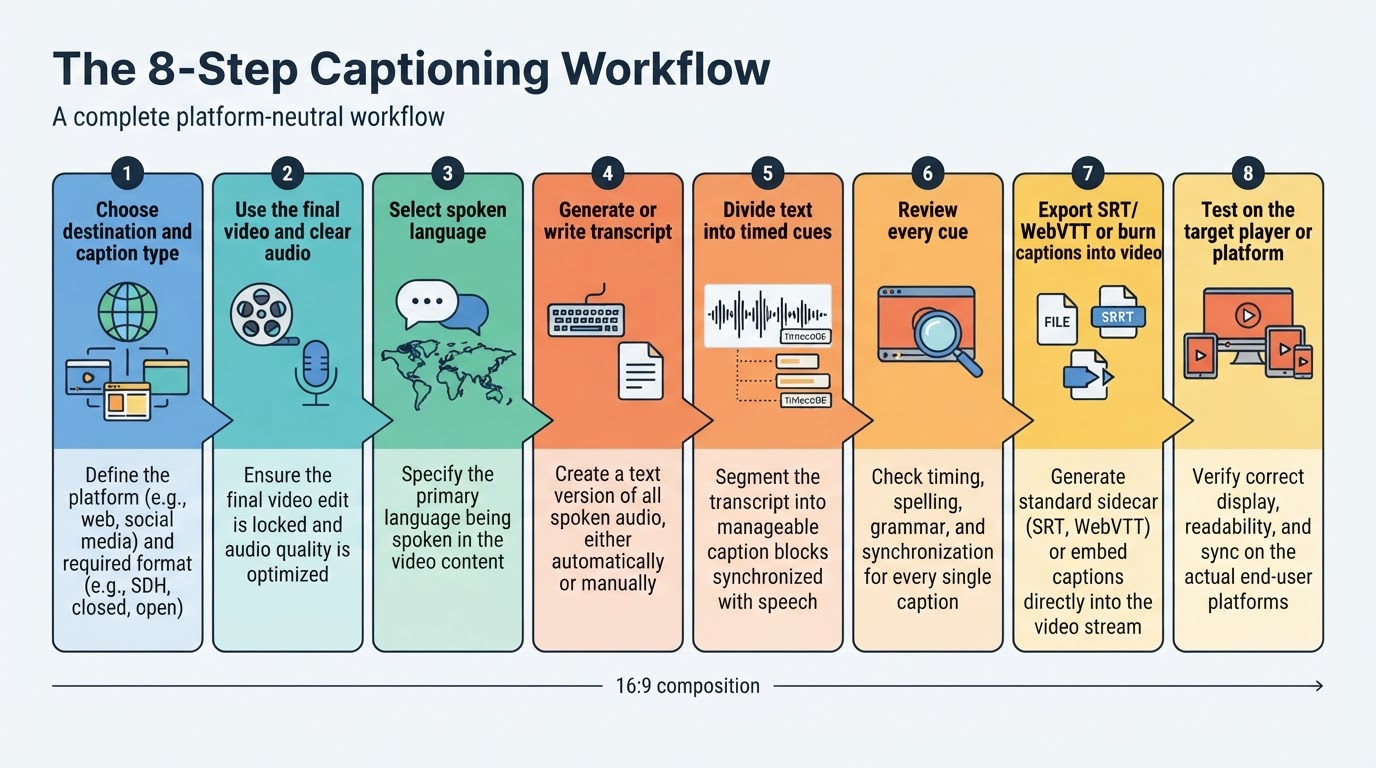
How to Add Captions to a Video: The Complete Workflow
A practical, platform-neutral process is:
- Identify the destination and decide whether you need a separate file, a burned-in video, or both.
- Use the final video edit and the clearest available audio.
- Select the correct spoken language.
- Generate or write the transcript.
- Divide the transcript into timed cues.
- Review every cue while watching the video.
- Export SRT or WebVTT, or render a new video with burned-in captions.
- Test the result on the destination platform or player.
This order reduces errors caused by captioning an earlier video version or discovering after publication that the destination handles timing and display differently than expected.
How to Edit Automatic Captions for Accuracy and Readability
Automatic caption quality depends on the recording, language, speakers, and vocabulary. Background noise, music, accents, rapid dialogue, overlapping speakers, and technical terms can all increase the number of corrections required.
Treat quality control as several separate checks: wording, timing, speaker attribution, sound descriptions, line breaks, contrast, and placement. Provider accuracy percentages should not replace review of your own video because results depend on the language, audio conditions, evaluation method, and types of errors measured.
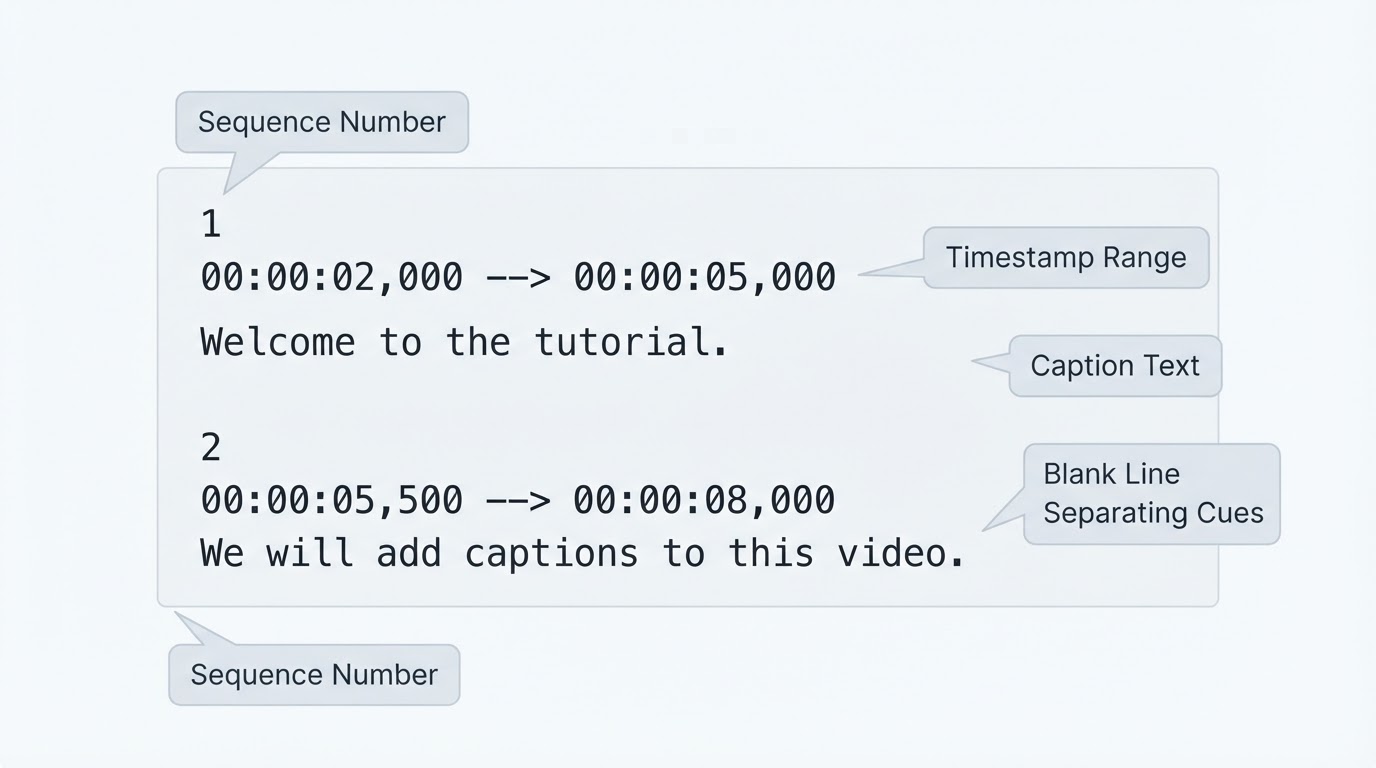
How to Create an SRT File and When to Use WebVTT
SRT and WebVTT are common timed-text formats, but support varies between players, platforms, and publishing systems. Check the destination's current requirements before choosing a format or converting a file.
How to Fix Subtitles That Are Early, Late, or Out of Sync
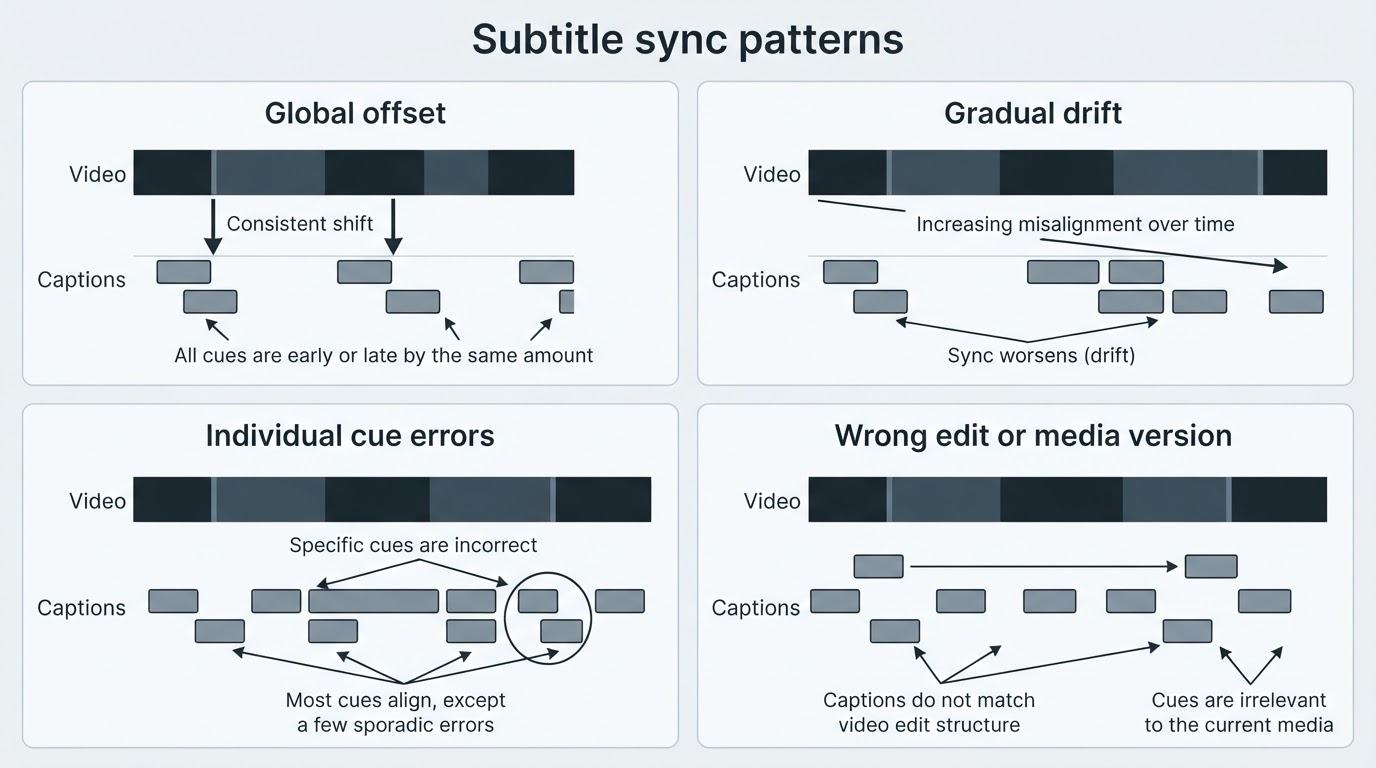
Synchronization problems have different patterns. A global offset means every cue is early or late by about the same amount. Gradual drift means the captions start correctly but become increasingly inaccurate. Individual boundary errors affect only a few cues. A completely incorrect track may belong to a different video edit.
Confirm that the caption file matches the exact media version. For ordinary SRT files, timestamps are time-based rather than frame-number based, so frame rate is not always the direct cause. Frame-rate checks matter more in frame-based caption formats, conforming workflows, or projects where the media has undergone a frame-rate conversion.
How to Add Captions to YouTube and Other Platforms
Platform interfaces and supported features can change. Use the destination's current official documentation for exact instructions. In general, prepare and review the caption track, open the video's caption-management area, select the spoken language, add the track, and preview it before publication.
YouTube generally supports uploading a caption file, using Auto-sync with transcript text, and entering captions manually. Availability and interface labels can vary, so do not assume every account or video displays identical options.
Translate Video Subtitles Without Losing Meaning
Finalize and review the original-language caption track before translating it. Translation should begin with a stable source transcript and timing, not an unedited automatic draft.
Review names, idioms, cultural meaning, context, and reading length. A literal translation may be grammatically correct but fail to communicate the intended message. Keep separate language versions associated with the correct video edit.
Privacy Considerations for Online Caption Generators
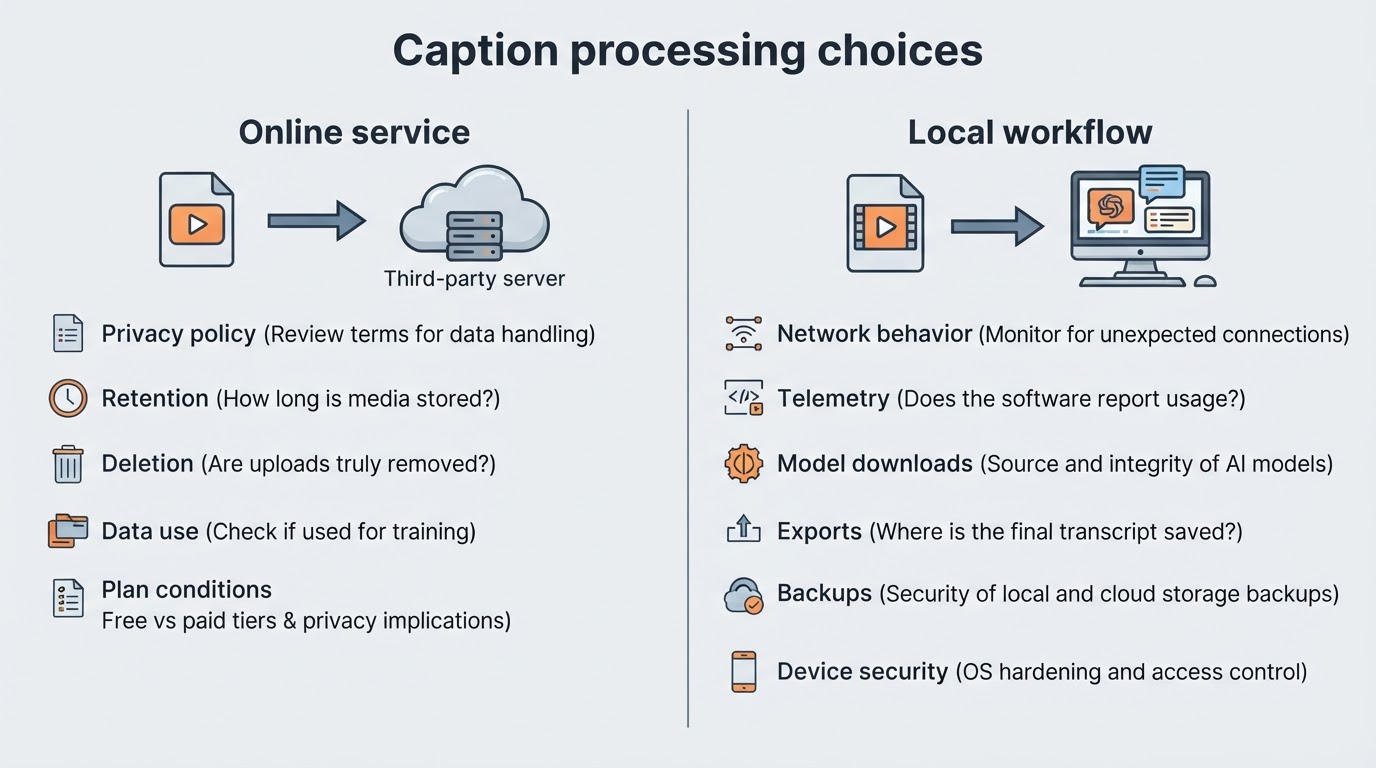
Uploading a video to an online captioning service may send its audio or visual content to a third-party processor. Before uploading sensitive material, review the provider's current privacy policy, terms, retention and deletion practices, data-use terms, subprocessors, logs, account settings, and plan-specific conditions. Policies can differ between free, paid, team, and enterprise plans and can change over time.
Caption files should be treated as sensitive because they can contain private conversations, names, customer information, or other spoken details independently of the video.
Final Caption Quality-Control Checklist
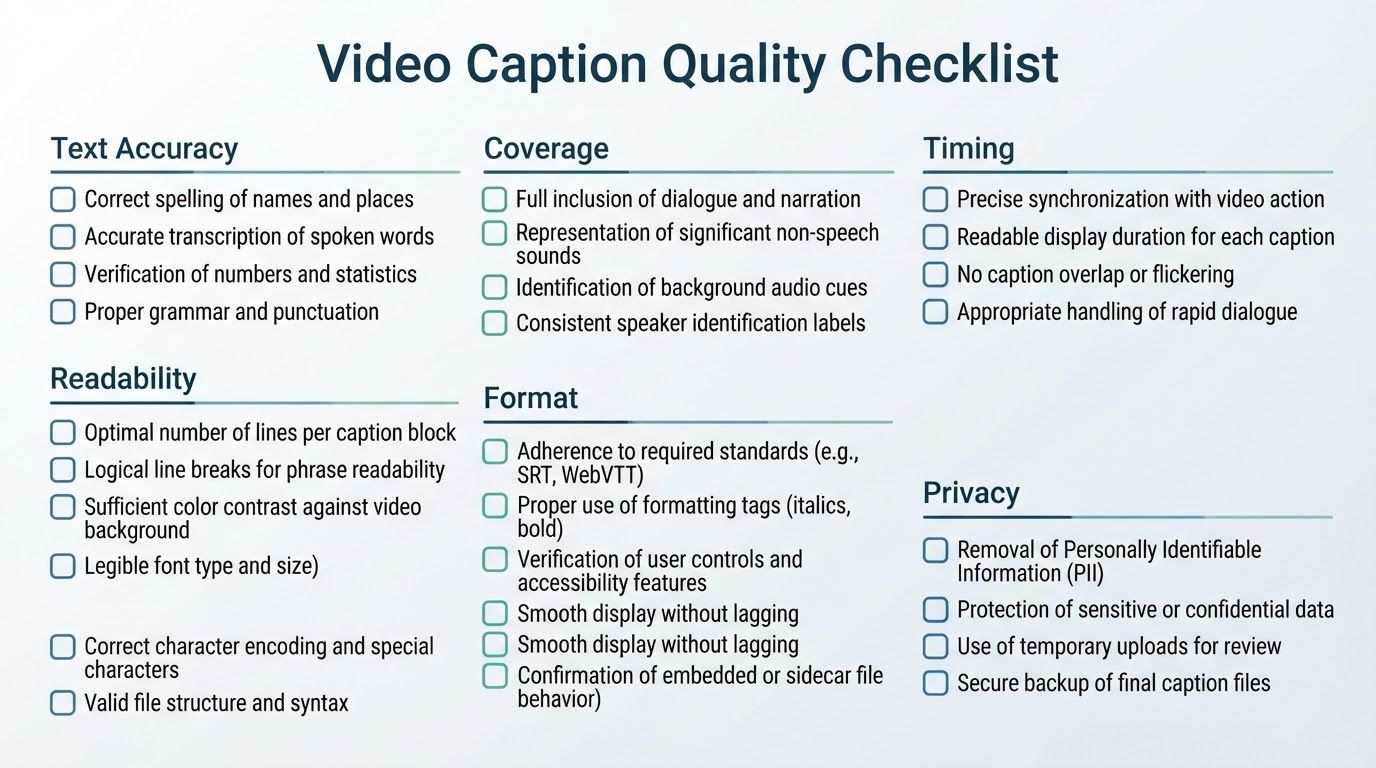
Before publishing or delivering the video, check:
- Text: dialogue, names, numbers, technical terms, URLs, punctuation, and translations.
- Coverage: speaker labels and meaningful sound descriptions where needed.
- Timing: cue starts and ends, pauses, speaker changes, and synchronization throughout the video.
- Readability: line breaks, text size, contrast, background treatment, and placement.
- Format: SRT, WebVTT, or burned-in export requirements for the destination.
- Playback: the exported file and the published result on the target platform.
- Privacy: temporary uploads, caption files, backups, and shared copies.
Keep a reviewed master caption file. It makes future corrections, translations, conversions, and re-uploads easier to manage.
Conclusion
The most reliable way to add captions to a video is to create or generate the text, review every cue, synchronize it with the final edit, choose a format supported by the destination, and test the published result.
Use a separate caption file when the platform and audience benefit from selectable text. Use burned-in captions when permanent visibility is necessary. Keep a reviewed master caption file so future corrections, translations, and platform-specific exports remain consistent.