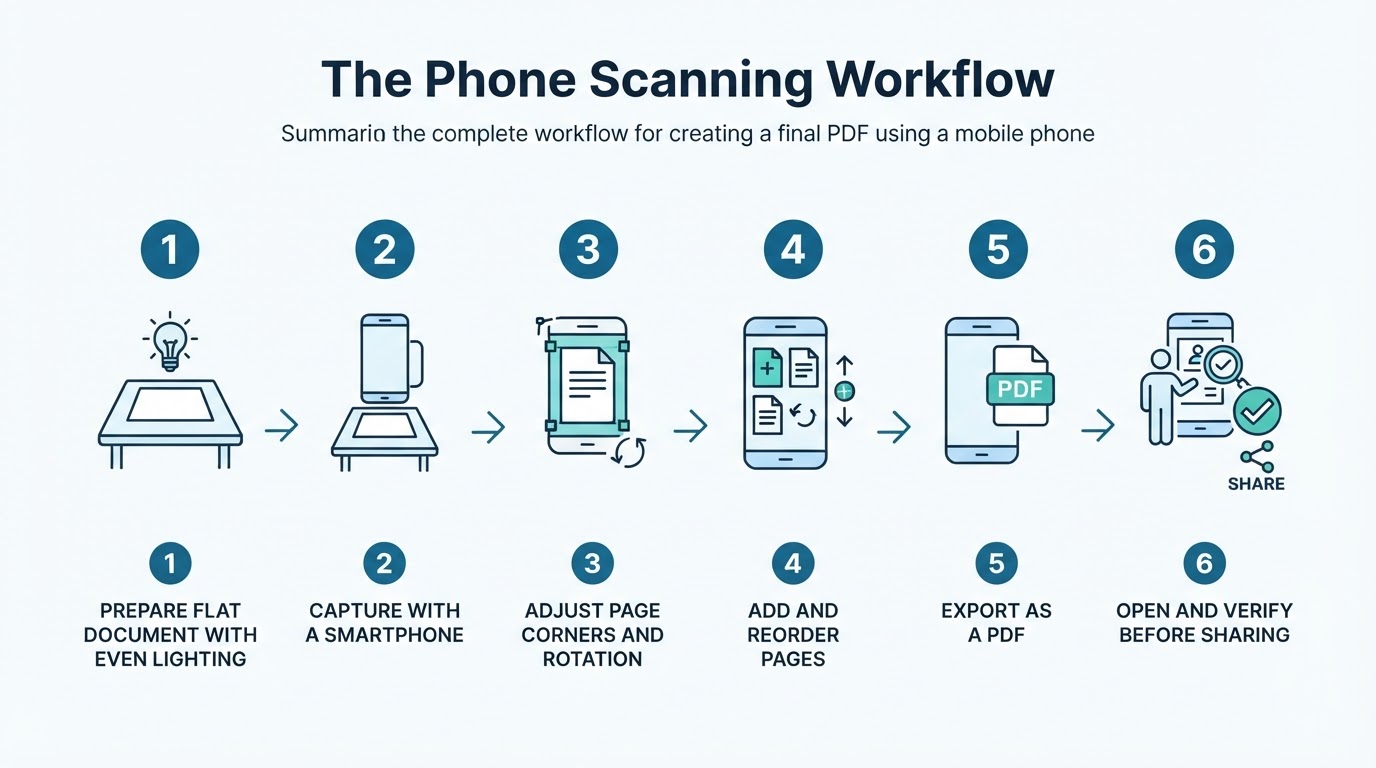
You do not need a dedicated scanner to create a useful PDF from a paper document. A supported scanning feature or app on an iPhone or Android phone can capture a page, adjust its boundaries, combine multiple pages, and export the result as a PDF. The basic process is: prepare the page, capture it, review the result, save the file, and verify it before sharing. A photographed page is not automatically searchable, however. If you need to find or copy words, you may also need optical character recognition, or OCR. This guide explains how to scan a document to PDF, create a multi-page file, check OCR, and handle sensitive documents more carefully.
Quick Workflow: Scan a Document to PDF
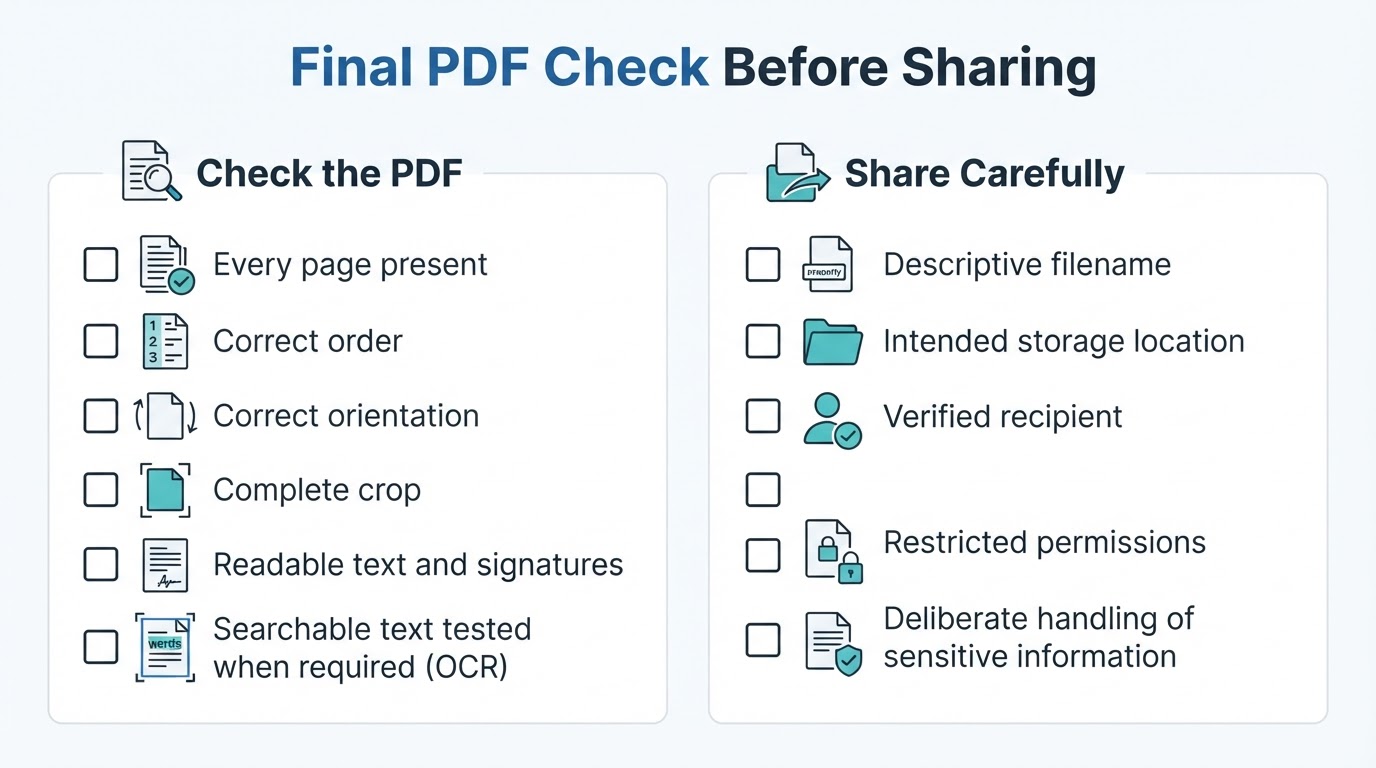
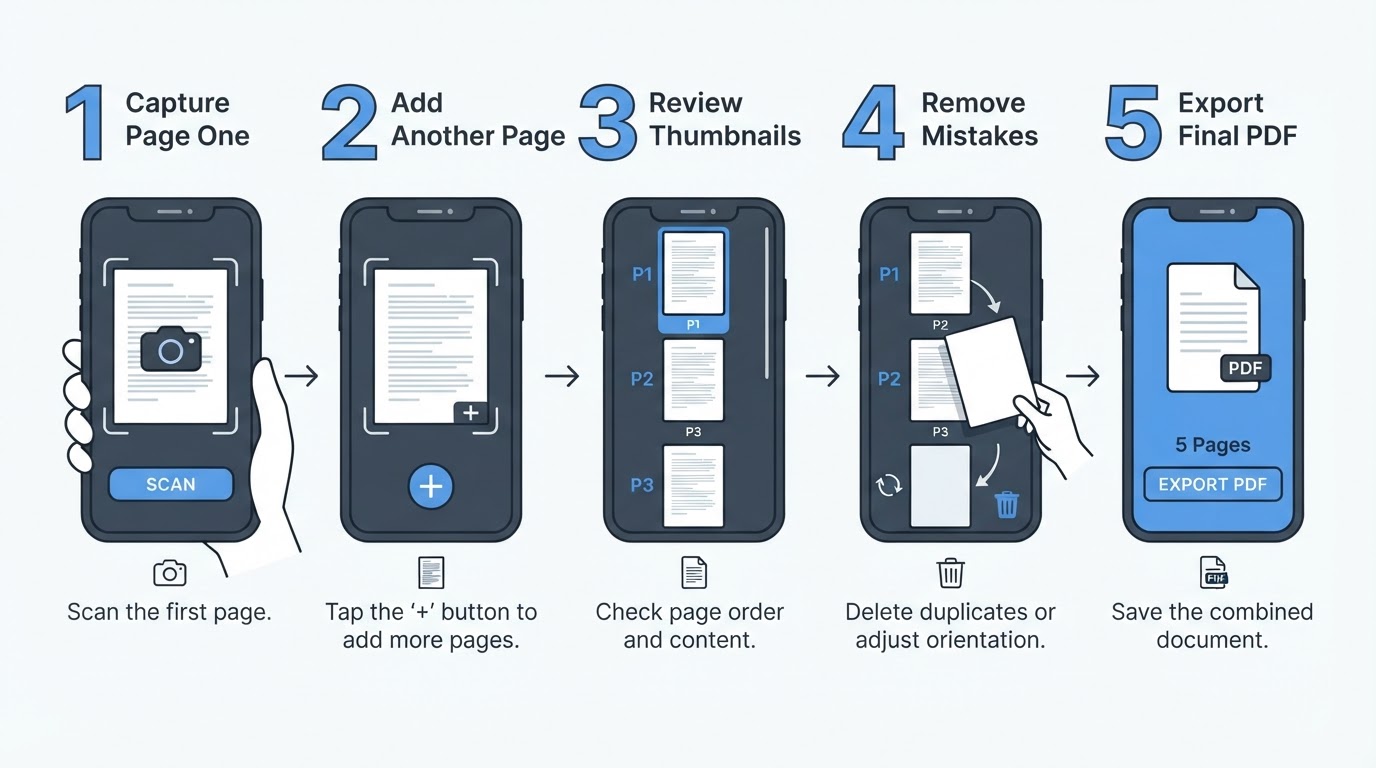
For most documents, use this process: place the page on a flat, contrasting surface; open a document-scanning feature rather than the ordinary camera mode; capture the page; correct the detected crop and rotation; add any remaining pages; save or export the file as a PDF; then open the finished PDF and check its pages, readability, and destination. If the recipient requires a searchable PDF, apply OCR through an app or service that specifically creates a searchable text layer. Before sending the file, confirm the recipient's required format, maximum file size, resolution, signature rules, and whether image-only PDFs are accepted.
What Happens When You Scan a Document With a Phone?
A scanning feature uses the phone camera to capture the physical page, then may identify the page boundaries, crop the surrounding surface, correct some perspective distortion, and package one or more page images into a PDF. These functions belong to the selected scanning feature or app, not to every ordinary camera workflow. The final PDF may contain only page images, or it may include text recognized through OCR.
Prepare the Document and Phone for a Clear Scan
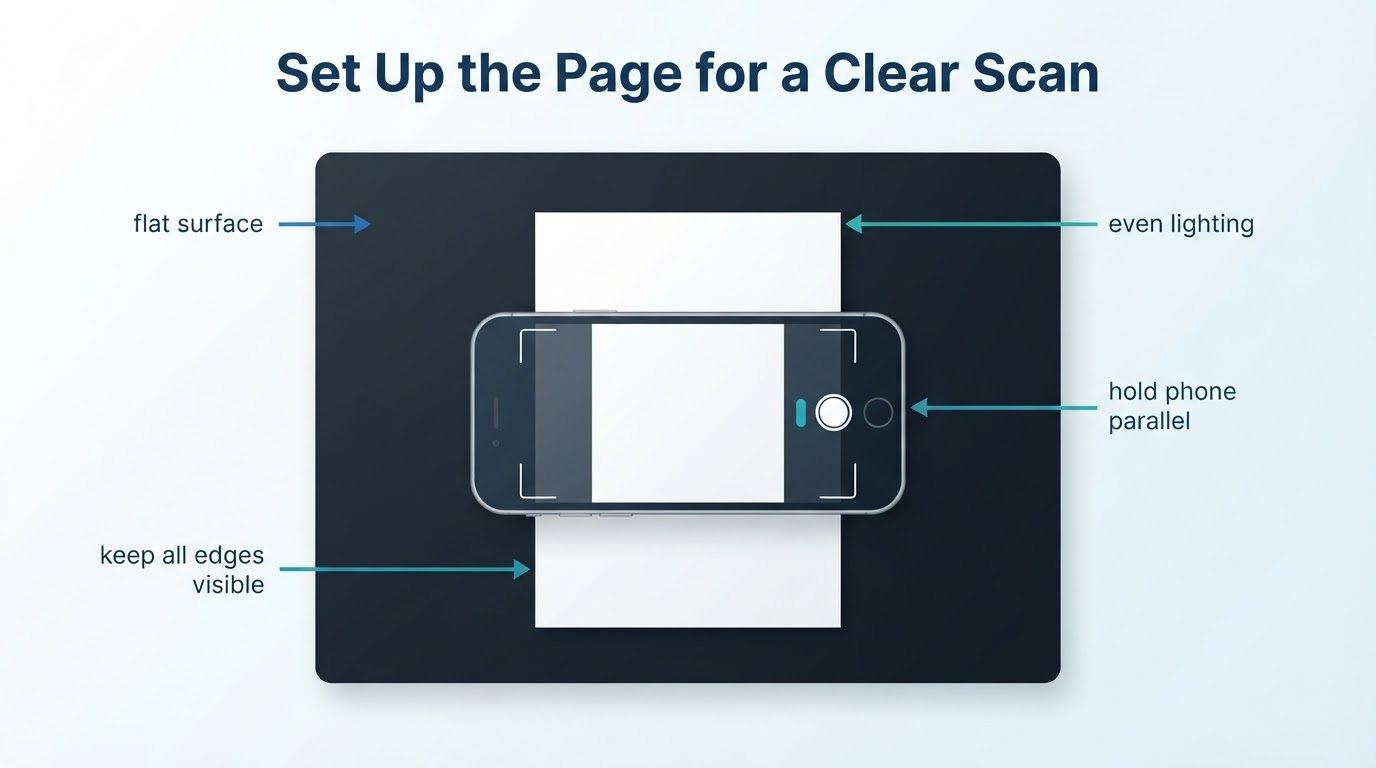
Good preparation often matters more than the app. Place the document flat on a contrasting surface so its edges are easy to identify. Remove nearby objects that could confuse automatic cropping. Use even lighting, avoid shadows and reflections, clean the camera lens, and keep the entire page in view. Hold the phone as parallel to the paper as possible and keep it still while capturing the image.
How to Scan a Document to PDF on iPhone or Android
Menu names and available features vary by operating-system version, device, app version, and region. The following examples use documented workflows, but check the labels on your device if they differ.
Scan Multiple Pages Into One PDF
Use the scanner's add-page function after the first capture to create one document instead of several separate files. Continue until every physical page has been photographed. Keep the pages in order, remove accidental duplicates, and correct the orientation of sideways pages. Retake weak images before exporting. When the packet is complete, save it with a descriptive filename and open the final PDF to confirm the page count.
Make the Scanned PDF Searchable With OCR
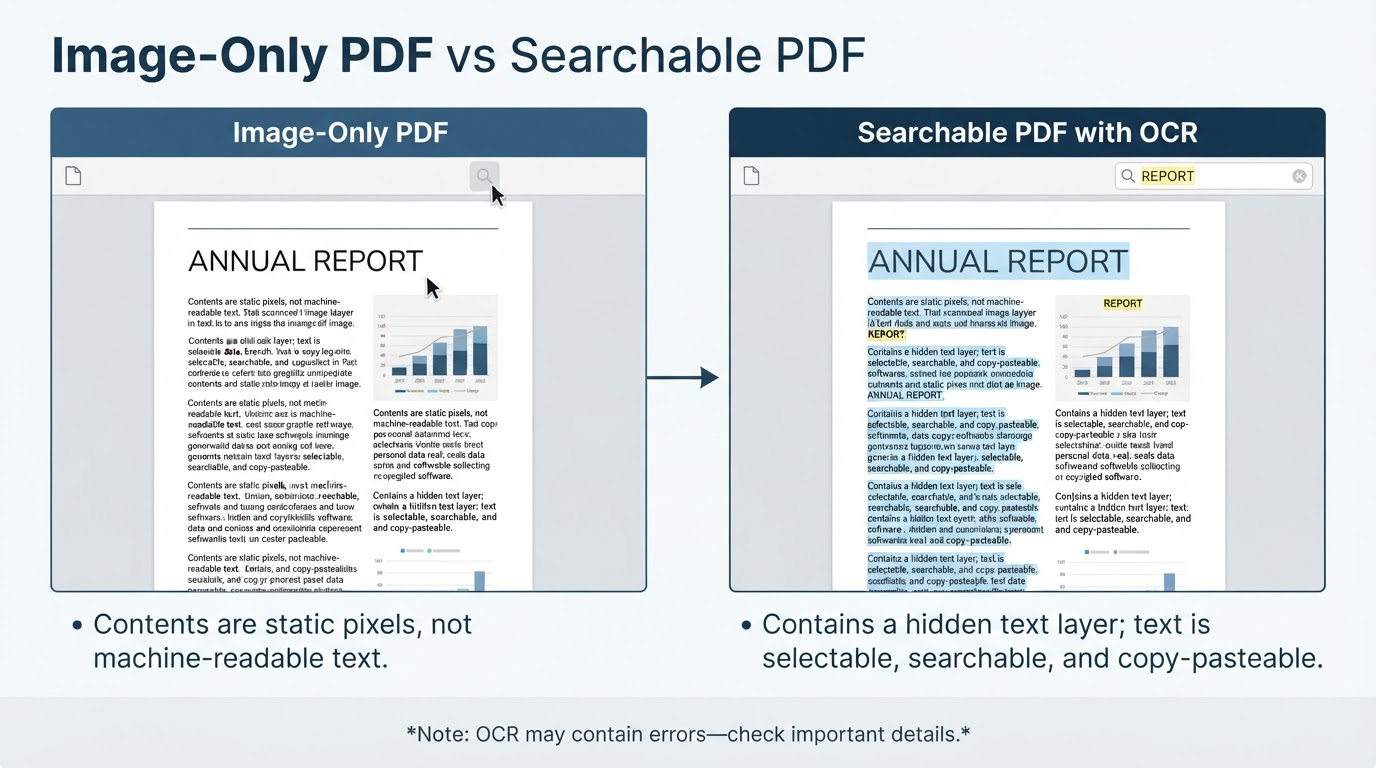
OCR analyzes a page image and recognizes its text. Depending on the product, OCR may create a searchable text layer inside the PDF, provide text selection within the app, or extract text separately. Those outcomes are not equivalent, and a basic scanning workflow does not automatically create a searchable PDF. Use an app or service that explicitly supports searchable-PDF output if that is your requirement.
Name, Store, and Share the PDF Safely
Use a descriptive filename that identifies the document type and date without exposing unnecessary personal information. Save the file in an intentional local folder or cloud location instead of leaving it under a generic name. When using Google Drive's documented scan workflow, a scan saved to a selected Drive folder is associated with that Drive destination. Other workflows may save locally, inside an app, or to another cloud service, so verify the destination rather than assuming where the file went.
Troubleshoot Common Phone-Scanning Problems
Most unusable scans can be fixed by improving the original capture or correcting the page review before export.
When a Phone Scan Is Not the Best Option
Phone scanning is practical for everyday documents, receipts, letters, notes, forms, and occasional multi-page submissions. A flatbed scanner may be preferable for delicate originals, archival work, or unusual materials. A document-feeder scanner is generally more suitable for large batches and repeated workflows. Bound books, oversized pages, and specialized quality requirements may require different equipment or techniques. A phone scan also does not automatically prove that a digital copy is legally sufficient or accepted by a particular organization, so check the recipient's format, resolution, file-size, signature, and OCR requirements.
Conclusion
The most reliable way to scan a document to PDF with a phone is to capture each page carefully, correct the crop and orientation, combine the pages, export the file, and verify the final result before sharing. Apply OCR only when you need searchable text, and check important recognized details against the original. Choose local or cloud storage deliberately, confirm the recipient's requirements, and use a dedicated scanner when the document type, volume, or quality requirements exceed what a phone workflow can provide.