When your phone says storage is almost full, deleting files at random can create new problems. You might remove an important document, lose offline access to media, or delete photos before confirming that a usable copy exists elsewhere.
The safest way to free up phone storage is to inspect what is using space, start with replaceable content, verify important copies, and then remove local files or app data carefully. Begin with your phone's built-in storage dashboard, then review downloads, offline media, duplicate files, screenshots, unused apps, message attachments, and backed-up media.
Remember that phone storage and cloud storage are separate resources. Freeing space on your phone does not automatically free space in Google storage, iCloud, or another cloud account.
Quick Answer: The Safest Way to Free Up Phone Storage
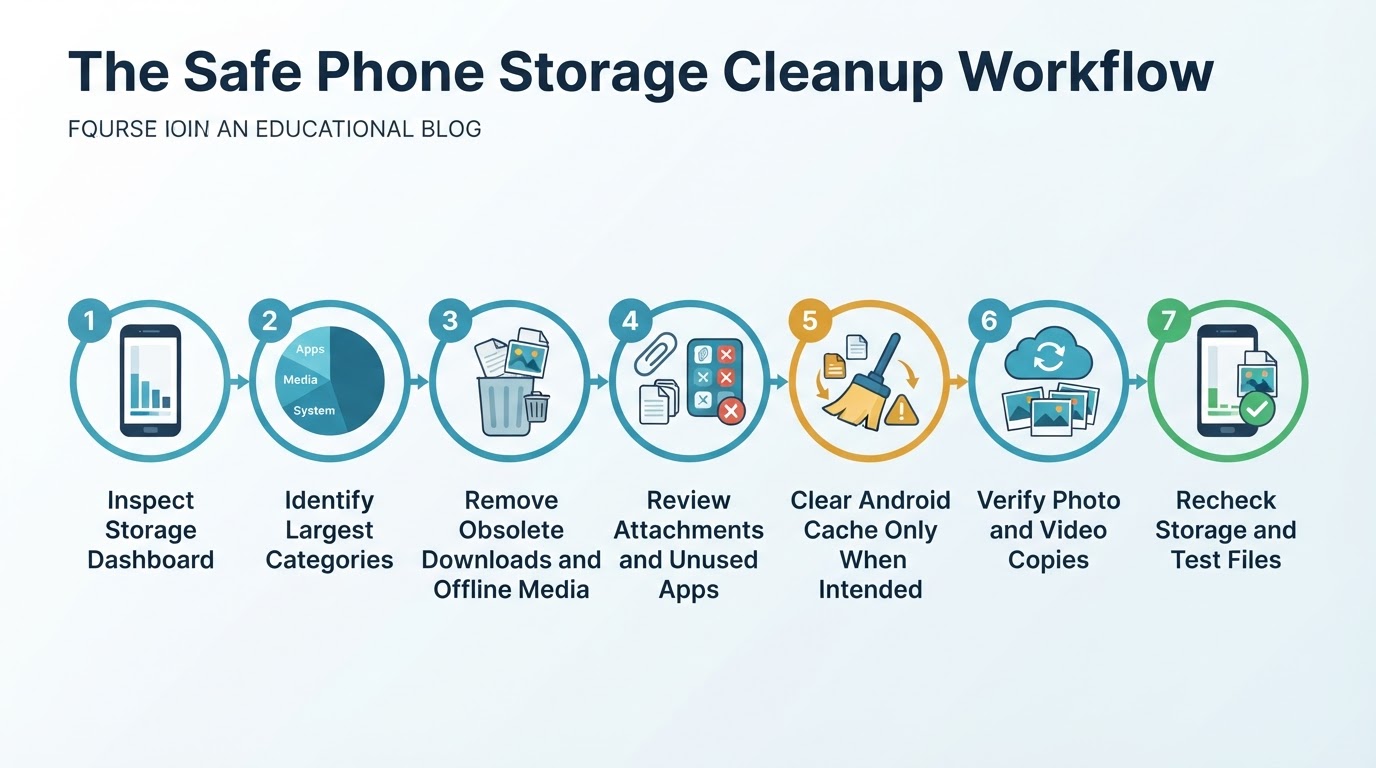
Use this order when you need space quickly:
- Check the storage dashboard and record the current available space.
- Identify the largest categories and apps.
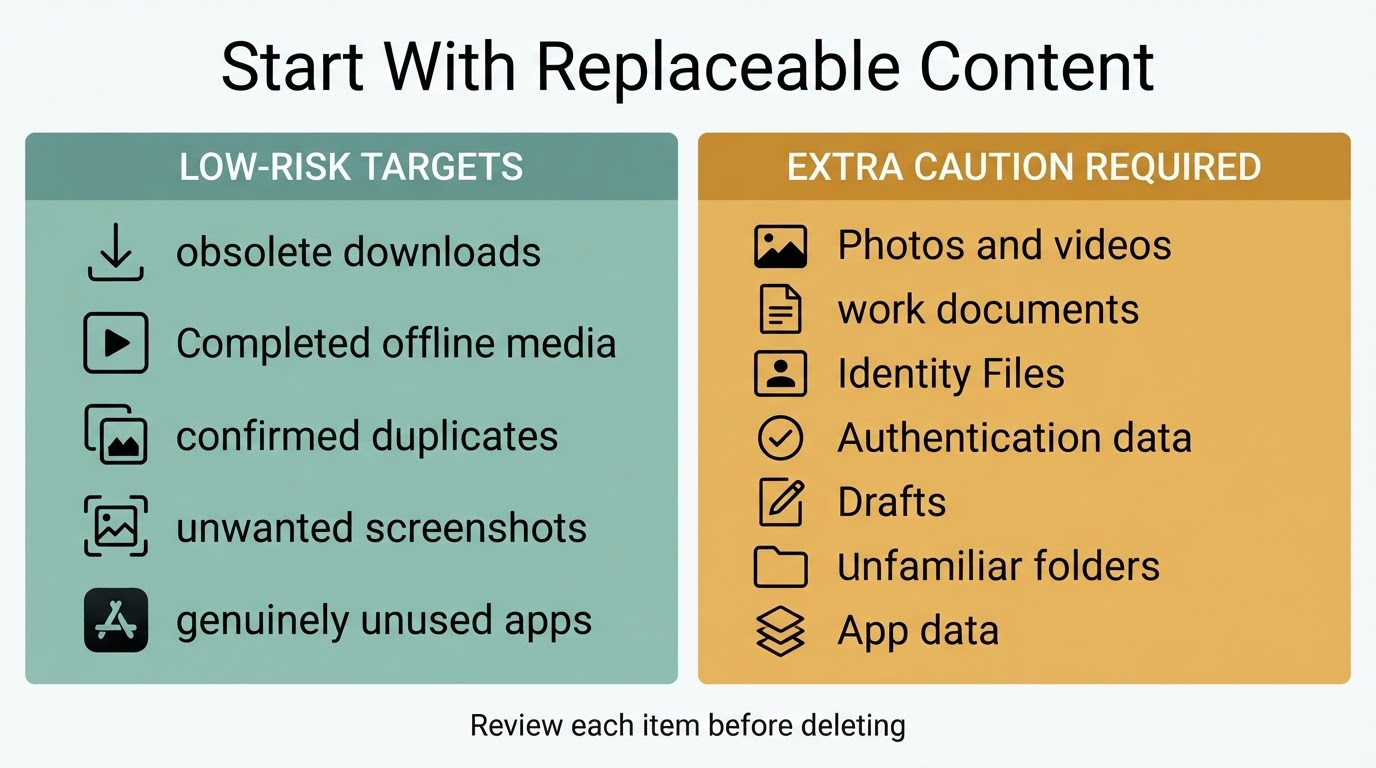
- Remove obsolete downloads, completed offline media, duplicate files, and unwanted screenshots.
- Review large message attachments and uninstall apps you no longer use.
- On Android, clear an app's cache only when temporary files are the intended target.
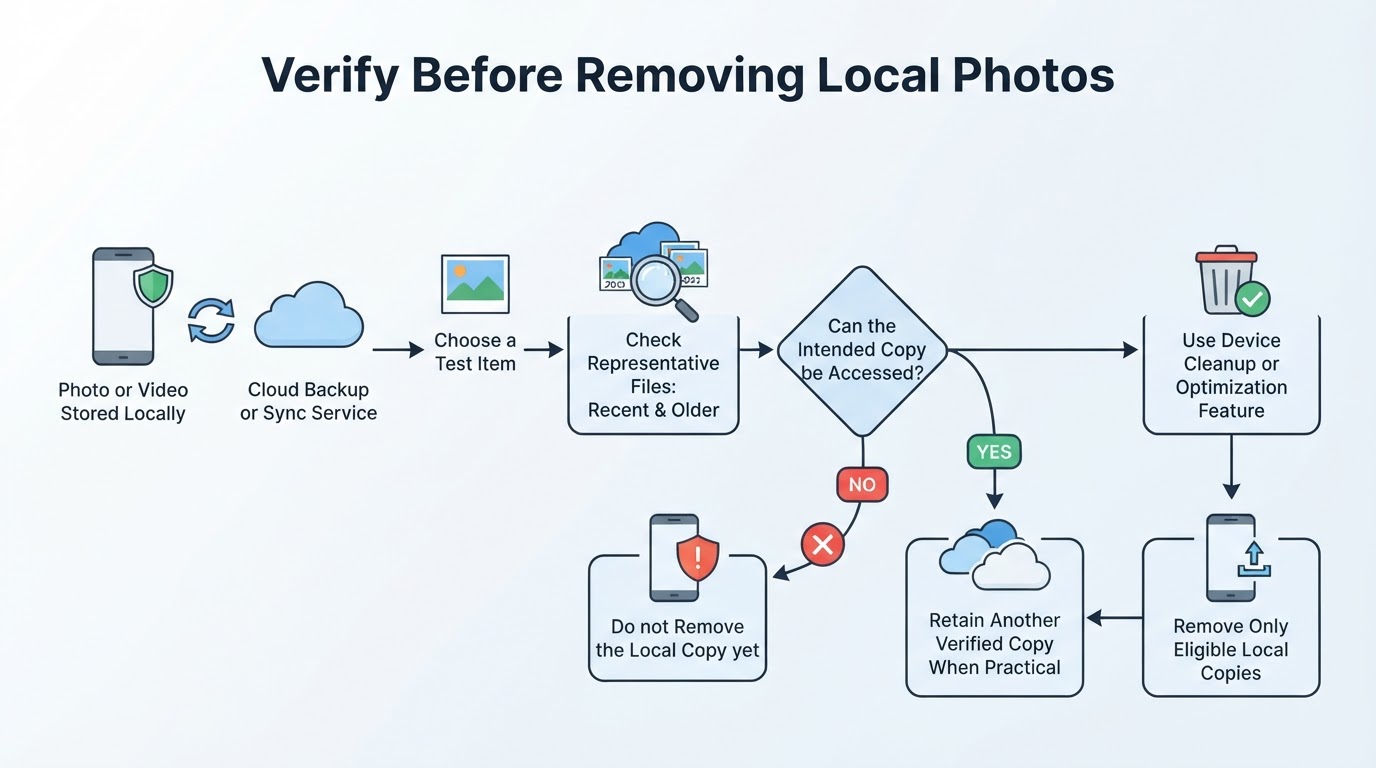
- Verify photo and video backups before removing local copies.
- Recheck storage, test important files and apps, and empty Trash or Recently Deleted only when recovery is no longer needed.
This approach prioritizes files that are easy to identify and replace before touching personal media, work documents, drafts, or app data.
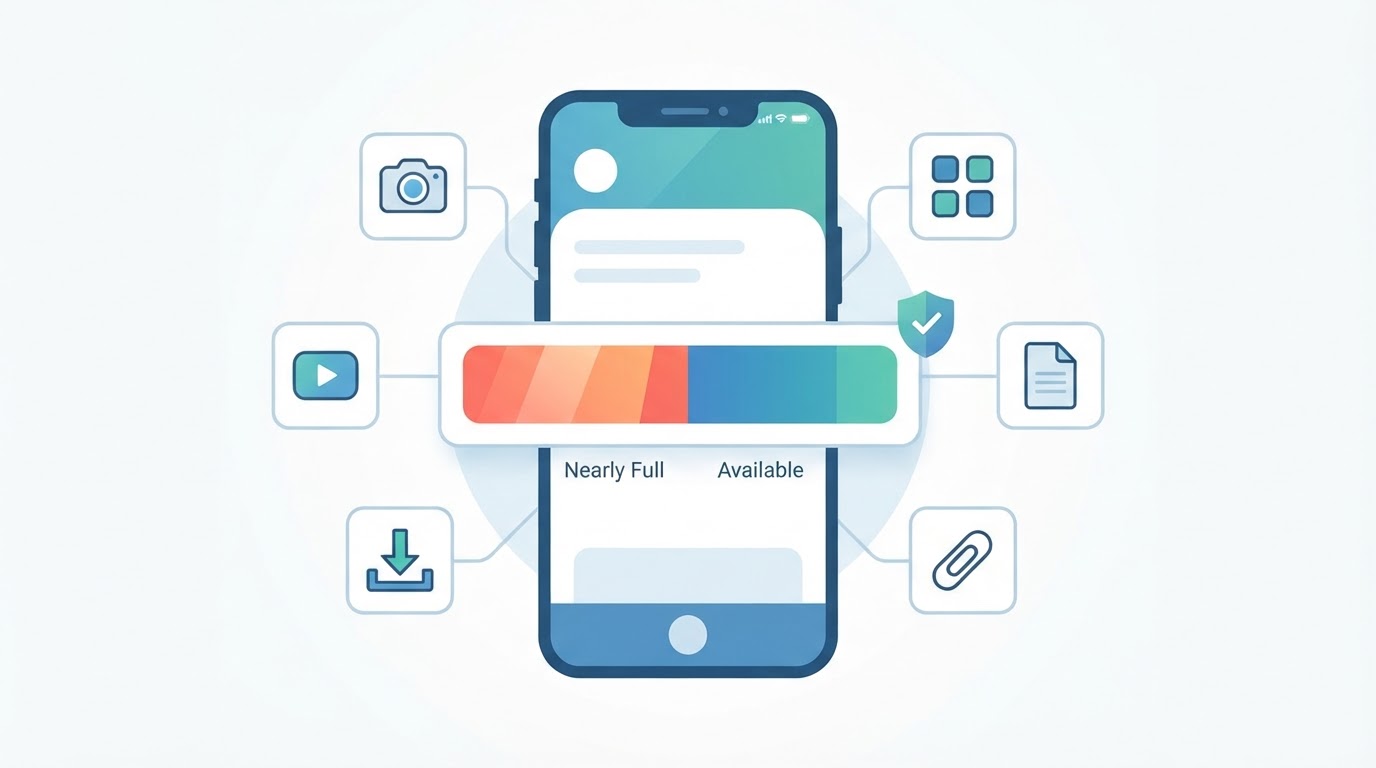
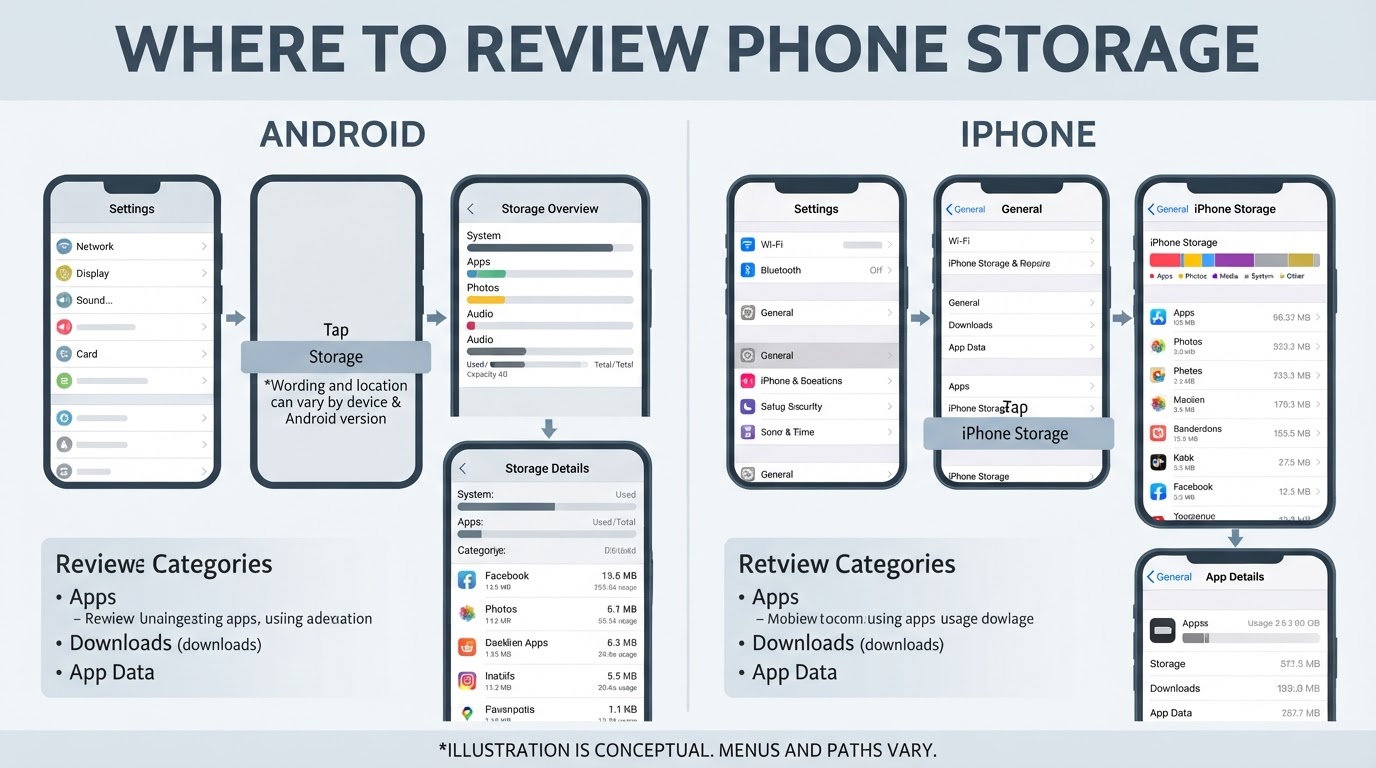
Check What Is Taking Up Space
Storage labels and recommendations vary by Android version, phone manufacturer, iOS version, device model, and app. Use the built-in dashboard as a guide, but read each recommendation before accepting it.
Start With Low-Risk Files
The safest early cleanup targets are files you recognize and no longer need. Review each item before deleting it; an unfamiliar name or large size does not prove that a file is disposable.
Manage Apps Without Losing Data by Accident
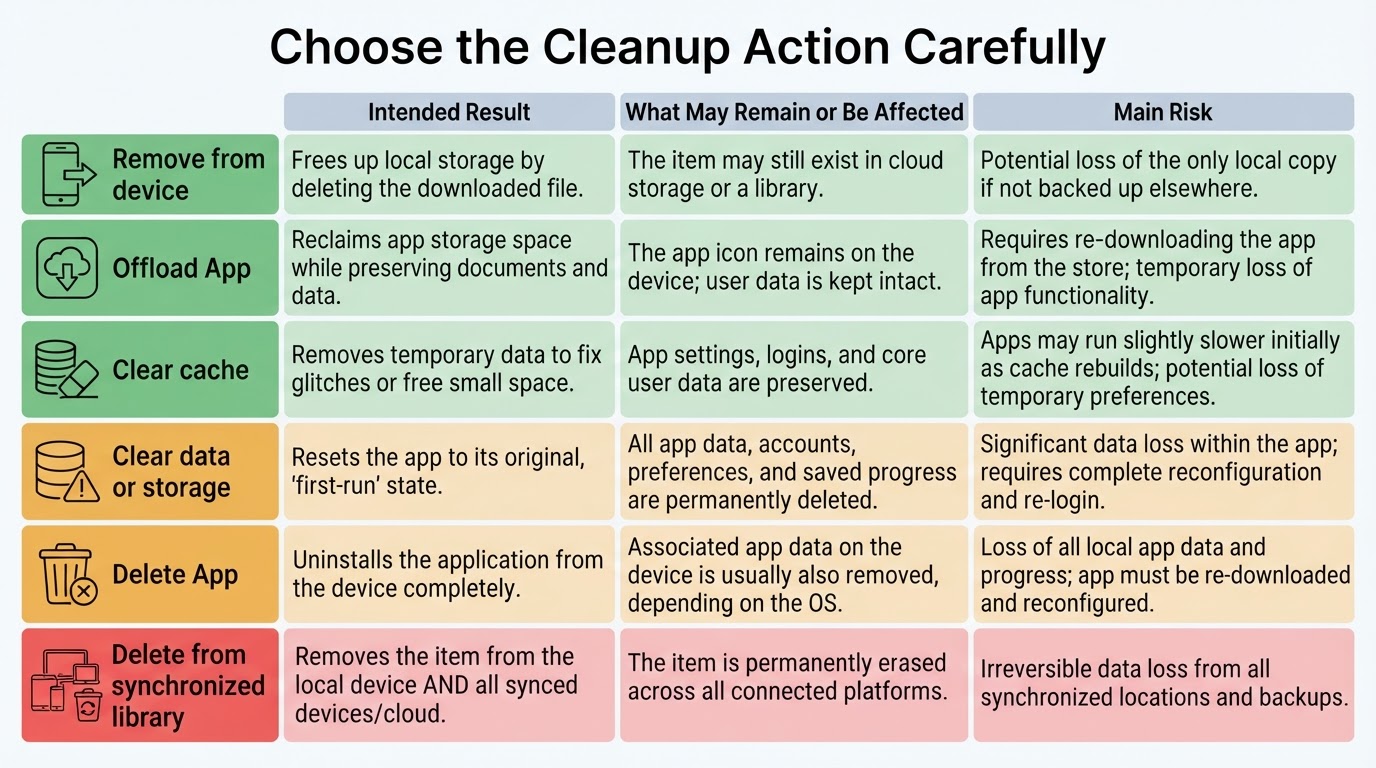
Apps can use space for their installation package, cache, downloaded media, documents, drafts, and account data. Choose an action based on what you want to remove, not simply on the size shown in the storage dashboard.
Free Up Phone Storage Without Losing Photos and Videos
Photos and videos often use the most space, but they also carry a high risk of permanent loss. Do not select everything in the main photo library and delete it before confirming what will happen to other copies.
First check that the intended items have finished uploading or synchronizing. Then use the relevant service from a trusted device, its official app, or a private browser session to open representative recent and older files. A sync indicator is useful, but it does not prove that every file is recoverable in the way you expect.
For irreplaceable media, keep another verified copy where practical. A synchronized cloud library can be affected by later deletions, account problems, storage limits, or incomplete uploads.
Review Message Attachments and App-Specific Media
Photos, videos, audio files, and documents in message threads can occupy substantial space. Social and messaging apps may also keep downloaded media in app-specific locations.
Attachment controls vary by operating system, app, version, and region. Some iPhone storage workflows and messaging apps allow individual attachments to be reviewed, while many Android devices and services use different controls. If the system storage screen does not provide item-level management, open the messaging app that created the files and use its own storage settings.
What Not to Delete
Avoid deleting system files or unfamiliar folders whose purpose you cannot identify. A large file is not automatically safe to remove.
Take extra care with work documents, identity files, authentication data, drafts, irreplaceable media, and files used by another app. Do not use Clear data or Clear storage when you intend only to remove temporary Android cache files. Do not assume that uninstalling an app removes all related downloads or cloud content.
Keep items in Trash or Recently Deleted until you have confirmed that recovery is no longer needed.
Privacy and Security During Cleanup
Built-in storage tools are a lower-complexity starting point because they reduce the need to give another app access to personal files. This is a practical recommendation, not a guarantee that built-in tools are always more private or secure. Avoid unfamiliar cleaner apps that request broad access to photos, files, accounts, or other personal data without a clear need.
Deleting a local file does not necessarily erase every copy. Versions may remain in a cloud account, synchronized device, backup, Trash folder, catalog, or message recipient's device. Ordinary deletion from a phone, cloud service, or flash storage also does not guarantee forensic or secure erasure. For sensitive organizational or regulated data, follow guidance from the device maker, service provider, employer or administrator, or a qualified data-destruction professional.
When uploading private photos, identity documents, family media, or work files, review the service's account, sharing, retention, recovery, and storage settings. Use official apps and trusted devices when verifying or managing personal files.
Recheck Storage and Maintain It
Return to the storage dashboard after each major cleanup and compare the available space with the amount recorded at the start. Test essential apps, recently cleaned media, important files, and offline access.
The displayed total may not update immediately because of refresh or indexing delays, but this is not universal. Revisit or refresh the dashboard, then investigate other large categories if the number remains high. Trash, Recently Deleted items, app databases, attachments, and offline downloads may still be using space.
Empty Trash or Recently Deleted only after you are sure recovery is no longer needed. A short recurring review of downloads, offline media, attachments, duplicate files, screenshots, unused apps, and photo backups can help prevent another storage warning.
Conclusion
The safest way to free up phone storage is to inspect first, remove clearly replaceable content next, and handle photos, videos, work files, and app data only after verification. Android menus vary by device and version, while iPhone offers different controls such as Offload App and Optimize iPhone Storage.
Before confirming a deletion, identify exactly what will be removed, whether offline access will be lost, and where verified copies exist. A regular review of downloads, offline media, attachments, duplicate files, screenshots, unused apps, and photo storage can help prevent future storage warnings.