How to resize an image correctly depends on its destination, aspect ratio, file format, and the amount of detail in the original. A reliable process preserves the image's proportions, handles mismatched shapes with cropping or padding, and verifies the exported file before it is uploaded or printed.
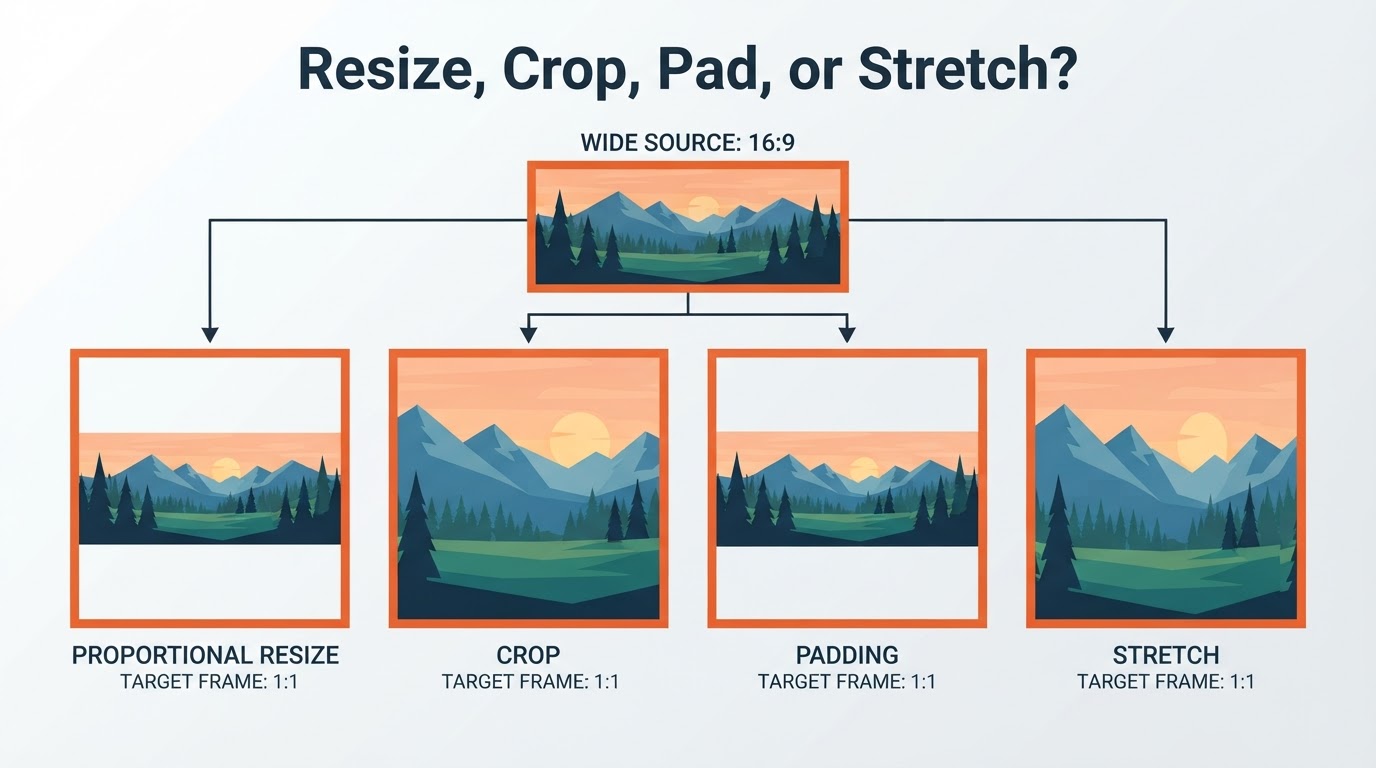
Resizing changes an image's pixel dimensions. Cropping removes part of the image, while padding adds space around it. Keeping these operations separate helps prevent stretched faces, distorted products, clipped logos, and unnecessary quality loss.
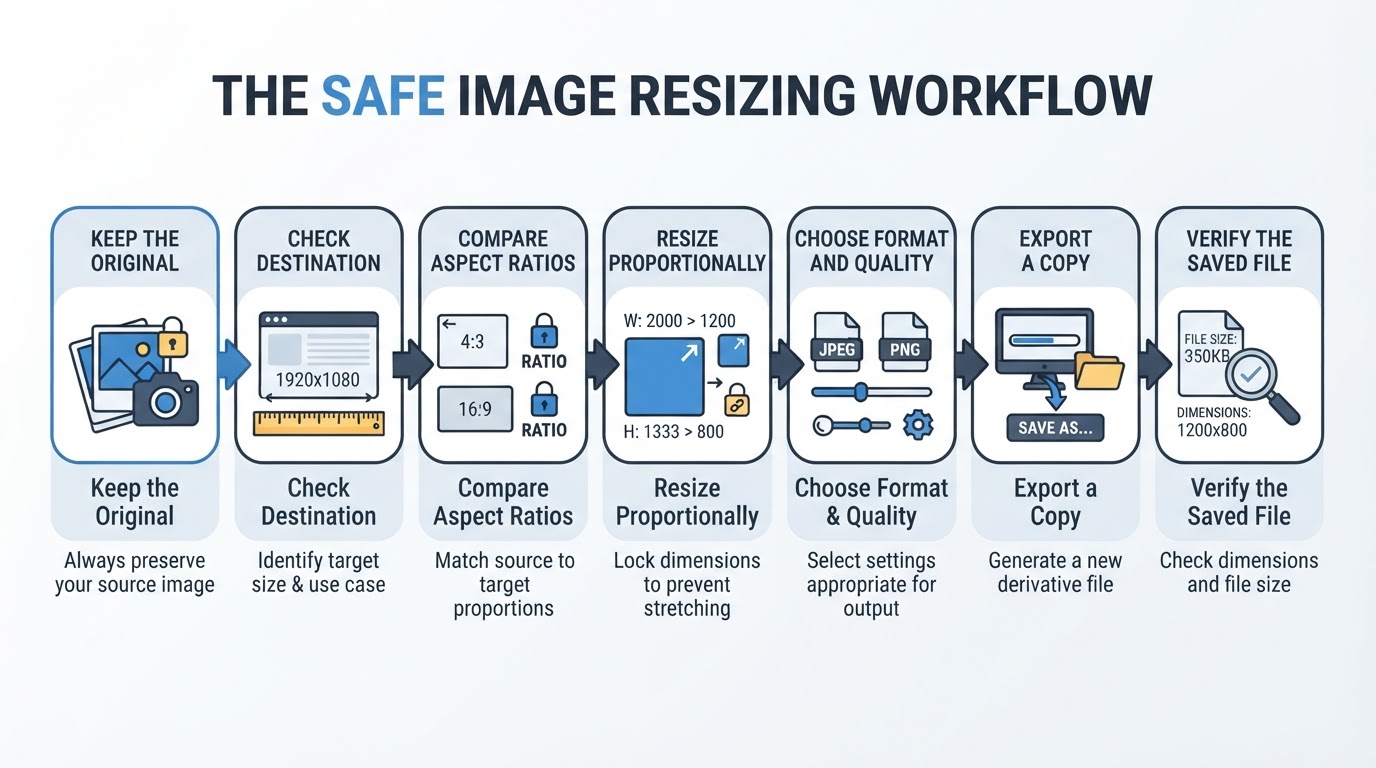
The practical workflow is simple: check the destination requirements, compare the source and target aspect ratios, choose cropping or padding when needed, resize proportionally, select a compatible format, export a derivative file, and inspect the saved result.
How to Resize an Image: A Quick Workflow
Use this general process in an online resizer, desktop editor, mobile application, or command-line workflow. Control names vary by tool, but the decisions are usually the same.
- Keep the original unchanged. Work from a copy or export a derivative file so the highest-quality source remains available.
- Check the destination requirements. Note the required dimensions, aspect ratio, format, transparency needs, and file-size limit.
- Compare the aspect ratios. Decide whether the image should be resized proportionally, cropped, or padded.
- Use proportional resizing. If the tool provides an aspect-ratio or proportions lock, enable it and enter one target dimension. Otherwise, calculate the other dimension proportionally.
- Choose a resampling setting if the software provides one. The best result depends on the image, the direction of the resize, the software, and the final viewing size.
- Export a derivative file in a format that the destination accepts.
- Open the saved file independently and check its dimensions, format, file size, transparency, and appearance.
Resize vs. Crop vs. Padding
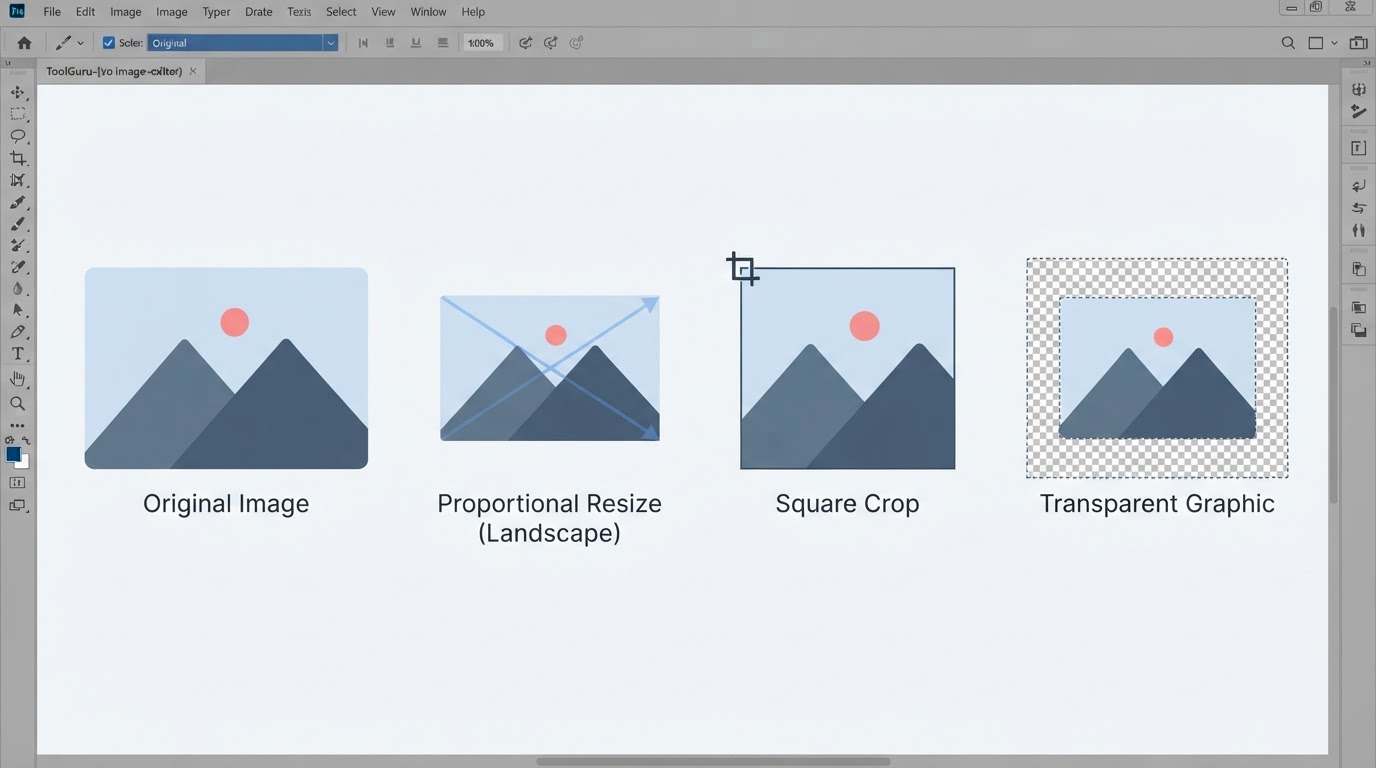
These operations solve different problems:
- Resizing changes the image's pixel grid or displayed dimensions.
- Cropping removes part of the image and changes its composition or aspect ratio.
- Padding, also called extending the canvas, adds space while preserving the complete image.
For example, a wide landscape image can become square by cropping its sides or by placing it on a square canvas with added background space. Stretching the landscape into a square changes the proportions of everything in the image.
When a target ratio differs from the source, decide the final composition first. Cropping before the final export is a practical default because it gives you control over what remains visible, but it is not a universal technical rule. Some tools combine cropping and resizing, and the best sequence can vary with the software, resampling process, and sharpening workflow. In every case, inspect the result before exporting.
Before You Resize: Check the Destination
Do not begin with arbitrary width and height values. First identify what the destination actually requires:
- Required width and height in pixels
- Required or recommended aspect ratio
- Maximum file size
- Accepted file formats
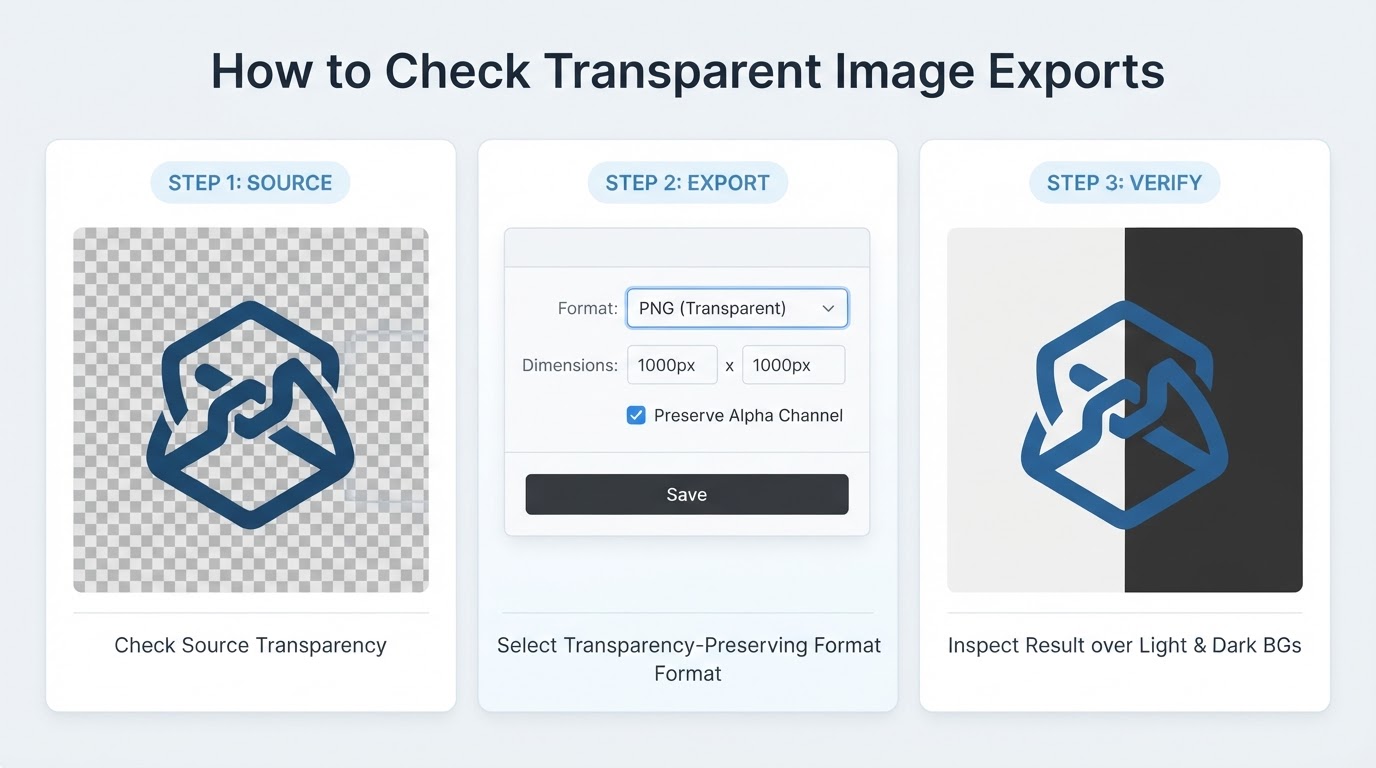
- Whether transparency must be preserved
- Whether the image is intended for a screen, upload form, email, document, or print
Requirements for social platforms, upload forms, and other services can change. Check the destination's current documentation rather than relying on an undated size chart.
For a website, consider the image's displayed content width. Responsive image delivery using resources such as srcset and sizes may provide more suitable files for different display conditions, but the workflow depends on the site's implementation.
For print, begin with the intended physical dimensions and suitable pixel density rather than using only a screen-oriented pixel width.
How to Resize Without Blurring or Losing Quality
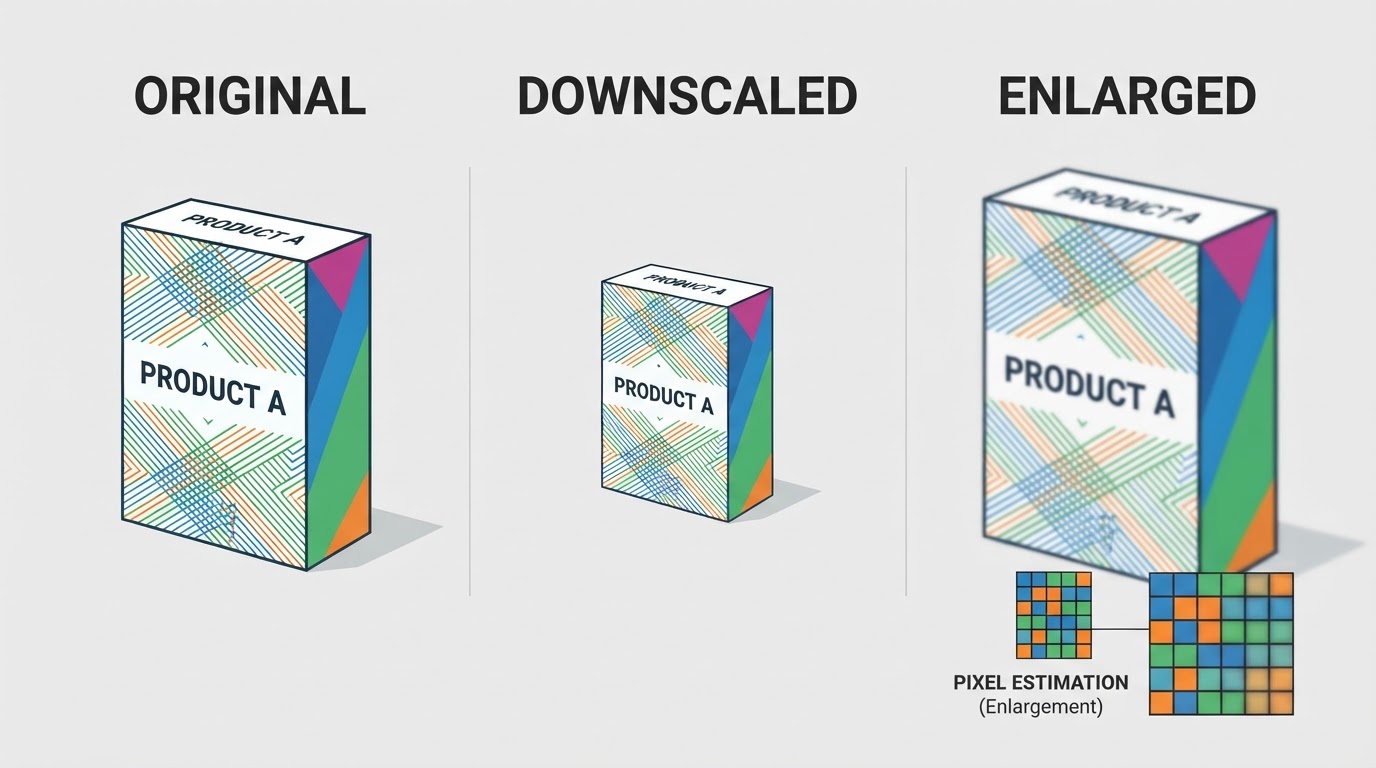
Reducing an image is usually more predictable than enlarging one. Downscaling combines or removes information from the original pixel grid and can produce a clean result when the source is sharp and detailed.
Upscaling generates additional pixels through interpolation or another enlargement method. Those pixels are estimates; they do not represent detail that the original camera or scanner actually captured. Enlarging a small, blurry, noisy, or heavily compressed image can therefore produce softness, pixelation, or other artifacts.
Advanced enlargement methods may create plausible-looking detail, but they should not be treated as guaranteed recovery of the original information. A larger pixel count does not automatically mean a sharper image.
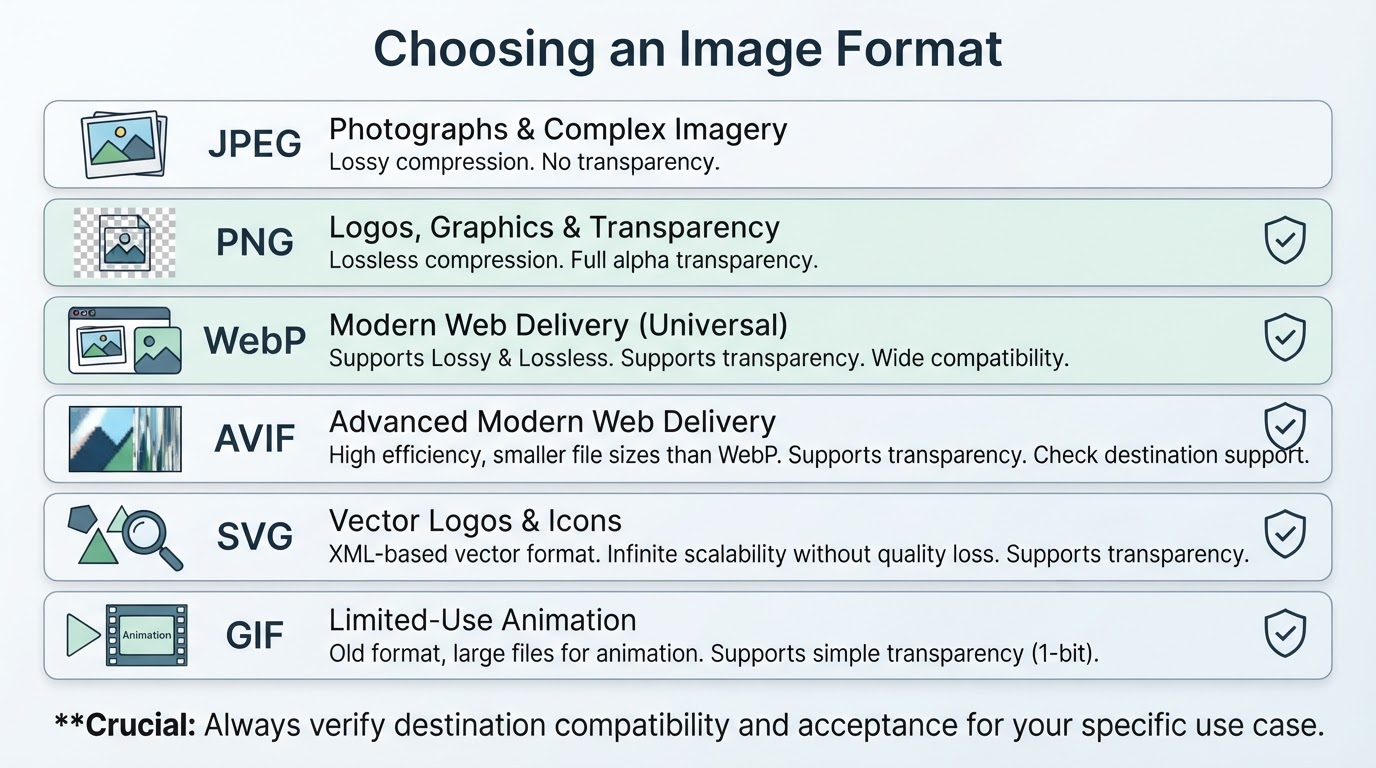
Choose the Right Format After Resizing
Select the export format according to the image content, transparency requirements, compression needs, and destination compatibility.
- JPEG: Commonly suitable for photographs. It uses lossy compression, so excessive compression can damage detail and create artifacts.
- PNG: Useful for transparency, screenshots, text, and sharp flat graphics where lossless compression is valuable.
- WebP: Supports lossy and lossless compression and transparency, making it useful for many web workflows when the destination accepts it.
- AVIF: May be useful for modern web delivery when the destination and workflow support it.
- SVG: Appropriate for logos, icons, and other vector artwork when the source is vector-based and the destination accepts SVG. Upload acceptance can be restricted by some systems.
- GIF: Not a universal replacement for photographs or high-quality static images. Confirm the destination requirements before choosing it.
Broad browser support does not guarantee that every upload form, editor, CMS, or downstream application accepts WebP, AVIF, or SVG. Verify compatibility at the destination.
Resize, Compress, or Convert?
These operations are related but solve different problems:
- Resize when the pixel dimensions are larger than the destination needs.
- Compress when the dimensions are appropriate but the file is too large.
- Convert when another supported format better matches the image content or delivery requirements.
Reducing pixel dimensions often reduces file size, but the final size also depends on format, compression settings, metadata, color information, and image complexity.
Use moderate compression as a starting point, then compare the exported file at its intended display size and check the destination's file-size limit. Do not over-compress an image simply to reach a target number if text, edges, gradients, or fine details become visibly damaged.
Online vs. Local Image Resizing
Online resizers are convenient, but uploading an image sends it to a third-party service. Before submitting sensitive content, review the provider's current policies and terms for retention, deletion, processing, analytics, third-party processors, backups, account requirements, and data use. HTTPS helps protect data in transit, but it does not establish how the provider handles files after upload.
Local software can reduce exposure to an online upload service when it processes files locally, but not every desktop or mobile application is entirely offline. Some applications synchronize files, connect to cloud storage, or use external services. Secure the device and storage, and confirm how the application handles files if privacy matters.
Final Verification Checklist
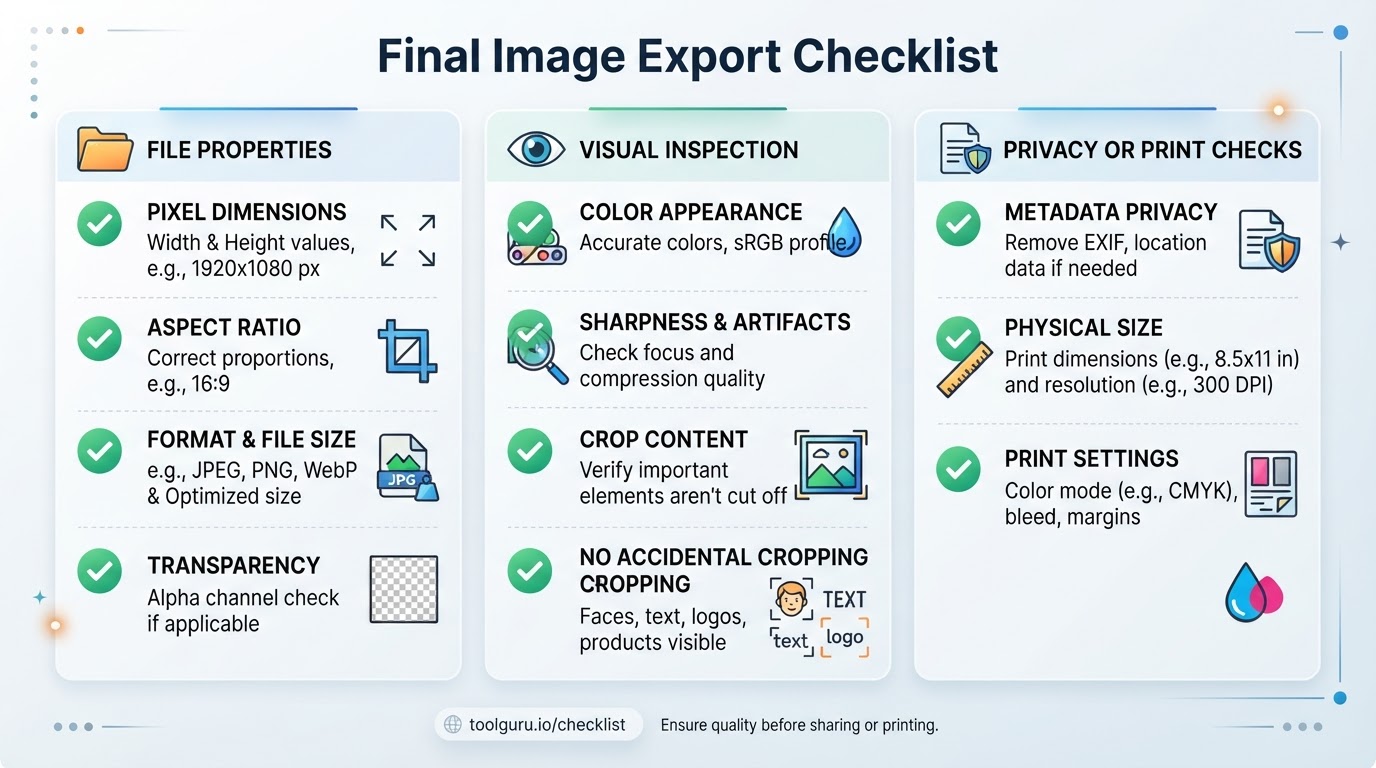
A successful editor preview does not guarantee a successful export. Open the saved file independently and check:
- Actual pixel dimensions and aspect ratio
- File format and extension
- File size compared with the destination limit
- Transparency and animation, when relevant
- Color profile and color appearance, when relevant
- Sharpness, text, edges, gradients, and compression artifacts
- Whether cropping removed a face, product, logo, or important text
- Physical dimensions and relevant PPI or print settings for print
- Whether sensitive metadata remains when privacy matters
Inspect the image at its intended display size, not only at extreme zoom. Upload or send a copy only after it passes these checks.
Conclusion
The safest way to resize an image is to begin with the destination requirements rather than arbitrary width and height values. Preserve the aspect ratio, use cropping or padding when the shapes differ, and avoid forcing an image into a new shape by stretching it.
Downscaling is generally more predictable than enlarging a raster image. Choose the format according to the image content and destination compatibility, keep an original master, consider privacy and metadata when sharing sensitive files, and verify the exported dimensions, format, file size, transparency, color, and appearance before using the result.