
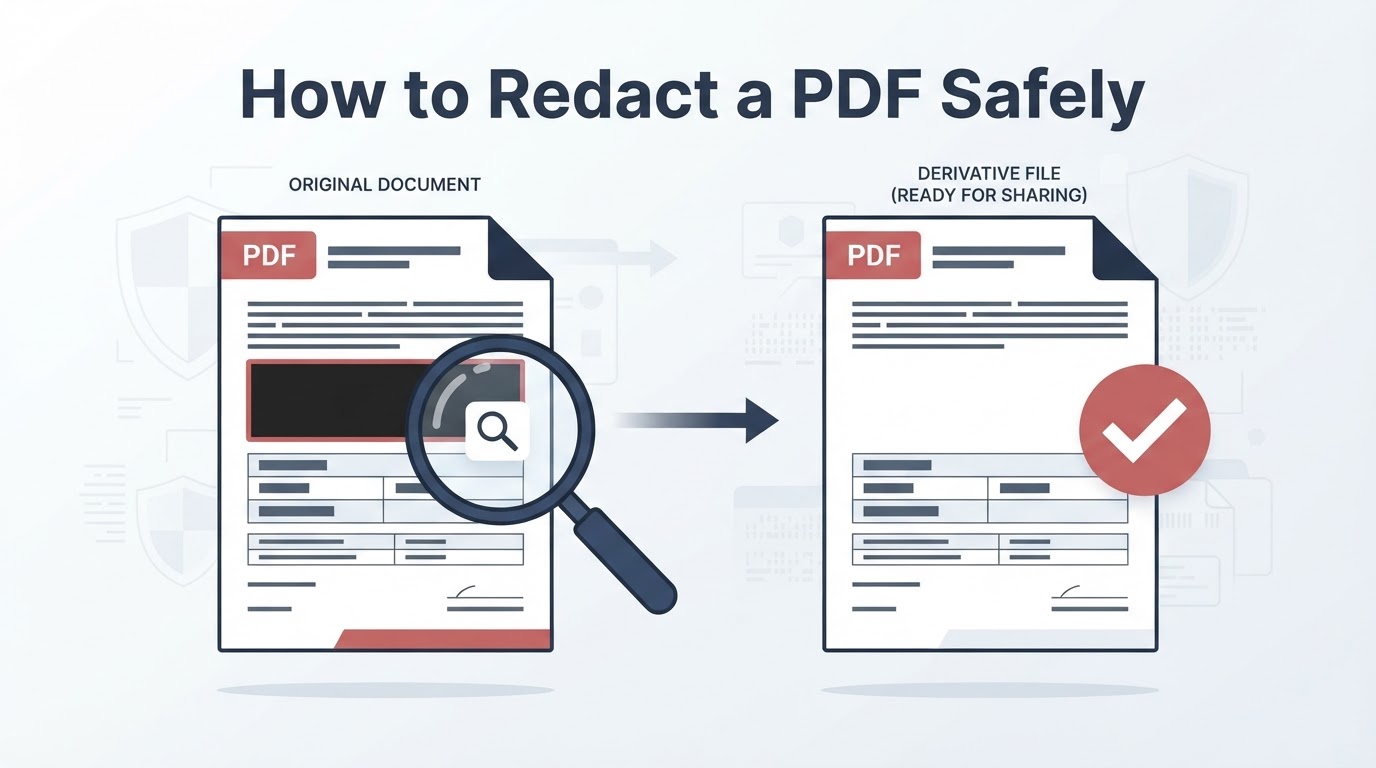
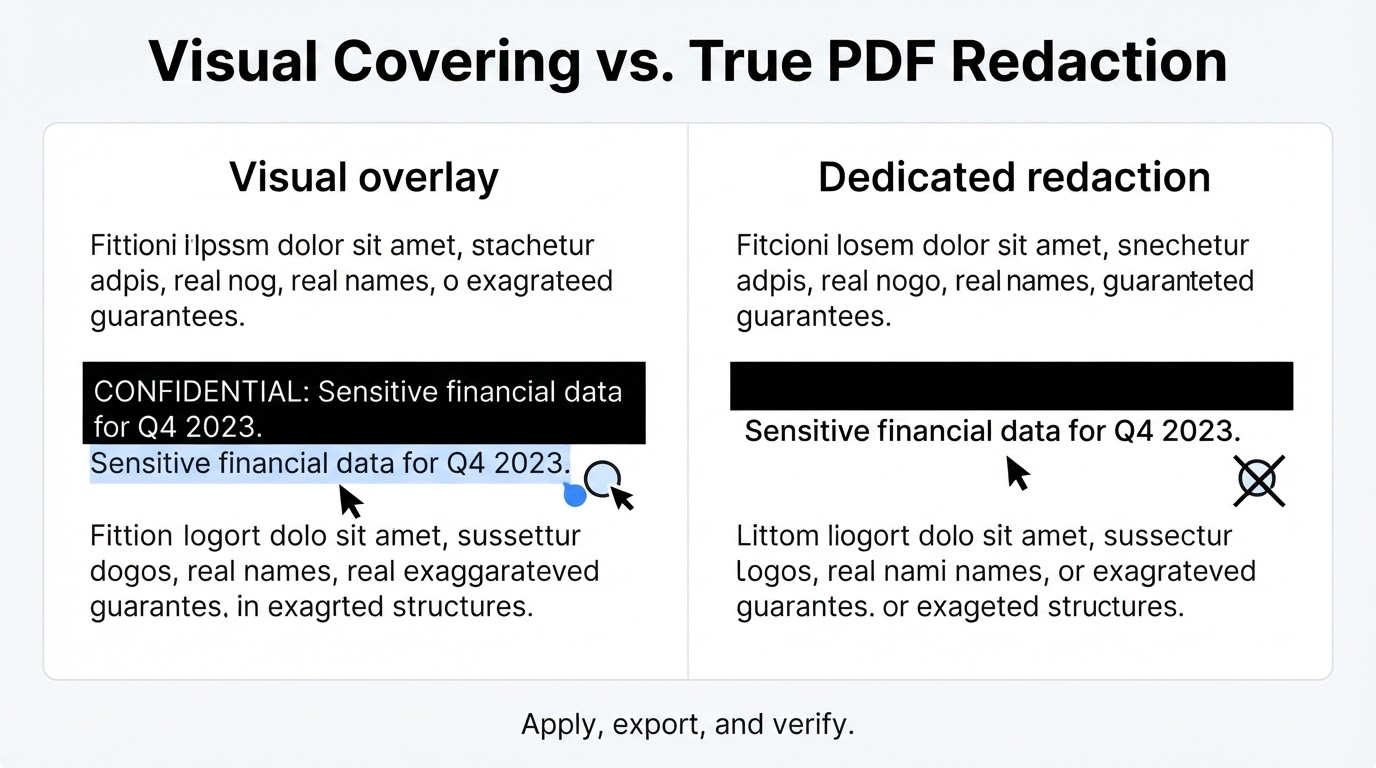
If you need to share a PDF without exposing confidential information, placing a black box over sensitive text is not enough. A normal shape, highlight, blur effect, white text, or similar overlay may hide content visually while leaving the original information available for selection, copying, or searching. A dedicated redaction feature is intended to remove selected content from the exported derivative, but the result depends on the application, version, file structure, export process, and whether duplicate content exists elsewhere. This provider-neutral guide explains how to redact text, images, signatures, scanned pages, and OCR layers, how to review hidden information, and how to test the result without treating any checklist as a guarantee of complete security.
Quick Answer: How to Redact a PDF
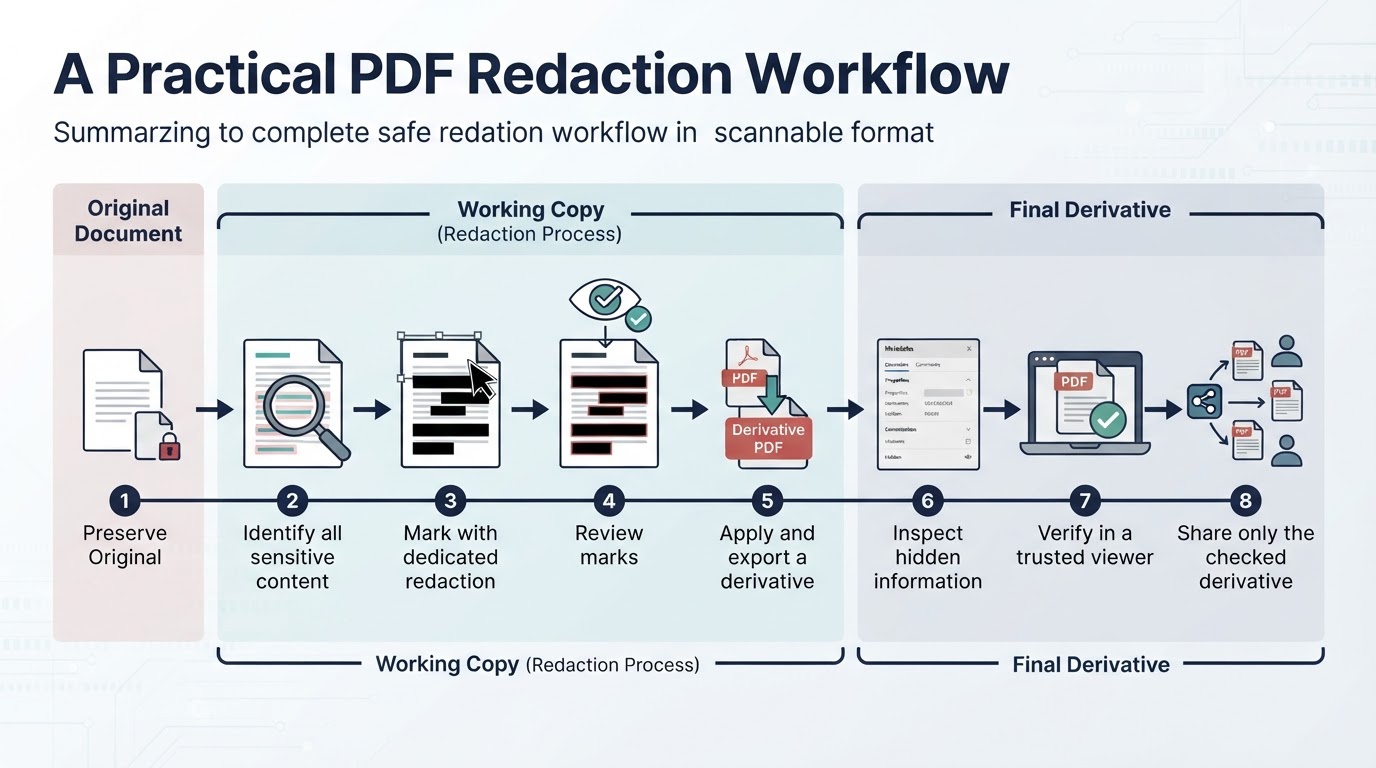
Use a PDF application that explicitly supports redaction rather than only drawing or annotation tools. The general workflow is:
What Does It Mean to Redact a PDF?
PDF redaction means removing selected confidential content from a document rather than merely covering it. Depending on the application and file, the selected content may be text, images, signatures, photographs, handwriting, or an area of a page. The redaction mark may remain visible to show where information was removed, but its appearance does not prove that the underlying data has been removed.
Before You Redact: Inspect the PDF and Protect the Original
Redaction is intended to be difficult or impossible to reverse in the saved derivative, so preparation matters. Keep the original unchanged, work on a copy, and decide what the recipient genuinely needs to see. If the document is confidential, choose a processing environment that complies with your organization's requirements before uploading it to an online service.
How to Redact Text, Images, and Page Areas
The provider-neutral process is similar across applications that support true redaction, although the controls and supported content types differ. Mark the sensitive content, review the marks, apply the operation, and save or export a new derivative. Merely placing redaction marks on a page may not remove the underlying content.
How to Redact a Scanned PDF or Image-Only Document
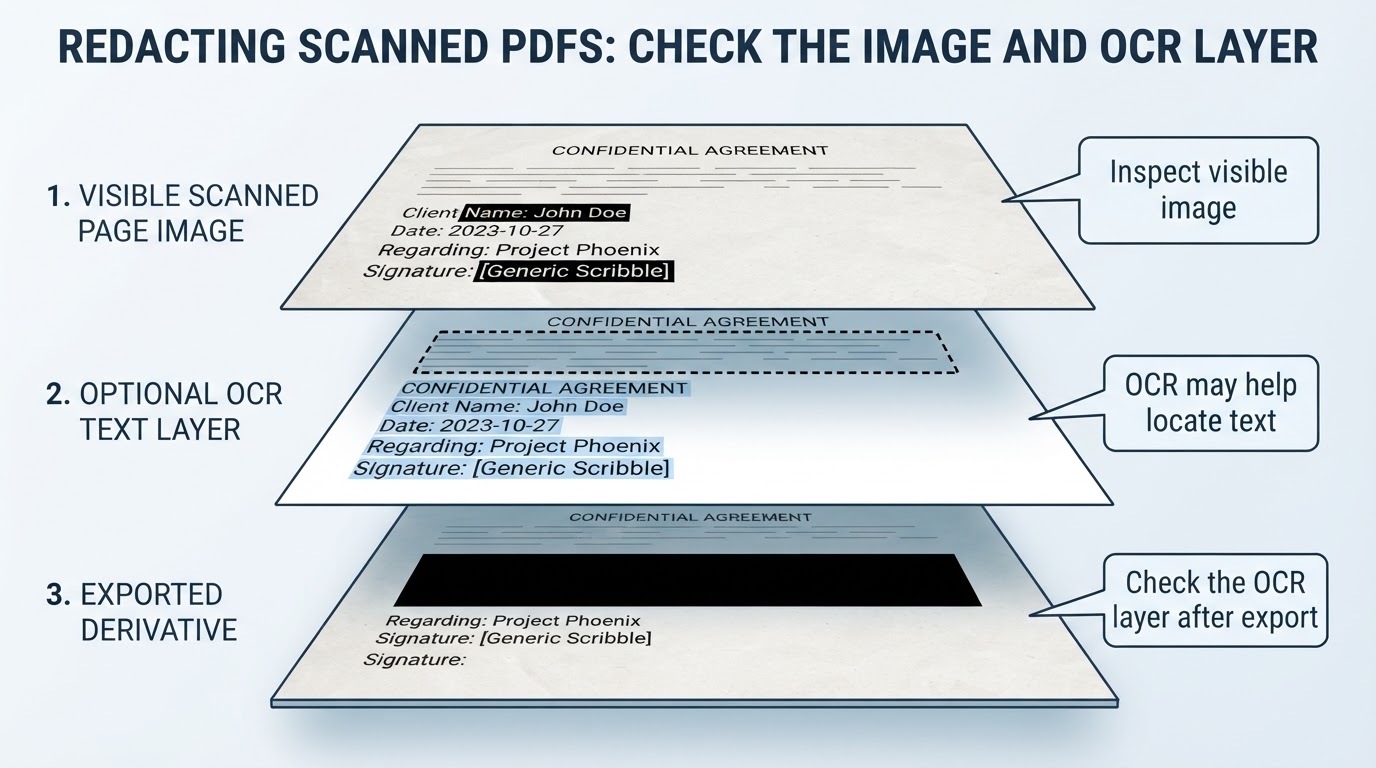
A scanned PDF may contain page images instead of reliable selectable text. Ordinary search may therefore miss information that is clearly visible. You can use manual area selection to address visible image content, whether or not OCR is available. OCR is optional and can help locate likely text, but its accuracy depends on scan quality, layout, language, and the application.
Review Hidden Information After Redacting
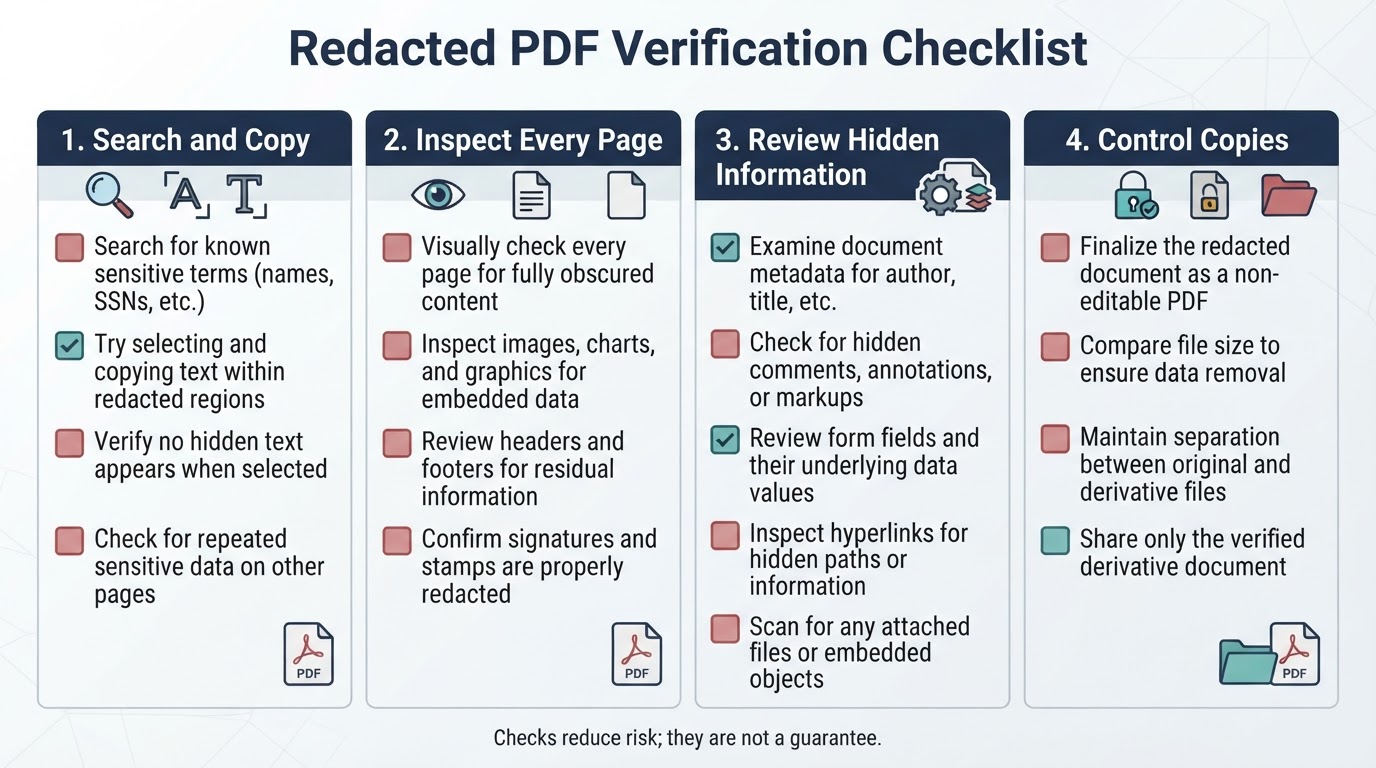
Removing selected page content does not necessarily remove every other type of information in a PDF. If the application provides a sanitization, remove-hidden-information, inspect-document, or similar function, review its documented scope and use it where appropriate. Terminology and behavior vary, so do not assume that one feature handles every hidden element.
How to Verify a Redacted PDF
Verification helps identify common failures, but it cannot guarantee that a complex PDF contains no residual sensitive information. Use a trusted viewer in a controlled environment rather than uploading a confidential file to an unapproved testing service. Open the exported derivative outside the editing workflow and perform several independent checks.
Should You Redact a PDF Online or Offline?
Choose online or local processing according to the document's sensitivity, your organization's rules, the available controls, and the application's documented behavior. Neither option is automatically secure. Online processing transmits the document to a third party; local processing reduces that particular exposure path but still leaves the device, software, temporary files, backups, synchronization, and sharing process to protect.
Common PDF Redaction Mistakes to Avoid
Avoid these frequent errors:
Conclusion
To learn how to redact a PDF safely, use a documented redaction feature—not a visual overlay—then apply the changes to a working copy and export a separate derivative. Review hidden information, inspect scans and OCR layers, and test the file in a trusted viewer. Treat verification as risk reduction rather than a guarantee, protect other copies, and follow approved specialist or organizational review for highly sensitive documents.