
An unfamiliar link may lead to a legitimate website, but it could also open a phishing page, fraudulent payment form, malware download, or fake login screen. Attackers can copy familiar logos and designs and register domains that resemble trusted organizations.
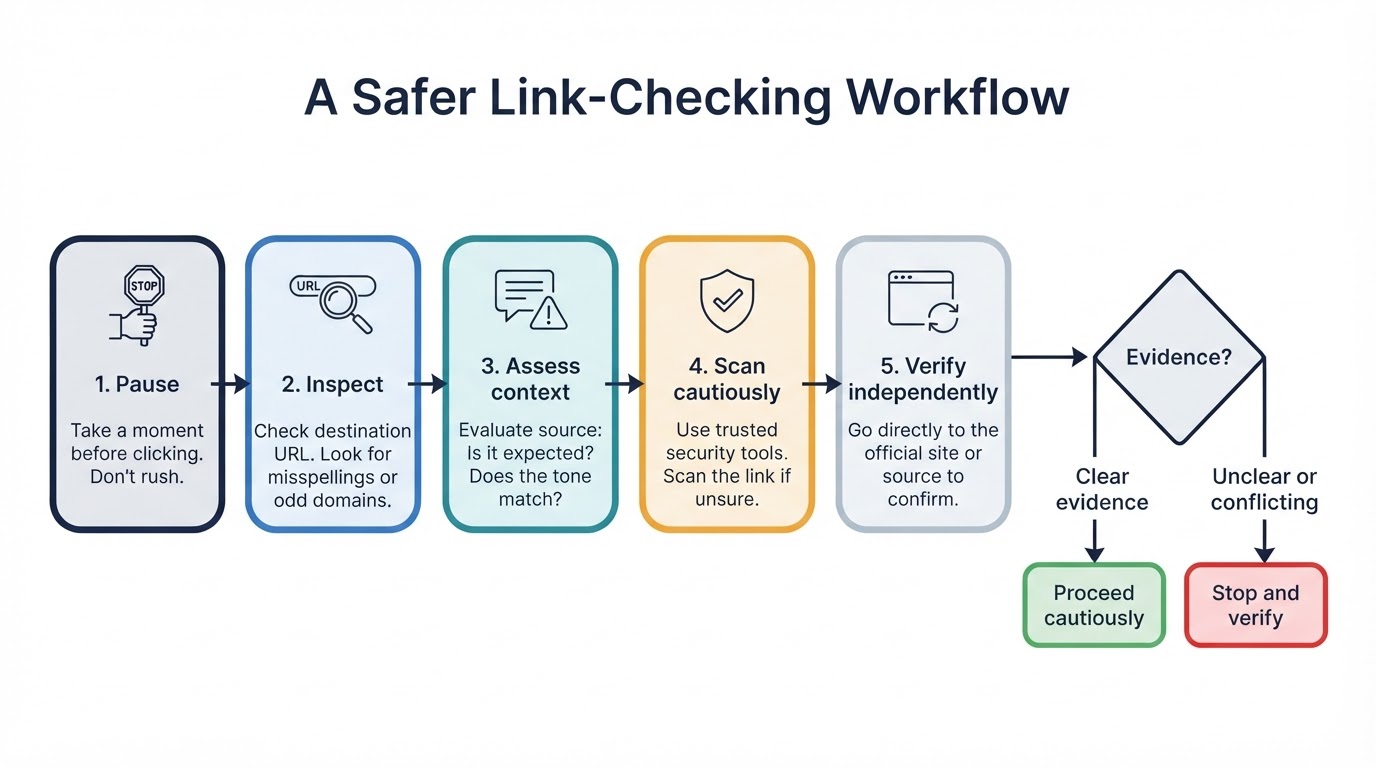
The safest way to check if a link is safe is to use several checks together: pause before interacting with it, inspect the destination without opening it, read the domain carefully, assess the message context, and verify important requests through an official channel. A reputable scanner can provide additional evidence, but no scanner result, padlock, or familiar logo proves that a website is legitimate.
The Quick Answer: Pause, Inspect, Verify
Use this workflow when you receive an unfamiliar link:
- Pause. Do not click, download, sign in, reply, or call a number in the message while the link is unverified.
- Inspect. Preview or copy the destination without loading it, then identify the actual host and registrable domain.
- Assess the context. Consider whether you expected the message and whether it creates urgency or asks for sensitive information.
- Scan cautiously. Use a reputable URL reputation or analysis service when appropriate, after considering whether the URL contains private information.
- Verify independently. Open the organization’s known website or app yourself, or contact it using trusted contact details.
If the results are unclear, conflicting, or show an unexpected redirect, do not proceed. Treat the link as unverified until you can confirm the request through an independent channel.
How to Inspect a Link Without Opening It
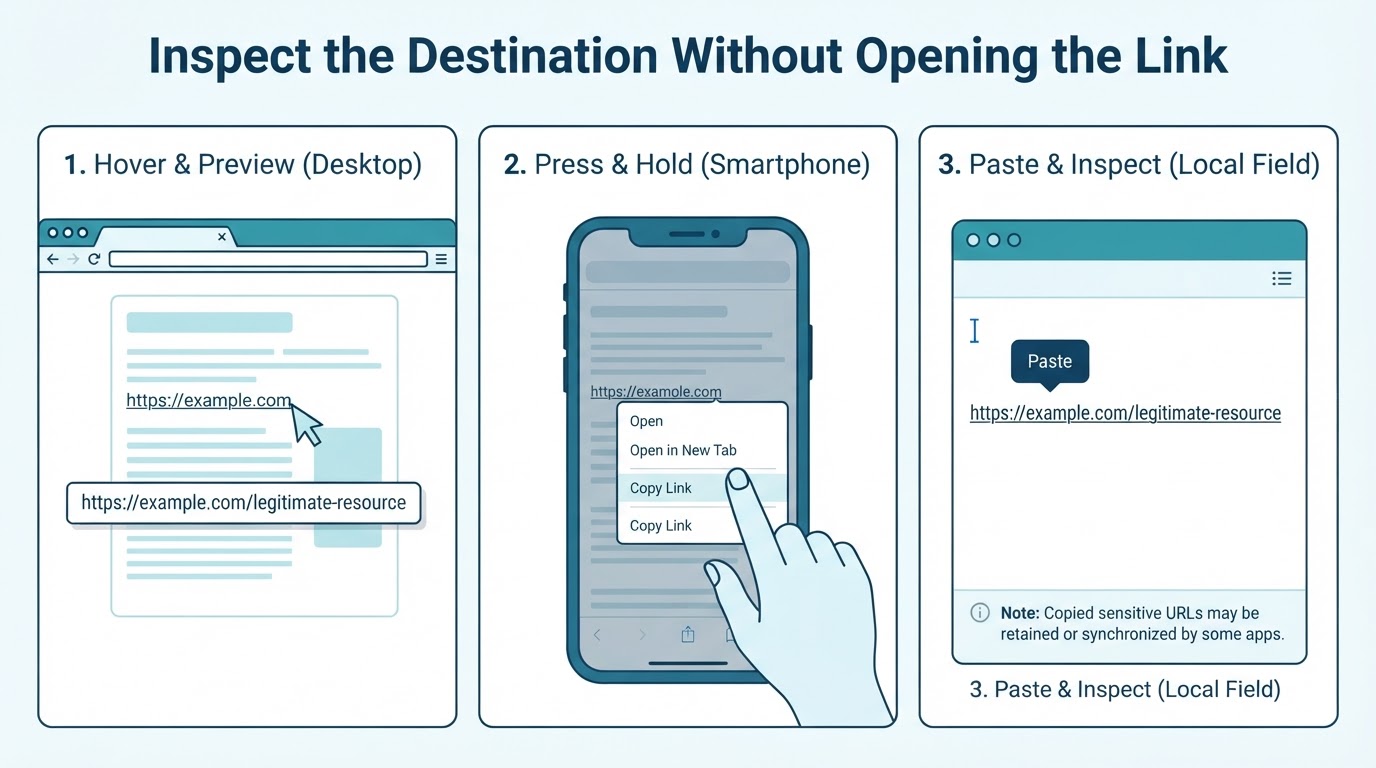
The first step is to reveal the destination without loading the page.
On many desktop browsers, move the pointer over the link without clicking. The browser may display the destination near the bottom of the window. Inspect that address before taking further action. Behavior can vary in desktop applications and some document viewers.
On phones and tablets, press and hold the link if the application supports that action, or choose an option to copy the link without opening it. The available menu and preview behavior depend on the operating system, browser, messaging app, and version. If you copy a sensitive URL, use a trusted local text field that is not synchronized or shared when practical; clipboard history, notes, backups, or cloud synchronization may expose its contents.
You can use this method for links in email, text messages, social media, messaging apps, online documents, and pop-ups. Do not assume that a button, image, logo, or visible label points to the destination it claims to represent. Never test a suspicious page by entering a password, payment detail, one-time code, or other personal information.
How to Read the Real Domain in a URL
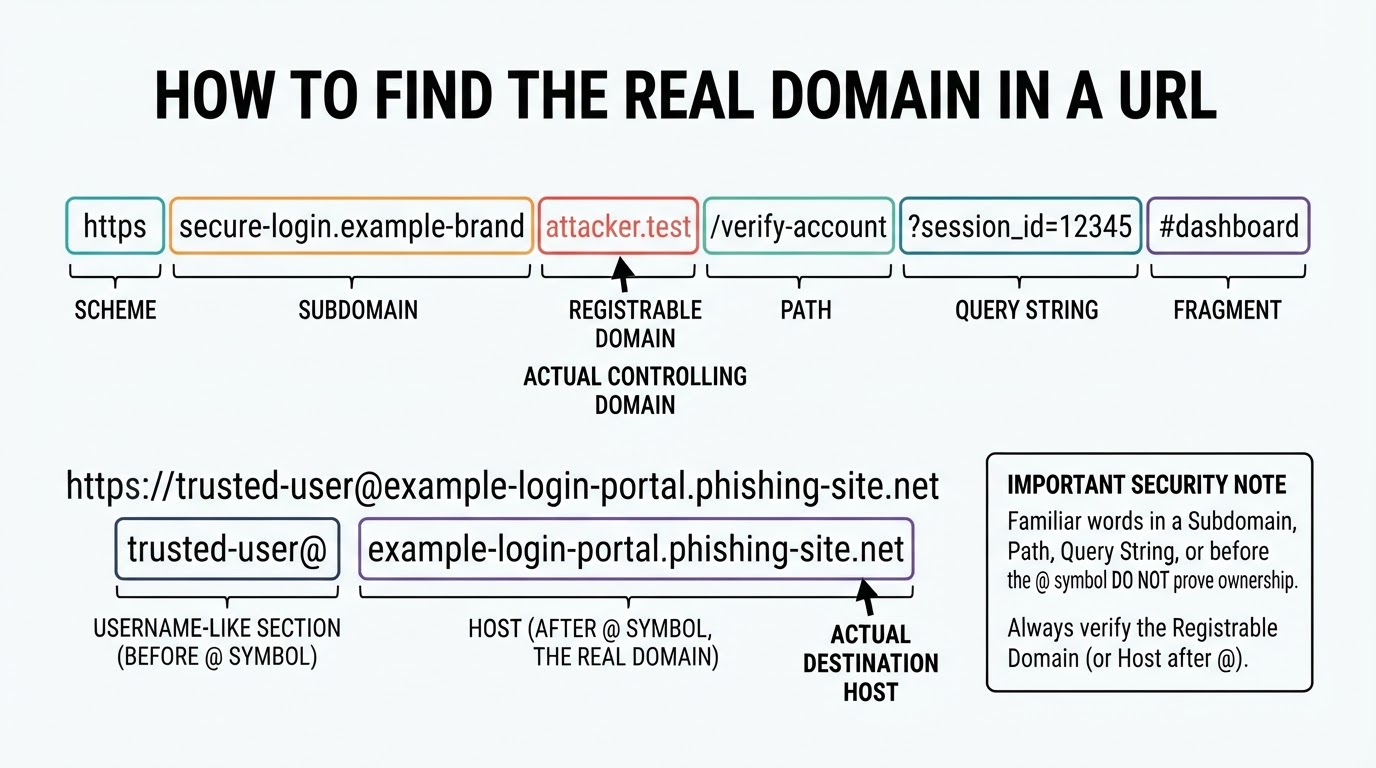
A URL contains several parts, but the host and registrable domain are the most useful parts for identifying the destination.
- Scheme: The beginning, such as
https://, which indicates how the browser connects. - Host: The domain name the browser contacts, including any subdomains.
- Subdomain: A label before the registrable domain, such as
loginorsupport. - Registrable domain: The domain a registrant can generally register beneath the applicable public suffix.
- Path: The section after the host that identifies a page or resource.
- Query string: Information after a question mark, which may include settings, tracking values, identifiers, or personalized tokens.
- Fragment: Information after a hash symbol that can point to a section of a page.
For common domains such as example.com, the registrable domain is usually example.com. Multi-part public suffixes require more care. In example.co.uk, the registrable domain is ordinarily example.co.uk, not simply the label before .uk. A public-suffix parser can help with unusual or unfamiliar domain endings.
Domain inspection helps identify where a browser is connecting, but it does not by itself prove who operates the domain or whether the organization behind it is trustworthy.
Phishing Warning Signs: Judge the Link and Message Together
A URL should not be judged in isolation. Consider why you received the message, whether you expected it, and whether the request matches the sender’s normal behavior.
Common warning signs include:
- Unexpected account alerts or password-reset requests
- Threats that an account will be closed, suspended, or restricted
- Pressure to act immediately
- Requests for passwords, payment details, one-time codes, or other sensitive information
- Unexpected invoices, delivery notices, shared documents, refunds, or payment requests
- Instructions to download unfamiliar software or files
- An unusual sender address, writing style, or communication channel
- A request to bypass normal approval or verification procedures
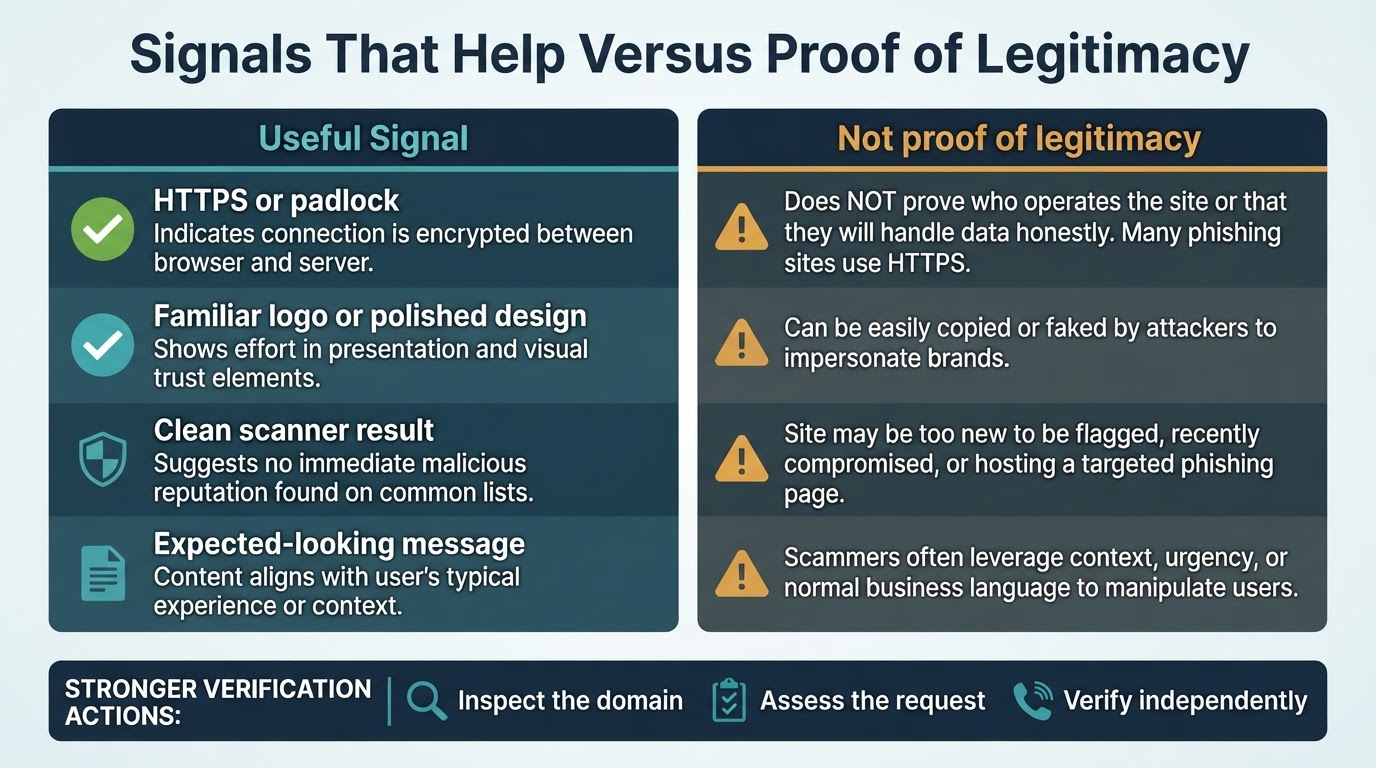
A familiar display name, logo, polished design, or professional formatting does not prove that a message is genuine. A typo does not prove that it is malicious either. Treat these details as clues and verify important requests separately.
Why HTTPS and the Padlock Do Not Prove a Link Is Safe
HTTPS protects data in transit between your browser and the website. It helps protect the connection from some forms of interception or alteration while the data travels between those points.
However, HTTPS does not prove who operates the website, what the site intends to do, how the server handles submitted information, or whether the device and browser are safe. A phishing page can use HTTPS and still collect usernames, passwords, payment information, or one-time codes.
Use HTTPS as a connection-security signal, not as proof of legitimacy. Also ask:
- Is this the correct organization’s domain?
- Was the message expected?
- Does the request make sense?
- Can it be confirmed through an independent official channel?
Take browser warnings about unsafe connections seriously, but remember that the absence of a warning is not a guarantee that the website is legitimate.
Using a Safe Link Checker or URL Scanner
A URL reputation or analysis service can provide another piece of evidence. Depending on the provider and scan type, a service may compare the address with threat-intelligence records, use reputation data and detection rules, follow some redirects, or fetch and analyze a page. Page rendering or sandboxed behavioral analysis is available only from some services and may vary by product, plan, and configuration.
Use a scanner through its correctly spelled official HTTPS website. Do not assume that every service performs the same checks. Some may analyze only the submitted URL, while others may follow redirects or inspect a live page. Check the provider’s current documentation to understand what the result covers.
A scanner can miss a new, changed, targeted, or evasive threat. A result may also be specific to the submitted address and time of analysis rather than the entire domain or every future version of the site.
Protect Your Privacy When Checking a URL
A URL can contain sensitive information even when it is not a password-reset link. Query strings and fragments may include tracking identifiers, customer references, invitation codes, document identifiers, or other personalized values.
Before submitting a URL to a public scanner, check the provider’s current policies and settings for storage, sharing, retention, private scans, and deletion. These practices vary by service. Some services may save a scan or create a shareable result by default, while others may offer a non-storage option.
Avoid submitting password-reset links, private document links, invitation URLs, tracking URLs, or other confidential addresses unless you understand how the selected service handles them. For sensitive URLs, inspect the address locally or use an appropriate private-analysis option. Never enter credentials or payment details merely to test a suspicious page.
What to Do If You Already Clicked a Suspicious Link
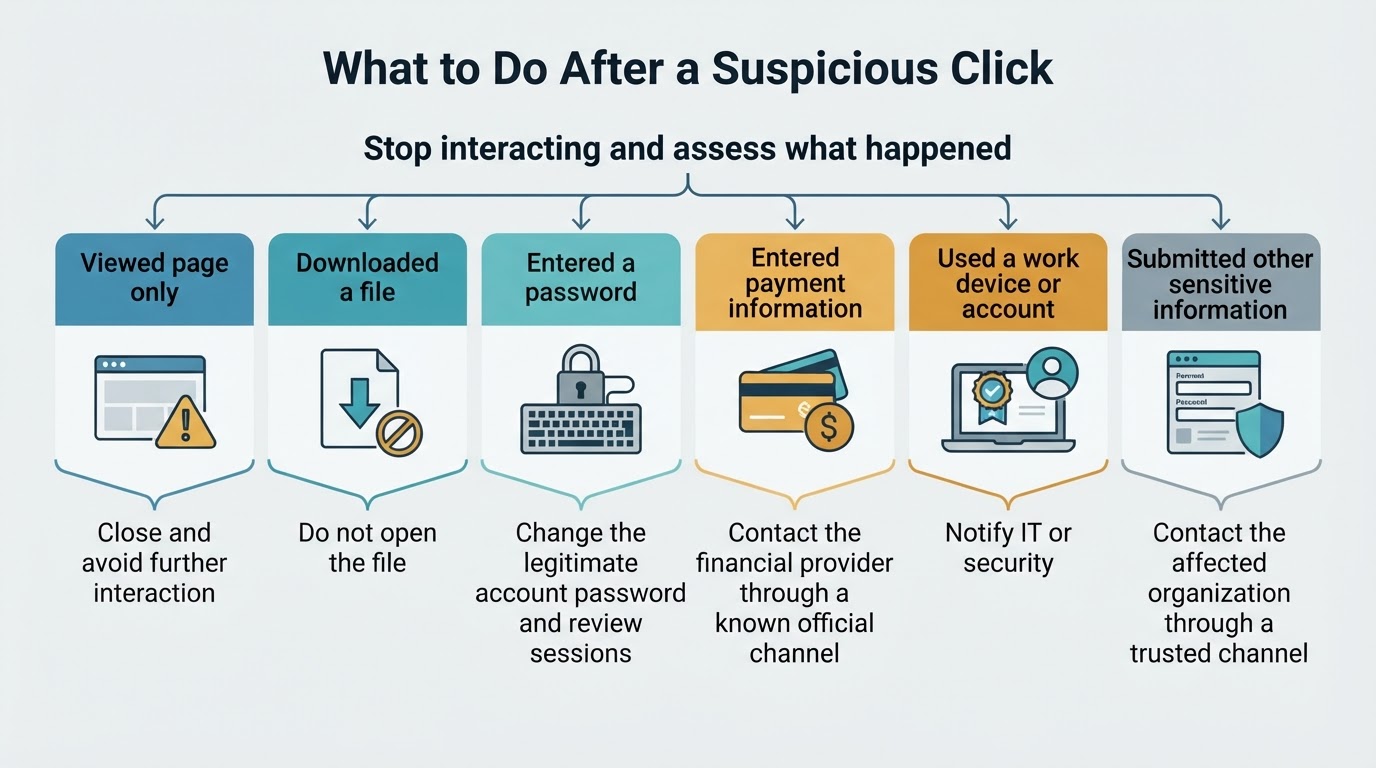
Stop interacting with the page and do not provide more information. The appropriate response depends on what happened next.
If you only viewed the page, close it and avoid downloads, forms, and further instructions. If the browser or device shows unusual behavior, repeated warnings, unexpected software, or other changes, seek appropriate technical assistance. Do not assume that closing the page resolves every possible incident.
If a file was downloaded, do not open it. On a personal device, follow your normal security process for checking the device. On a work device or with a work file, contact your organization’s IT or security team before uploading the file to an online scanner or installing another tool.
If you entered a password, navigate independently to the legitimate service, change the password there, change it anywhere else you reused it, review or revoke active sessions if the service provides that control, and enable multifactor authentication. Notify your employer or administrator if a work account was involved.
If payment or financial information was exposed, contact the bank or financial provider promptly through a known official channel. Report the attempt to the relevant platform, organization, employer, IT team, or appropriate reporting service.
Conclusion
The safest way to check if a link is safe is to slow down and use layers of verification. Preview or copy the URL, identify the real registrable domain, assess the message context, and use scanners only as supporting evidence.
HTTPS, familiar branding, and a clean scan do not prove legitimacy on their own. When uncertainty remains, open the organization’s known official website or app separately. If you already clicked, stop interacting with the page and secure any exposed accounts, devices, or financial information through trusted channels.