
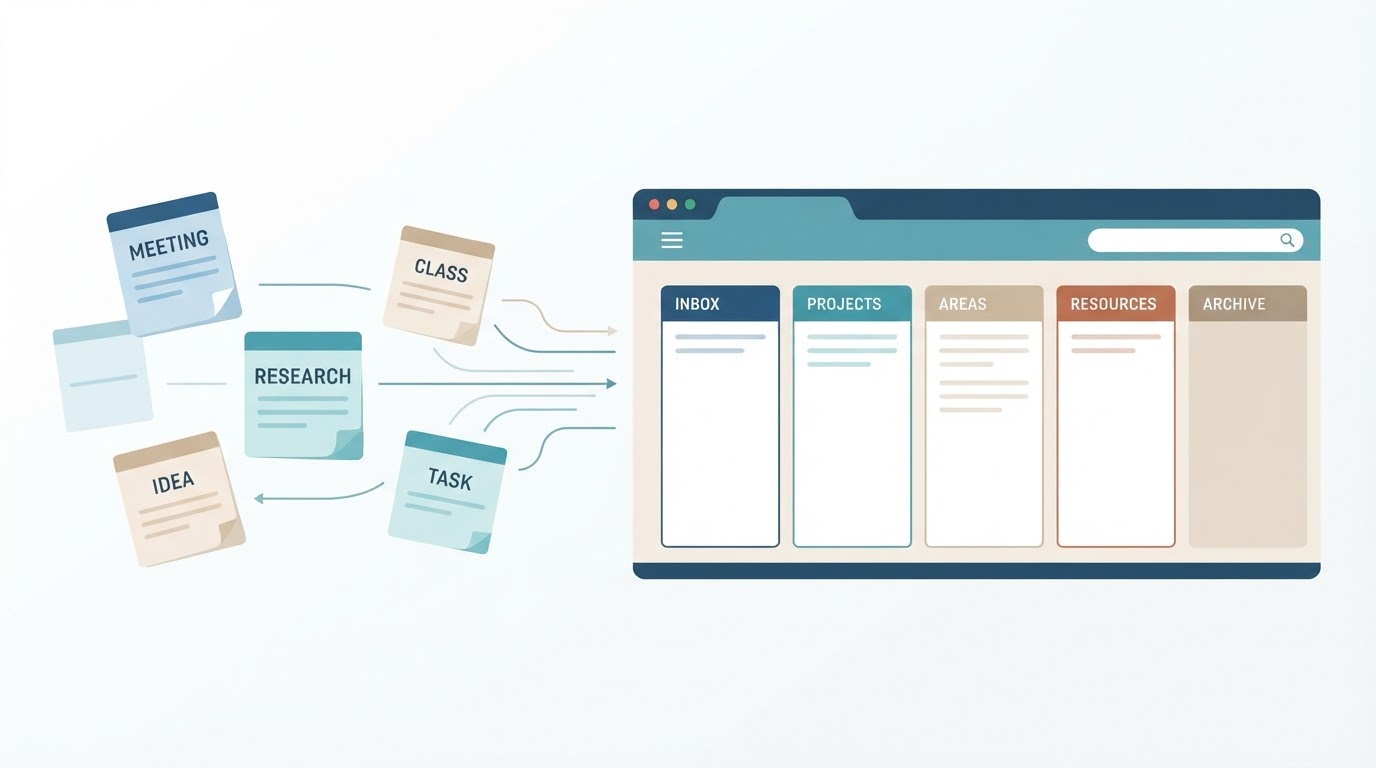
Digital notes become difficult to use when information is scattered across apps, hidden behind vague titles, or captured without enough context to understand it later. The solution is usually not a more advanced app or a deeper folder hierarchy. A useful system makes new information easy to capture, gives each note enough context to find it later, and includes a simple maintenance routine.
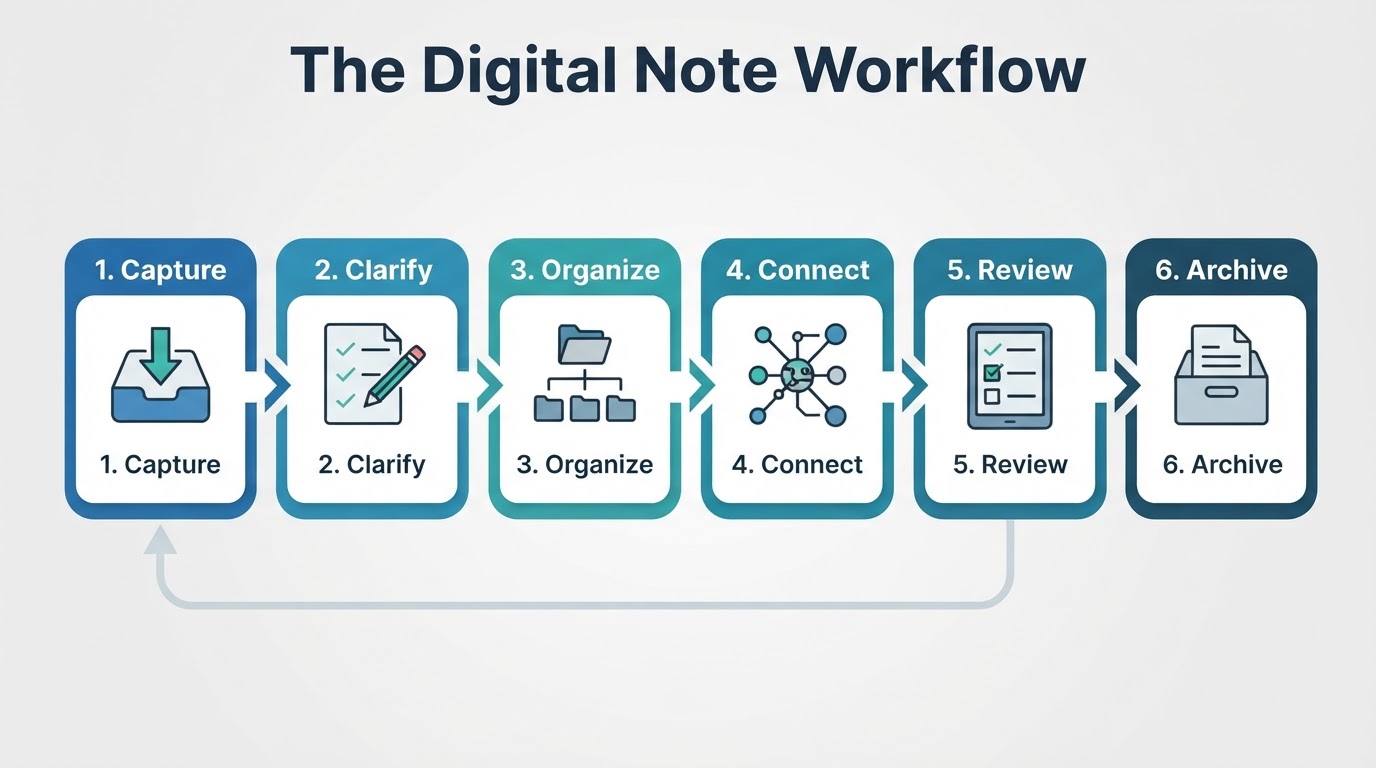
The core workflow is: capture, clarify, organize, connect, review, and archive. You can use it for class notes, meeting records, research, personal ideas, project information, and everyday reference material, regardless of the note-taking application you choose.
The Quick Answer: Use a Small, Repeatable Note System
To organize digital notes effectively, start with one default capture location and a small number of broad categories. Give notes descriptive titles, separate tasks from reference information, and review the system regularly.
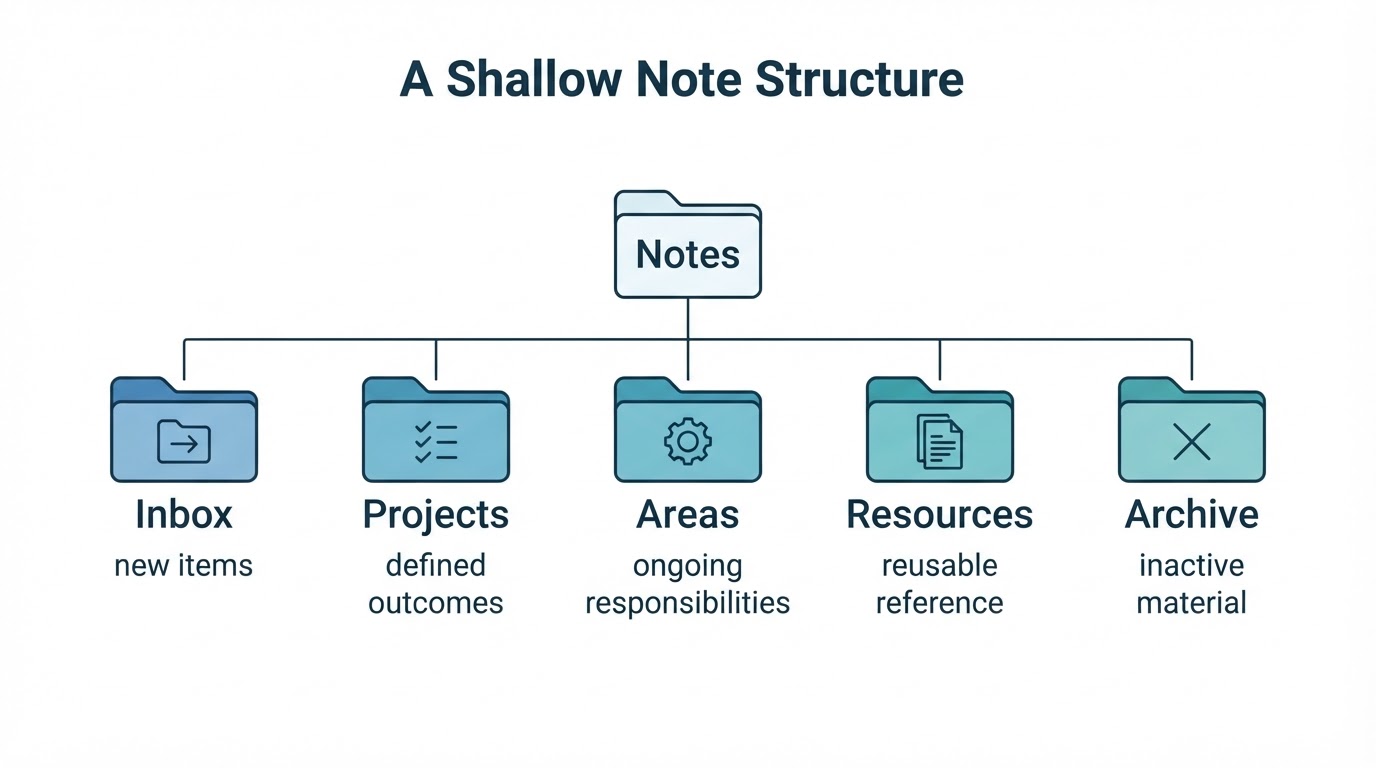
A practical starting structure is:
- Inbox: New and unprocessed information.
- Projects: Work with a defined outcome or end date.
- Areas: Ongoing responsibilities without a fixed completion date.
- Resources: Reusable reference information.
- Archive: Completed, inactive, or historical material.
These categories are editorial recommendations, not requirements. Map them to the closest features your application supports, such as folders, notebooks, pages, labels, databases, or top-level files. The exact implementation will differ between applications.
Capture New Information in One Inbox
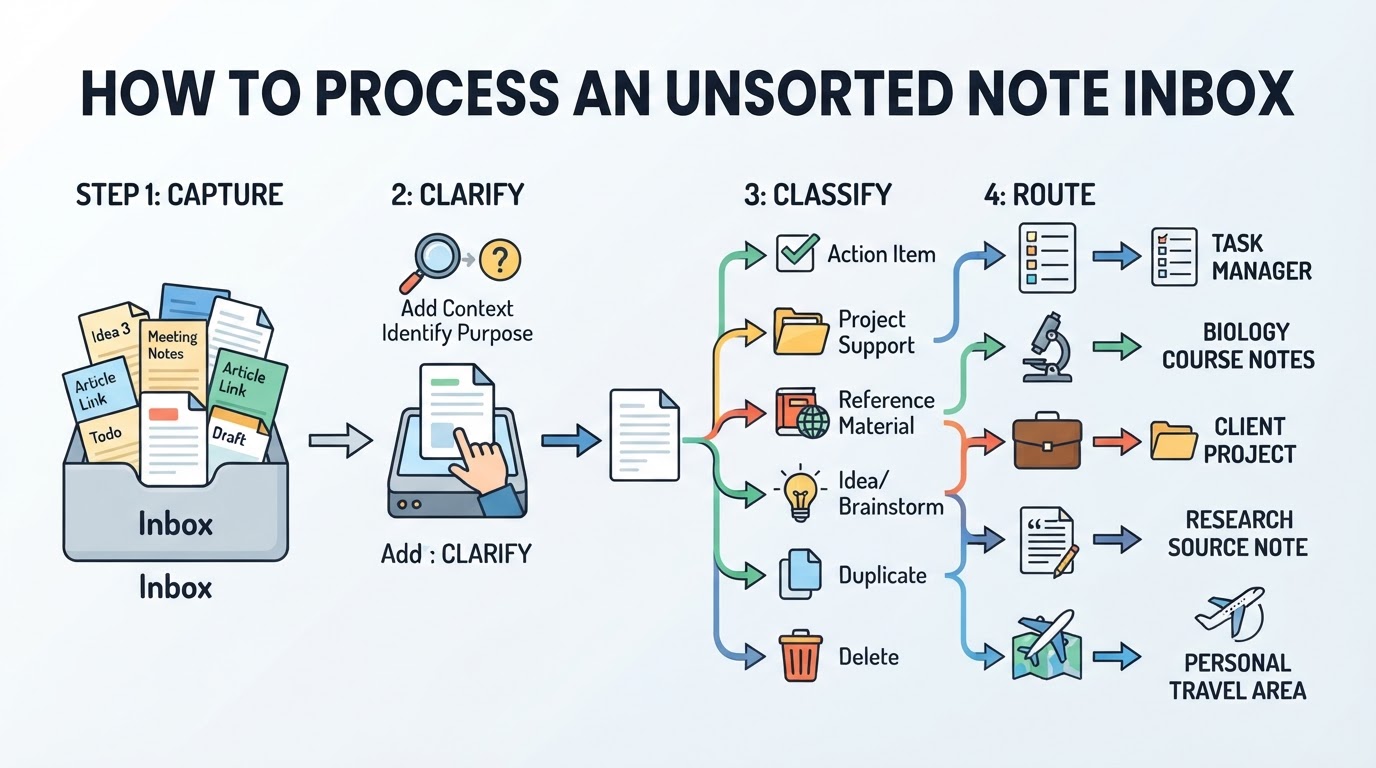
Use one default capture inbox for quick notes from your phone, computer, a meeting, a class, or everyday activities. The inbox is a temporary landing place, not a permanent category.
Capture first and schedule processing instead of stopping repeatedly to file every note. Add enough context to understand the note later. For example, replace “ask about deadline” with “Ask Professor Lee whether the Biology report deadline changed.” The second version takes only slightly longer to write but is much easier to process.
During processing, decide whether each item is an action, project information, reference material, an idea, a duplicate, or a deletion candidate. Move tasks to the place where you actually manage them. A meeting note can preserve the decision and context, but the follow-up task should not remain buried inside it.
Make Digital Notes Searchable With Better Titles and Context
Descriptive titles and useful context make notes easier to recognize and retrieve. Search features vary by application: some tools index full text, while support for attachments, dates, tags, links, handwriting, images, or other metadata depends on the product, file type, platform, and settings. Do not assume that every application searches all of these elements.
Put the main subject near the beginning of the title. Add a date, project, person, course, or document type when it helps distinguish similar notes. For research material, include the source and explain why the note matters.
Avoid titles such as “Notes,” “Meeting,” “Ideas,” or “Important.” They provide little information when several similar notes appear in search results.
Folders, Tags, Links, Search, and Templates
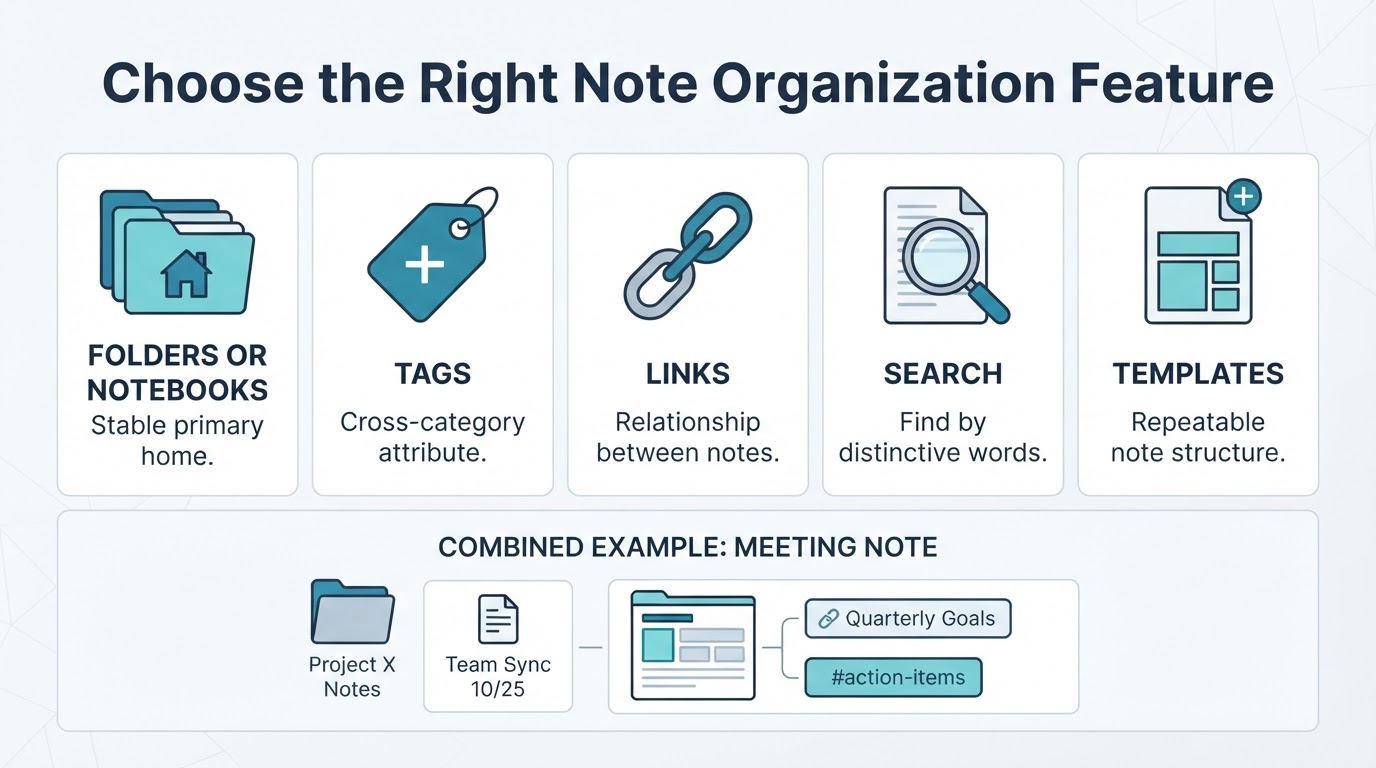
Different organization features solve different problems. You do not need to use one method for everything.
- Folders or notebooks provide a primary home for a note.
- Tags identify attributes that may apply across multiple locations.
- Links connect related ideas, projects, sources, or concepts.
- Search helps locate notes when their exact location is uncertain, subject to the application's indexing features.
- Templates standardize recurring note types, such as meetings, lectures, or research sources.
Adapt the System for Students, Work, Research, and Personal Notes
Keep the same capture, processing, naming, and review workflow across different contexts. Change the template and primary location to match the information's purpose.
PARA and Linked-Note Methods: Optional Approaches
Start with the smallest system that supports reliable capture and retrieval. More formal methods are optional and should solve a problem you actually have.
Clean Up Old Digital Notes Without Starting Over
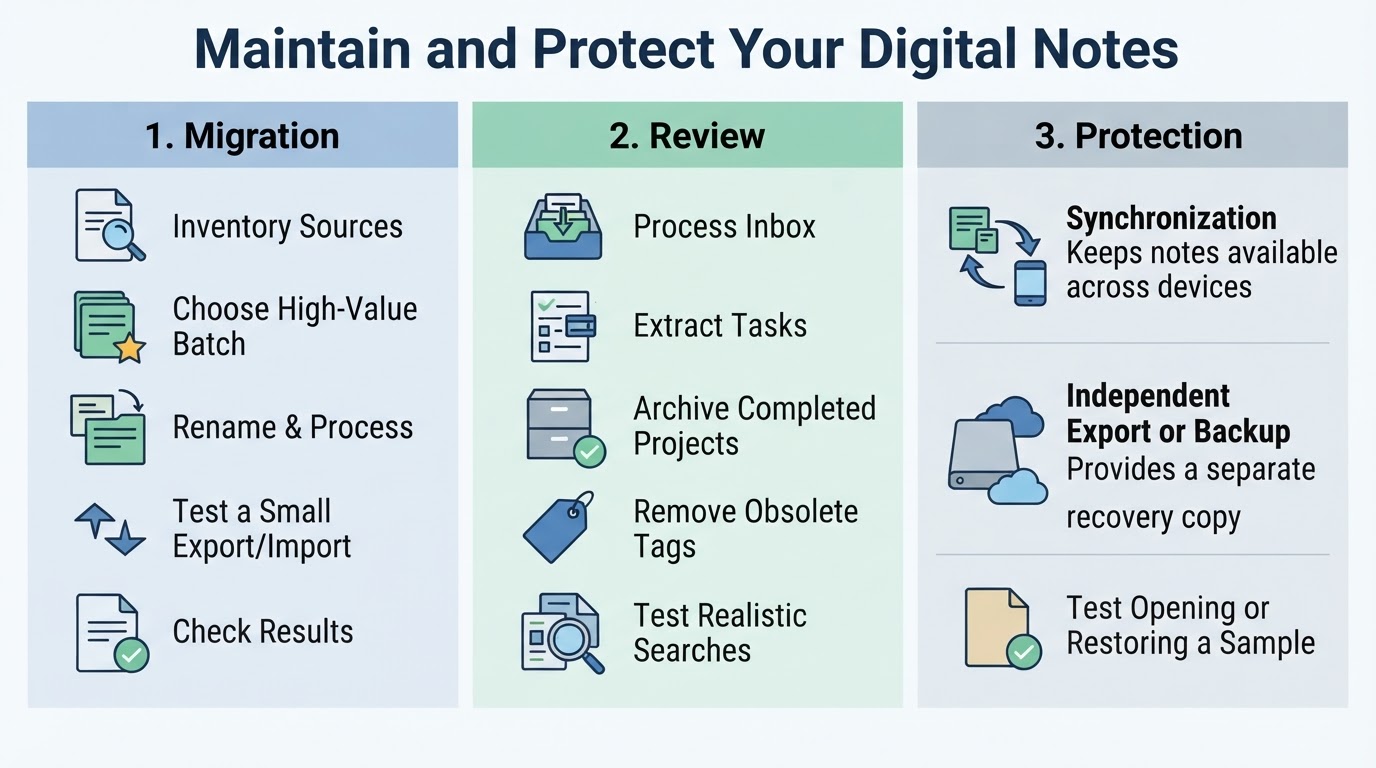
Historical cleanup is easier when it is not a prerequisite for using the new system. Create the system for future notes first, then migrate older material in small, valuable batches.
Start with recent, active, or frequently needed notes. Low-value historical material can remain in a dated archive until there is a clear reason to process it.
Review, Archive, and Maintain the System
A note system becomes less useful when the inbox, tags, folders, and project areas grow without review. Schedule periodic maintenance rather than waiting until retrieval becomes difficult.
A review can include processing inbox items, renaming vague notes, merging duplicates, removing obsolete material, archiving completed projects, and simplifying unused tags or folders. Test important exports or backups periodically so you know the files can be opened or restored.
Protect Synchronized Notes With Export and Backup Planning
Synchronization and independent backup serve different purposes. Synchronization makes notes available across devices, while an independent export or backup is intended to provide a separate recovery copy. A synchronized unwanted edit or deletion may affect other devices, although recovery options, version history, trash behavior, and conflict handling vary by service.
Exports are not automatically complete backups. They may omit application state, version history, permissions, metadata, attachments, or other information. Periodically export or back up important notes and test opening or restoring a representative sample using the actual method you plan to rely on.
Conclusion
A maintainable digital note system does not need a complex app or a perfect archive. Capture new information in one inbox, add searchable context, give each note a simple destination, connect related ideas when useful, review regularly, and archive inactive material.
Start with a small set of real notes and test whether you can answer the questions you expect to ask later. Simplify anything that creates hesitation or excessive maintenance, and protect important information with appropriate account security and a tested independent export or backup plan.