
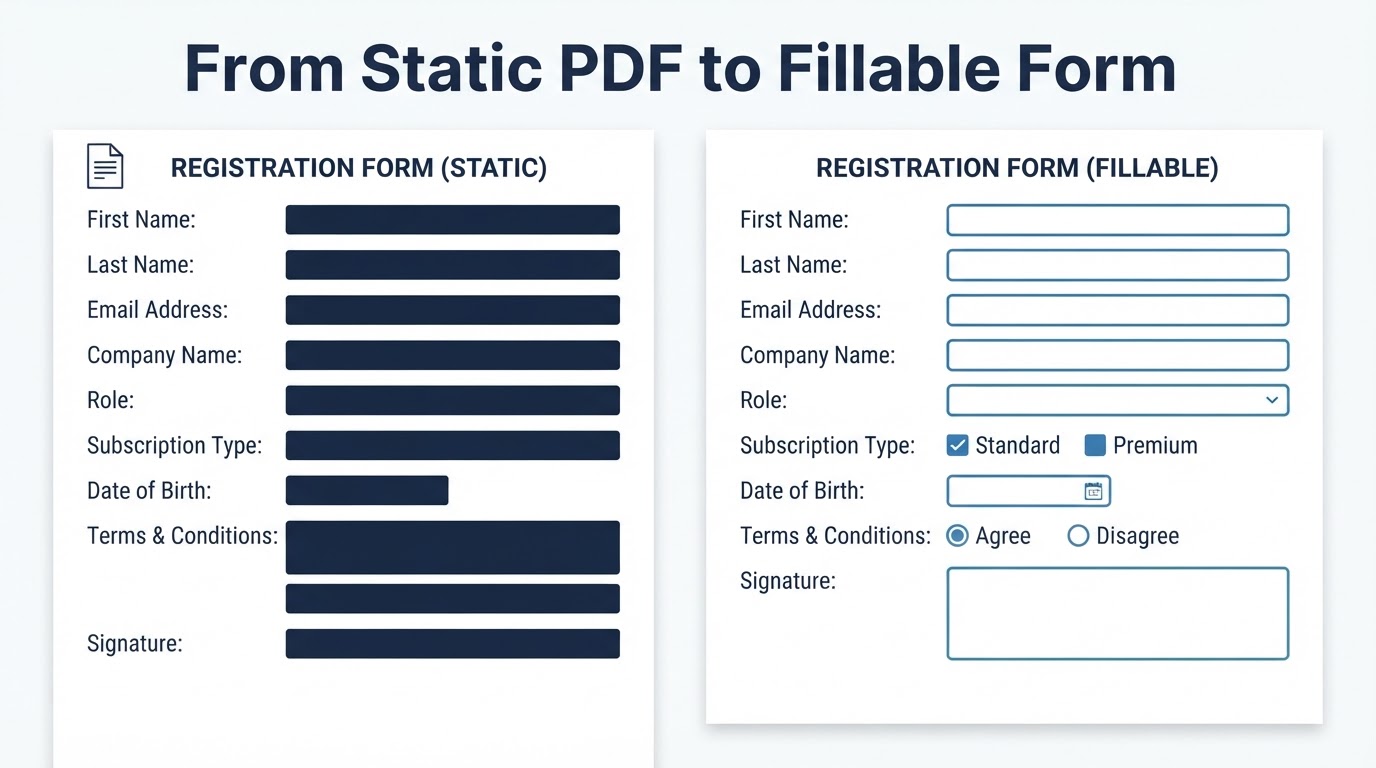
A fillable PDF lets people enter information into predefined fields without changing the document's page design. Common controls include text fields, checkboxes, radio buttons, dropdowns, date-entry fields, and fields used in signing workflows.
Learning how to make a PDF fillable is usually straightforward, but a reliable form requires more than placing boxes over a page. You need to prepare the source, choose suitable field types, configure names and properties, test the form in relevant viewers and devices, and share it in a way that matches the document's sensitivity.
This guide explains a tool-neutral process for converting a static PDF, Word document, scan, image, or blank layout into an interactive form. It also explains how to confirm that the final file remains fillable, improve accessibility, handle signature-related features carefully, and decide when an online form may be a better option.
Quick Answer: How to Make a PDF Fillable
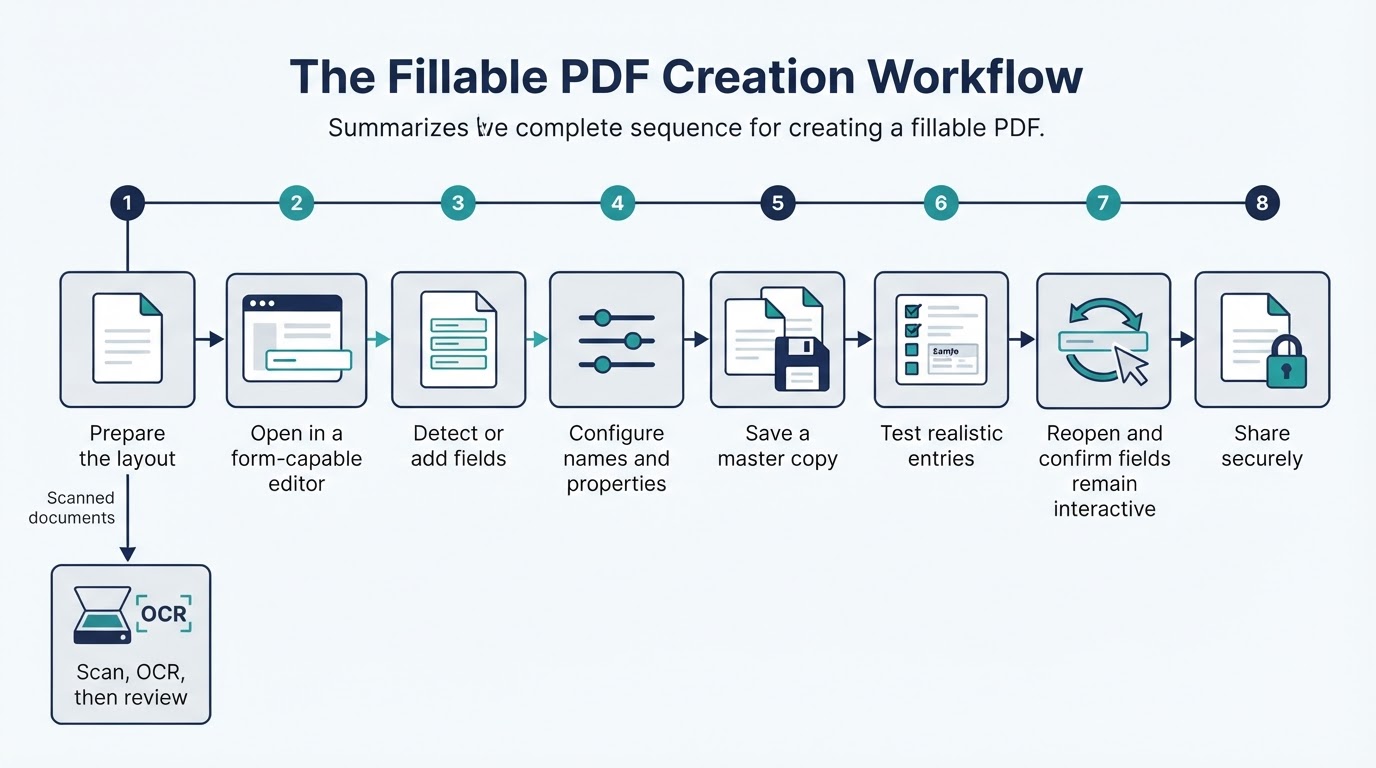
The general process is:
- Prepare or create the document layout.
- Open the PDF in a form-capable PDF editor.
- Use automatic field detection if available, then review every detected field.
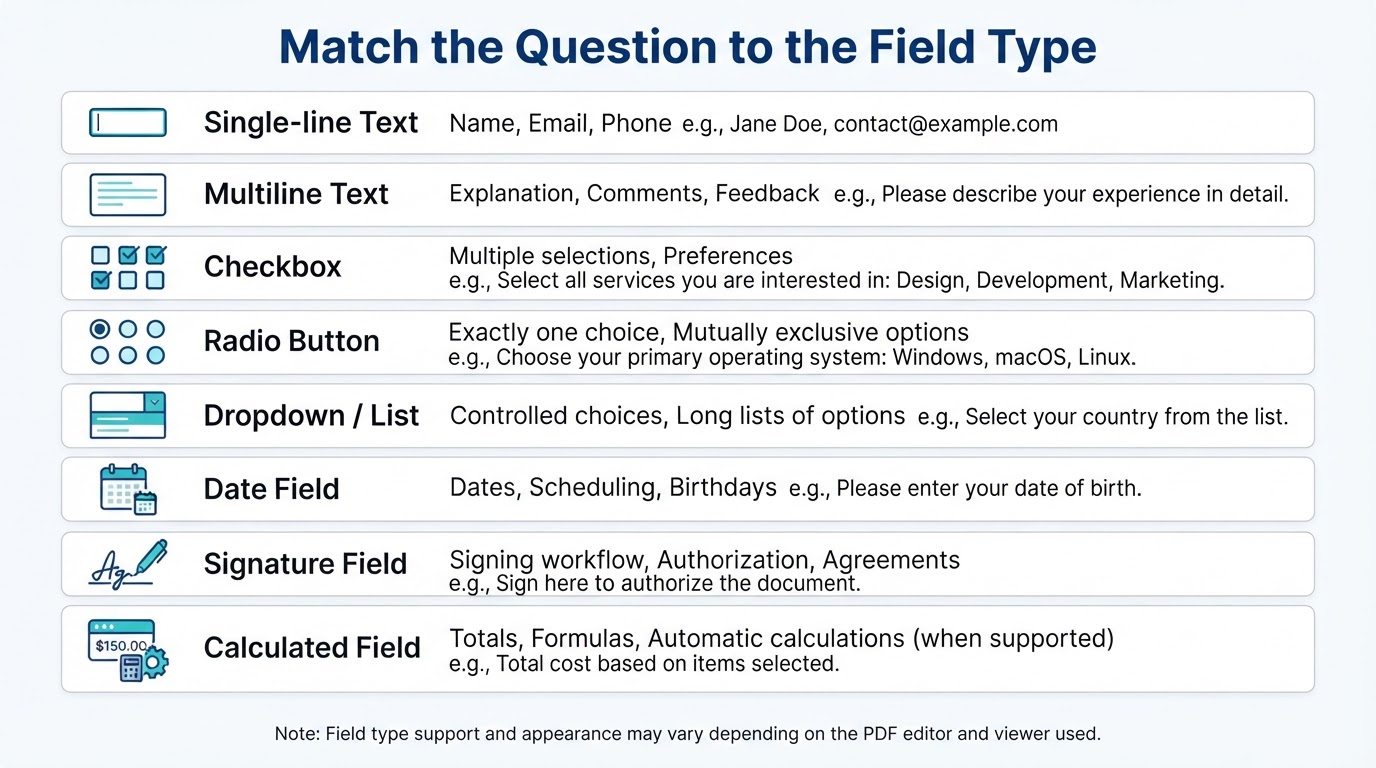
- Add missing fields manually and choose the correct control for each answer.
- Give fields unique names and configure labels, required status, formatting, and validation.
- Save a master copy before creating a distribution copy.
- Save, close, and reopen the file to confirm that entries and interactive fields remain intact.
- Test the form with realistic data in the desktop, browser, and mobile viewers your recipients will use.
- Share the form securely and verify that the distributed copy has not been flattened.
Menu names vary between PDF editors and software versions, so treat this as a general workflow rather than a universal set of interface instructions.
What Is a Fillable PDF?
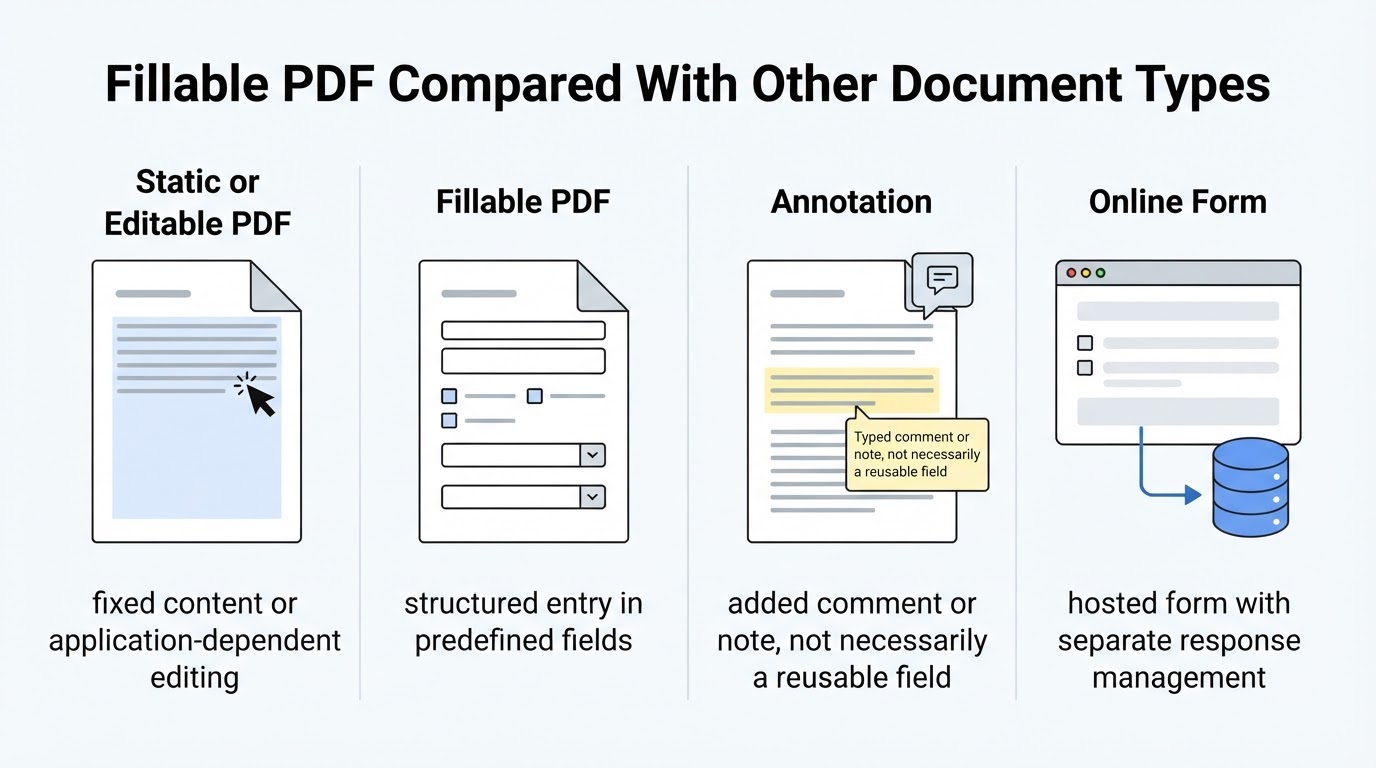
A fillable PDF contains interactive form fields that allow users to enter structured information while the underlying page design remains in place. Users can type into a name field, select an option, check several boxes, enter a date, or complete a signing step without editing the original page content.
Many conventional interactive PDF forms use a common form structure called AcroForm, and the visible controls are often represented by widget annotations. AcroForm is not the only form technology used in the PDF ecosystem; some documents use other or vendor-specific implementations. The technical distinction matters because a real form field can support functions that ordinary text placed over a page may not, such as structured data entry, keyboard navigation, validation, or export.
Plan the Form Before Adding Fields
Define the form's purpose, intended users, required information, submission method, and storage process before creating fields. Remove unnecessary personal information from the template and separate essential questions from optional ones.
Prepare clear labels and instructions, group related questions, and leave enough space for the longest reasonable answer. Consider how the layout will work when users type on a phone, print the form, sign it, or reopen it later.
A field-planning table can prevent many problems. Include the question or label, field type, required or optional status, expected format, privacy sensitivity, and a test case. This makes the finished form easier to review and maintain.
How to Create a Fillable PDF Step by Step
The exact commands differ between desktop and online PDF editors, but the following sequence applies broadly to forms created from PDFs, Word documents, or blank layouts.
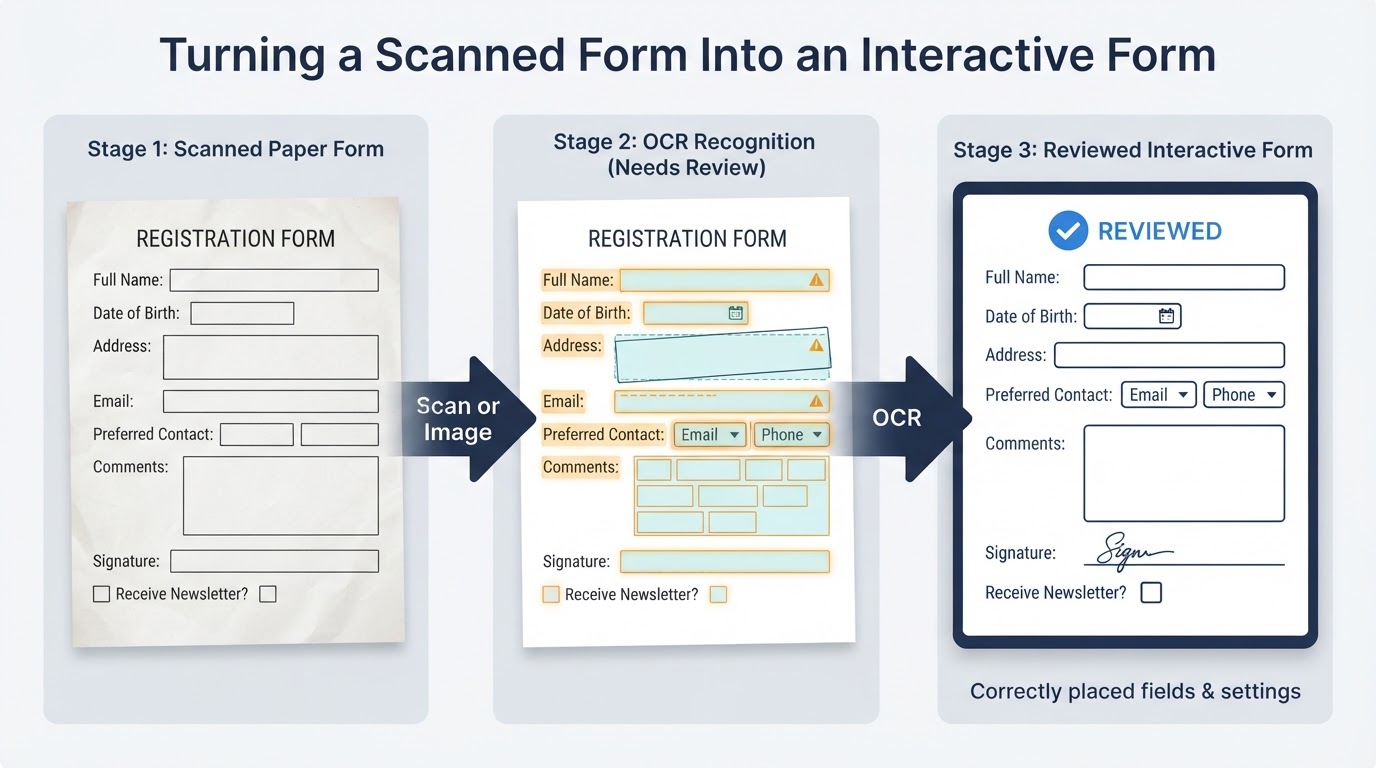
Convert Scanned PDFs and Images Into Fillable Forms
A scanned paper form or image normally does not contain usable interactive fields. Optical character recognition, or OCR, can identify text in the scan and convert it into machine-readable content. After OCR, you can use an editor's field-detection feature or place fields manually over the appropriate response areas.
OCR recognizes text; it does not guarantee that every required interactive field has been created correctly. Poor scan quality, handwriting, unusual layouts, small text, and complex forms can lead to recognition errors or misplaced fields. Compare the interactive version with the original paper form and review every label, instruction, response area, and field type.
Make the PDF Form Accessible
Accessibility depends on field names, labels, reading order, tab order, instructions, contrast, and document structure—not only on visual appearance.
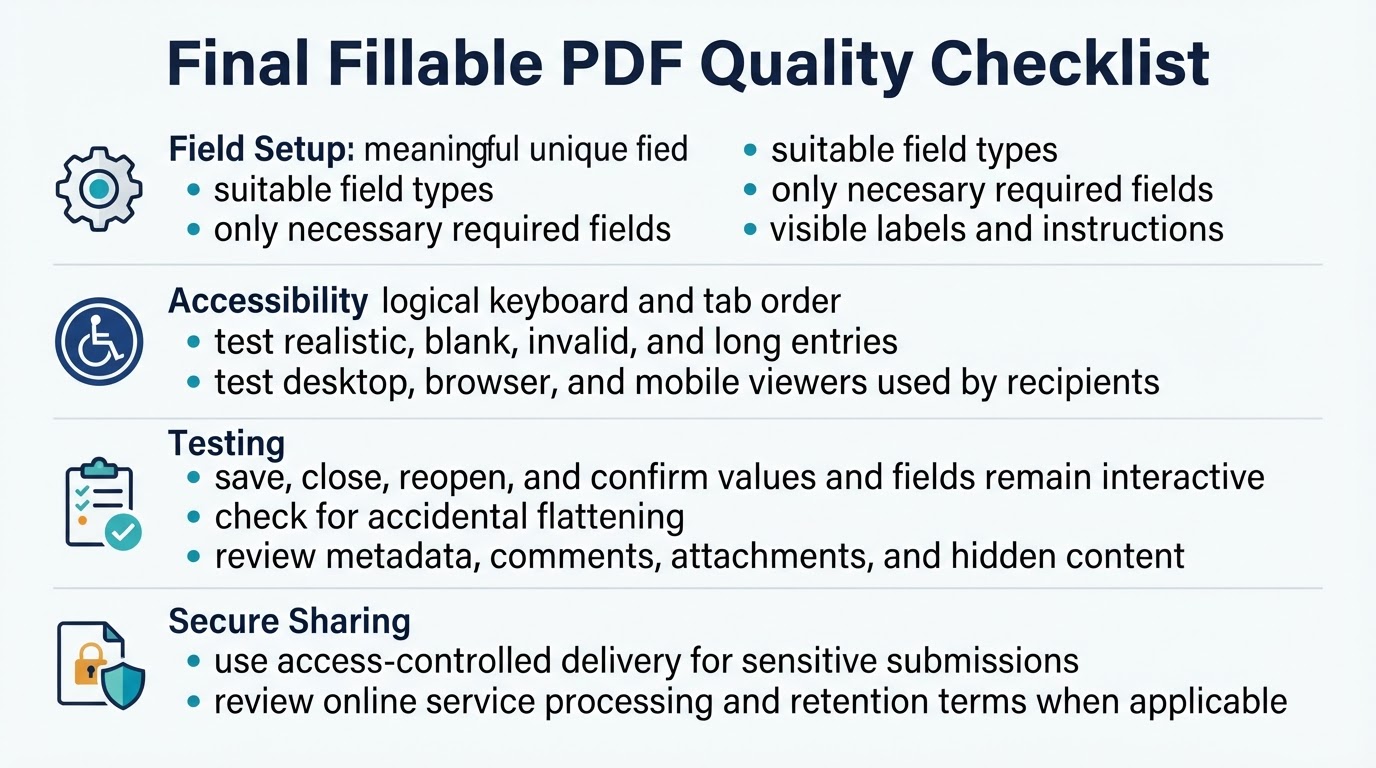
Give each field a meaningful name or accessible label. Set a logical keyboard and tab order that follows the visual and reading order. Provide visible instructions and useful error guidance, and do not rely only on color, underlines, or position to communicate meaning.
Consider relevant guidance such as WCAG techniques and PDF/UA. Use automated accessibility checks where available, then supplement them with manual keyboard testing and, where appropriate, assistive-technology review.
Test the Form and Confirm It Remains Fillable
Opening a completed PDF once is not enough. Test realistic entries, invalid entries, navigation, saving, reopening, printing, exporting, and the viewers and devices used by recipients.
Use long names, long explanations, blank optional fields, invalid formats, and boundary values. Check whether text remains visible, whether fields accept intended values, and whether error messages are understandable. Test required fields, validation, calculations, signature-related features, and submit or action buttons when they are part of the workflow.
Use Tab and Shift+Tab to check keyboard navigation. Save, close, and reopen the file. Then confirm two separate things: the entered values are still present, and the fields are still interactive. A document can look correct while containing only flattened text or annotations.
Choose Online or Desktop PDF Tools
Choose a workflow based on the document's sensitivity, collaboration needs, required features, and how recipients will complete the form.
Online editors can be convenient for browser-based field placement, quick conversions, and collaboration. Local or desktop processing may be preferable when documents contain confidential information or must remain on controlled systems. Local processing is not automatically secure, so consider the security of the device, storage, accounts, and sharing process as well.
Compare tools for field types, OCR, automatic detection, validation, calculations, signing features, accessibility support, export options, saving and reopening behavior, and mobile compatibility. For online services, review current file-size limits, account requirements, feature restrictions, processing practices, retention terms, deletion procedures, and export limitations in the provider's official documentation.
Share a Fillable PDF Safely
Review the information in the form before uploading, completing, or sending it, and collect only what is necessary. If you use an online service, check whether files are uploaded, where processing occurs, how long files and backups may be retained, who can access them, whether data is used for analytics or service improvement, which third-party processors or subprocessors are involved, and how deletion works.
Use access-controlled delivery instead of a public link for sensitive submissions. Password protection, encryption, permissions, and signatures address different risks. PDF permissions and password settings should not be treated as a complete substitute for access control, secure delivery, or an organization's security requirements.
Before sending a completed form, inspect it for metadata, comments, attachments, hidden content, revision material, and unintended personal information. The available inspection and removal controls vary by PDF application. For regulated or highly sensitive information, evaluate the workflow against applicable organizational, legal, contractual, and security requirements.
Common Fillable PDF Mistakes to Avoid
Avoid these common problems:
- Mistaking annotations or added text for reusable structured form fields
- Treating OCR or automatic field detection as a finished form
- Using one oversized text box where separate fields or controlled choices would be clearer
- Marking every question as required
- Using generic or unintentionally duplicated field names
- Relying on color, underlines, or visual placement instead of labels and instructions
- Skipping keyboard, accessibility, mobile, saving, reopening, and completed-output tests
- Assuming calculations, scripts, signatures, or submission actions work in every viewer
- Distributing a flattened copy when recipients still need to enter information
- Uploading confidential files without reviewing the service's processing and retention terms
A final review should confirm the field structure, realistic test entries, accessibility basics, interactive status, viewer compatibility, and sharing method.
Conclusion
Making a PDF fillable involves more than placing text boxes over a page. Choose suitable field types, use meaningful names and labels, configure required status and validation carefully, and review any fields created by OCR or automatic detection.
Before sharing, save and reopen the exact distribution file, confirm that its fields remain interactive, and test realistic entries in the viewers and devices recipients will use. Then choose a delivery method that matches the form's sensitivity. A fillable PDF is useful for fixed-layout, offline, or file-based workflows; an online form may be better when centralized response management is the priority.