
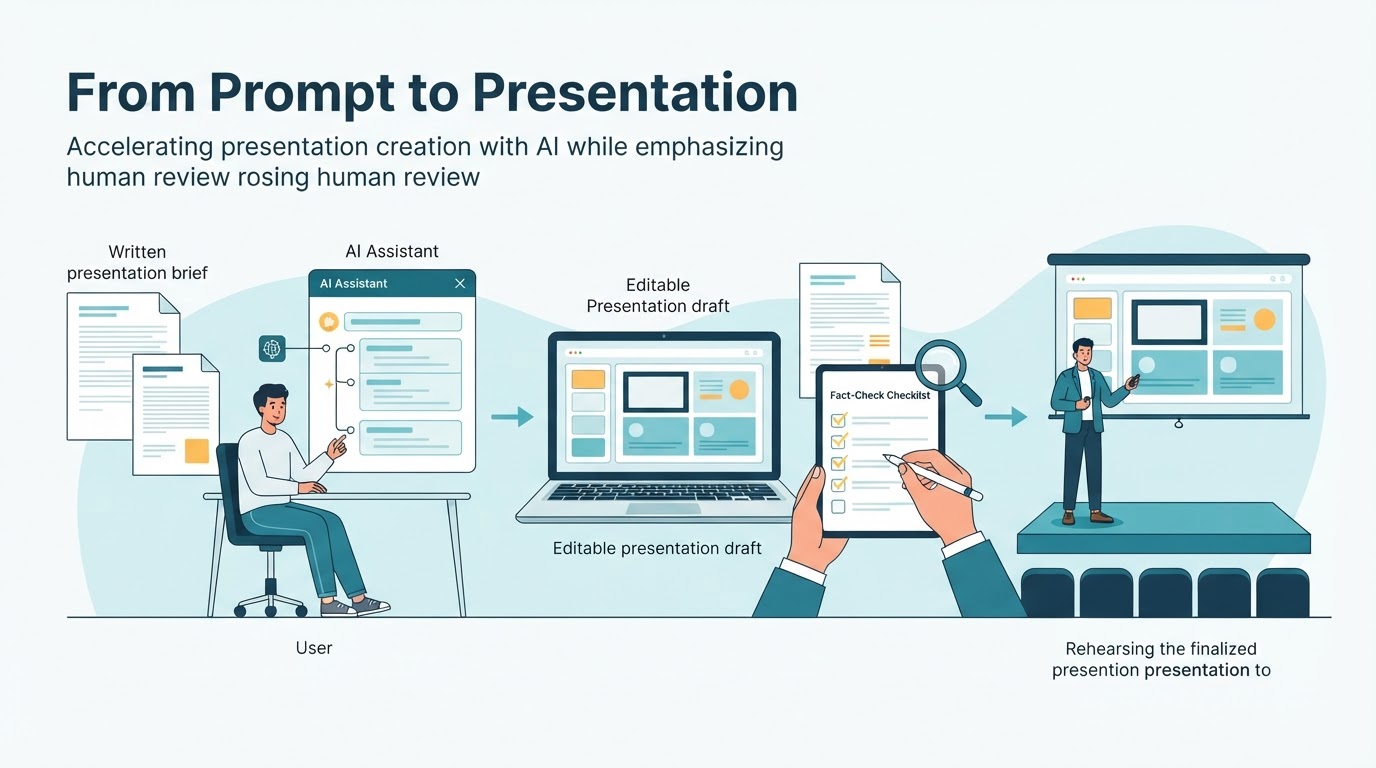
AI presentation tools can turn a topic, prompt, or source document into a presentation draft. Depending on the provider, plan, supported file type, and version, a tool may suggest an outline, write slide copy, recommend layouts and visuals, or create an editable project or presentation file. Speaker notes and document imports are more tool-specific, so check the current product documentation before relying on them.
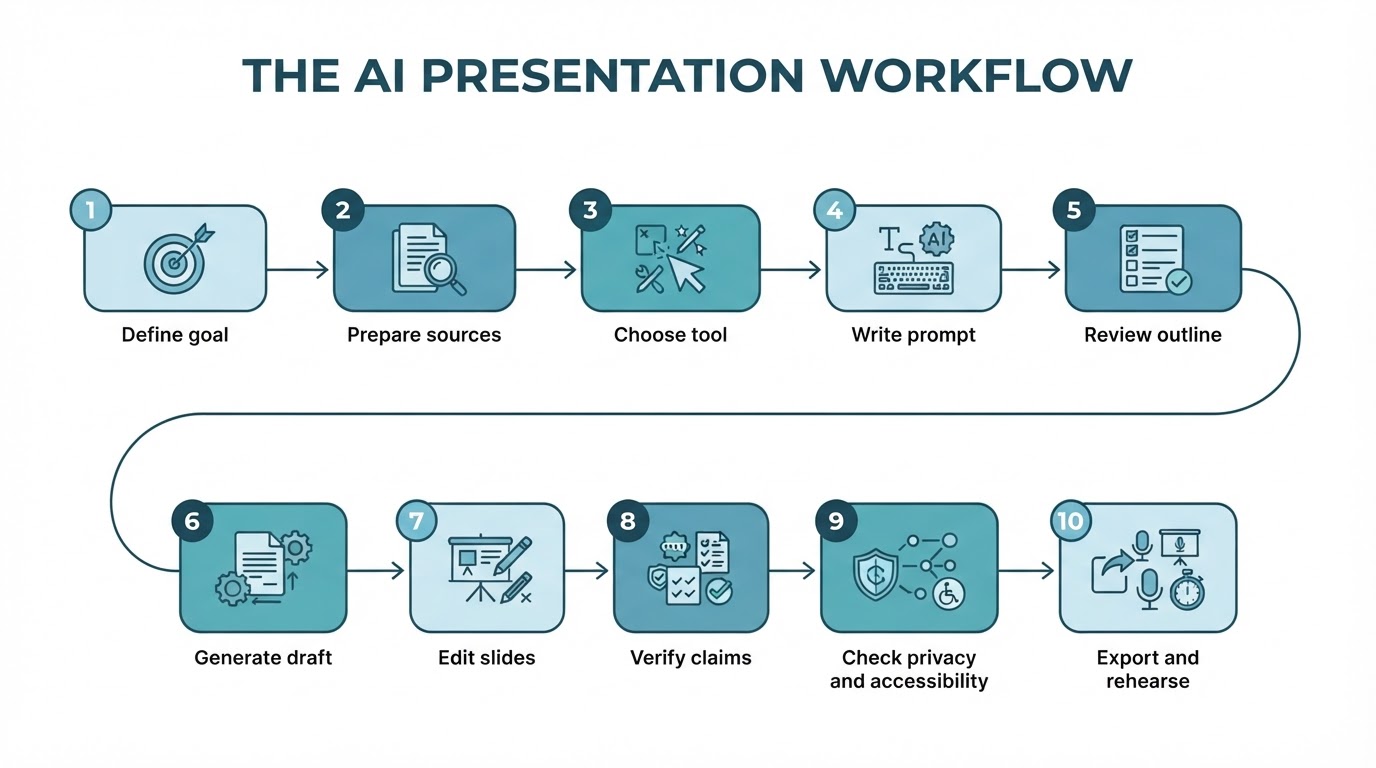
The safest way to create slides with AI is not to generate a deck and present it immediately. Define the goal, prepare trusted source material, request an outline, review the draft, verify important claims, refine the design, check privacy and accessibility, test the exported file, and rehearse.
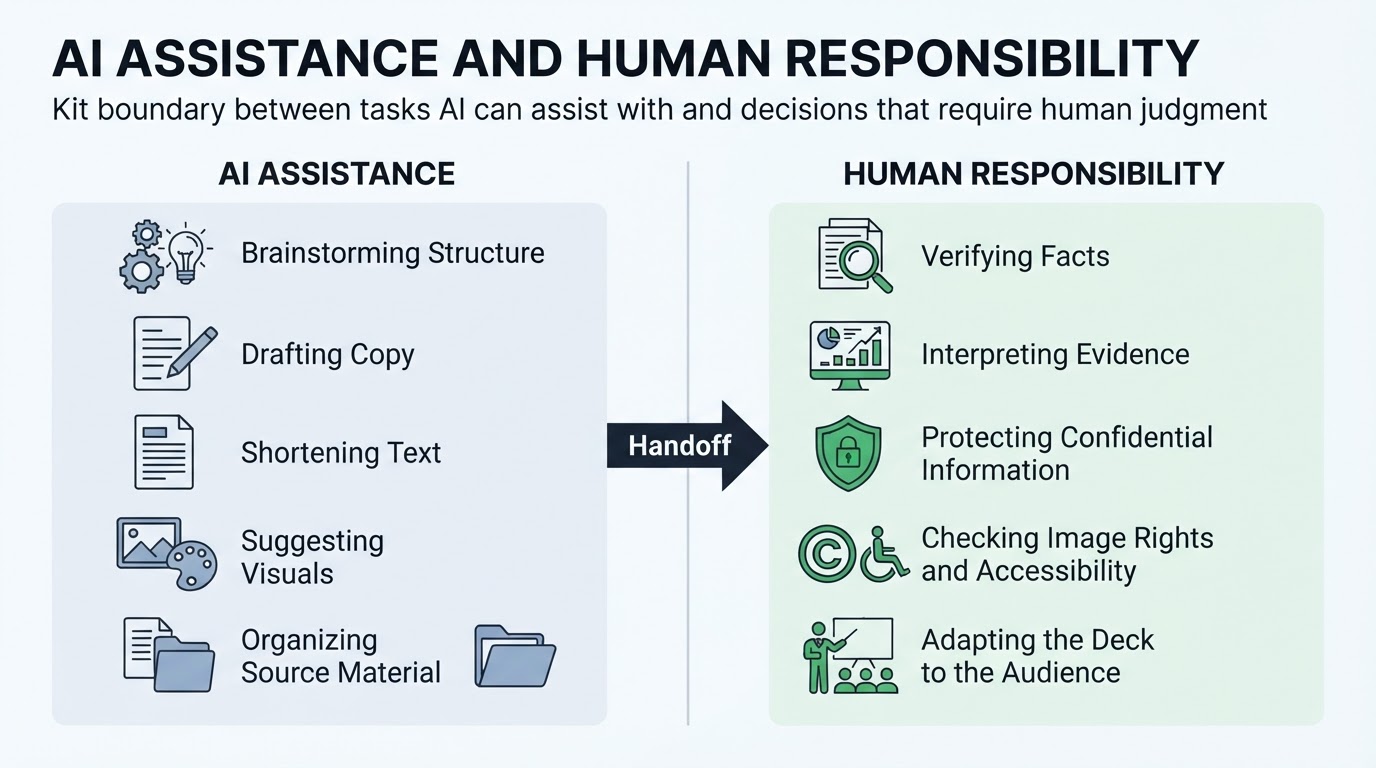
Use AI as a drafting and design assistant rather than an autonomous presentation author. Human review remains responsible for facts, citations, visuals, confidential information, accessibility, audience fit, and final wording.
How to Create Slides With AI: The Quick Workflow
A practical process looks like this:
- Define the audience, objective, key message, and delivery constraints.
- Gather reliable source material and remove information that should not be uploaded.
- Choose a tool that supports the inputs, editing, export, privacy, accessibility, and collaboration features you need.
- Write a constrained presentation prompt and ask for an outline first.
- Review the outline for logic, evidence, scope, and audience fit.
- Generate the presentation draft in an editable format when possible.
- Edit the wording, structure, visuals, notes, citations, and design.
- Verify important claims against the original sources.
- Check accessibility, image rights, privacy, and export compatibility.
- Open the final file in the real presentation environment and rehearse within the time limit.
This sequence is a recommended workflow, not a universal procedure for every product. The available inputs, outputs, editing tools, and review features depend on the selected provider and version.
What Is an AI Presentation Maker?
An AI presentation maker is a tool that helps generate or organize presentation outlines, slide copy, layouts, visuals, and formatting from user instructions or source material.
Capabilities vary considerably. Some products support prompt-based generation, while others can also work from documents or provide presentation exports such as PPTX or PDF. A product may offer an editable project, a native presentation file, a flattened PDF, or an image-based output, and these formats do not provide the same editing options. Check current documentation for supported inputs, outputs, plan limitations, and version-specific behavior.
Define the Presentation Goal, Audience, and Constraints
Before opening a presentation tool, decide what the deck needs to accomplish. A presentation intended to teach a concept needs a different structure from a team update, research explanation, proposal, or decision briefing.
Define the audience's knowledge level, priorities, likely questions, and expected outcome. Then set practical constraints such as delivery time, approximate scope, reading level, tone, required output, brand rules, and source boundaries.
There is no universal slide count or text limit that guarantees engagement. The appropriate structure depends on the purpose, subject, audience, and delivery context.
Choose a Presentation Tool Carefully
The best tool depends on the job rather than on the presence of a particular feature label. Before committing to a product, compare the capabilities that matter for your presentation.
Write a Better Presentation Prompt
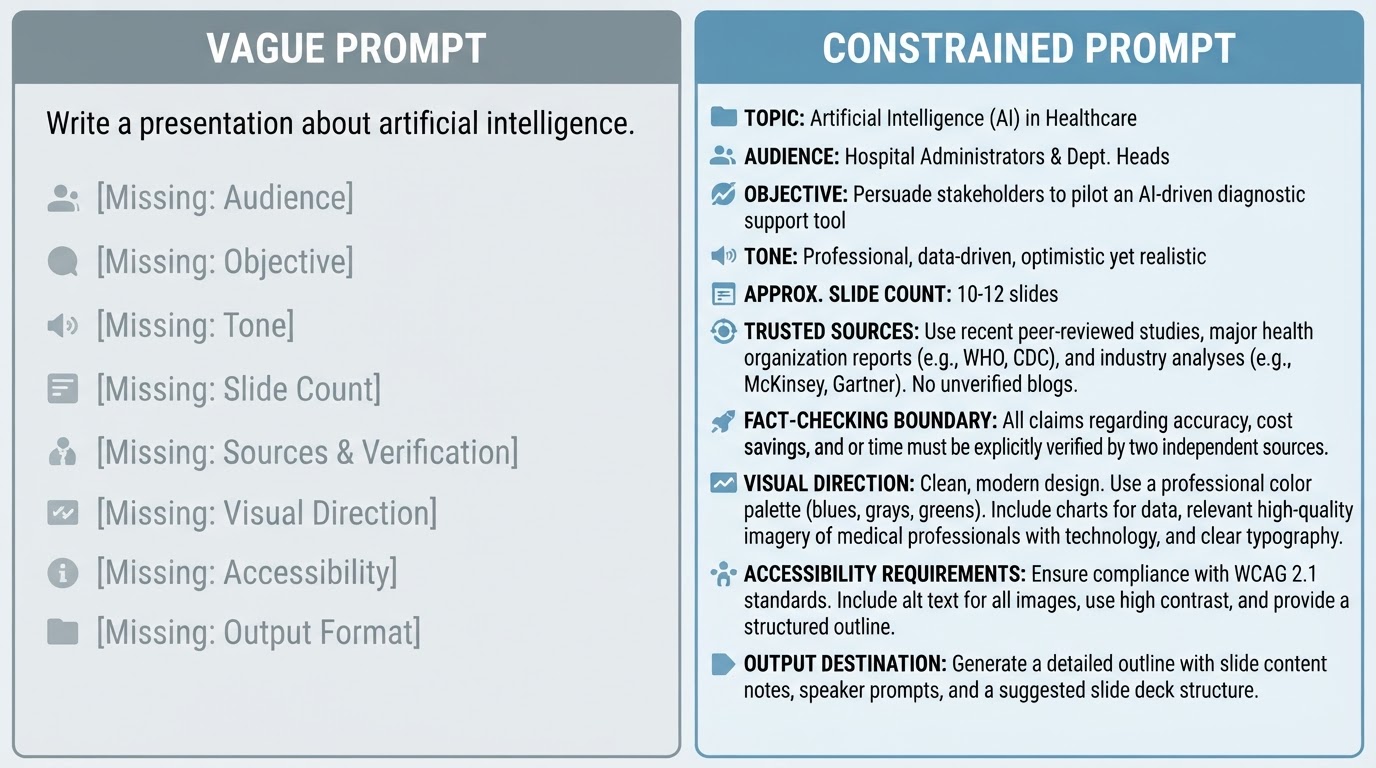
A strong prompt gives the presentation tool enough context to make useful decisions. Include the subject, audience, objective, tone, approximate slide count, source material, visual direction, and output requirements.
Tell the tool to stay within the supplied evidence and flag missing information instead of inventing statistics, citations, quotations, or examples. Request a slide-by-slide plan before asking for a complete deck so you can correct the narrative before design work begins.
Review the Outline Before Generating the Deck
Ask for an outline before generating detailed copy, layouts, and visuals. This prevents you from spending time polishing a deck whose narrative structure is already weak.
Review whether each slide has one clear job. The sequence should move logically from the problem or context to evidence, explanation, recommendation, decision, or next step. Remove repetition, combine overlapping slides, identify missing evidence, and adjust the scope before generating the full presentation.
The outline is also the right place to decide what belongs on the slide and what should be placed in speaker notes, if the selected tool supports notes.
Turn a PDF, Word Document, or Research Brief Into Slides
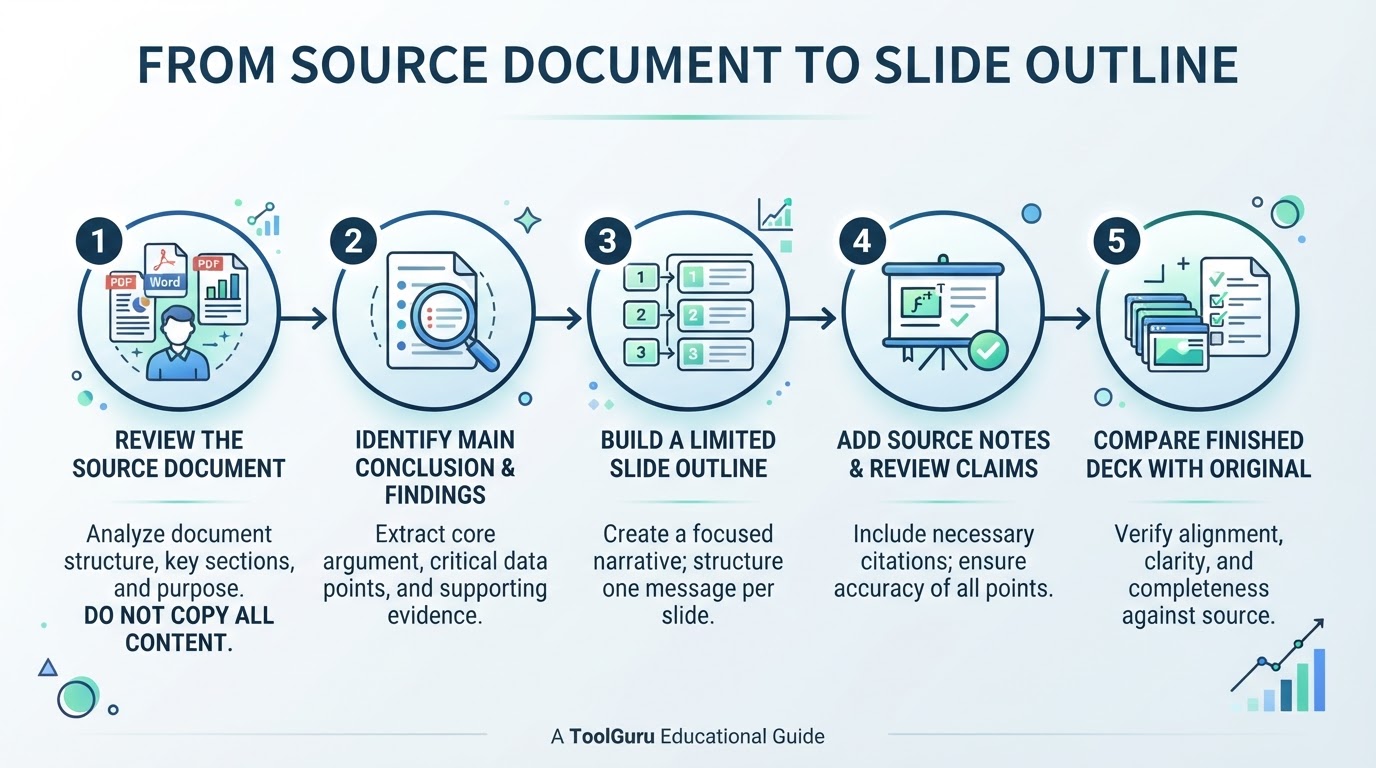
Some presentation tools support document-to-presentation workflows, but support varies by provider, plan, file type, and version. Before uploading a document, separate its main findings, supporting evidence, examples, definitions, and references.
Do not assume that conversion preserves the original context, emphasis, citations, or intended audience. Compare the generated outline and slide claims with the source document before treating the deck as accurate.
Improve the Generated Slides
The first draft usually needs an editing pass. Rewrite generic titles, remove unnecessary text, strengthen visual hierarchy, and replace decorative elements with visuals that explain the message.
Use size, position, contrast, spacing, typography, and imagery to show the audience where to look first. Keep design choices consistent across the presentation, but do not force every slide into exactly the same layout when the content needs a different structure.
Fact-Check the Presentation
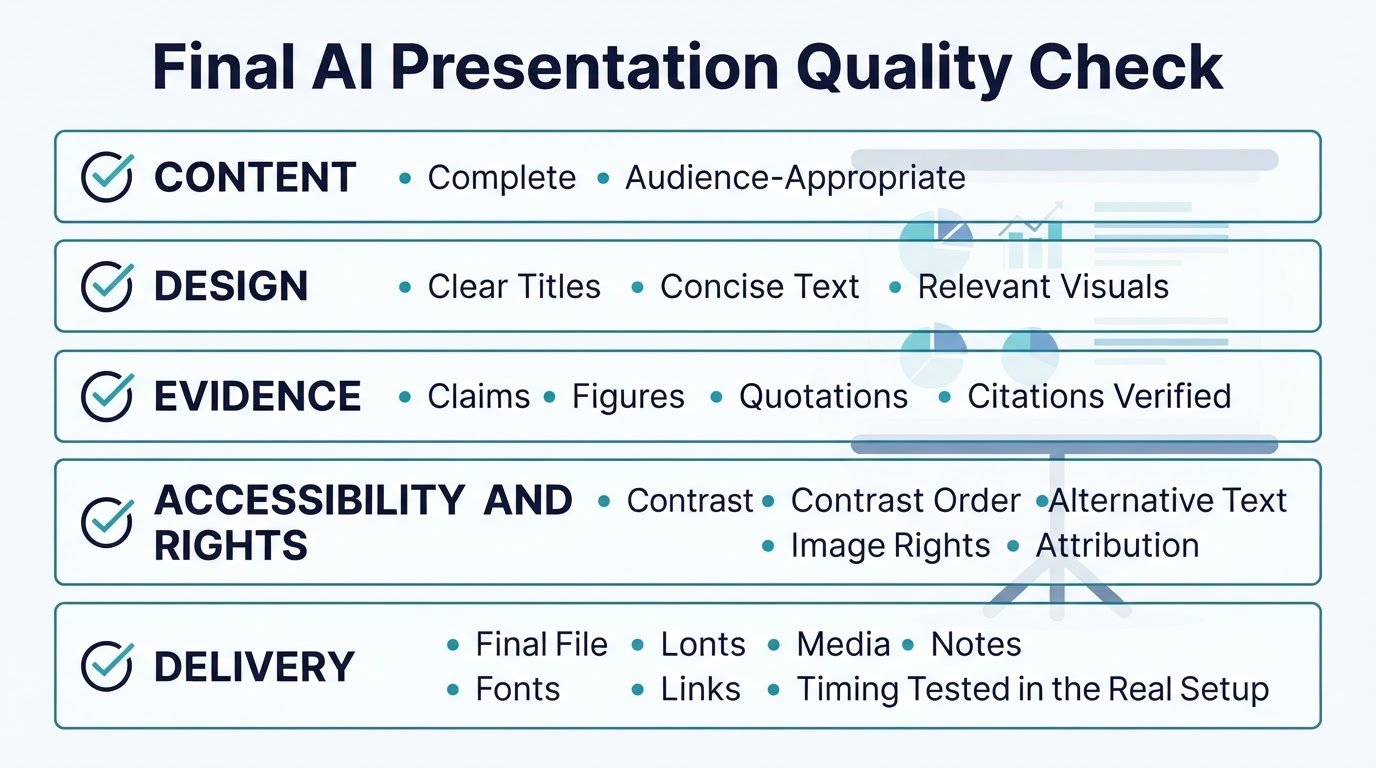
Treat generated wording, numbers, citations, quotations, dates, and summaries as drafts until they have been checked against the original evidence. Asking a tool to add references does not guarantee that the citations are complete, valid, or relevant.
Record the source for every important claim and remove claims that cannot be supported. Check charts, diagrams, images, and conclusions as carefully as the written text.
Protect Privacy and Review Image Rights
Before uploading source files, review the provider's privacy policy, retention settings, data-use terms, account controls, and enterprise documentation. Practices can vary by provider, subscription, account type, contract, and policy version.
Minimize confidential, personal, proprietary, unpublished, or regulated information. Use redacted or generalized examples where practical. Redaction reduces exposure but does not guarantee complete privacy. If a presentation contains internal business information, also check workspace permissions, account security, sharing settings, and access controls.
Make the Slides Accessible
Accessibility should be part of editing rather than a final cosmetic check. Use readable text, sufficient contrast, meaningful alternative text where the platform supports it, and a logical reading order.
Do not communicate essential information through color alone. Charts, diagrams, and media should have understandable labels or text explanations. Accessibility behavior can change between an editable presentation, PPTX, PDF, image export, and other destinations, so check the target authoring platform, exported file, and intended assistive-technology environment.
Export, Test, and Rehearse the Final Deck
Export or move the presentation to the destination required by the presentation environment. This may involve creating a native presentation file such as PPTX, exporting a PDF, or importing or converting the deck for a platform such as Google Slides. The exact behavior depends on the source tool, destination, file format, and version.
Open the exact final file in the software and on the device that will be used for delivery. Check fonts, spacing, charts, links, animations, media, notes, citations, accessibility features, and layout fidelity. Some elements may change during conversion, and a PDF or image export may not remain editable.
Rehearse against the actual time limit and revise slides that are difficult to read, explain, or navigate.
Common Presentation Mistakes to Avoid
Use this list as a final diagnostic:
- Starting with a vague topic instead of defining the audience, purpose, takeaway, and action
- Generating the entire deck before reviewing the proposed outline
- Trusting plausible wording, statistics, citations, or summaries without checking original sources
- Leaving generic images, irrelevant charts, inconsistent styles, or decorative visuals in the final deck
- Putting the entire explanation on the slide instead of using concise visible content and useful notes
- Assuming that an editable project, PPTX, PDF, image export, or presentation-platform version will behave identically
- Skipping privacy, accessibility, image-rights, compatibility, export, and rehearsal checks
Conclusion
The best way to create slides with AI is to use it as part of a controlled workflow. Define the audience and objective, prepare trusted sources, write a constrained prompt, review the outline, generate and edit the draft, and verify every important claim.
Before presenting, review privacy, accessibility, image rights, and compatibility. Test the final file in the real presentation environment and rehearse against the actual time limit. AI can make the first draft faster, but careful human review turns that draft into a useful and presentable deck.