
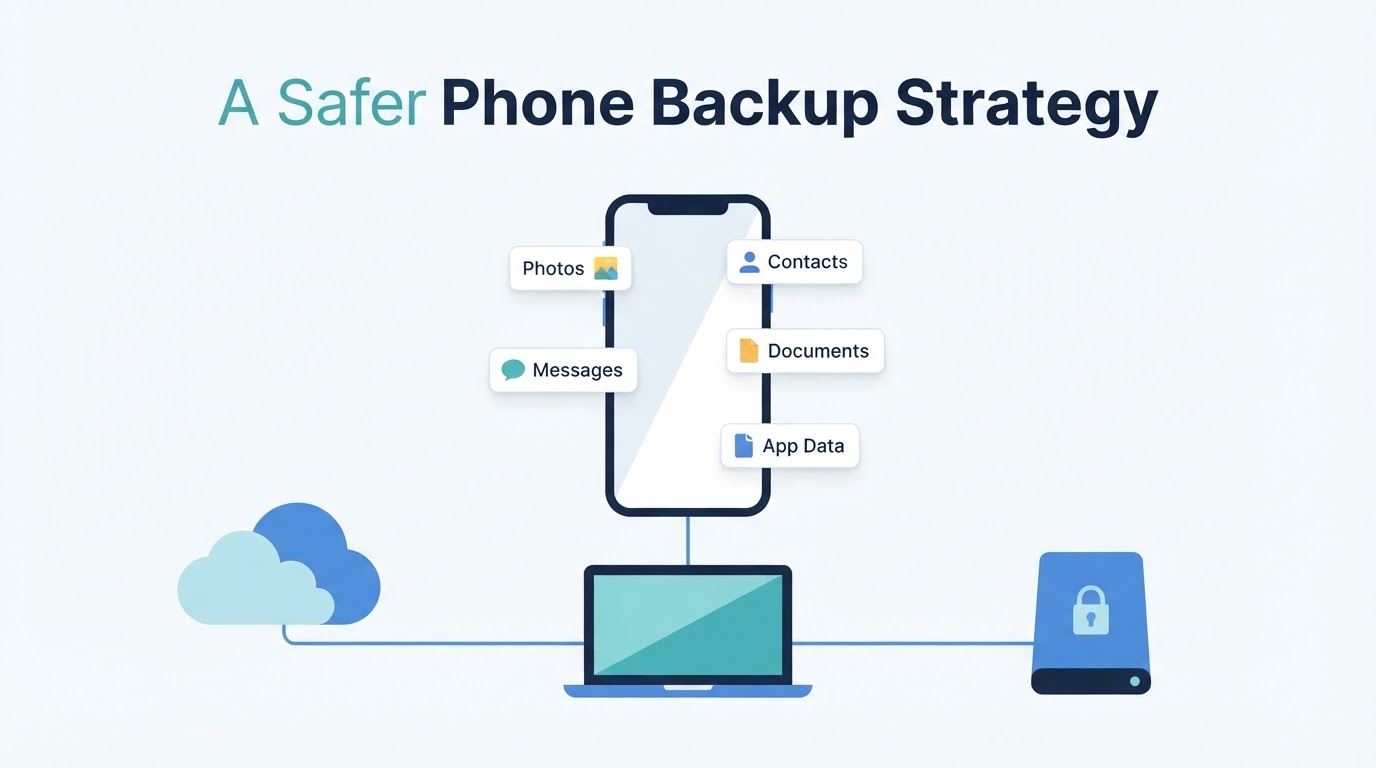
Knowing how to back up a phone is important before an upgrade, repair, factory reset, or unexpected loss. One backup setting may not protect everything on the device: photos can use a separate service, messaging apps may have their own backup controls, and downloads or authenticator data may remain local. The safest approach is to use the phone's built-in backup, check photos and important apps separately, create an independent copy of irreplaceable files, and verify the results before erasing the original phone. Menu names vary by Android version, manufacturer, iPhone software version, and computer, so use the backup status shown on your own device as the final reference.
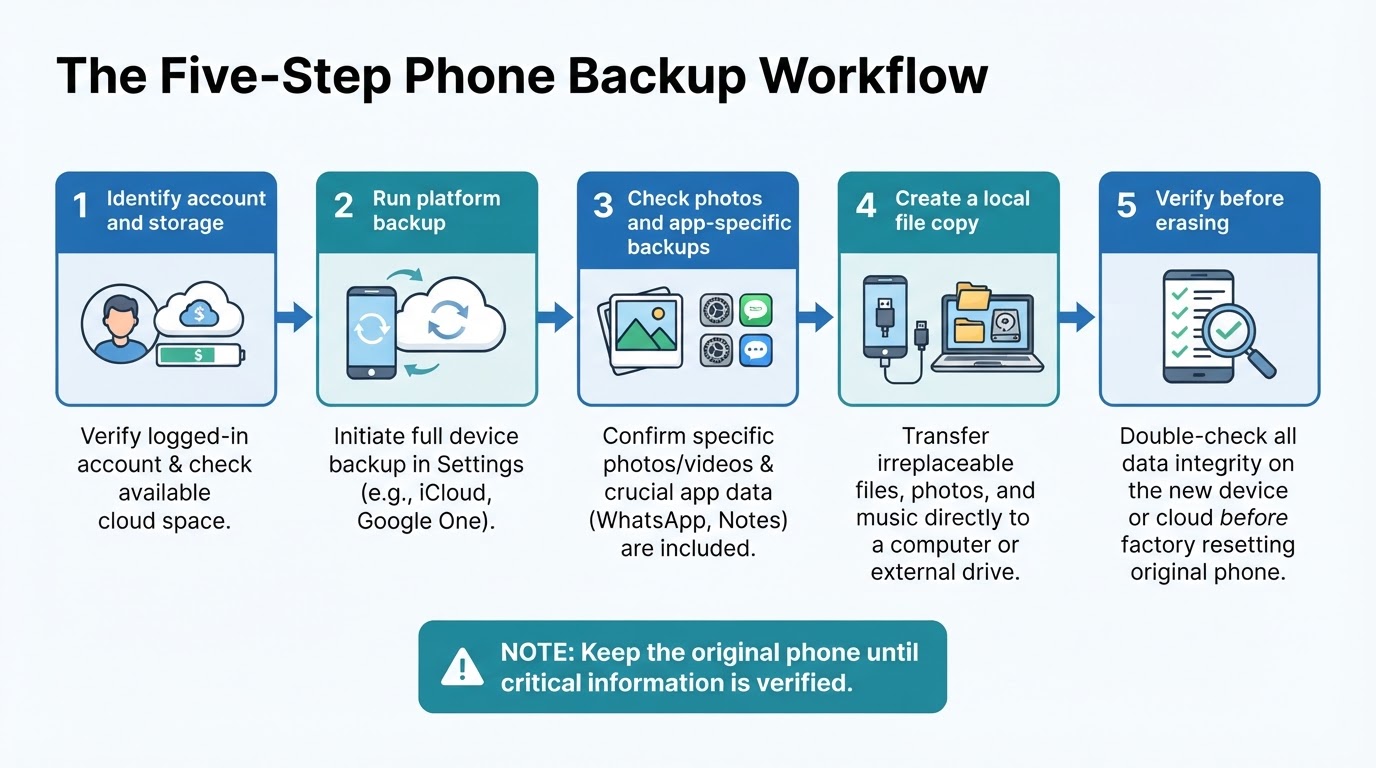
How to Back Up a Phone: The Quickest Safe Workflow
Use this sequence before replacing, resetting, repairing, or selling a phone.
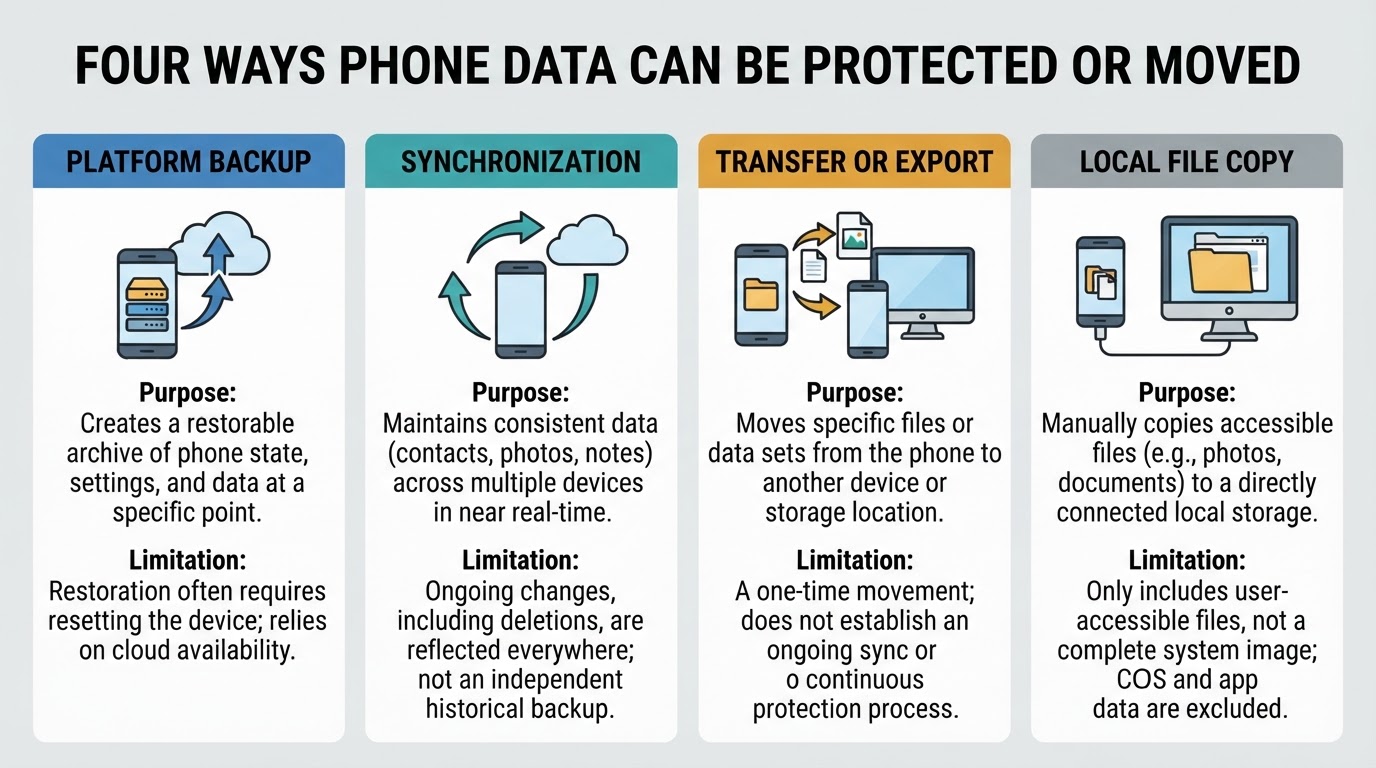
Backup, Synchronization, Transfer, and File Copying
These terms describe different ways of protecting or moving data.
What Does a Phone Backup Include?
There is no universal list of data included in every phone backup. Use this overview as a planning guide, then check the backup and app settings on your own device.
How to Back Up an Android Phone
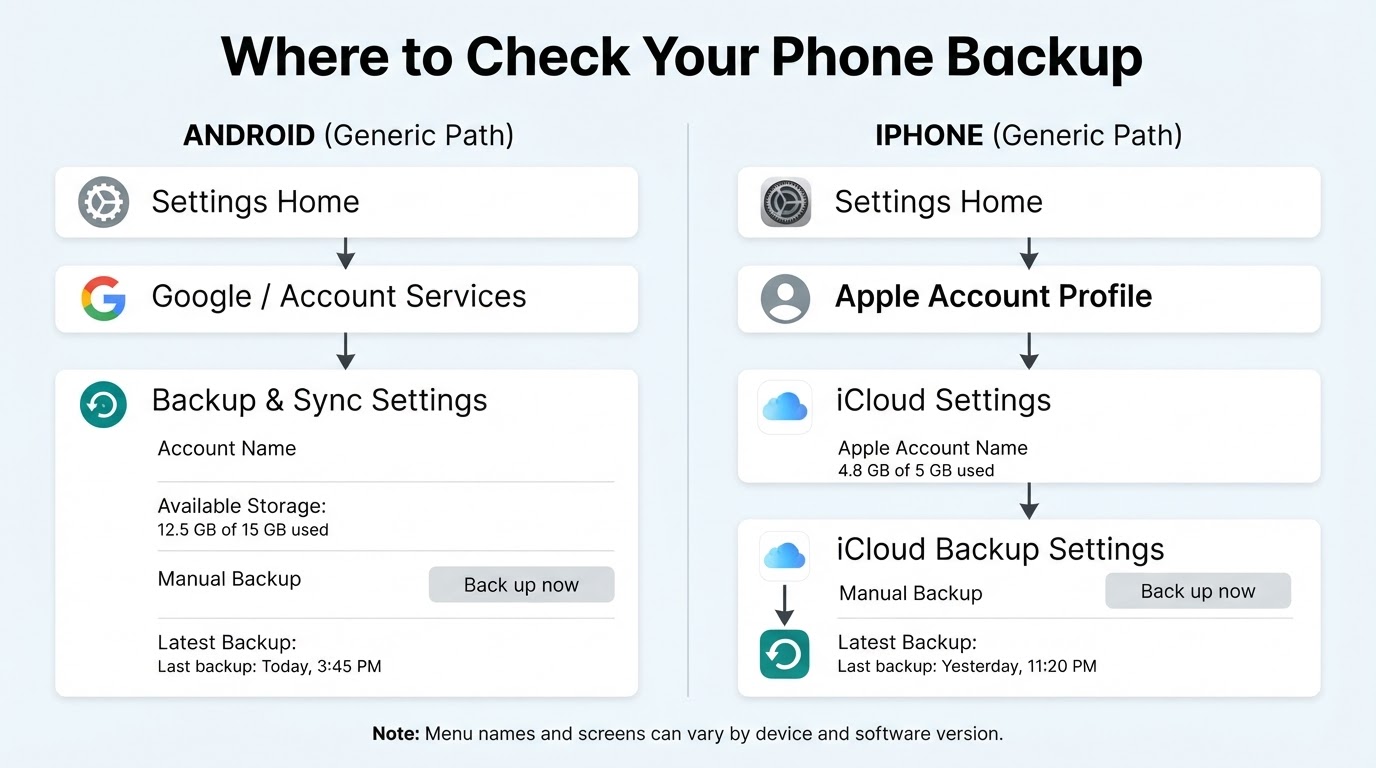
Google's Android backup system can back up selected content, data, and settings to a Google Account and restore supported information to the original phone or some other Android phones. The available categories depend on the Android version, device, manufacturer, account settings, and app support. The categories and status displayed on your phone are the authoritative guide.
How to Back Up an iPhone
Apple supports two main iPhone backup methods: iCloud and a computer. iCloud Backup and iCloud synchronization are different. Data already synchronized through iCloud services may not be duplicated in a device backup in the same way as locally stored data.
Cloud Backup vs. Local Backup
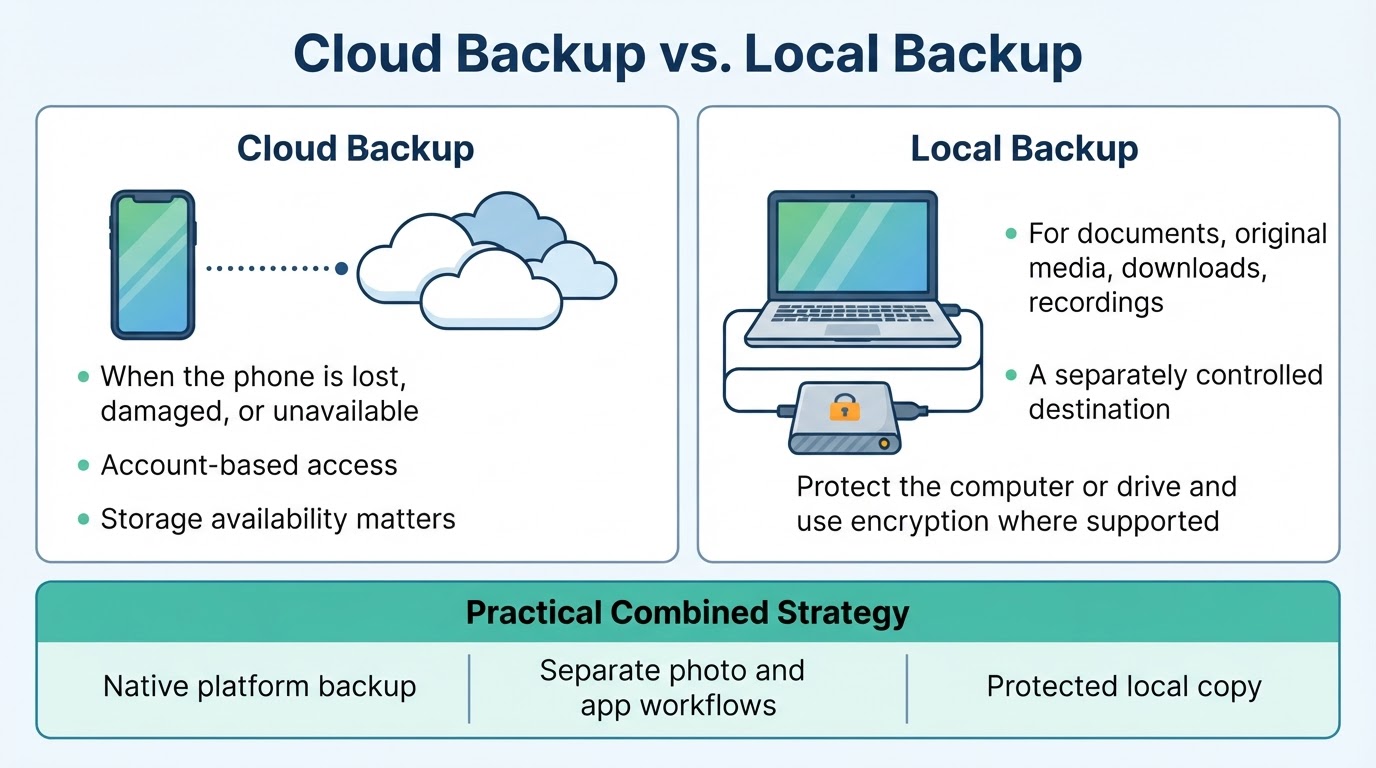
Cloud and local backups address different risks. Cloud backup is useful when the phone is lost, damaged, or unavailable. A local copy gives you a separately controlled destination for files and, where supported, a computer-based device backup.
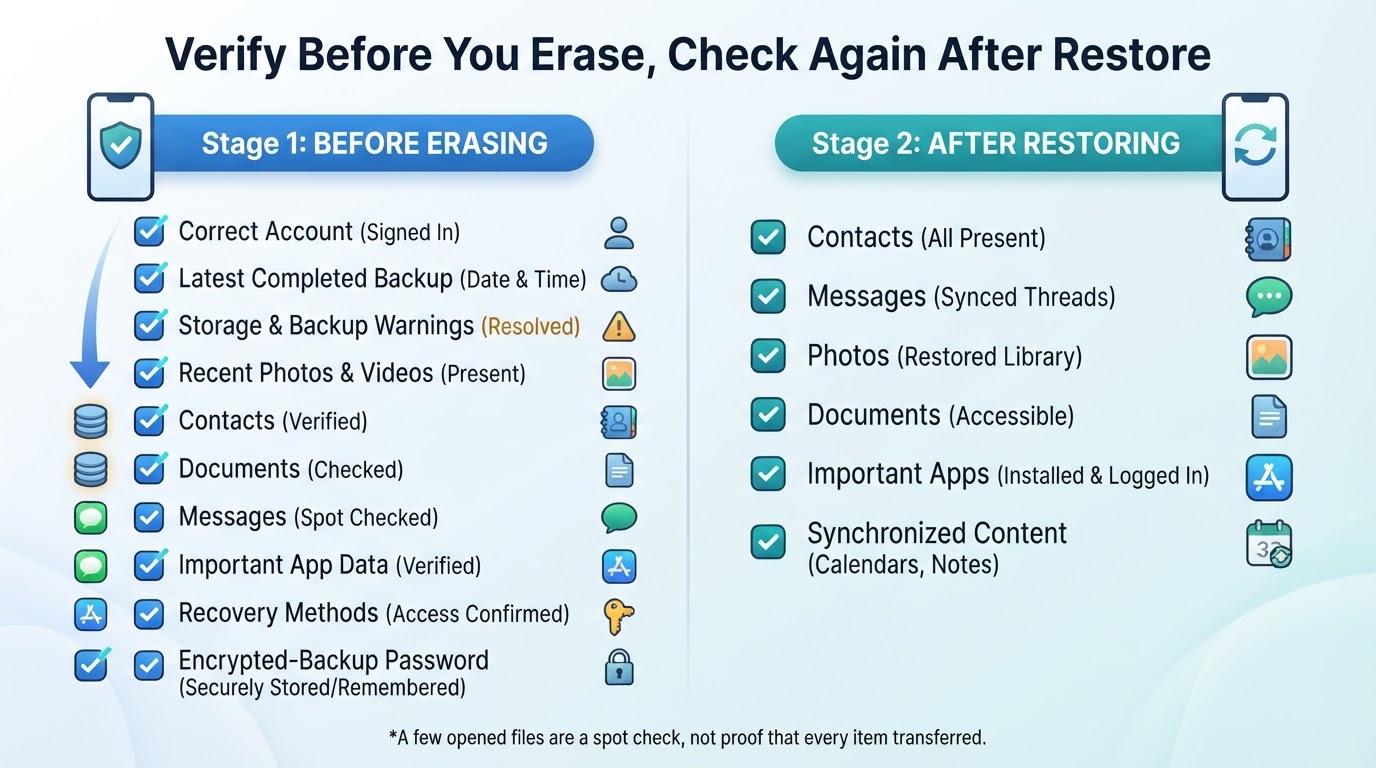
How to Verify a Phone Backup
Verification should happen before you reset, sell, replace, or send the phone for repair. A completed status is useful, but it cannot prove that every desired category is protected.
How to Restore a Phone Backup
Restoration often occurs during the initial setup of a replacement or reset phone. Use the account associated with the intended backup, select the correct backup when it is offered, and keep the device connected to power and a reliable network. Some information may download or synchronize after setup rather than appearing immediately.
Privacy and Security for Phone Backups
Backups can contain photos, contacts, messages, location-related information, and app data. Protect the account and storage destination as carefully as the phone itself. Encryption scope differs by platform, backup type, account, and feature.
A Short Backup Checklist for Emergencies
When time is limited, prioritize the steps most likely to prevent permanent loss.
Official Reference Documentation
Platform instructions and security features change. Check these official references when confirming current behavior or menu names.
Conclusion
A dependable phone backup is more than an enabled setting. Use platform-native backup for supported device data, separate photo and app-specific workflows where needed, and a protected local copy for irreplaceable files. Before resetting, replacing, repairing, or selling the phone, verify the account, backup date, important data, and recovery access.