
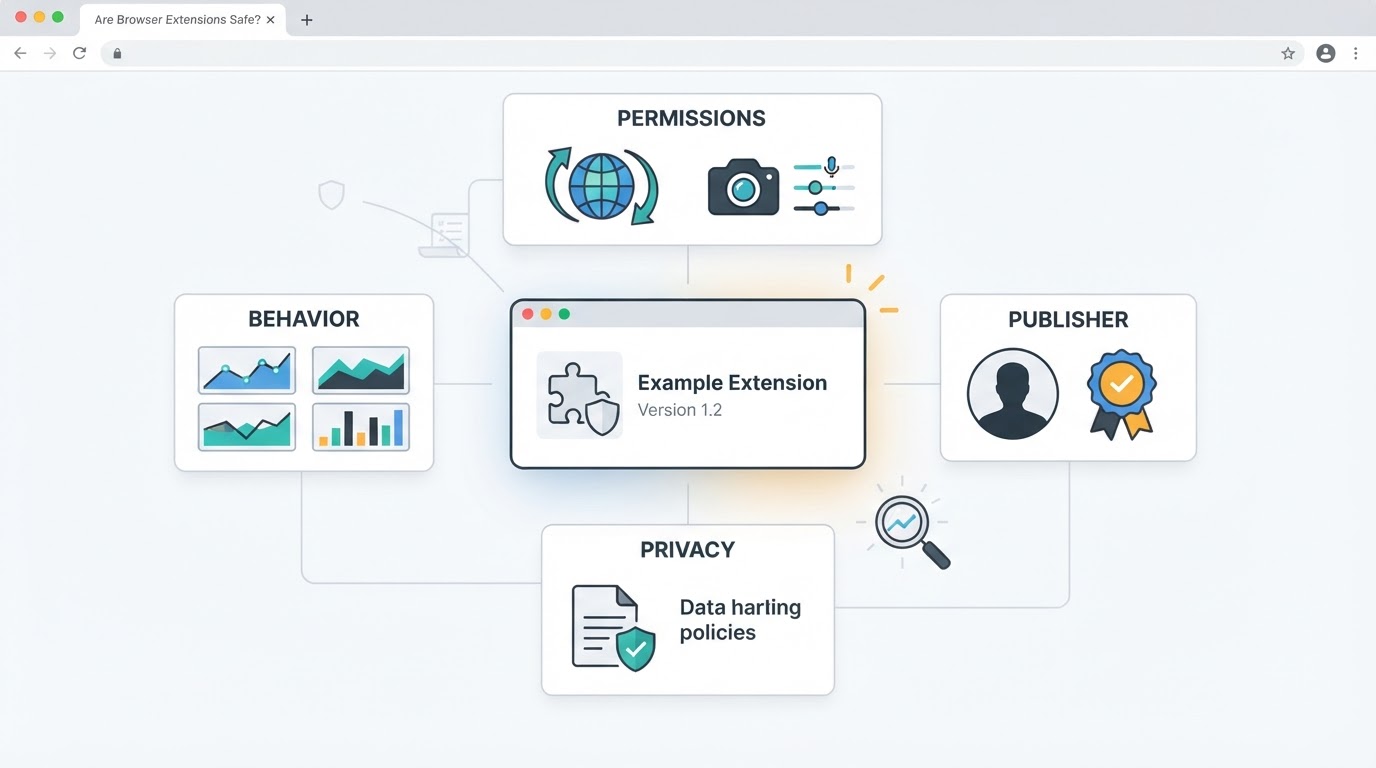
Are browser extensions safe? They are not inherently unsafe, but installing one gives additional software access to parts of your browser. Depending on the extension, browser, permission type, and websites involved, it may interact with webpage content, form fields, tabs, browsing activity, or external services.
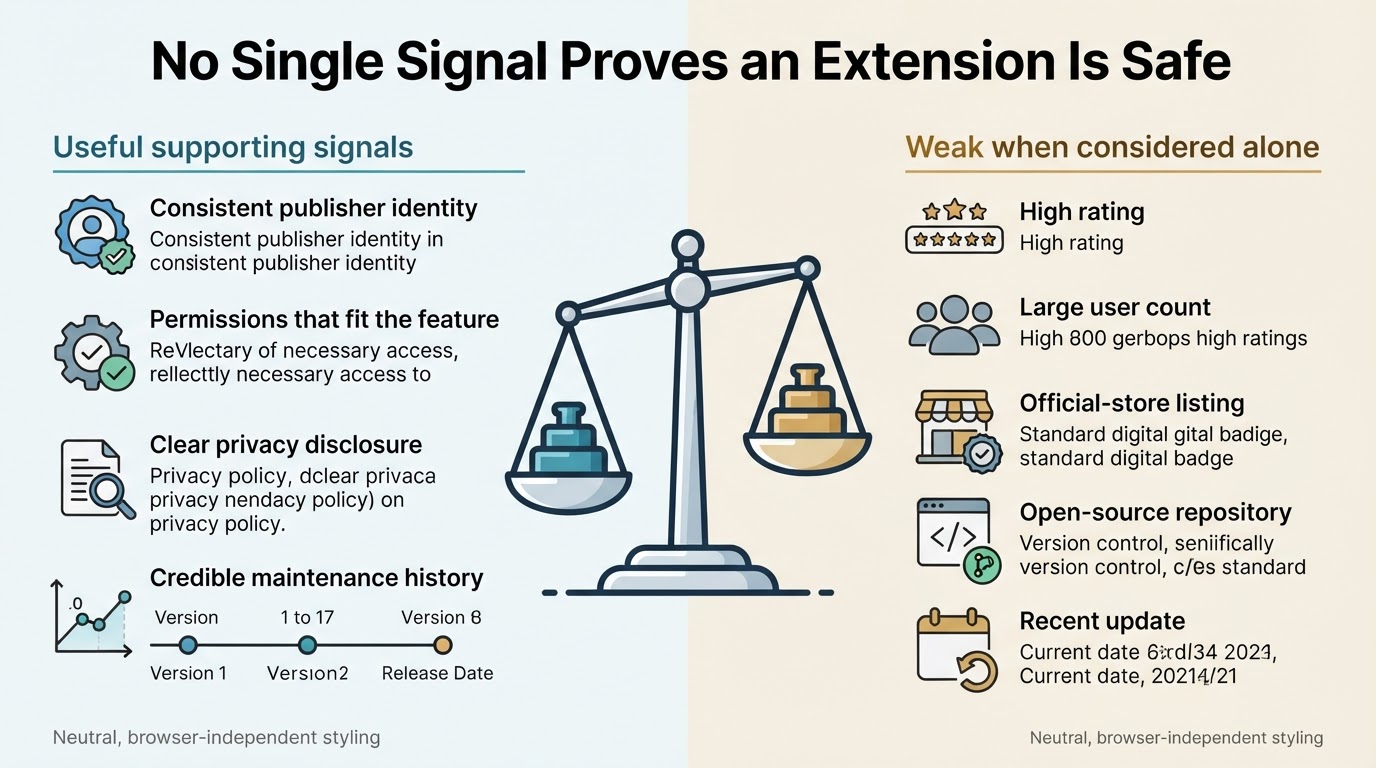
An official store listing, high rating, or large user count can reduce some uncertainty, but none proves that an extension is safe. Its code, ownership, permissions, dependencies, and data practices can change over time.
The most reliable approach is to compare permissions with the advertised function, verify the publisher, read privacy disclosures, check recent reviews and update history, and monitor the extension after installation. If the requested access appears unrelated or its behavior is unexplained, do not install it or disable it.
Quick Answer: How to Check Whether a Browser Extension Is Safe
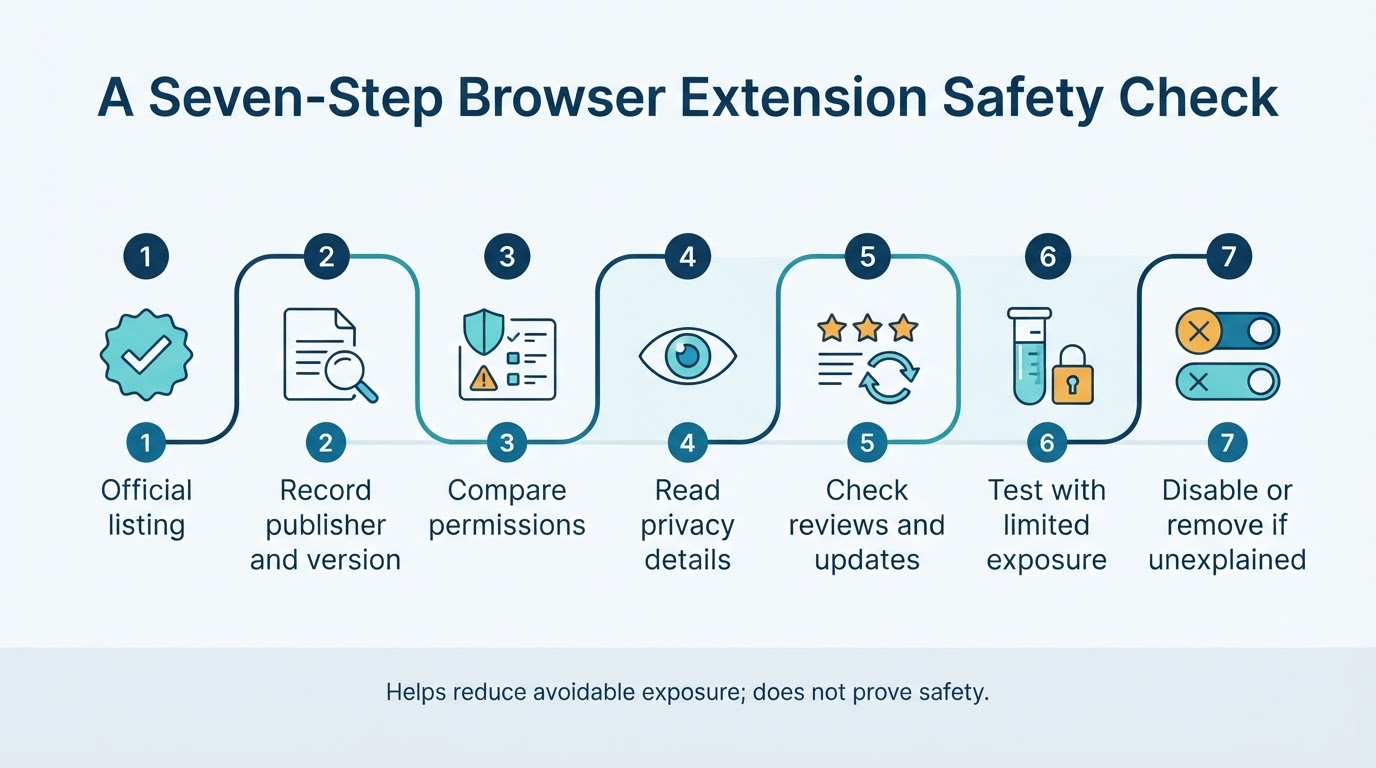
Use this short review process before installing an unfamiliar extension:
- Find the official listing for the browser you use. Avoid random download sites, unofficial mirrors, and misleading advertisements.
- Record the publisher, extension name, linked website, identifier, version, permissions, privacy policy, and review date when the extension will handle sensitive information.
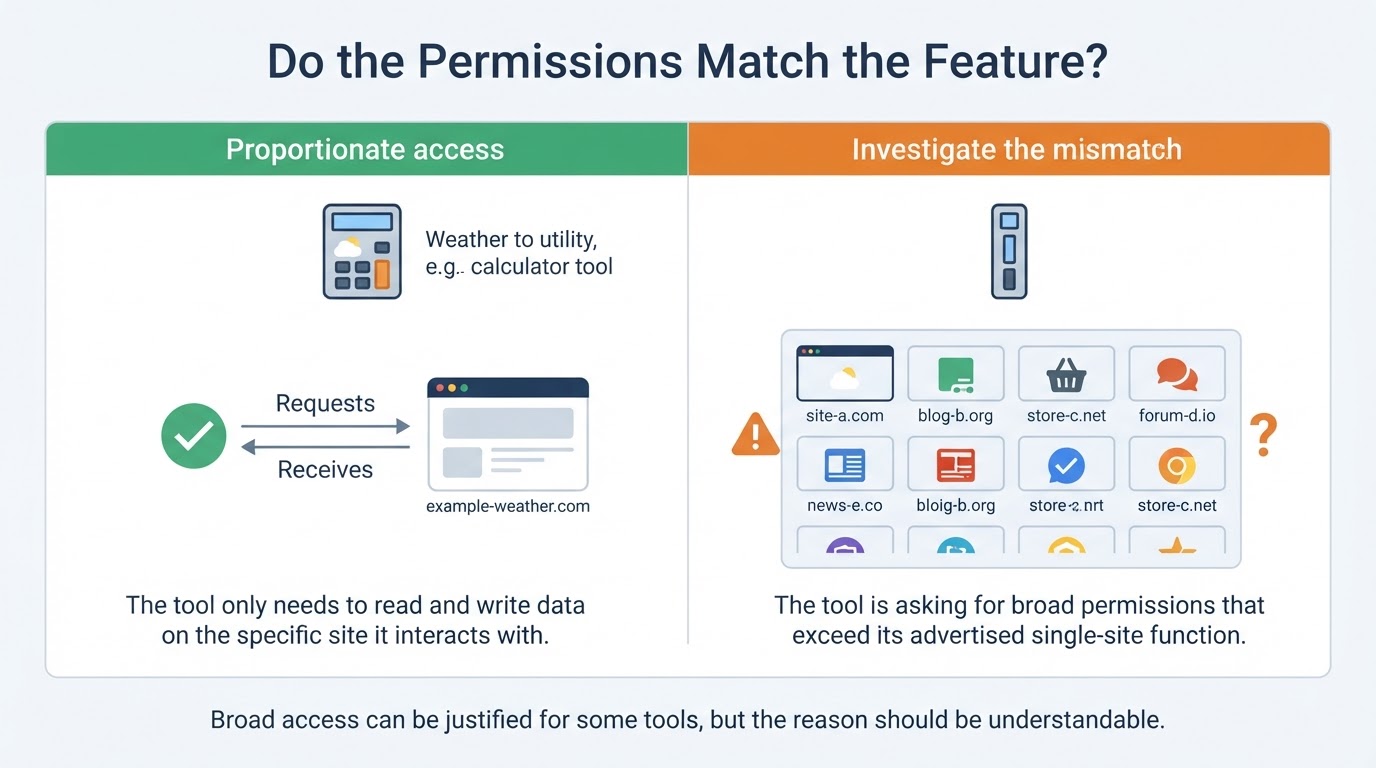
- Compare every requested permission with the feature you need. Broad website access deserves extra scrutiny, especially when the extension only performs a narrow task.
- Read the privacy policy and data disclosure. Check what information may be collected, transmitted, shared, retained, or deleted.
- Review recent critical feedback, update history, ownership changes, and credible independent reports.
- If you proceed, use the narrowest access available and test the extension away from sensitive accounts and documents.
- Disable or remove it if you notice unexplained redirects, pop-ups, search changes, injected advertising, performance problems, or new access requests that do not make sense.
This process cannot prove that an extension is safe. It helps you identify disproportionate access and reduce avoidable exposure.
What Browser Extensions Can Access
A browser extension is software that adds or changes browser functionality through browser-provided capabilities. Examples include tools that modify webpages, manage tabs, check text, save content, or add features to specific websites.
Permissions describe capabilities the extension may request from the browser. They do not automatically prove that the extension uses every capability, collects particular information, or misuses data. Exact access depends on the browser, permission type, host patterns, page involved, and the extension's implementation.
A useful principle is least privilege: software should receive only the access needed for its intended job. An extension that works on one website may not need access to every website. When broader access is necessary, the reason should be understandable and consistent with the advertised feature.
How to Review an Extension Before Installing It
A repeatable review is more useful than relying on one reassuring signal. The following checks work for everyday users as well as students, creators, developers, and small businesses.
How Much Should You Trust Ratings, Reviews, and Updates?
Ratings, user counts, and reviews are supporting evidence rather than a complete safety assessment. A popular extension can later change ownership, request new permissions, or develop privacy and security problems.
Read recent and critical reviews, especially reports about redirects, injected advertisements, changed search settings, unexpected permission requests, data collection, or problems that began after an update. Check whether complaints concern the current version.
Reviews can be incomplete or manipulated, and they may not reveal targeted or low-frequency abuse. Search the extension name, publisher, and identifier with terms such as security, privacy, malware, breach, or ownership change. Assess the date, evidence, source quality, and relevance to the current version before treating a report as reliable.
Browser Extension Red Flags
Stop or investigate when you see one or more of these warning signs:
- Permissions that do not match the advertised feature, especially broad website access.
- An unclear publisher identity, copied branding, missing support information, or unexplained ownership change.
- A privacy policy that does not explain collection, transmission, sharing, retention, or deletion.
- New permissions or significant behavior changes after an update.
- Unexplained redirects, injected advertisements, changed search settings, unexpected pop-ups, browser slowdowns, or unrelated access requests.
- Repeated recent complaints describing the same suspicious behavior.
- Installation prompts from unofficial mirrors, random download sites, or misleading advertisements.
A single warning sign may have an innocent explanation, but several combined signals should raise the threshold for installation. If the explanation remains unclear, do not proceed.
How to Install and Test an Extension More Safely
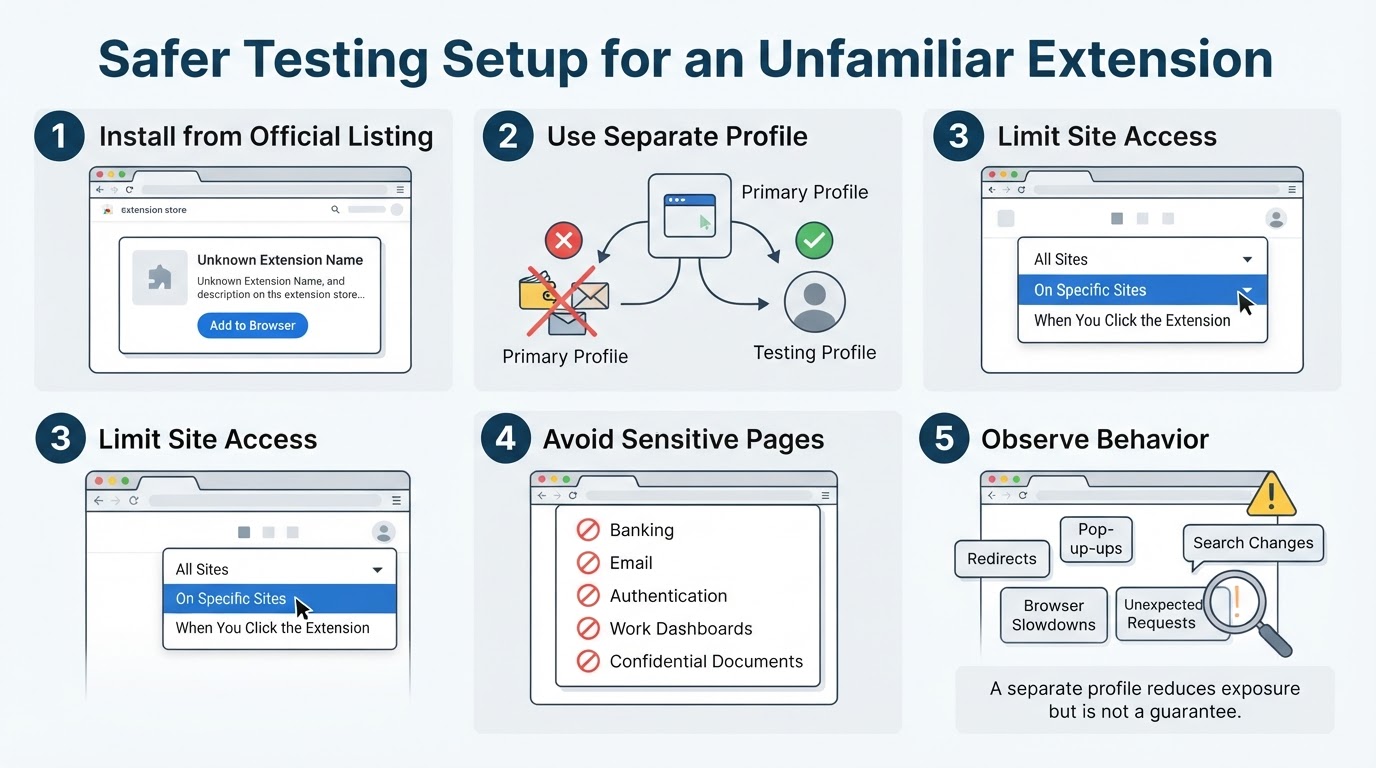
If the evidence is acceptable but not conclusive, limit exposure during installation and testing:
- Install from the official listing for your browser, unless your organization provides a separate trusted distribution process.
- Use optional or site-specific permissions only when the browser and extension support them.
- Consider a separate browser profile or non-sensitive account when evaluating unfamiliar software.
- Do not test first on banking, email, authentication pages, work dashboards, confidential documents, or other sensitive services.
- Watch for redirects, pop-ups, advertising changes, search-setting changes, browser slowdowns, and unexpected access requests.
- Disable or remove the extension if its behavior is unexplained.
A separate profile can reduce exposure to sensitive accounts and data, but it is not a guarantee of safety. Avoid entering important credentials or storing confidential information in the test environment.
What to Do If an Extension Seems Malicious or Compromised
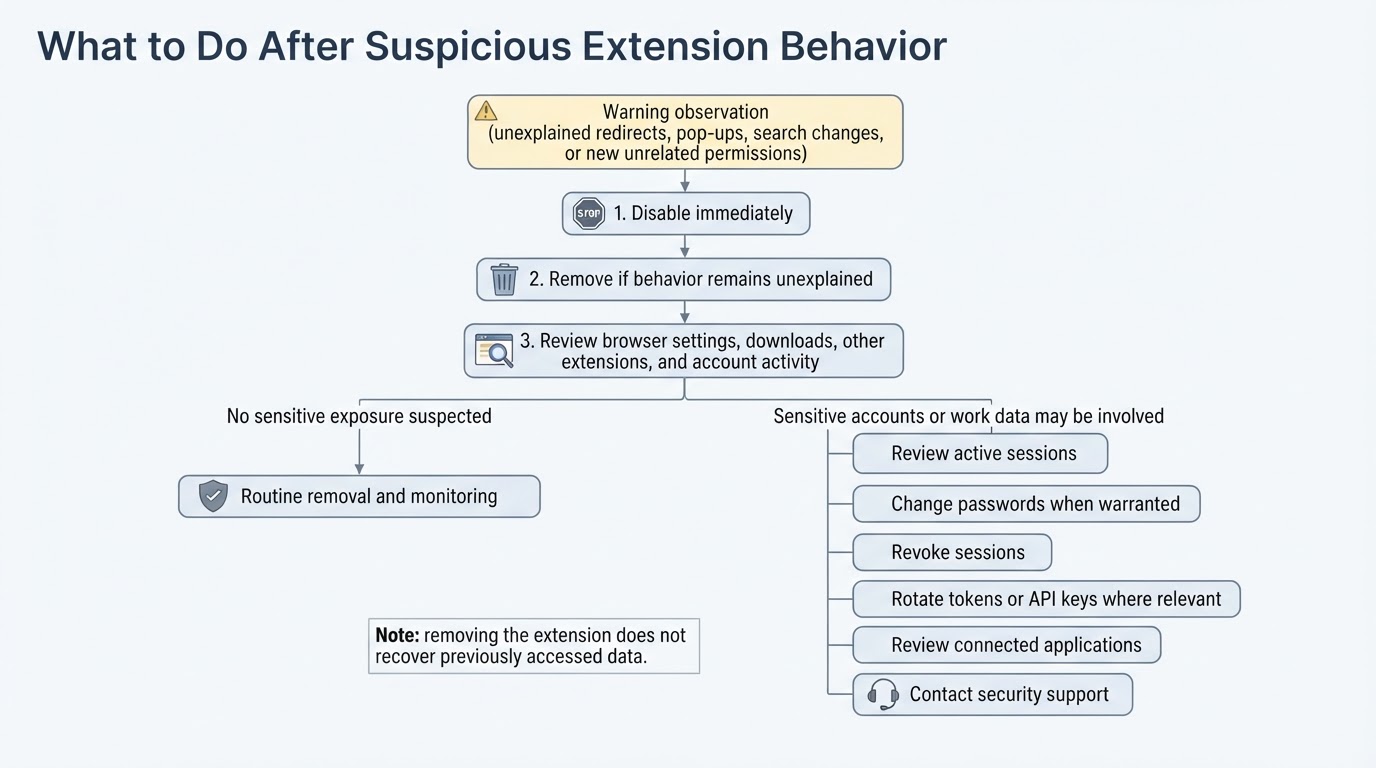
Disable the extension immediately if it causes unexplained redirects, injected advertisements, search changes, suspicious pop-ups, or unrelated access requests. Remove it if the behavior remains unexplained or you no longer need it.
Then review browser settings, installed extensions, downloads, and account activity for unexpected changes. Reassess extensions installed around the same time, particularly if the suspicious extension recently changed ownership, received an update, or requested new permissions.
If sensitive accounts may have been exposed, use a trusted environment to review active sessions and change passwords when warranted. Depending on the affected service and evidence, you may also need to revoke sessions, rotate API keys or other tokens, remove connected applications, or contact your organization's security team. Password changes alone may not contain an incident involving active sessions, tokens, transmitted data, or changes made to an external account.
Report the extension through the browser store or seek security or incident-response support when appropriate.
Browser-Specific Checks for Chrome, Firefox, Edge, and Safari
The evaluation process is broadly similar across browsers, but permission names, store disclosures, menus, private-window controls, and site-access settings can differ by browser version and extension type.
Chrome and Edge use related Chromium extension concepts, while Firefox presents WebExtensions permissions through its own interface. Safari uses a different extension distribution and management model. Because controls and labels change, use the current official store and help documentation for the browser and version you use.
At a high level, look for settings related to site access, private-window access, updates, and removal. Treat this section as general guidance rather than a universal set of menu instructions.
A Practical Evaluation Worksheet
You can document an extension review with these fields:
- Extension name, publisher, identifier, store URL, version, and date reviewed.
- Requested permissions and whether each is necessary, potentially justified, or unrelated.
- Privacy-policy details about collection, transmission, sharing, retention, and deletion.
- Publisher consistency, maintenance history, ownership changes, recent critical reviews, and credible independent reports.
- Test observations, including redirects, pop-ups, performance changes, search changes, and unexpected access requests.
- Decision: proceed with limited exposure, investigate further, or do not install or disable.
Revisit the record after major updates, ownership changes, new permissions, or unexpected behavior. The worksheet helps organize incomplete evidence; it is not a score or certification of safety.
Conclusion
Browser extensions are not inherently dangerous, but their permissions and data access can create meaningful security and privacy exposure. Compare access with the advertised feature, verify the publisher, read privacy disclosures, check recent evidence, and test cautiously.
Official stores, high ratings, large user counts, open-source repositories, and scanners can provide useful context, but none guarantees safety. If an extension requests unrelated access or behaves unexpectedly, disable it, remove it, review affected accounts and sessions, and seek further support when sensitive information may be involved.