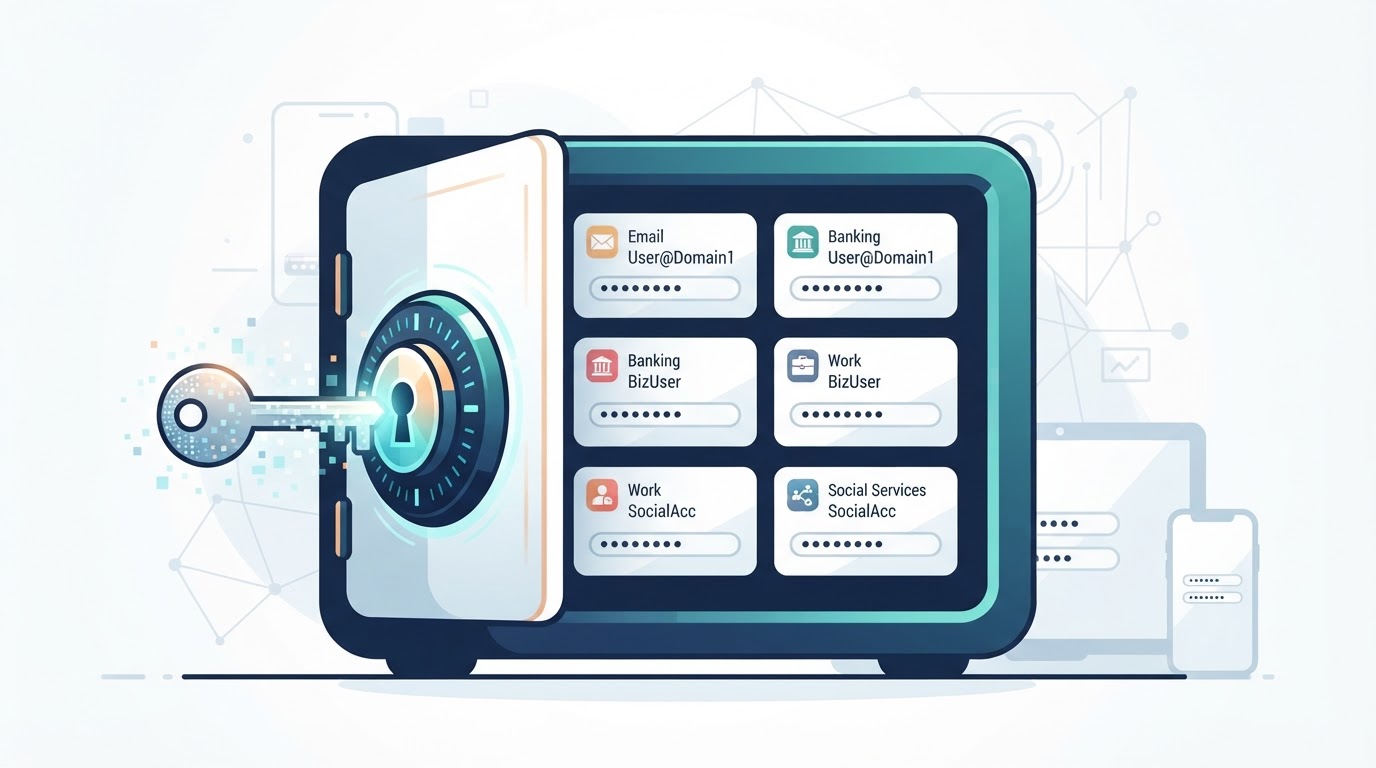
A password manager is software or a built-in browser or device service that stores, generates, and retrieves login credentials. Instead of memorizing a different password for every account, you use one primary unlock credential while the manager protects the rest in a vault.
The main security benefit is practical: a password manager makes it easier to use a different, strong password for every account. That limits the damage when a password is exposed because the same credential cannot be reused to access your other accounts.
A password manager is not a complete security solution. You still need multifactor authentication, updated devices, careful sign-in habits, secure recovery options, and protection against phishing. This guide explains how password managers work, how to choose and set one up, how to migrate passwords, and how to use autofill, passkeys, and security keys safely.
What Is a Password Manager?
A password manager is an app, browser feature, operating-system service, or combination of these that can generate, save, organize, and retrieve credentials. Many password managers can also autofill login forms after you unlock them.
The protected collection of saved information is usually called a password vault. Depending on the product, a vault may contain usernames, passwords, website addresses, secure notes, payment information, recovery codes, shared credentials, or passkeys. Features vary by product, plan, device, and platform, so check the provider's current documentation before relying on a specific capability.
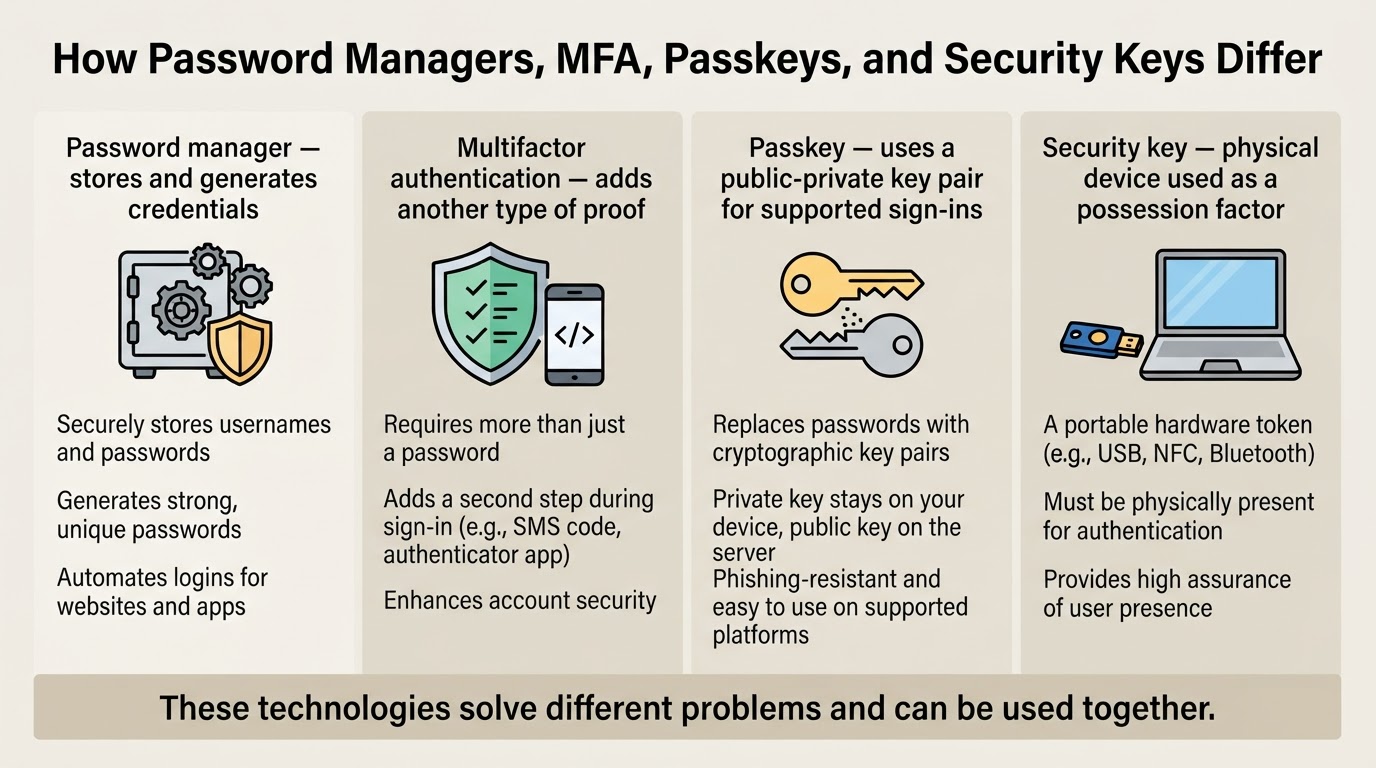
A password manager is different from related security tools. An authenticator app generates or stores time-based verification codes. A passkey is a cryptographic credential used for supported sign-ins. A physical security key is a device used as a possession factor for authentication. Some password managers or platforms support several of these functions, but they are not automatically interchangeable.
How Do Password Managers Work?
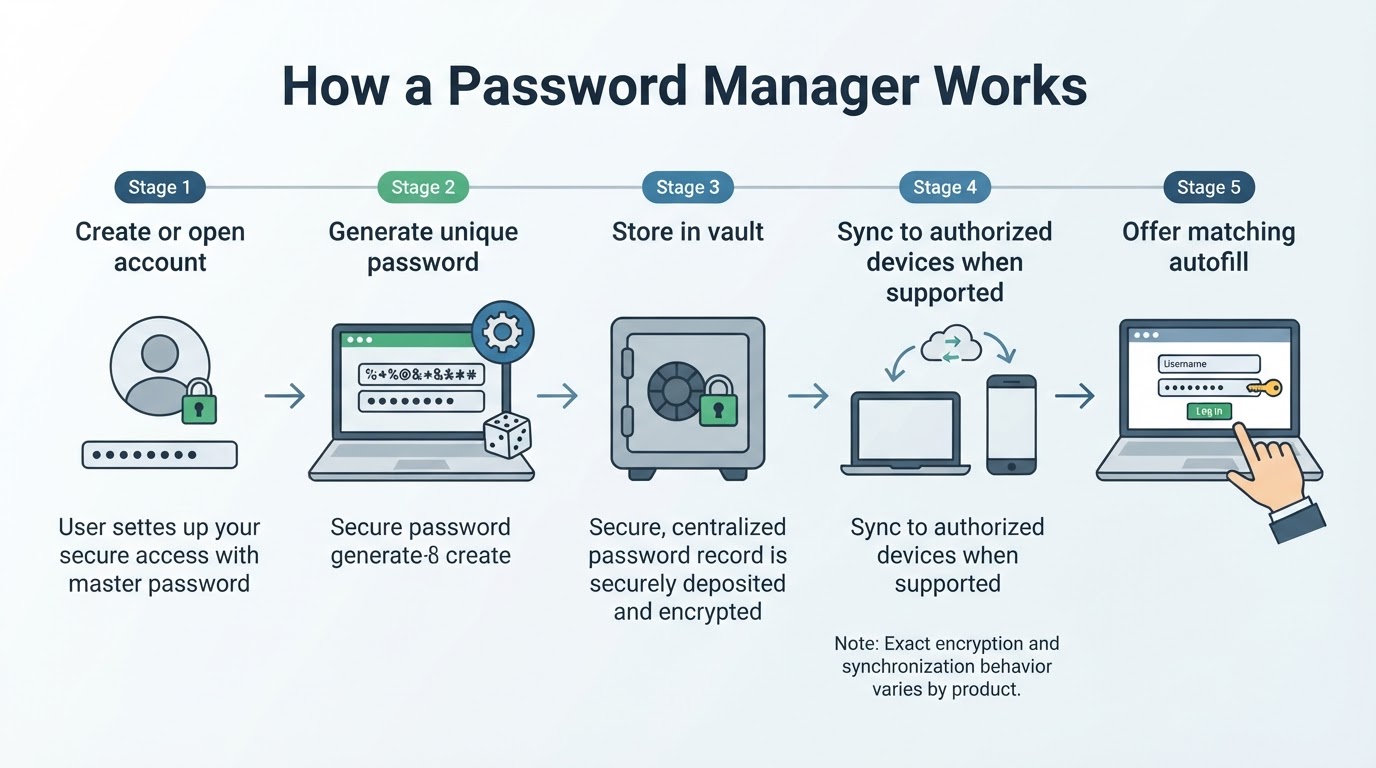
A typical workflow begins when you create or enable the service and configure an account or device-unlock method. You can then save an existing credential or ask the manager to generate a new one for a particular website or app.
The credential is stored in the vault. When you return to a recognized login page, the manager may offer the matching account for autofill. Cloud-based products may synchronize vault data across authorized devices, while local products may keep the primary vault on a device or use a separately configured synchronization method. The exact encryption boundary, stored metadata, and synchronization process vary, so review the product's documentation before choosing it.
The security of the overall setup depends on more than the vault. Your primary unlock credential, enrolled devices, recovery methods, autofill settings, software updates, provider architecture, and device security all matter.
How to Choose a Password Manager
Start with the devices and services you actually use. Check support for your phones, computers, browsers, and operating systems before comparing advanced features.
Read the provider's technical and privacy documentation rather than relying only on labels such as safest, private, or zero-knowledge. Look for clear information about encryption, authentication, synchronization, recovery, data collection, breach notification, updates, and any independent security assessments. Treat sharing, emergency access, device controls, audits, import and export, organizational management, and passkey support as features to verify in the specific product and plan.
How to Set Up a Password Manager Safely
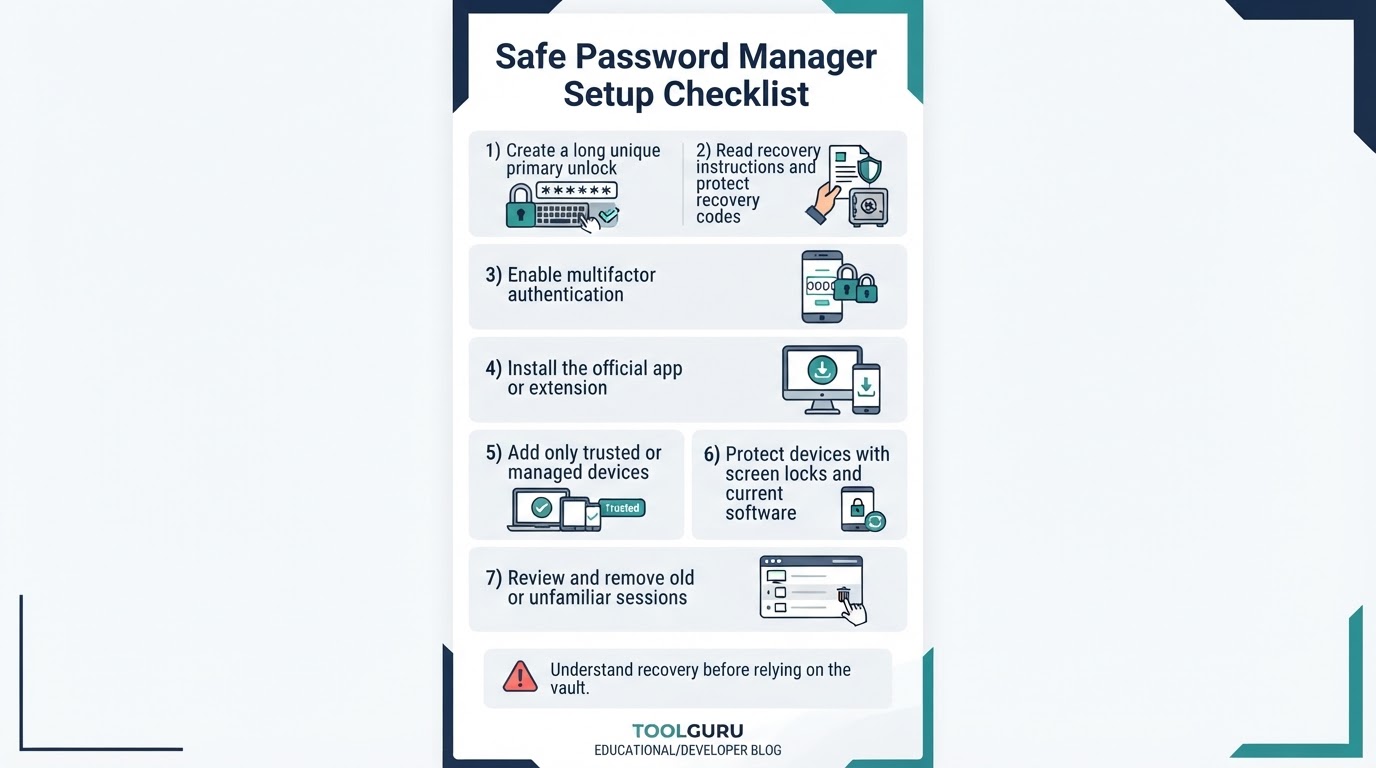
Set up the manager in stages:
- Create a long, unique primary unlock credential.
- Read the recovery documentation and save required recovery codes or instructions securely.
- Enable multifactor authentication for the manager's account. When supported, consider correctly implemented standards-based passkey or security-key authentication, while still verifying the service and enrollment flow.
- Install the official app, browser extension, or operating-system integration.
- Add only devices that you personally control or that are appropriately managed by your organization.
- Protect every device with a screen lock, current software, and account access controls.
- If the product supports additional authorized devices, add a second trusted device and verify that access works.
- Review active sessions or enrolled devices and remove old, lost, or unfamiliar devices.
Understand the recovery design before storing everything in the vault. Depending on the product, losing the primary credential or required authentication methods may make recovery difficult or impossible.
How to Migrate Existing Passwords Safely
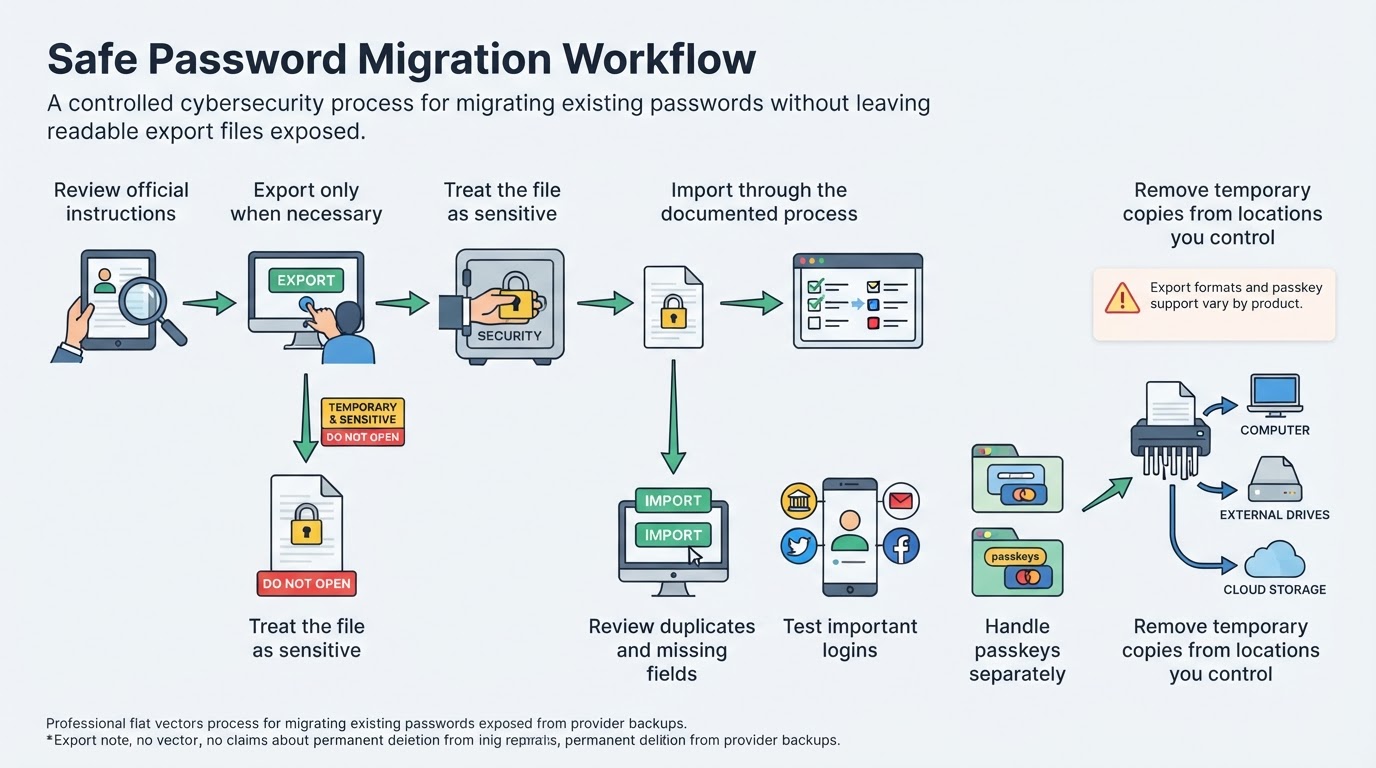
Migration is useful, but exported credential files are sensitive. Many password-manager and browser export formats are plaintext or otherwise directly readable, although the format depends on the product. Confirm the source and destination products' official instructions before exporting, and do not send the file through ordinary email, chat, or an unprotected shared folder.
After importing, review duplicates, weak passwords, reused credentials, missing usernames, incorrect website records, and fields that did not transfer. Test important logins from the new vault before retiring the old system.
Passkeys require separate consideration. They are not ordinary password records, and they may be device-bound or synchronized through a credential provider. A passkey may not appear in a traditional password export. Depending on the service and platform, you may need to enroll a new passkey rather than import one. Check the current documentation for the service, device, browser, and credential provider.
How to Replace Reused and Weak Passwords
You do not need to change every password in one sitting. Secure the accounts that have the greatest effect on your digital life first: primary email, financial and payment services, cloud storage, work or school accounts, social accounts, and services that can reset other accounts.
For each service:
- Navigate directly to the legitimate website or app.
- Open the password-change page.
- Generate a unique password in the manager.
- Save the new entry.
- Sign out and test the new login if practical.
- Enable multifactor authentication.
- Review recovery email addresses, phone numbers, trusted devices, and recovery codes.
Use audit features to identify reused, weak, or potentially exposed credentials when the product provides them. Respond to evidence of compromise or suspicious activity rather than relying only on an arbitrary routine password-change schedule.
How to Use Autofill Safely
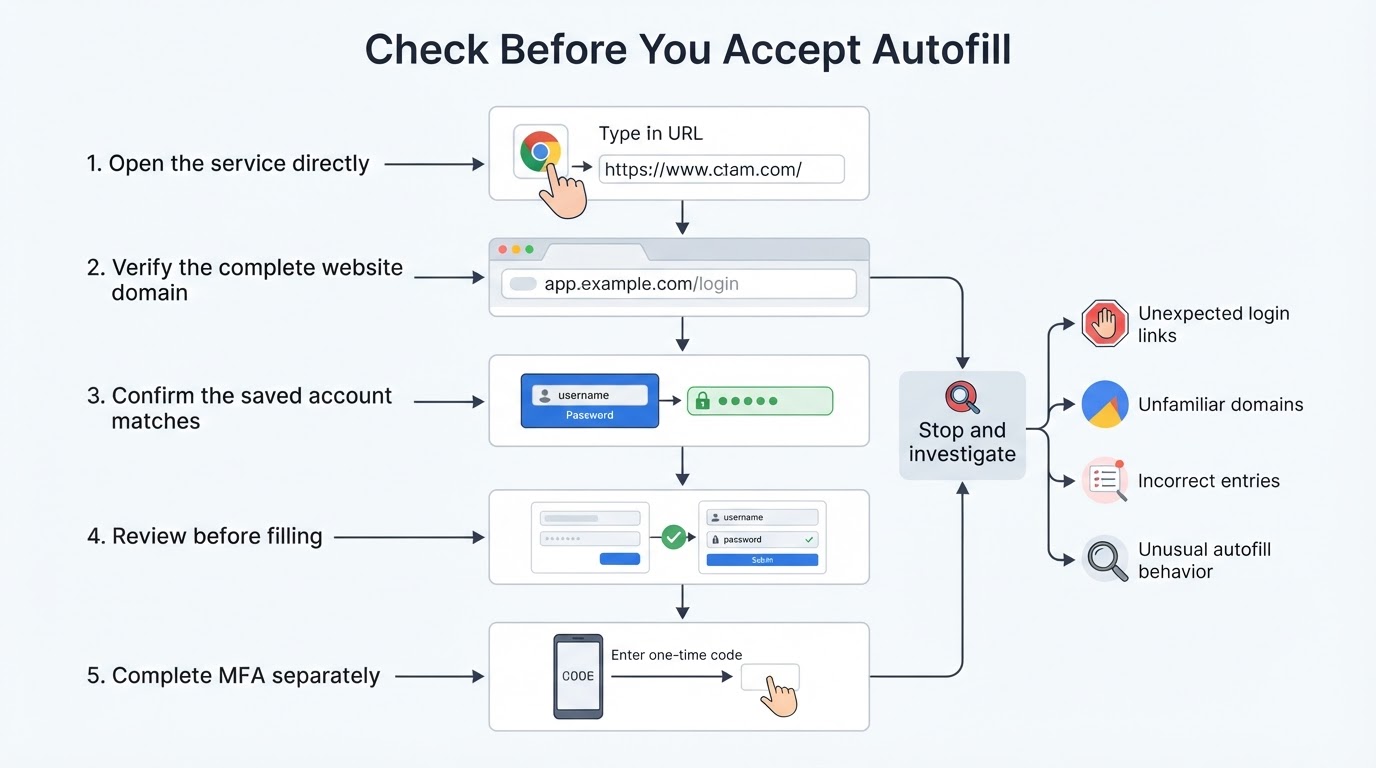
Autofill reduces typing and can help you use long, unique credentials, but it does not make every login page trustworthy. Before filling, check the complete website domain and confirm that it is the expected service or an expected authentication provider. Make sure the saved entry corresponds to that service.
If several similar entries or domains are saved, select the correct one rather than accepting the first suggestion. You can configure automatic submission conservatively or disable it if you prefer to review the page before submitting.
Matching rules and autofill interfaces differ among browser managers, extensions, mobile operating systems, apps, and websites. A legitimate service may use a separate sign-in domain, so investigate unexpected behavior instead of relying on a blanket rule about subdomains.
Password Managers, MFA, Passkeys, and Security Keys
These technologies work together but solve different problems. A password manager stores or generates credentials. Multifactor authentication adds another type of proof during sign-in, such as a code, approval, passkey, or physical key. Using a password manager does not make multifactor authentication unnecessary.
Passkeys use public-key cryptography. The service stores a public key, while the corresponding private key is protected by an authenticator or credential provider. A passkey may be device-bound, meaning it is kept on one device, or synchronized by a credential provider so it can be available on multiple devices. Storage, backup, recovery, portability, and sharing depend on the platform and provider.
A security key is a physical authentication device that can support FIDO2 or WebAuthn sign-in or multifactor authentication. Correctly implemented standards-based passkeys and security keys can provide phishing-resistant authentication, but users still need to verify the service and enrollment flow. Support varies by website, account, browser, operating system, and provider.
Are Password Managers Safe?
Reputable password managers can improve account security by making unique passwords and safer credential handling practical. However, no manager is immune to compromise, and security quality varies with provider architecture, implementation, updates, recovery design, and business practices.
Depending on the architecture, a provider may not ordinarily be able to view the plaintext contents of your vault. Terms such as zero-knowledge describe particular designs, not a universal guarantee. Review the product's encryption, key-management, recovery, metadata, privacy, and data-use documentation rather than relying on a label alone.
A weak or reused primary unlock credential can undermine vault protection. A compromised device may expose credentials, autofill data, active sessions, or an unlocked vault. Losing the primary credential, second factor, recovery codes, or essential device may make recovery difficult or impossible, depending on the product.
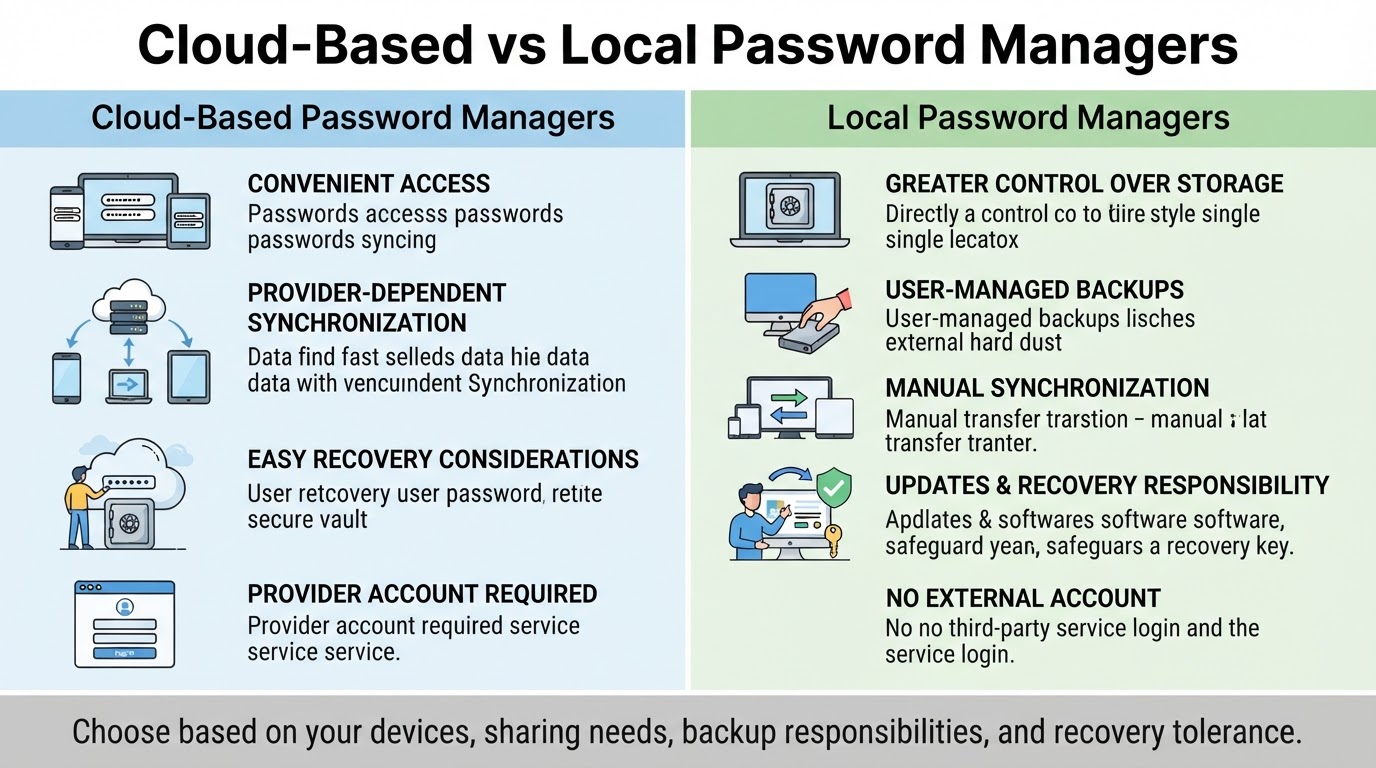
Cloud synchronization can improve availability across devices but introduces provider, account, and recovery considerations. Local storage can reduce cloud dependence but increases responsibility for backups, synchronization, updates, and recovery.
Password Manager Safety Checklist
After setup, maintain the system with a short regular review:
- Update the manager, browser, extensions, operating system, and mobile devices.
- Review active devices and remove lost, old, or unauthorized devices.
- Use multifactor authentication on the manager and high-impact accounts.
- Review reused, weak, or potentially exposed credentials when audit tools are available.
- Keep recovery codes and instructions current and securely accessible.
- Never send personal primary unlock credentials through ordinary consumer email, chat, or SMS. Use an approved secure-sharing system in managed work environments.
- Review autofill behavior and saved domains periodically.
- Export only when necessary, and remove temporary readable files from locations you control after migration or backup tasks.
The goal is not to create a perfect vault immediately. Start with important accounts, verify that your recovery process is practical, and improve the remaining accounts gradually.
Conclusion
A password manager is most useful when it helps every important account use a unique, difficult-to-guess credential. The safest setup combines a reputable and well-documented provider, a long unique primary unlock credential, multifactor authentication, cautious autofill, updated devices, and a practical recovery plan.
Built-in, dedicated, cloud-based, and local options involve different convenience and responsibility tradeoffs. Compare the platforms, features, privacy practices, synchronization model, and recovery design that matter to you. Start with your primary email and other high-impact accounts, then replace reused passwords and improve the rest gradually.