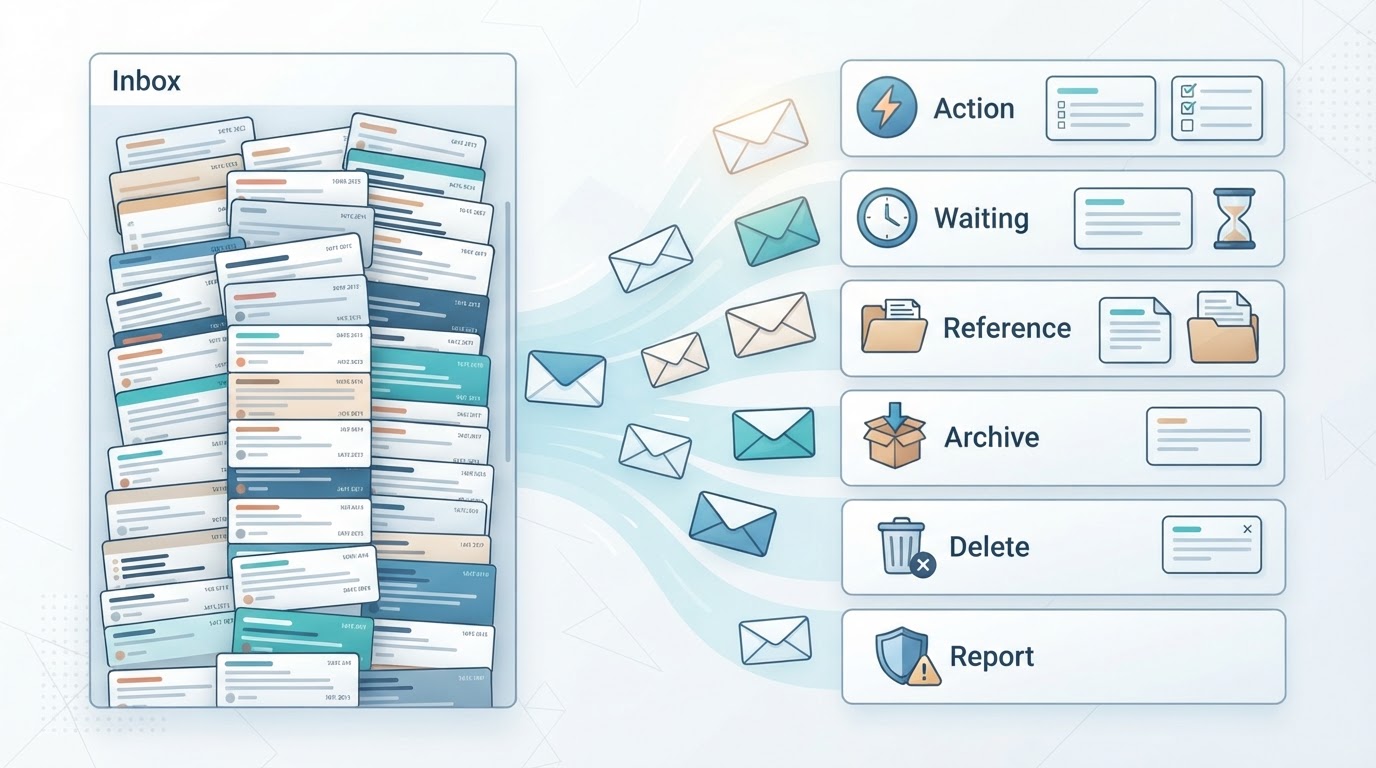
Learning how to organize your email inbox is less about creating dozens of folders and more about making consistent decisions. A useful system helps you identify what requires action, separate active work from reference material, remove messages you no longer need, and retrieve important information later.
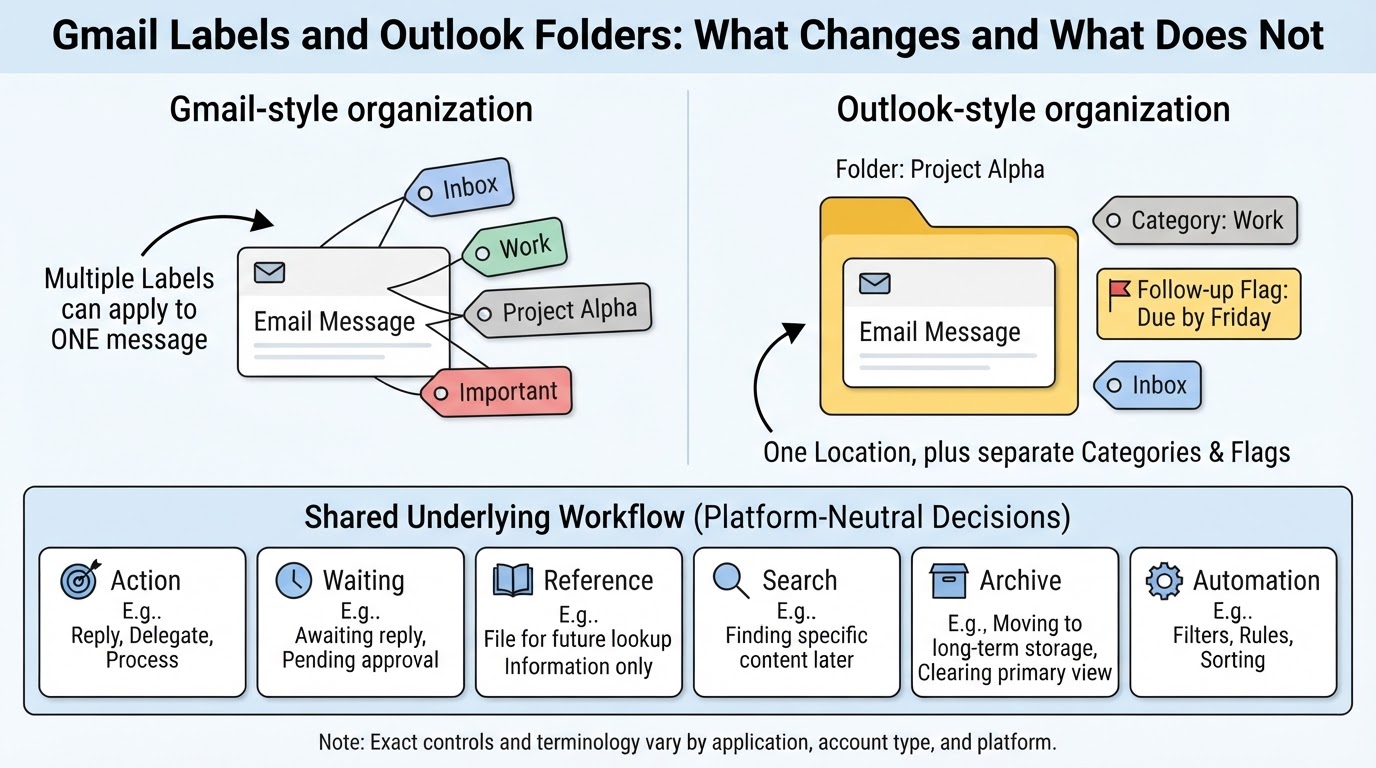
The same workflow works across Gmail, Outlook, and other providers, although feature names and behavior vary by application, account type, and platform. Gmail uses labels, for example, while Outlook commonly combines folders with categories, flags, filters, and rules. The underlying decisions remain the same: act, defer, delegate, archive, delete, unsubscribe, or report a suspicious message.
You do not need to maintain a permanently empty Inbox. Inbox zero can be a personal preference, but an empty Inbox does not prove that every task is complete. A small, reliable action queue and a dependable way to find stored messages are often more useful than a complex folder system.
A Simple Inbox Workflow
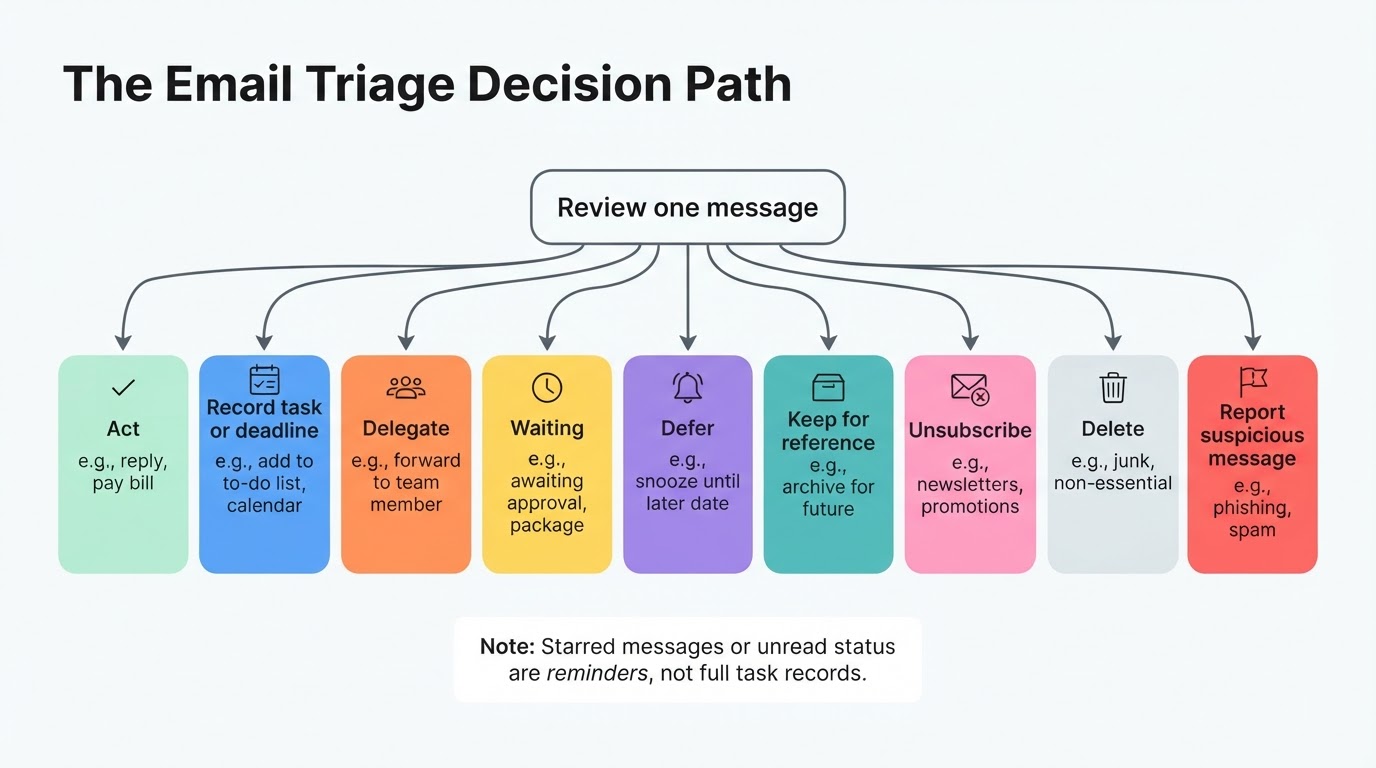
Before creating folders or labels, decide what each message should become. Use the following process whenever you review email:
- Act: Reply or complete the task if it is genuinely quick and appropriate to do now.
- Record the commitment: If the email requires substantial work, record the next action, owner, and deadline in your task list or calendar.
- Delegate or wait: If another person must respond, record who you are waiting for, what you expect, and when you will check again.
- Defer: Use a snooze or follow-up feature where available when the message should return to your attention later.
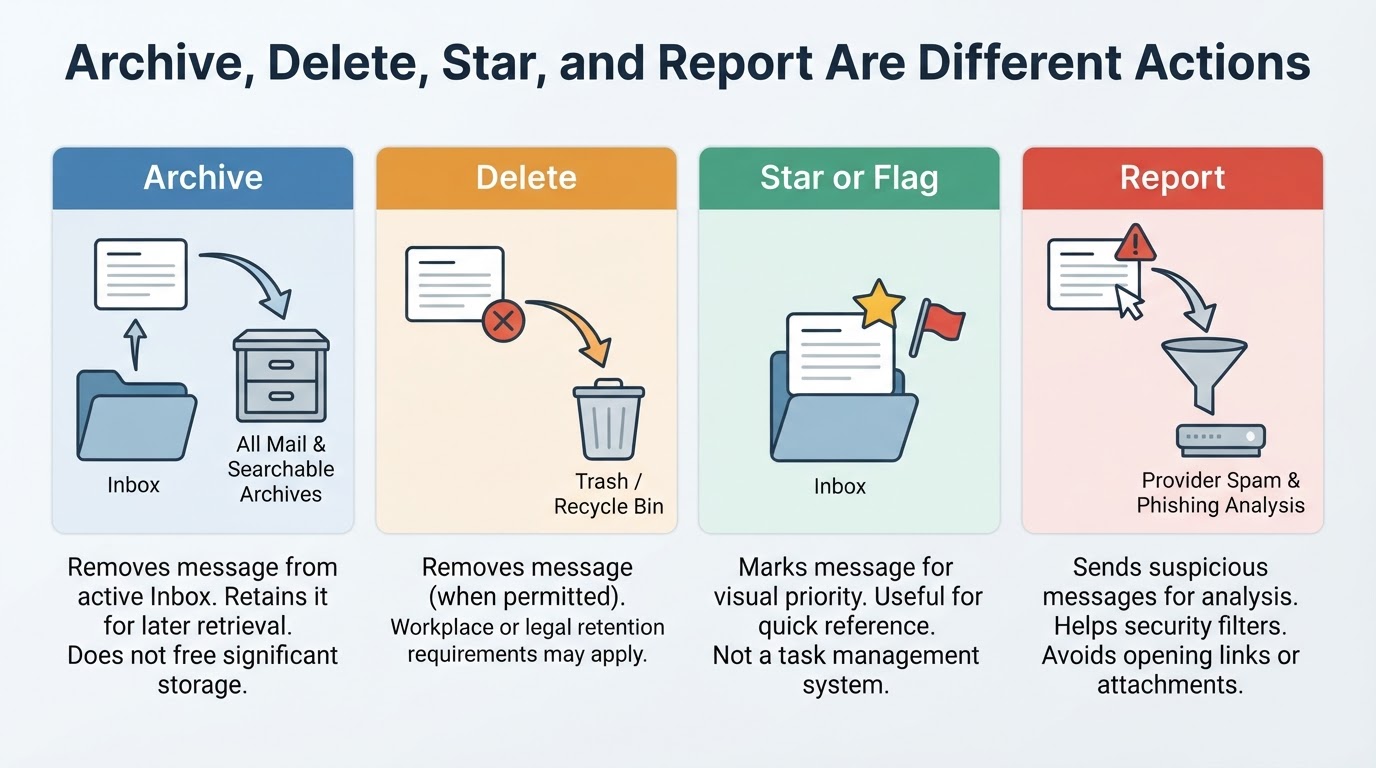
- Keep for reference: Retain useful information but move it out of the active Inbox.
- Unsubscribe: Stop receiving a legitimate subscription you no longer want.
- Delete: Remove messages that are no longer needed when no retention requirement applies.
- Report: Use your provider's spam or phishing process for suspicious messages.
A flag, star, or unread status can provide a visual reminder, but it should not be the only record of a real commitment. If a task has a deadline, multiple steps, or another person responsible for it, store those details somewhere designed for task management.
How to Declutter a Crowded Inbox
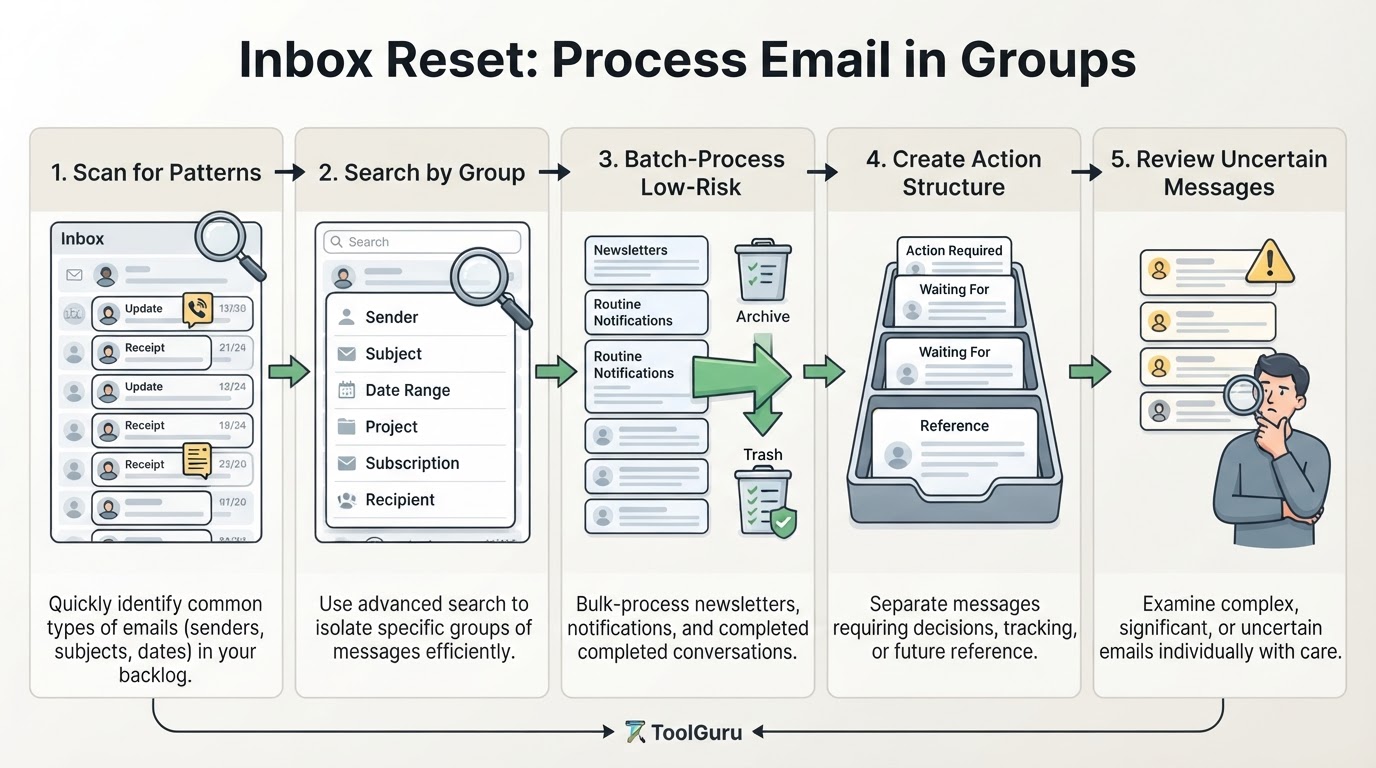
A large backlog is easier to manage when you treat it as a series of groups rather than thousands of individual messages. Start with low-risk, predictable clutter and leave ambiguous or significant messages for deliberate review.
Use this reset sequence:
- Scan for patterns. Identify recurring senders, newsletters, automated alerts, completed conversations, and messages that clearly require action.
- Group obvious clutter. Search by sender, subject, date range, project, recipient, or other fields supported by your provider.
- Batch-process low-risk messages. Archive completed conversations, remove clearly unwanted messages, and unsubscribe from legitimate subscriptions you no longer need.
- Create a small action structure. Separate active work and waiting items from reference material.
- Review uncertain messages separately. Do not make irreversible decisions about important or unclear email under time pressure.
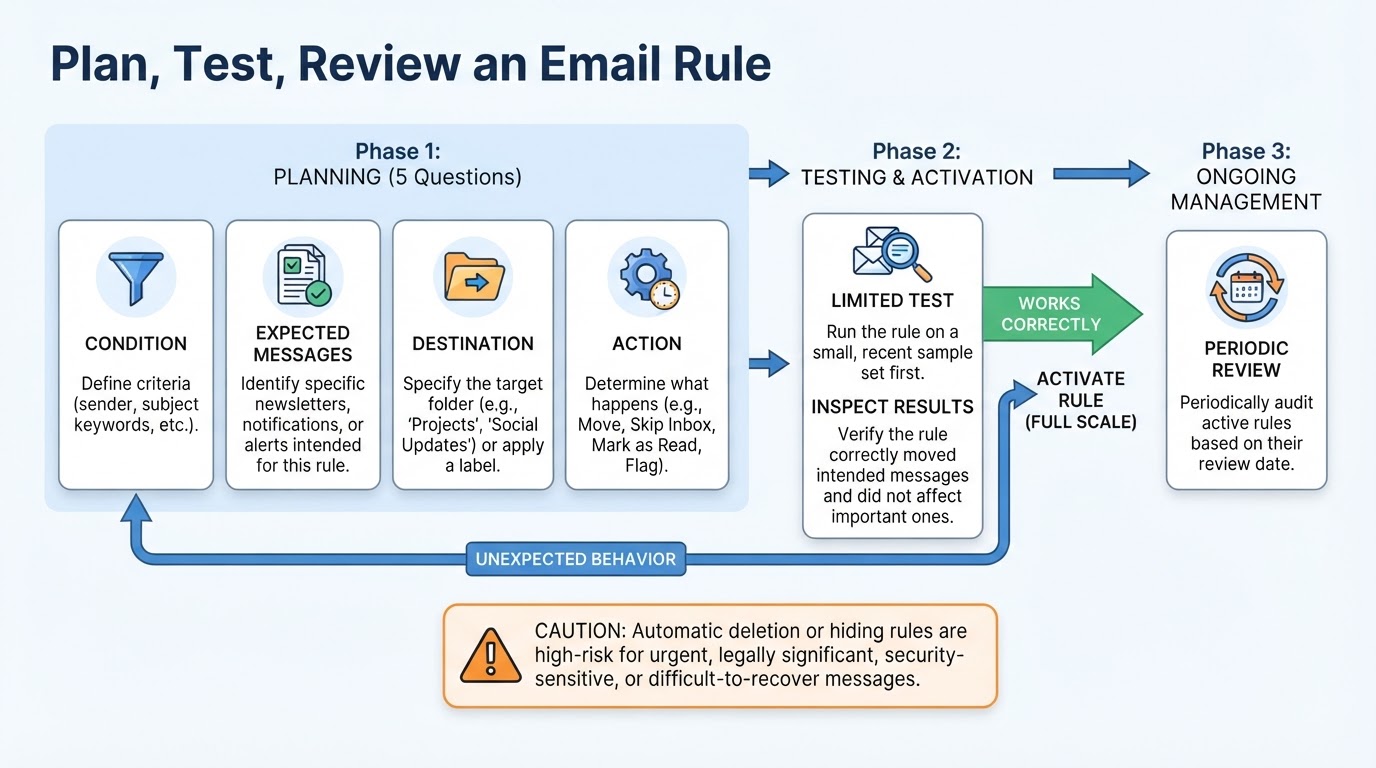
- Test before scaling. Apply any broad move, deletion, filter, or rule to a manageable group first.
Build a Small Structure for Action and Reference
Use broad destinations that reflect how you handle messages rather than every possible subject, sender, or file type. A practical starting structure might include:
- Action: Messages requiring a response or task.
- Waiting: Messages dependent on another person or future event.
- Reference: Information you may need later but do not need to act on now.
- Projects: Current work grouped by project or client.
- Receipts: Purchase confirmations and financial records, where appropriate.
- Newsletters: Legitimate subscriptions you want to retain or review later.
You do not need every category. Use only the destinations that make follow-up or retrieval easier. A large, granular structure can increase maintenance and make it harder to decide where a message belongs.
Keep active work separate from completed reference material. Search should also be part of the system, so you do not need to predict every future folder if your provider can reliably find messages by sender, subject, date, recipient, or other supported fields.
Organize Gmail and Outlook Using Their Native Features
Gmail and Outlook can support the same organizational decisions, but their controls are not identical. Use the platform-neutral workflow first, then adapt it to the features available in your specific application and account. Exact controls can change between web, desktop, mobile, consumer, and managed organizational accounts.
Use Search Before Creating More Folders
Search is both a cleanup tool and a long-term retrieval method. Depending on the provider and application, you may be able to search by sender, subject, date, recipient, attachment status, or other supported fields. Search syntax, indexed content, attachment filters, and whether archived messages are included vary by service.
Before creating a new folder, ask whether a saved search pattern or a broad existing category would solve the problem. A searchable reference area is often easier to maintain than a large hierarchy that requires you to remember exactly where every message was stored.
When searching for attachments, treat the results as provider-dependent. Group related messages by project, client, course, or reference need instead of creating a separate destination for every file type. Archiving an email generally retains the message and its attachments, so it should not be assumed to free mailbox storage. Organizational or local archive configurations may behave differently.
Automate Predictable Email With Filters and Rules
Filters and rules are useful when the pattern is stable and the consequence is low risk. Conditions may include sender, recipient, subject, or other characteristics supported by the provider. Suitable candidates often include legitimate newsletters, receipts, routine system notifications, and predictable reports.
Avoid automatically deleting or hiding messages that may be urgent, legally significant, security-sensitive, or difficult to recover. Test automation on a limited group, inspect the results, and expand it only when the behavior is predictable.
Manage Newsletters, Spam, and Phishing Safely
Reducing unwanted email should not create new security or privacy risks. Treat legitimate subscriptions differently from suspicious messages.
For a legitimate newsletter you no longer want, confirm the sender and use a trusted unsubscribe route. If authenticity is uncertain, do not click a link in the message. Instead, navigate independently to the known service domain or account page, if appropriate. For suspicious email, do not reply, open unexpected attachments, or use its links; report it through your provider's spam or phishing process instead.
Maintain the System Without Chasing Inbox Zero
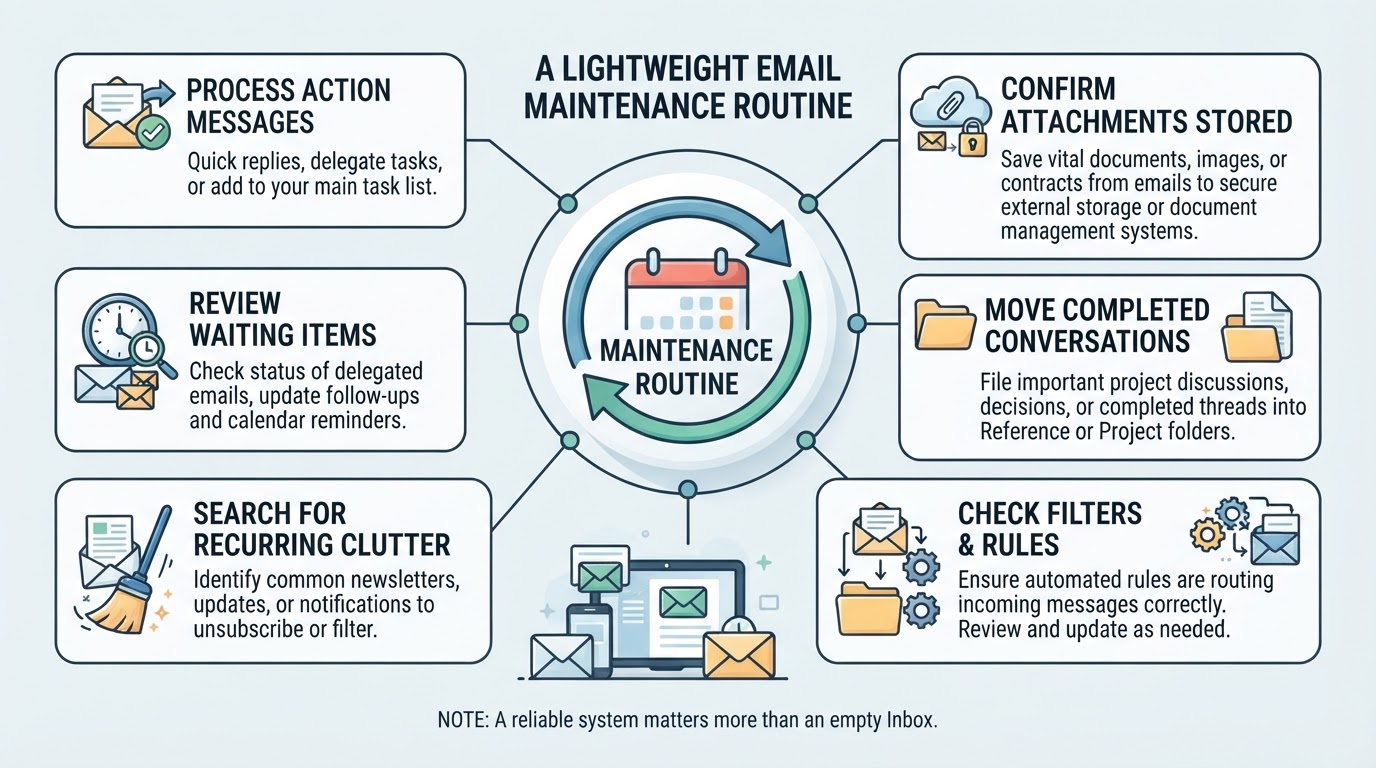
An inbox system works only if it remains easy to use. After the initial cleanup, schedule a recurring review of the Inbox, action and waiting categories, subscriptions, rules, and stored attachments.
During each review, process new messages into action, waiting, reference, archive, delete, unsubscribe, or report decisions. Check whether follow-up items have been completed, delegated, or transferred into the appropriate task or calendar system. Review filters and rules for outdated senders, subscriptions, projects, or destinations.
Inbox zero is optional. Success means that you can make reliable decisions, track commitments, and retrieve information without unnecessary interruptions.
Conclusion
The most effective way to organize your email inbox is to decide what each message requires before worrying about its exact destination. Keep active work separate from reference material, record real commitments in a task or calendar system, use search to retrieve stored messages, and automate only predictable, low-risk patterns.
Archive, delete, unsubscribe, and report are different actions with different consequences. Be especially careful with suspicious messages, work email, retention requirements, and third-party services that request account access.
A small system that you review regularly is more sustainable than a complex folder tree or an inbox-zero target pursued for its own sake.