
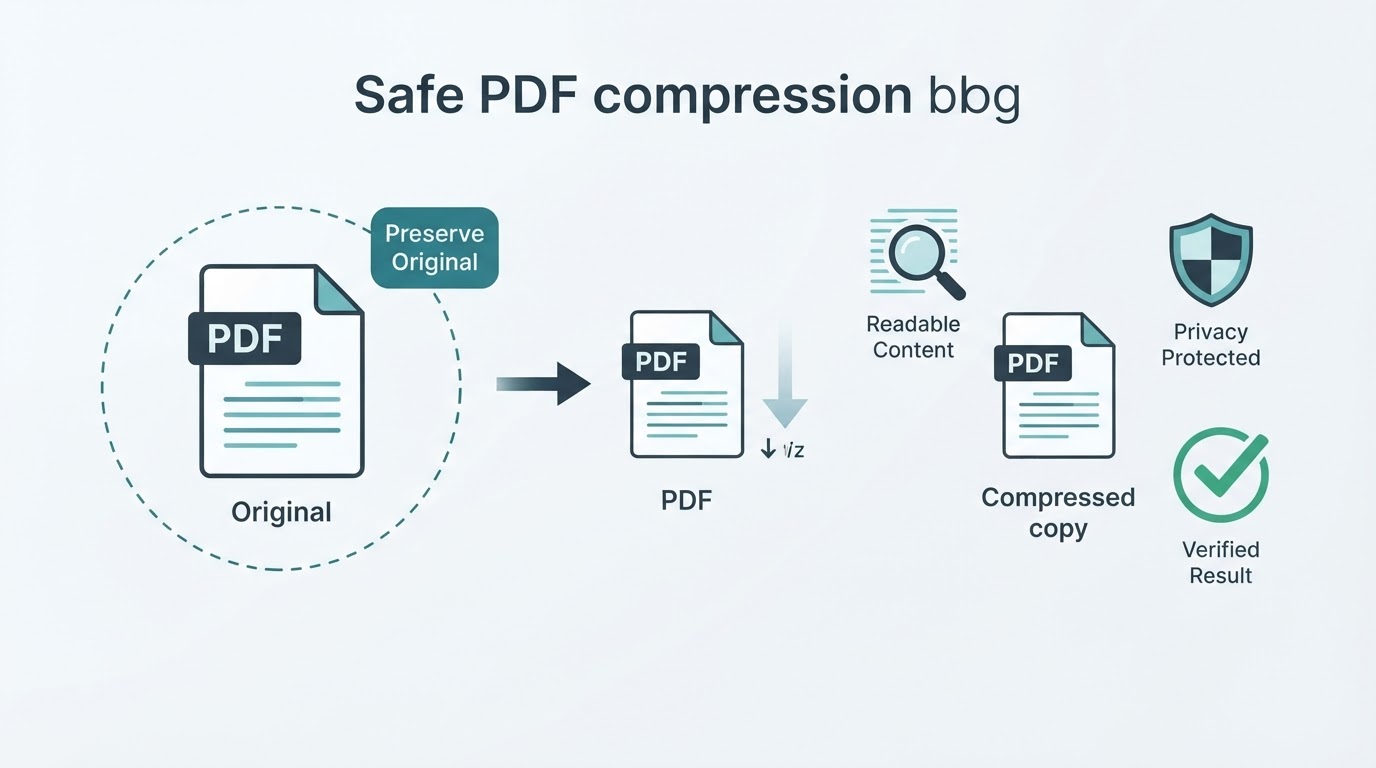
When a PDF is too large to email, upload, store, or share from a mobile device, compression can reduce its file size. The safest approach is to work from a copy, use the least aggressive setting that meets the required limit, and check the result before sending it.
Compression results depend on the document. Scanned pages, photographs, and image-heavy files often provide more opportunity for reduction than text-only or already-optimized PDFs. A smaller file is not automatically a better one: compression can affect image clarity, searchable text, links, forms, signatures, page layout, and print quality.
This guide explains how to compress a PDF using a tool-neutral workflow, how to choose between online and local processing, and which checks to perform before sharing the result.
How to compress a PDF in a few steps
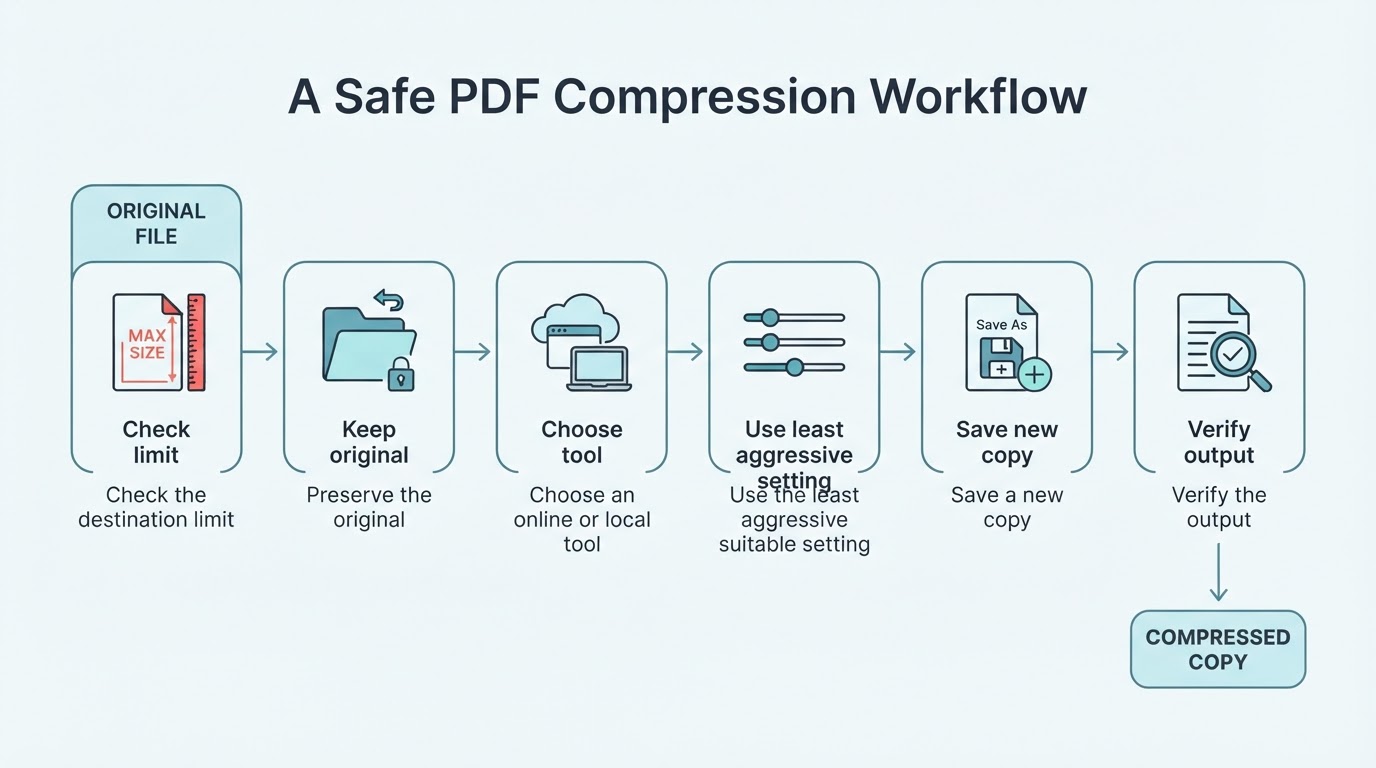
For most documents, PDF compression follows the same basic process. First, identify the destination and its requirements. An email attachment limit, upload portal, mobile-sharing workflow, or professional printing job may require different settings.
Use this workflow:
- Check the destination's file-size limit and quality requirements.
- Save the original PDF and create a clearly named working copy.
- Choose a reputable online compressor or PDF application that suits the document's sensitivity.
- Select lossless or moderate optimization if those options are available.
- Process the working copy and save or download the output under a new filename.
- Compare the compressed file size with the original.
- Open the output and check its pages, text, images, links, forms, and other required features.
- If it is still too large, try a stronger available setting or use an alternative such as splitting the document or sharing a link.
The names of compression controls vary by application. Some tools offer lossless optimization, image quality or DPI controls, or presets for screen and print use; others provide only a basic compression command. Do not assume that every tool offers the same settings or preserves the same PDF features.
Keep the original until the compressed copy has passed the checks your workflow requires. It remains the authoritative high-quality version if the output becomes blurry, loses functionality, or is unsuitable for printing.
Identify the PDF before choosing a compression method
Before compressing a PDF, consider what it contains. You can often make a useful diagnosis by opening the file and checking whether you can select and copy text, whether pages look like scans or photographs, and whether the document contains detailed graphics or interactive fields.
The main types are:
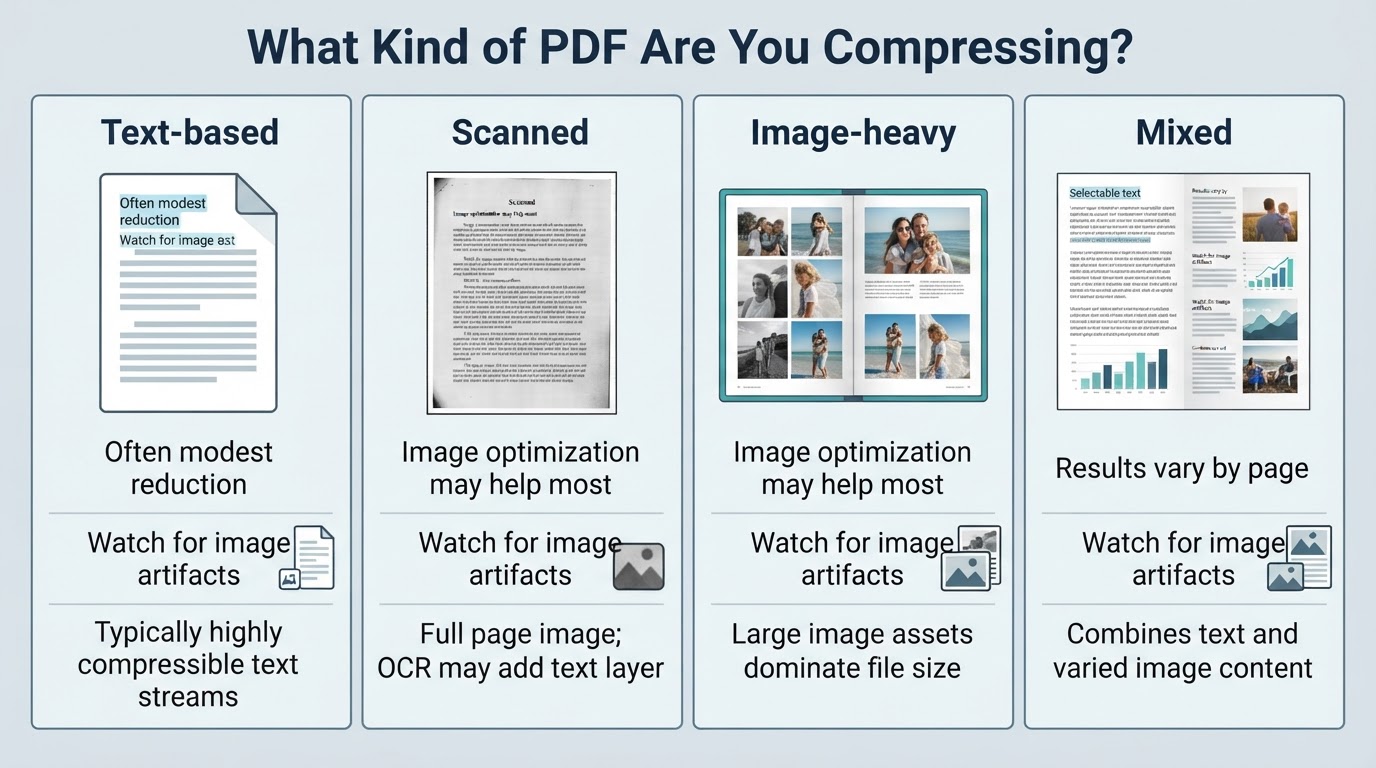
- Text-based PDFs: These contain mostly native text objects and may already be relatively efficient. Size reductions can be modest.
- Scanned PDFs: These commonly store pages as raster images, so image optimization may produce the largest reduction.
- Image-heavy PDFs: Portfolios, brochures, presentations, and photo documents may shrink substantially, but image artifacts require careful inspection.
- Mixed PDFs: These combine text, scans, photographs, forms, and diagrams. Some pages may compress well while others change very little.
Page count alone does not predict the final size. A short PDF with high-resolution images can be larger than a much longer document made mostly of text.
Choose settings for the document's destination
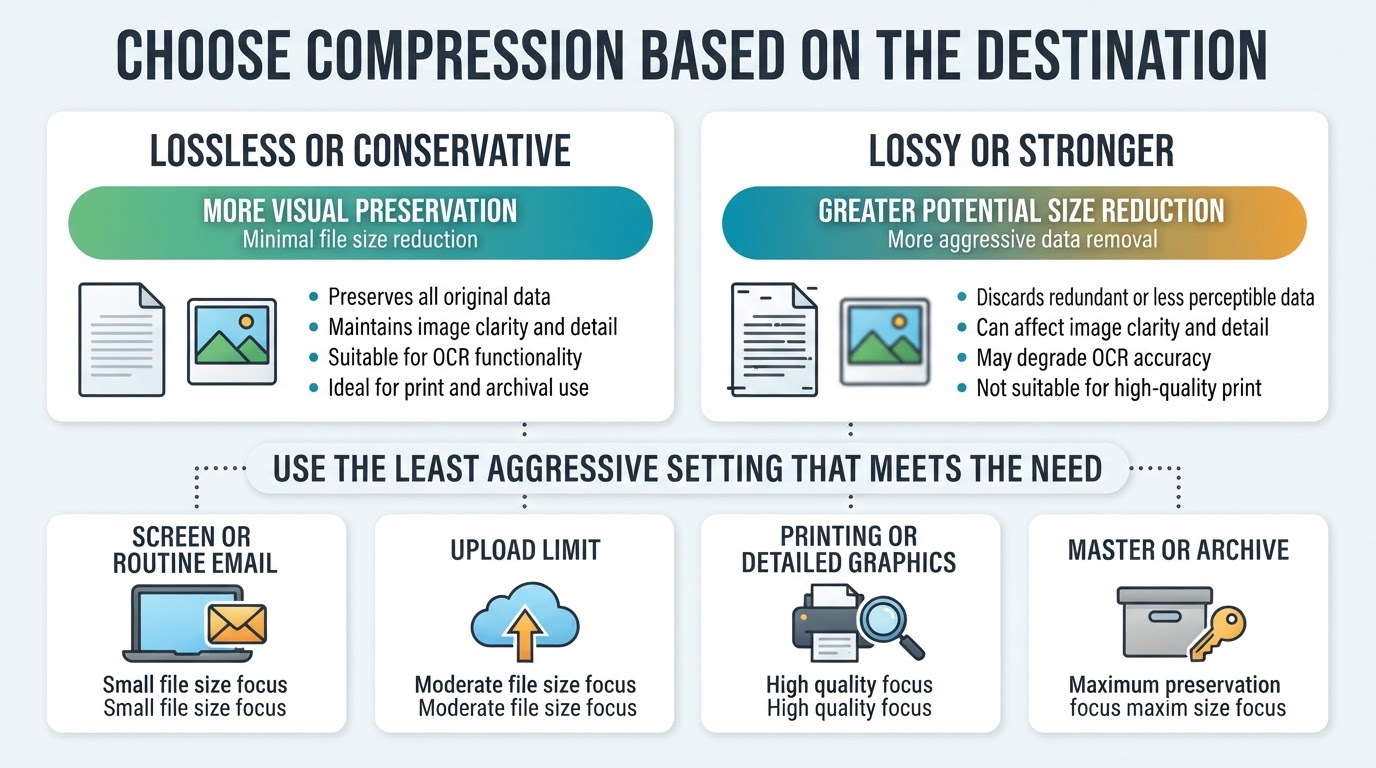
If a portal accepts a file below a specific limit, target that limit instead of compressing the document as much as possible. Excessive compression can reduce readability without providing a practical benefit.
A screen-oriented PDF may be suitable for web viewing, mobile sharing, routine email, or an upload where print quality is not required. A document intended for professional printing, detailed maps, technical drawings, archival use, or high-resolution photography needs more conservative settings.
Avoid applying one generic DPI or quality value to every PDF. Ordinary text may tolerate more reduction than a page with small scanned labels or a detailed diagram. Preserve a higher-quality master when the document may later be printed, edited, archived, or reused.
Online or local processing: which is safer?
Online compression requires transmitting the PDF to an external service. Whether that is acceptable depends on the document's sensitivity and the provider's current practices.
Before uploading sensitive material, review the provider's current privacy policy, retention period, deletion claims, access controls, processing location, account requirements, and terms. HTTPS or TLS can protect data during transmission, but it does not by itself explain how the service stores, accesses, processes, shares, or removes uploaded files. Consider logs, analytics, third-party processors, backups, and jurisdiction where the provider documents them.
For highly sensitive documents, a confirmed local workflow can reduce exposure to third-party upload and retention practices. It is not automatically secure: review the application and disable or avoid cloud-connected features when appropriate. Do not assume that every desktop application processes files entirely offline.
Verify the compressed PDF before sending it
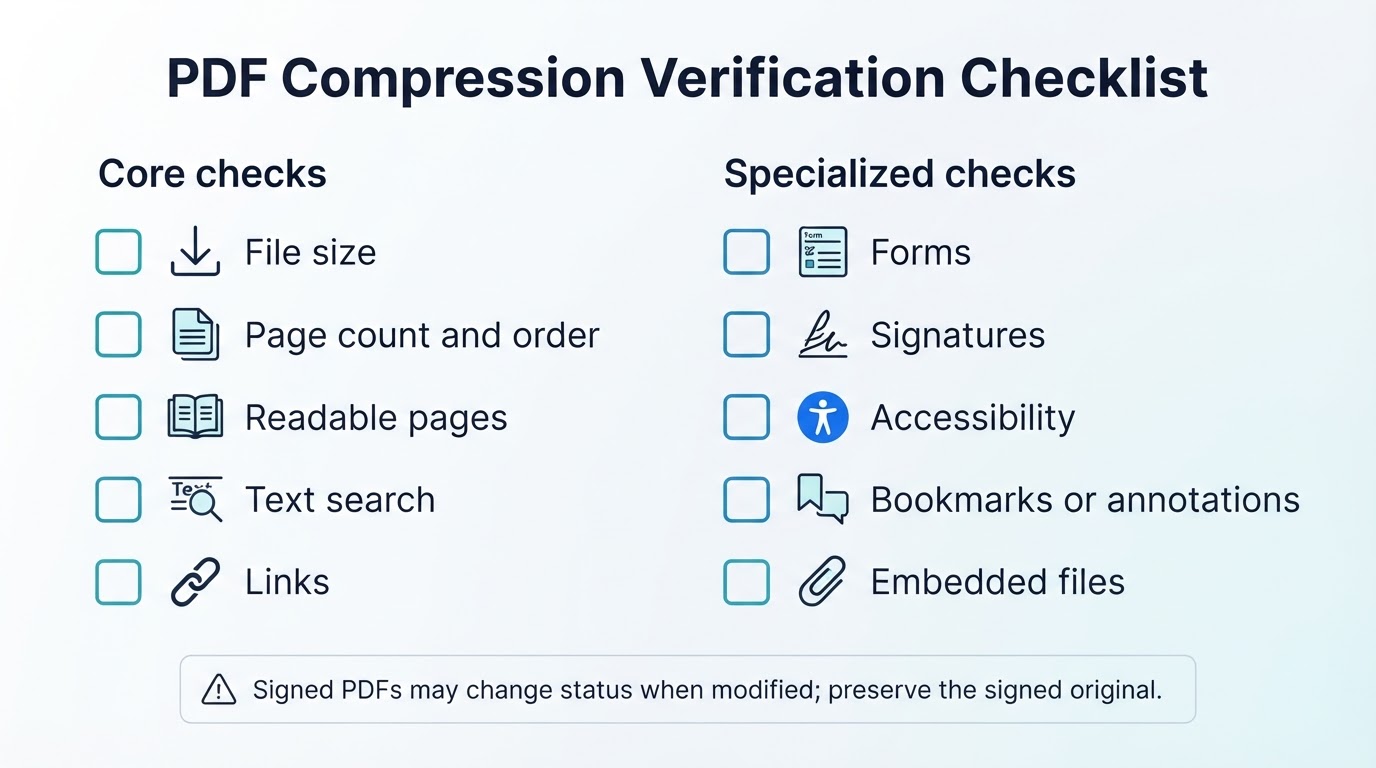
A smaller file is only one measure of success. Use a short core check for ordinary PDFs, then add specialized checks when the document contains interactive, signed, accessible, archival, or embedded content.
For an ordinary PDF, check:
- The compressed file size meets the destination's limit.
- The page count and page order are unchanged.
- Every page displays correctly at normal viewing size.
- Fine text, photographs, scans, tables, and diagrams remain readable.
- Text selection and search work when required.
- Important links open correctly.
For specialized documents, also check:
- Forms, annotations, bookmarks, layers, and embedded files that recipients need.
- Tags and accessibility-related behavior when accessibility is a requirement.
- OCR text selection and search for scanned documents.
- Signature status in a PDF viewer that validates digital signatures.
- Archival or workflow requirements using the appropriate validation process.
A signed PDF needs special care. Rewriting, optimizing, flattening, or otherwise modifying it may invalidate or alter its signature status even when the pages look unchanged. Preserve the signed original as the authoritative copy, and do not assume that a compressed derivative carries the same signature validity.
What to do if the PDF is still too large
A PDF may remain large because it is already optimized, contains high-detail images, is mostly native text, or has little redundant data to remove. Repeatedly compressing an already-compressed file may provide little additional reduction and can worsen image quality or readability.
When stronger compression would damage the document, address the delivery problem another way.
Common mistakes when reducing PDF file size
Avoid these errors when compressing a PDF:
- Assuming every PDF will shrink dramatically. Text-based or already-optimized files may change very little.
- Choosing the strongest available setting before testing a less aggressive option.
- Using a screen-oriented preset for a document that must be printed or heavily zoomed.
- Checking only the file size while ignoring search, links, forms, annotations, signatures, or page integrity.
- Treating OCR, forms, tags, annotations, or signatures as guaranteed to survive every optimization workflow.
- Uploading a sensitive document without reviewing the service's current handling practices.
- Assuming that desktop software is fully offline without checking its settings and network behavior.
- Overwriting the original instead of preserving a recoverable master copy.
A focused comparison can prevent the need to recreate or resend a damaged document.
Conclusion
The best way to compress a PDF is to identify its destination, preserve the original, choose the least aggressive available setting that meets the file-size requirement, and verify the result before sending it.
Image-heavy and scanned PDFs usually offer the greatest opportunity for reduction, while text-only or already-optimized PDFs may change very little. Use online tools only when the document's sensitivity and the provider's current policies are acceptable. Use a confirmed local workflow when uploading the file is inappropriate.
If further compression would damage readability or functionality, remove unnecessary pages, split the document, optimize the source images, or share a link instead.